


 Ultra subscription.

We’re thrilled to announce that Streamlabs Desktop now supports Kick as a multistream destination.
This integration simplifies the streaming workflow and empowers creators to tap into Kick's unique ecosystem while simultaneously live streaming to your favorite platforms like Twitch, YouTube, TikTok, and more.
Table of Contents:
- Quick Steps to Go Live to Kick
- How to Stream on Kick Using Streamlabs Desktop
- How to Stream to Kick Using Streamlabs Plugin for OBS
- How to Stream to Kick Using Streamlabs Mobile
- How to Stream to Kick Using Streamlabs Talk Studio
- How to Stream to Kick Using Streamlabs Console
- Advanced Features
- FAQ
By leveraging Streamlabs Desktop's powerful suite of tools—ranging from customizable overlays to integrated chat management—streamers can now deliver high-quality content while reaching a broader audience. Whether you’re a seasoned professional or just starting your streaming journey, the ability to multistream to Kick is an amazing opportunity to start diversifying your content and reaching more people!
This Kick integration includes:
- Multistreaming capabilities that allow you to build your audience on Kick while engaging with followers on other platforms such as Twitch, YouTube, and more.
- Compatibility with Dual Output, allowing you to optimize both your horizontal and vertical stream layouts in the same editor,
- Console integration so you can now stream your favorite Xbox games directly to Kick
- and much more to come.
Today, we’ll show you how to go live to Kick and start streaming in just a few simple steps with any Streamlabs tool of your choice. You can stream to Kick using Streamlabs Desktop, in OBS Studio with our Streamlabs Plugin, on your phone with the Mobile app, from any browser with Talk Studio, and directly from your Xbox with Streamlabs Console.
Quick Steps to Go Live to Kick
Here is the quickest way to stream to KICK.
Step 1: Choose your Streamlabs tool.
- Streamlabs Desktop (Recommended)
- Streamlabs Plugin for OBS
- Streamlabs Mobile
- Streamlabs Talk Studio
- Streamlabs Console
Step 2: Connect your account
Step 3: Set up your scenes
Step 4: Go live!
In the rest of the article you’ll find specific instructions on the setup process depending on which Streamlabs tool you choose.
How to Stream on Kick Using Streamlabs Desktop
Step 1: Download and Install Streamlabs Desktop
The first step to live stream to Kick is downloading and installing the Streamlabs Desktop broadcasting software (if you haven’t done so already). Once you’ve downloaded the software, install it on your computer, launch it, and follow the onboarding steps in this guide to get started.
FYI, Streamlabs Desktop is built on the core OBS engine under their public license (GPL) and is a free, open-source software that can help you set up your live stream, and add custom overlays, alerts, and more.
Step 2: Set up Your Kick Account

After installing the software, you need to set up your Kick account. If you don’t have one yet, create and log in to your account.
Step 3: Create a Streamlabs ID (optional)

With Streamlabs ID, you can access all the creator apps Streamlabs offers, including Cross Clip, Talk Studio, Video Editor, and more with one login.
Creating a Streamlabs ID is a simple process that you can start by visiting our website and clicking “Login.” For detailed instructions, whether you are a new streamer or an existing Streamlabs creator, visit our blog here.
Step 4: Launch Streamlabs Desktop and Connect Your Kick Account
Head to your Settings, then select Stream. Here, you can click Connect next to Kick to add it as a destination in Streamlabs Desktop.

You will be redirected to your browser to log in and grant Streamlabs the necessary permissions. Follow the steps to connect and head back to Streamlabs Desktop.
Step 5: Set Up Your Live Stream
Don’t forget to customize your live stream by adding custom overlays and more. We’ve integrated these features directly into Streamlabs Desktop, meaning you can access all of these options when live streaming to Kick with our software.
To learn more about customizing your live stream when using Streamlabs Desktop, check out our guides for navigating the Streamlabs Overlay Library.
Step 6: Go Live
After configuring your stream setup you’re now ready to go live. Click on the Go Live button on the Streamlabs dashboard, give your stream a title, make sure Kick is toggled on and click Confirm & Go Live. Your live stream will start broadcasting on your Kick account.
Note: Please set the title in Streamlabs Desktop in order to go live. You will need to update your title manually on Kick after you go live as well. We are working with them to enable this functionality right in Desktop—stay tuned.


How to Stream to Kick Using Streamlabs Plugin for OBS
Step 1: Download and Install the Streamlabs for OBS Plugin
This plugin is your answer for using Streamlabs features such as widgets, alerts, and overlay in OBS. Install the Streamlabs for OBS Plugin and follow the steps in our guide to set up the plugin.
Step 2: Connect your preferred platforms
The first time you launch OBS after downloading the Streamlabs plugin, we will direct you to a sign-in screen: Login & Get Started. If not, select Streamlabs from the top navigation bar of OBS to begin.


Note: You can also add Kick as a Destination in the Multistream settings by clicking Streamlabs (from the top navigation menu in OBS) Studio > Multistream. 
Select Log In & Get Started, which will direct you to your browser to log into or create a Streamlabs ID account or connect to your preferred streaming platform. Choose Kick and whichever other options you like and follow the instructions until we redirect you to the OBS Studio software.
Step 3: Customize your live stream with overlays, widgets and more.
Before going live, be sure to set your live stream up for success by adding an overlay to dress up your stream, a few widgets to engage your audience and more.
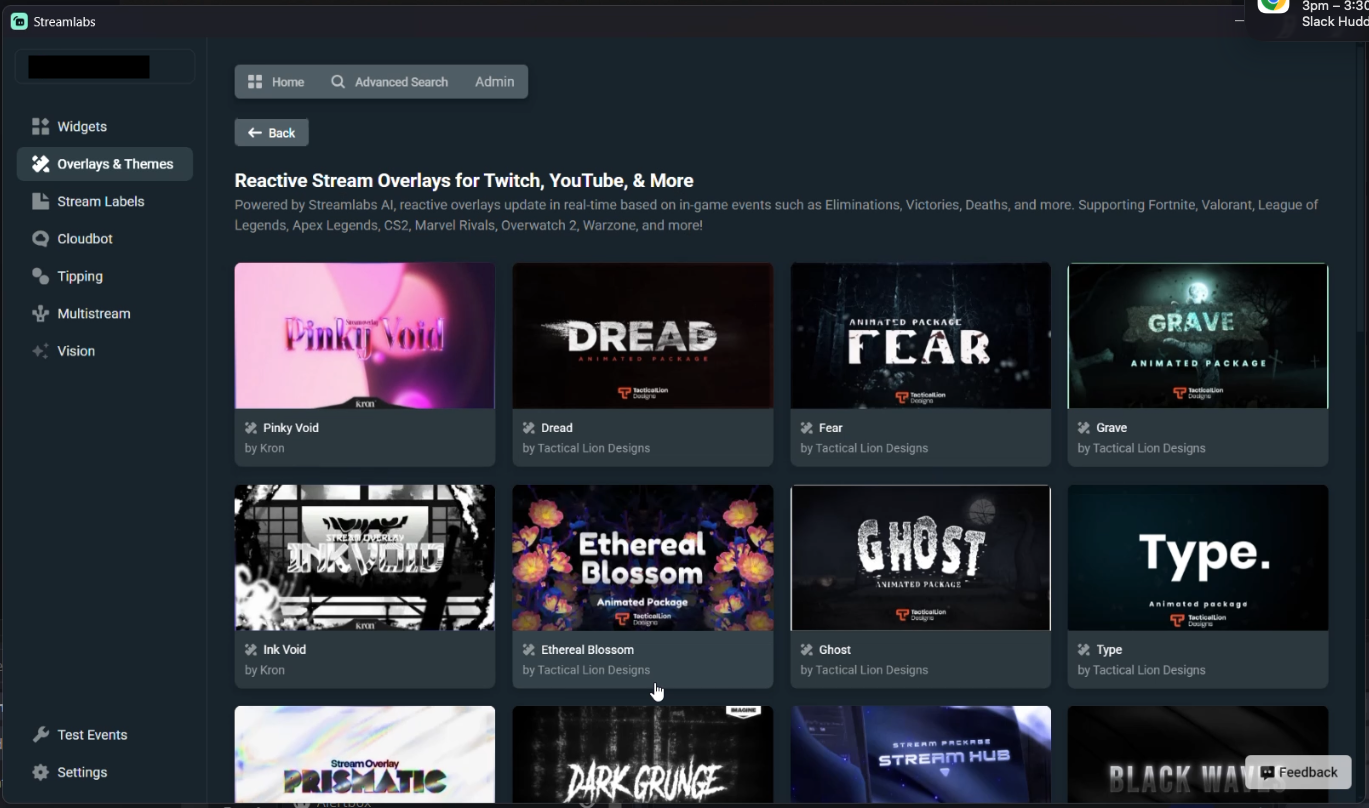
⚠️ Note: We now have Reactive Overlays and the Game Pulse widget in Plugin! View and install your favorite overlay, and get dynamic graphics and sound effects triggered by your gameplay with just one-click.
Step 3: Go Live!


Hit the Start Streaming button in OBS Studio to get your live stream going. Be sure to select all desired streaming destinations and give your stream a title.
How to Stream to Kick Using Streamlabs Mobile
Step 1: Connect your KICK account
- Download the Streamlabs Mobile App on your iOS or Android device.
- Open the app and tap the KICK button to log in.
- Authorize the app to connect your channel.
- Give the app permission to use your mobile camera and microphone.
Step 2: Set up your layout
- Tap the Menu button (three horizontal lines) in the top-left corner.
- Select Scenes.
- Tap Create New Scene and give it a name. You can build a Custom Scene or pick a Preset Template that automatically lays out your chat and alerts.
- Tap Layers to see and rearrange your active items.
- Tap Add Layer to customize your layout with these elements:
- Camera: Adds your phone's built-in camera feed.
- Widget: Adds alerts, chat tracking, and stream event goals.
- Theme: Adds graphic overlays (requires a Streamlabs Ultra subscription).
- Guest: Adds a friend's video feed to your live mobile broadcast.
- Streamlabs Graphic / Stream Label: Adds text overlays like top donor names.
- Custom Item: Lets you paste web URLs, text, or local images.
- Reorder layers by dragging them up or down in the list. Items at the top will sit on top of items below them.
- Tap Preview in the bottom-left corner to test how your alerts look, then tap Save.
Step 3: Go live!
- Tap the main Go Live button and choose whether to stream your physical Camera or share your phone Screen.
- Choose KICK as your platform.
- Pick your event type:
- Active Event: Continues a stream that is already live.
- Upcoming Event: Starts a stream you previously scheduled.
- Create Event: Sets up a brand new live broadcast on the spot.
- Enter your video details: Title, Description, Access privacy settings, and a Thumbnail picture.
- Pick your quality settings: video resolution, frames per second (FPS), and maximum bitrate.
- Tap Go Live to begin your broadcast.
How to Stream to Kick Using Streamlabs Talk Studio
Step 1: Connect your KICK account
- Open your internet browser and navigate to Streamlabs Talk Studio.
- Click Log in with KICK and authorize the connection.
- Complete the quick age verification check if prompted.
- Click Allow when your browser requests access to your microphone and camera.
Step 2: Set up your canvas
- Click Show on Stream in the left menu toolbar to place your webcam video onto the screen canvas.
- Use the right toolbar to style your video layout.
- To add alerts, click Apps > Widgets in the right sidebar. You can turn on the Alert Box, Tip Goal, Chat Box, or Cloudbot.
- Click, drag, and resize your widgets directly on the video editor preview window.
Step 3: Go live!
- Click Go Live on the bottom-right side of the web editor.
- Choose your connected KICK account.
- Toggle the video recording switch on or off.
- Type in your stream Title, Description, and Category.
- Click Go Live to begin your broadcast.
How to Stream to Kick Using Streamlabs Console
Note: To use Streamlabs Console, you must stream to Twitch. You can then add KICK as a second multistream destination.
Step 1: Connect your KICK account
- Open a web browser and log into Streamlabs Console.
- Go to Stream Destinations.
- Link both your Twitch and KICK accounts.
- Turn on the stream output for both platforms.
- Choose your layout.
- Use the Editor to set up your webcam, chat, and alerts.
Step 3: Go live
- Start the game you want to play.
- Press the Xbox button on your controller to open the menu.
- Go to the Capture & share menu.
- Select Live streaming.
- Log into your Twitch account.
- Select More options.
- Set the Destination to Streamlabs.
- Select Stream name to type in a title for your video.
- Select Go live now.
Your Xbox will now send your stream to Streamlabs Console, which will send it to both Twitch and KICK. You can read your chat for both platforms on the Streamlabs Console dashboard.
Advanced Features
Here are more advanced features, information and in-depth guides to building out your KICK stream across Desktop, Plugin for OBS, Mobile, Talk Studio, or Console.
KICK-Specific Articles
- How to Make Money on KICK
- How to Brand Your KICK Channel
- How to Grow on KICK
- Stream Hatchet Q1 2026 Live Streaming Report (including KICK stats and trends)
- KICK vs. Twitch - Which Streaming Platform Is Right for You?
New Features To Explore
Key Features for Your Stream
- Ultimate Guide to Multistreaming
- Multistream on Mobile
- Tips for Troubleshooting Multistreaming on Desktop
- Multistreaming on Console
More In-Depth Set Up Guides
FAQ
What can I use to stream on KICK?
You can stream to KICK using Streamlabs Desktop, Streamlabs Mobile, the Streamlabs Plugin for OBS, Talk Studio, or Streamlabs Console - all of which support KICK as a streaming destination.
Do I need to find my stream key to stream to Kick?
No, because Kick is natively integrated into our tools, all you need to do is click the Kick icon, login and connect your account.
Can I stream to KICK and Twitch at the same time?
Yes - Streamlabs Multistream lets you broadcast to KICK and other platforms like Twitch or YouTube simultaneously from a single stream, without additional CPU or bandwidth load on your computer.
Does Streamlabs work for Just Chatting streams on KICK?
Yes - Streamlabs supports Just Chatting streams on KICK with tools including customizable overlays and themes, an alert box for follows and tips, Cloudbot for chat moderation, and a chat box widget for on-screen chat display.
How do I manage chat when streaming to KICK alongside other platforms?
Streamlabs includes built-in chat integration that aggregates messages from KICK and other platforms into a single unified feed, so you can monitor and respond to your audience without switching between tabs.
Can I earn money from my KICK stream using Streamlabs?
Streamlabs provides monetization tools including a tipping feature and a merch store that work alongside your KICK stream, giving you additional ways to earn revenue directly from your audience.
Can I repurpose my KICK stream content after going live?
Yes - Replay (formerly Highlighter) automatically identifies key moments from your KICK VODs so you can clip and share highlights to social media without manually reviewing your full broadcast.
Live streaming to Kick using Streamlabs is easy and straightforward. By following the steps outlined in this article, you can start broadcasting your content to your audience and grow your online presence across multiple platforms.
Remember to have fun, engage with your audience, and keep streaming!