


 Ultra aboneliği.

Streamlabs Desktop and Streamlabs Console are both great software options for live streaming; however, the right one for you depends on what you're trying to achieve.
Streamlabs Desktop is an all-encompassing live streaming software for Windows and Mac users-it allows full customization thanks to features like overlays, widgets, and apps (available through the Streamlabs app store).
On the other hand, Streamlabs Console is specifically designed for Xbox streamers, offering a straightforward way to go live without requiring a capture card or any additional equipment beyond an Xbox, controller, and a browser-enabled device, such as a smartphone, to set up your stream.
Jump Ahead:
- What Is Streamlabs Desktop?
- What Is Streamlabs Console?
- Streamlabs Desktop vs. Streamlabs Console: Comparison Chart
- Choosing the Right Option for You
P.S. Currently, creators may only stream from PlayStation using the built-in Broadcast function or with a streaming software and capture card.
What Is Streamlabs Desktop?
Streamlabs Desktop is a desktop application that comes built-in with everything you need to stream to your favorite platforms. Optimized for the best video and audio quality, Streamlabs Desktop has all the tools you need to create a live stream that feels unique to you. Capture and stream your webcam, games, desktop, music, and microphone in one place.
Streamlabs Desktop is free to download and use, with plenty of powerful tools that help you create professional-quality streams without spending a dime. Here's what's included:
- Overlays and Themes—Access tons of free overlays and widget themes.
- Alerts and Widgets—Set up alerts for new followers, subscribers, donations, and more.
- Stream Recording—Record your stream locally for editing or repurposing later.
- Chat Integration/ Multichat—View and moderate chat from Twitch, YouTube, or Kick directly in the app.
- Scene and Source Management—Create multiple scenes, add cameras, gameplay, and media easily.
- Audio Filters—Use built-in filters like noise suppression, gain, and compression.
- Dual Output-go live to your favorite vertical and horizontal platforms simultaneously, in just one click. All creators can stream to one of each orientation for free-Ultra gets you access to more platforms.
- Sponsorships-—Creators of any size can apply to paid campaigns when applicable. Ultra subs get first dibs for applying.
- Sidekick—It's like having a whole production crew built right into Streamlabs Desktop. Sidekick can act as your virtual co-host, live producer, and tech assistant, helping you manage everything from scene switches and clipping highlights to real-time troubleshooting. Available to all Streamlabs creators up to 100 total interactions-Ultra subs get more interactions and automations.
- Much more available and more to come.
While many features of Streamlabs Desktop are free to start, there are some that require premium access via a Streamlabs Ultra subscription:
- Multistreaming—stream to as many platforms as you wish to expand your reach and audience.
- Stream Shift—Need to move between devices while streaming? Stream Shift makes it possible without ever ending your stream. Start on your PC, move to your laptop, or hop to mobile and take your viewers with you without missing a beat.
- Premium Overlays—The overlay library has thousands of themes created by respected designers in the industry waiting to be used for your live streaming needs. The creme de la creme themes, such as Reactive Overlays (ones that react to your gameplay in real-time) are exclusive to Ultra subs.
- Suite of Creator Tools—Get access to the pro versions of all the tools under the Streamlabs umbrella, including Streamlabs Console.
What Is Streamlabs Console?
If you're looking for a streamlined option to go live from your Xbox to Twitch or any other platform, Streamlabs Console was made for you. With Streamlabs Console, you don't need to download any software-all you need is access to a web browser to set up your console stream with overlays, alerts, and more.
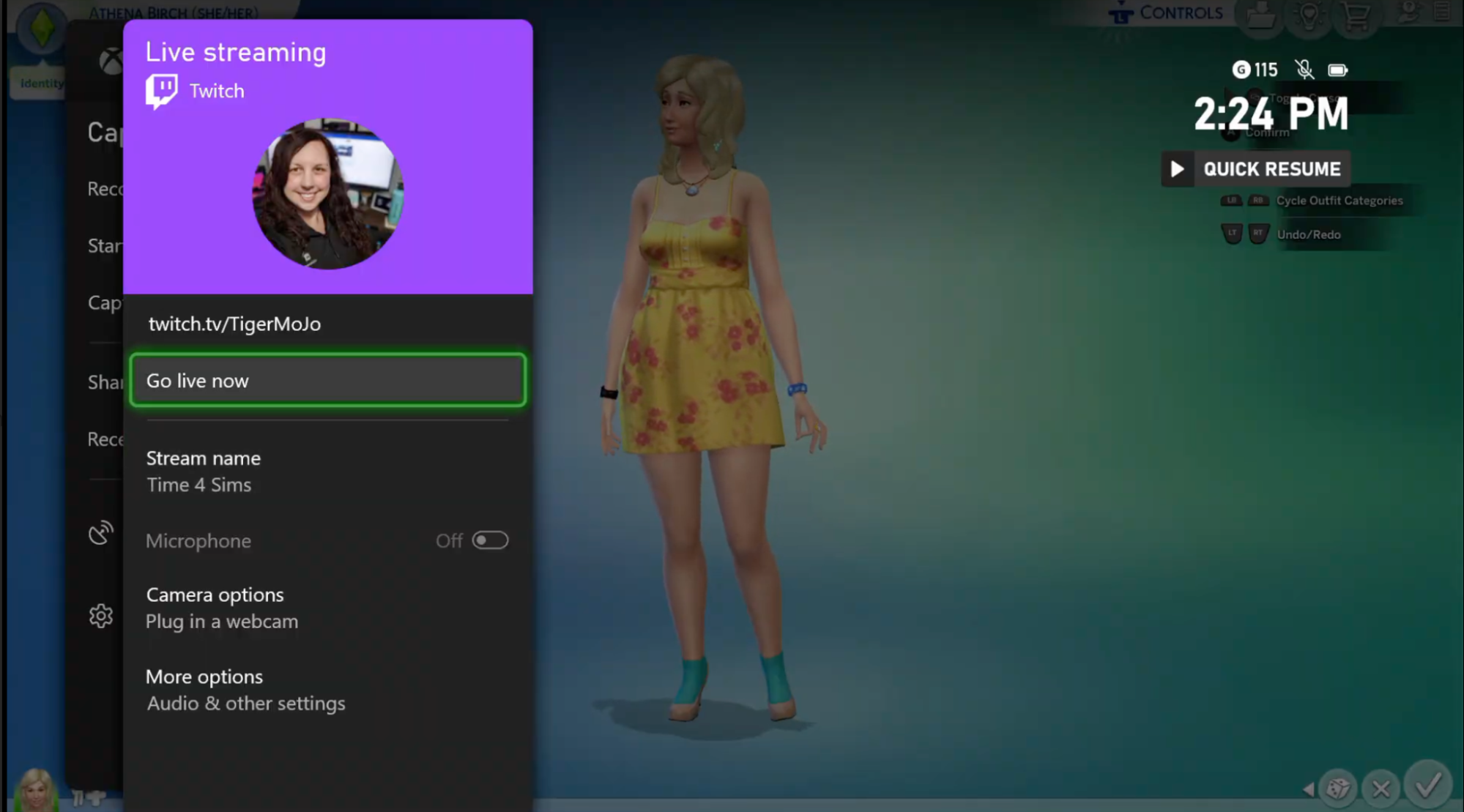
Simplicity is key when it comes to Streamlabs Console. So if your goal is to power up your Xbox, launch your game, and get streaming within minutes, this software is your match made in streaming heaven.
Streamlabs Desktop vs Streamlabs Console (Comparison Chart)
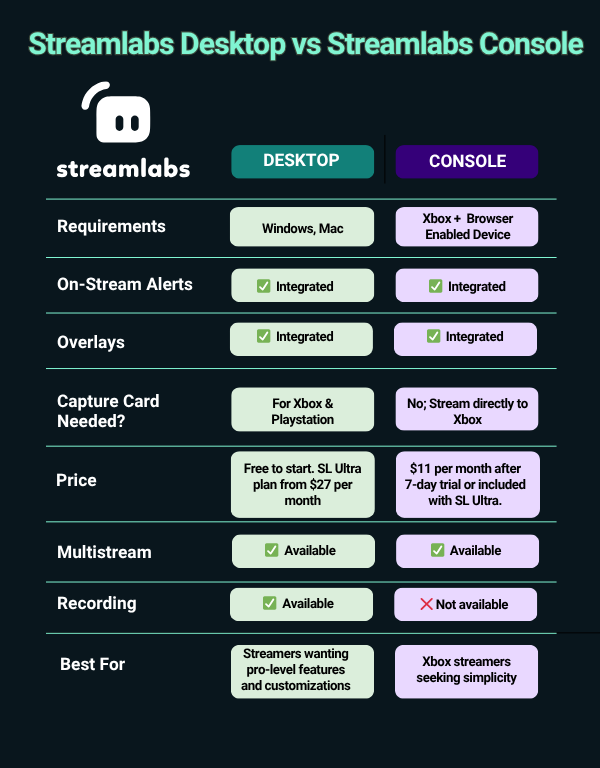
The chart above gives you a side-by-side comparison of Streamlabs Desktop vs. Streamlabs Console.
Choosing the Right Option
If both Streamlabs Desktop and Console seem like promising options for your live streaming needs, here's a quick guide to point you to the one that can serve you the best.
Choose Streamlabs Desktop if:
- You want pro-level customization options.
- Consider yourself tech-savvy and could manage intermediate to expert tasks like setting up a capture card for game streaming.
Choose Streamlabs Console if:
- Your stream doesn't require much more than a gaming window, camera, and light customization options.
- You're not looking to add additional equipment such as a PC or capture card to your live stream.
- You're specifically streaming from Xbox to Twitch, YouTube, Kick, or TikTok.
As you can see, Streamlabs Desktop and Streamlabs Console are two very distinct software solutions. Choosing one over the other boils down to what you require for your live stream and what makes the most sense for you. And of course, if your needs change between streams, you can always opt to use whichever software suits your most immediate needs without hurting the quality of your content in the process.
Happy streaming!