

POWERED BY G HUB
G HUB Replay
Replay (formerly Highlighter) is a free gameplay recording tool that automatically edits your gaming highlights into shareable clips.
Streamlabs Highlighter is now GHUB Replay!
Learn more about what's new and how to keep clipping your favorite highlights.
Auto game recording
Enable auto record to capture your highlights as soon as you launch a compatible game.
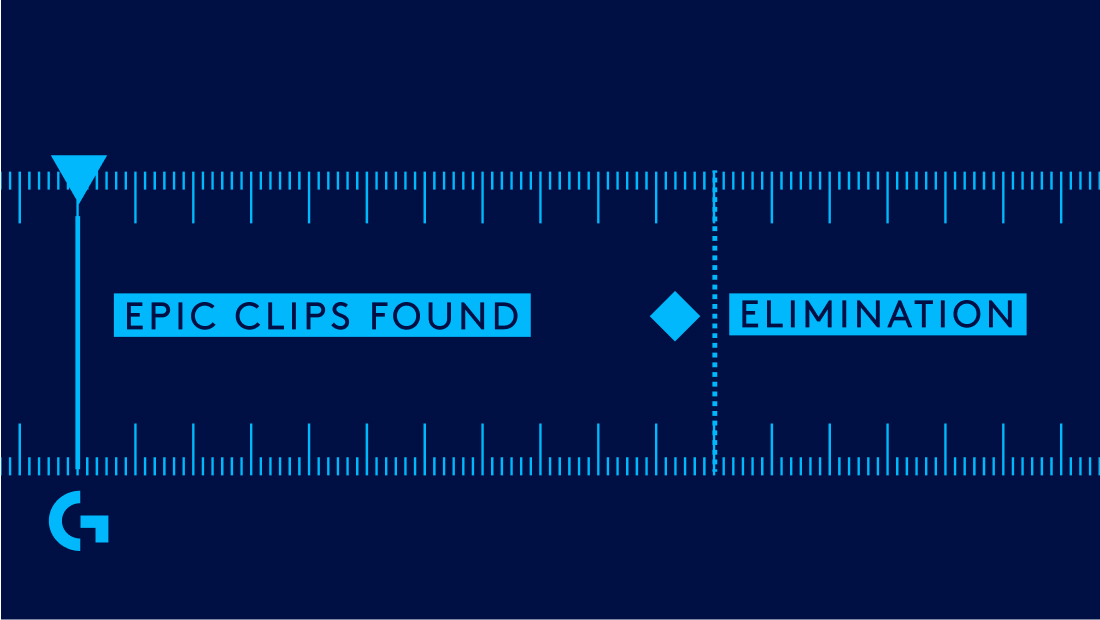
Automated clip detection
Don't miss out on any of your best moments with a machine learning algorithm that automatically locates highlights based on your in-game events.
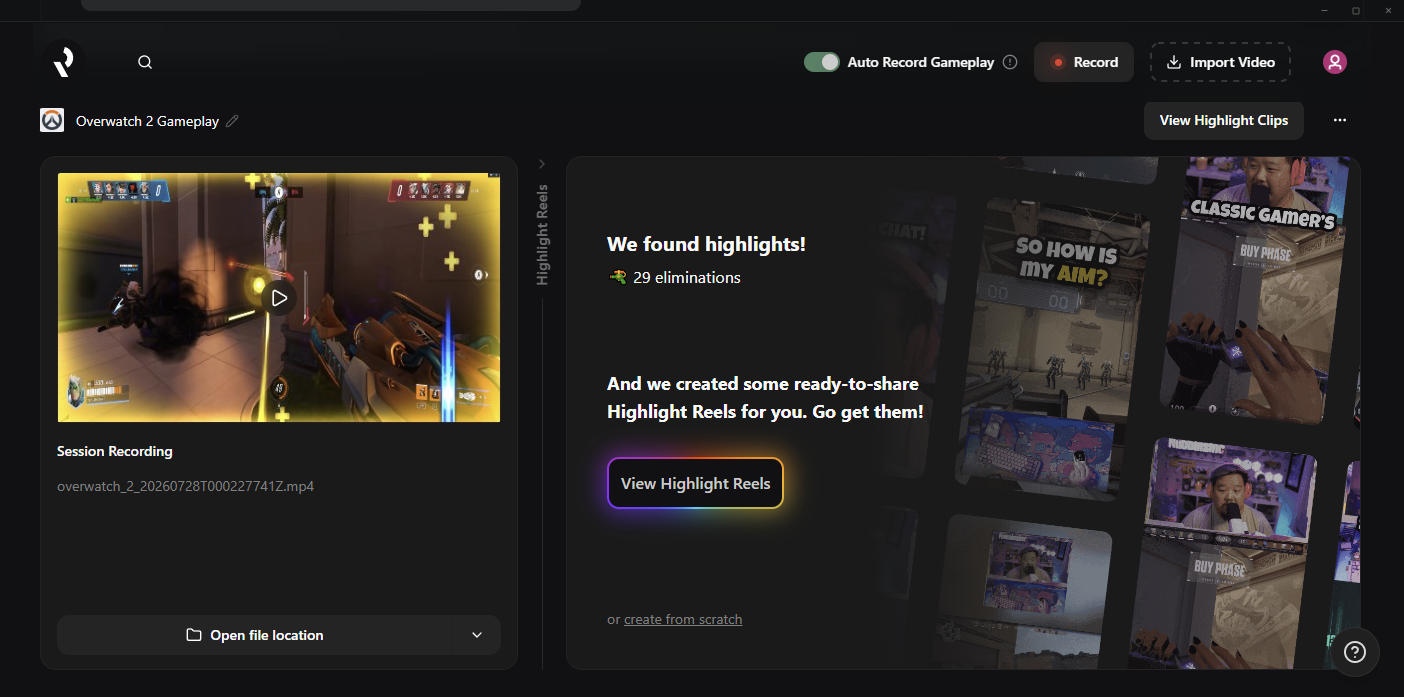
Create highlight reels in one click
Turn stream highlights into shareable clips with the click of a button.
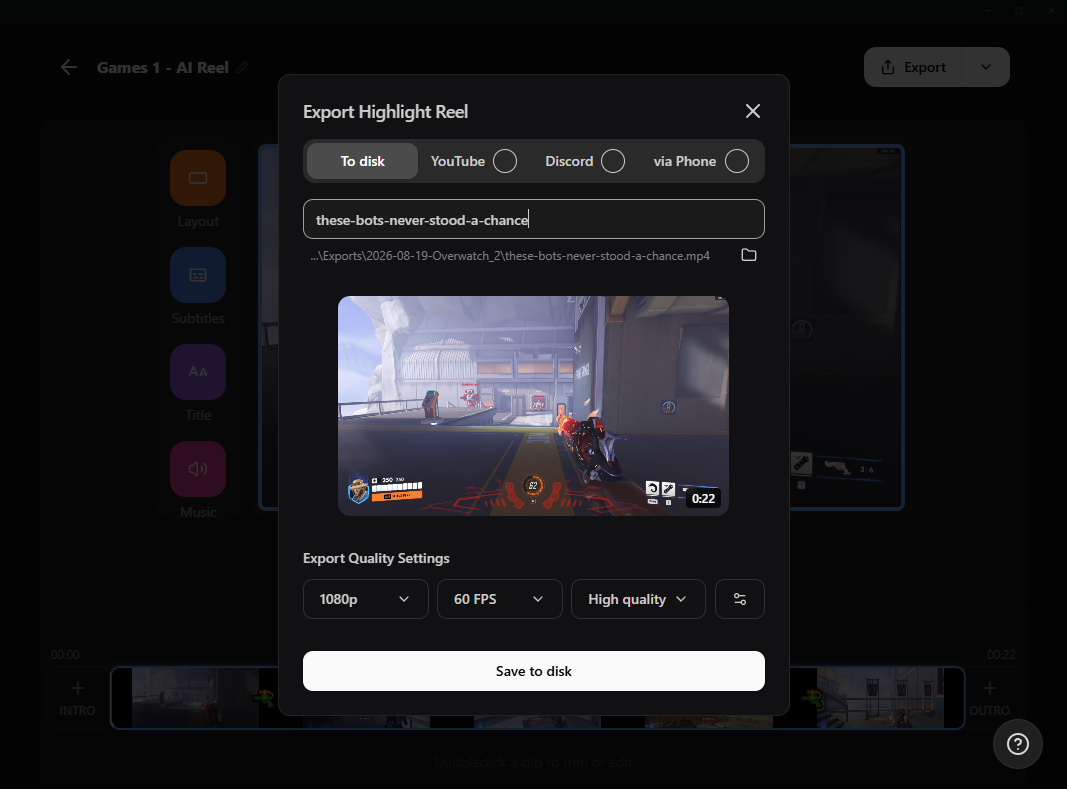
Export to your favorite platforms
Whether you want to only send to your best friends in Discord, or share across YouTube or other social media, you can directly export all of your clips to your computer, or use the QR code to send to your phone.
Frequently asked questions
Replay is a free video editing tool that lets streamers capture, edit, and share highlight clips from their streams or gameplay, and includes automated clipping powered by Logitech G HUB technology. Learn more about how to use Replay in our guide blog.
Yes, Replay is free to use! Learn more about how to download it and make your first highlight reel with our guide blog.
To get started with Replay (formerly Streamlabs Highlighter) check out our guide here.
Replay lets you trim clips, reorder them, add transitions and music, and include intros and outros.
Currently, Replay supports free machine learning-powered highlighting for:
- 7 Days to Die
- Apex Legends
- ARC Raiders
- Arena Breakout: Infinite
- Battlefield 6
- Bloodborne
- Call of Duty: Black Ops 6
- Call of Duty: Black Ops 7
- Call of Duty: Modern Warfare 4
- Call of Duty: Warzone
- Counter-Strike 2
- Dark Souls Remastered
- Dark Souls 2
- Dark Souls 3
- DayZ
- Dead by Daylight
- Deadlock
- Delta Force
- Dota 2
- EA Sports FC 26
- Elden Ring
- Enshrouded
- Escape From Tarkov
- F1® 25
- Fortnite
- Forza Horizon 6
- Halo Infinite
- Helldivers 2
- Heroes of the Storm
- Hunt: Showdown 1896
- League of Legends
- Left 4 Dead 2
- Madden NFL 27
- Marathon
- Marvel Rivals
- Minecraft
- Mortal Shell 2
- NBA 2K26 + 2K27
- Overwatch 2
- Palworld
- Path of Exile 2
- PUBG: BATTLEGROUNDS
- Rocket League
- Rust
- Sekiro: Shadows Die Twice
- Teamfight Tactics
- Tom Clancy's Rainbow Six Siege X
- Valheim
- Valorant
- War Thunder
- Wardogs
- World of Warcraft: Solo Shuffle
We are continuing to expand our supported games, so check back for updates!
Replay's automated game clipping feature creates highlights based on a range of events from your gameplay such kills or eliminations, deaths, victories, defeats, and more.
Absolutely! For manual clipping with Replay, as long as you toggle on the Auto-record button you can review all of your clips after your gameplay or stream session and edit them as you'd like - add subtitles, change the layout, add music, etc. Check out the full guide on getting started with Replay.
No editing skills are required—Replay makes it easy to turn your streams into ready-to-share videos in just a few clicks.
Please contact support at this link.