

WIDGETS
Stream Labels
Encourage viewers to engage by highlighting follows, subs, and more on-stream.
Available directly in Streamlabs Desktop or as an application for use with OBS.
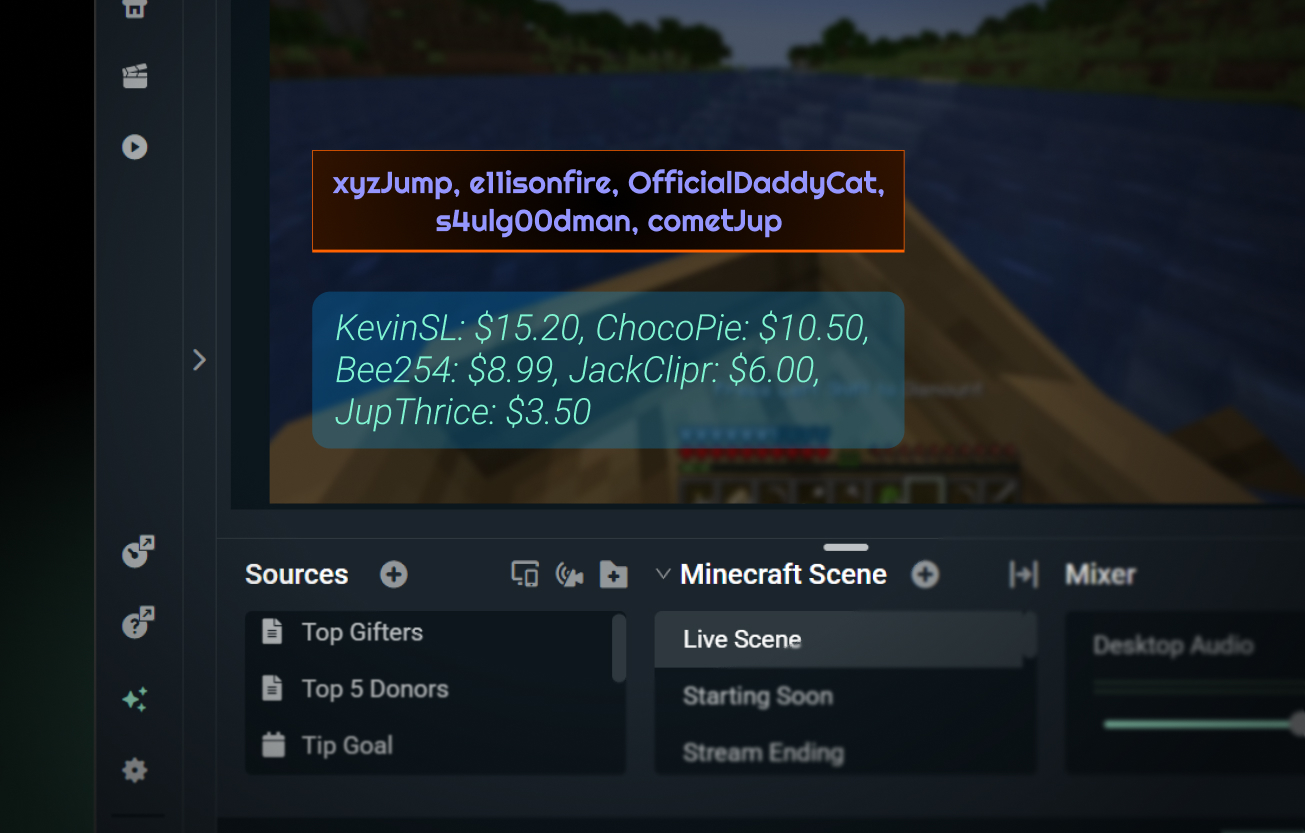
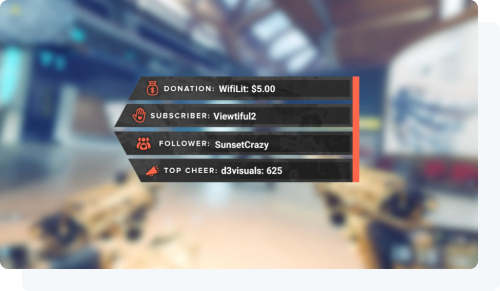
Show appreciation for your fans
Let your community know how much you appreciate them by highlighting your supporters with an always-on shoutout.
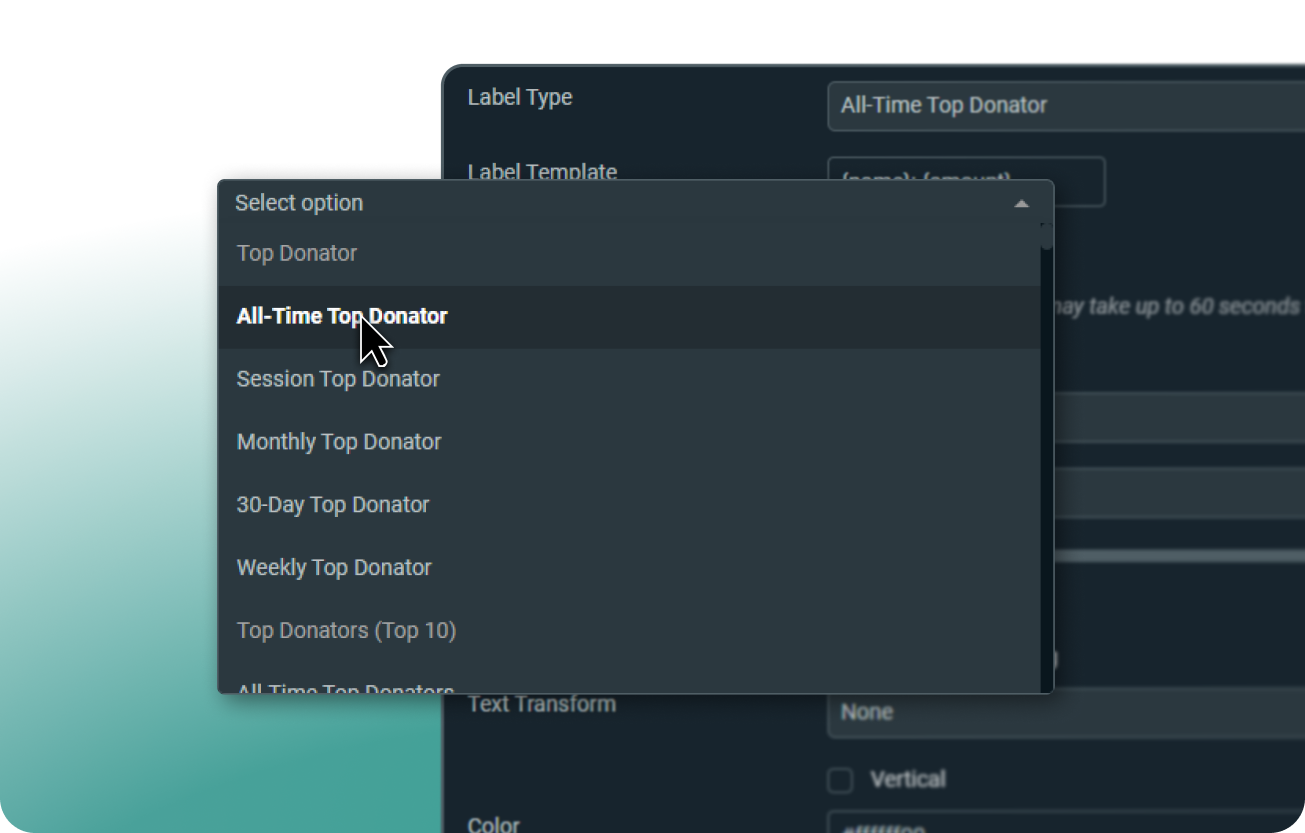
Highlight what's important to you
Display followers, tippers, subscribers, sub gifters, cheerers, charity donators, and more.
Use static text to call out your latest follower, top donator, and more. Prefer to spread the love? Display multiple supporters by adding a filter for scrolling text.
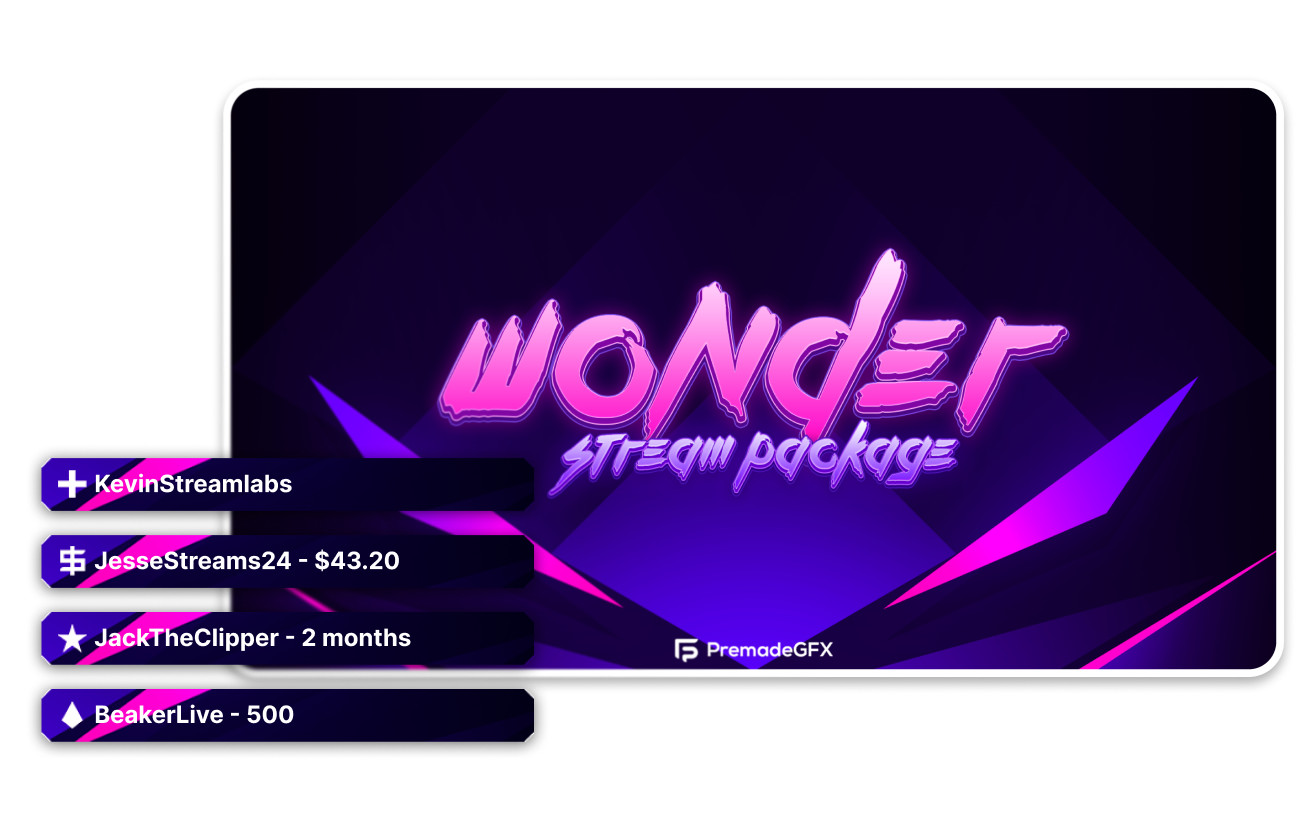
Customize your labels
Choose the text format for your labels, how many items are displayed, and set your own font, color, and sizing.
Looking for something flashier? Most overlays include backdrops for your Stream Labels. Get an overlay from a professional designer from the Streamlabs overlay library.
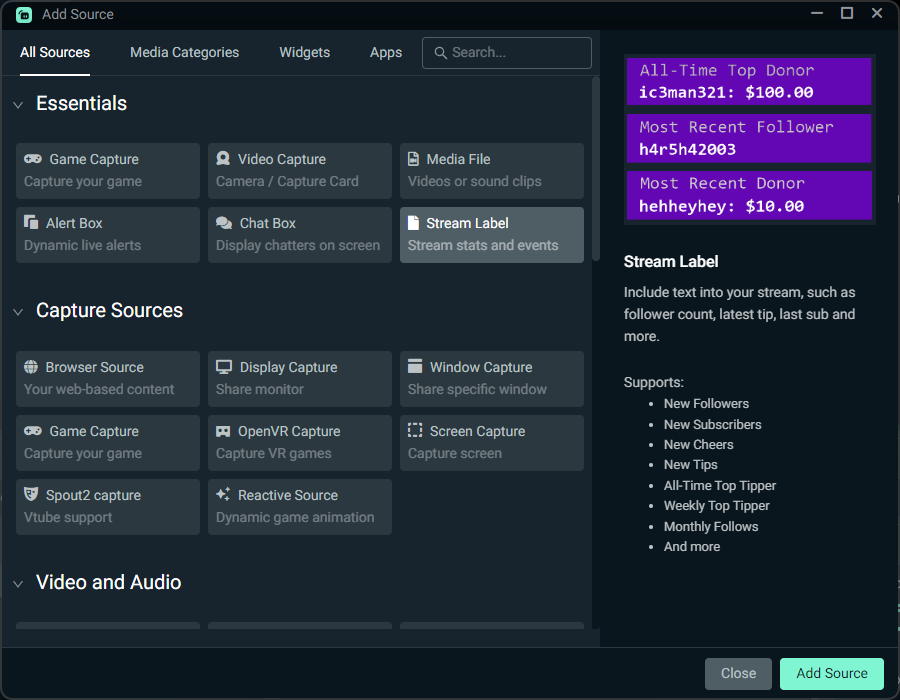
How to use Stream Labels
Add the Stream Labels source to your Streamlabs Desktop stream with a click or use the Stream Labels app to create text sources for use in tools like OBS.
Check out our guide for step-by-step instructions.
Frequently asked questions
Stream Labels are text overlays for your stream that display supporters including recent followers, subscribers, top tippers, and more.
You can add a Stream Label to your Streamlabs Desktop stream simply and easily by adding a Stream Label source and selecting the type of label you want the source to display. Learn more in our in-depth Stream Labels guide.
Yes! You can display multiple supporters by turning on a scrolling text filter for your label. You can learn how to set up a scroll filter in our Stream Labels guide.
Yes. You can customize the appearance of your Stream Labels' font, color, sizing, and number of items displayed for more personalization.
Yes. Stream Labels pair well with overlays. Most overlays in the Streamlabs overlay library come with design elements specifically for use as backdrops for your Stream Labels.
Please contact support at this link.