



 Ultra aboneliği.

With Streamlabs Desktop Highlighter, you can clip your best moments as you stream and edit the video after your stream, giving you a highlight reel ready for socials with ease. Keep reading to find out how to get started with Highlighter.
Want an even more automated solution? Check out our guide for AI Game Highlighter and get your clips generated while you play, no effort needed.
How to Use Streamlabs Highlighter
- Navigate to the highlighter tab from the left panel
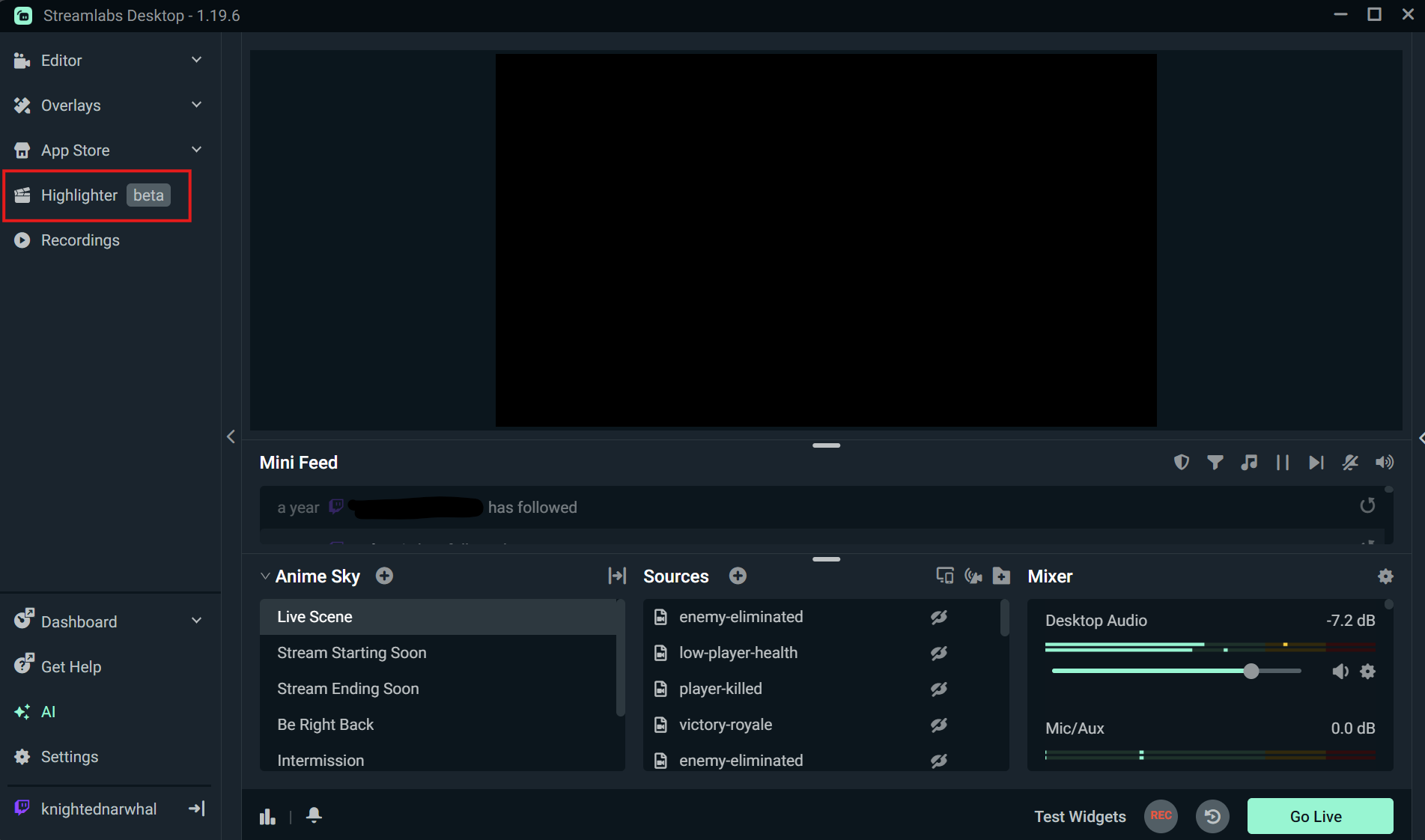
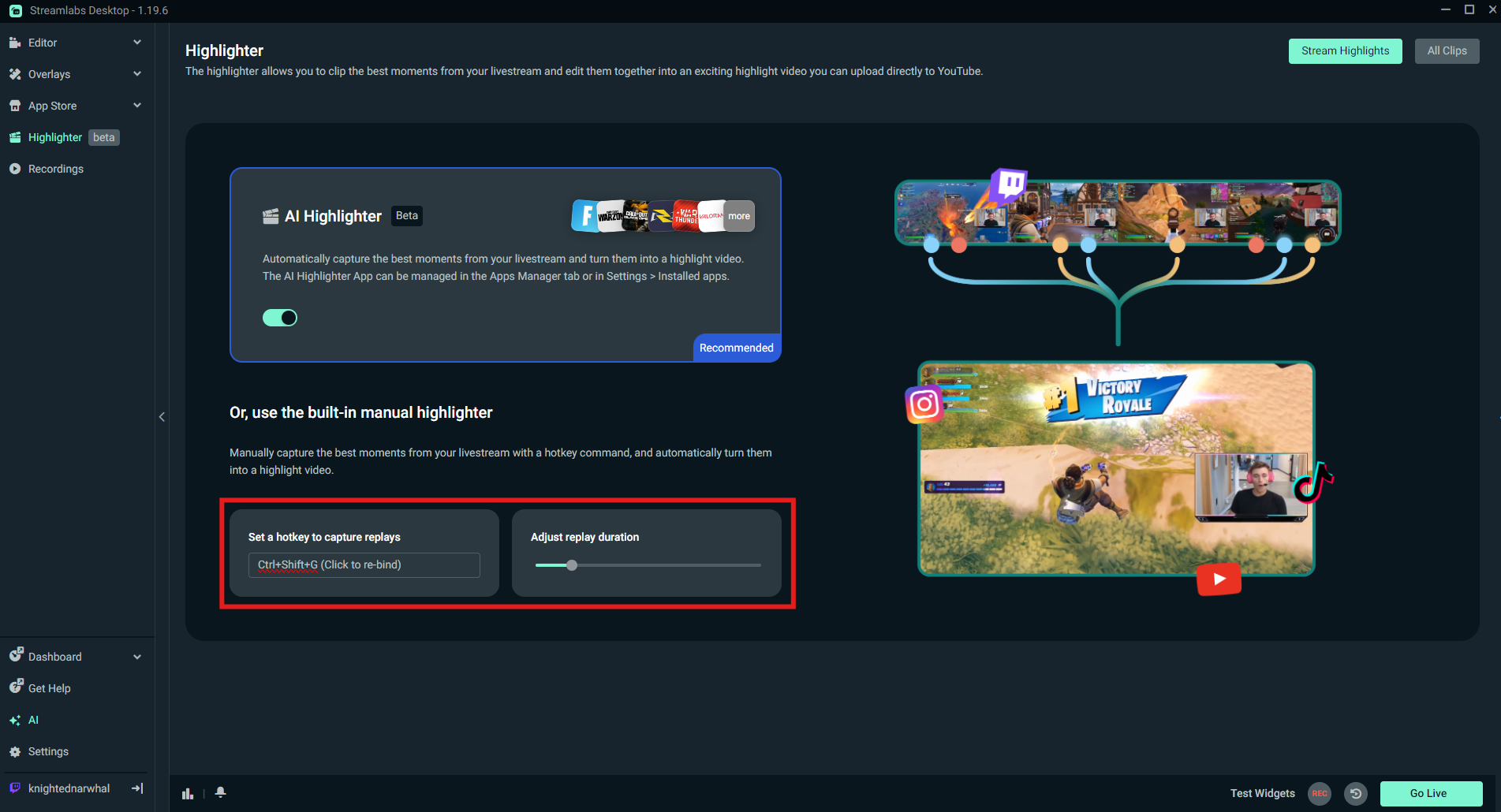
- Adjust your hotkey and replay duration, a.k.a. clip duration.
- Go live and use your hotkey to capture clips.
- Once you end your stream, click back to Highlighter in the navigation to be taken to your clips.
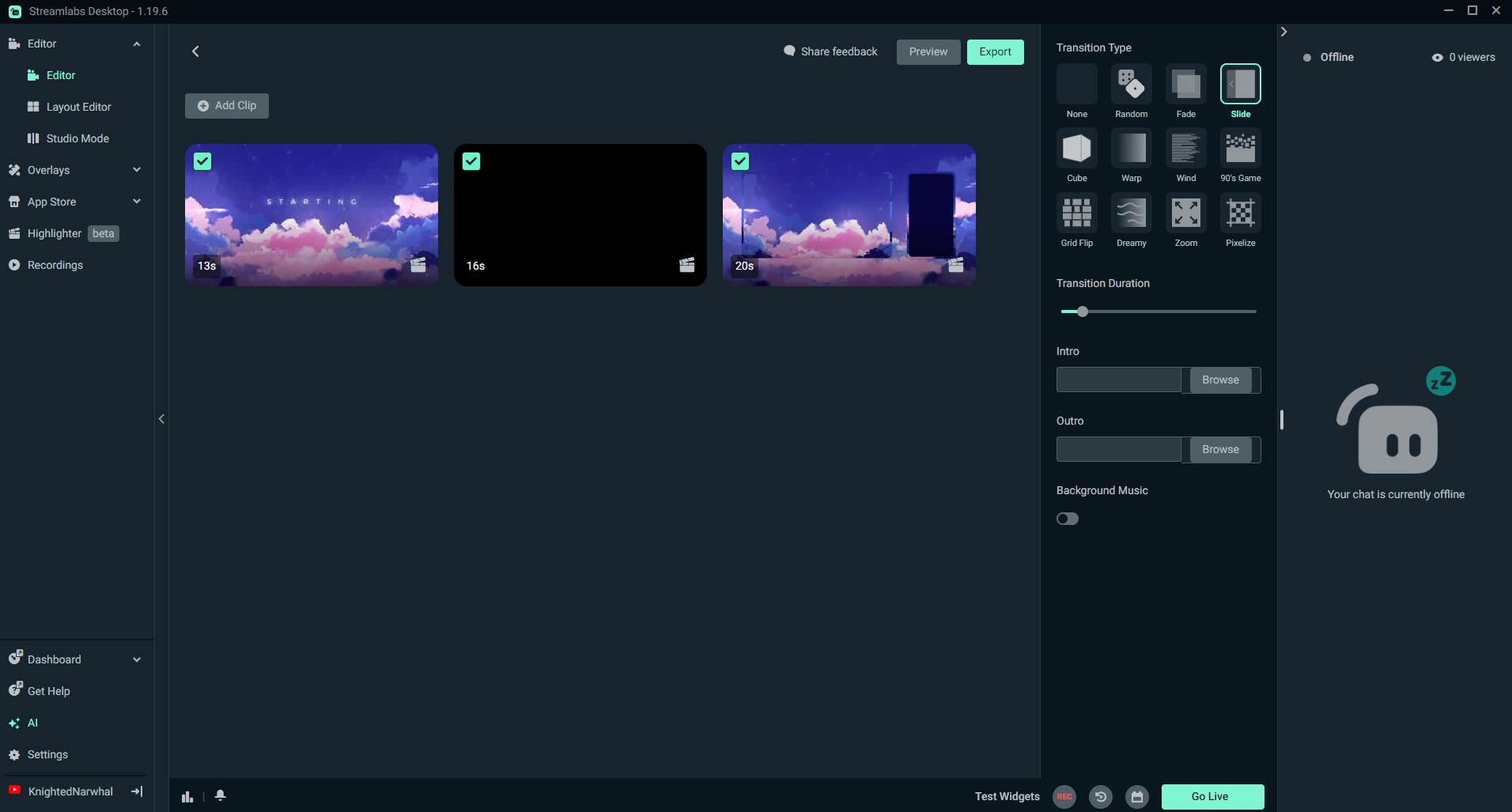
From here you can:- Adjust the transition type and length between clips
- Upload an intro and outro
- Add background music
- Change the order of your clips
- Enable and disable clips by checking or unchecking the checkmarks in the top left of the clips
- Delete clips by hovering over a clip and clicking the trash can to delete
- Trim clips by hovering over a clip and clicking Trim, then dragging the edges of the clip to shorten it to the desired length
- Preview your video by clicking Preview above your clips and make additional adjustments.
- Once you are happy with any edits to your clips, click the Export button and choose you desired export settings.
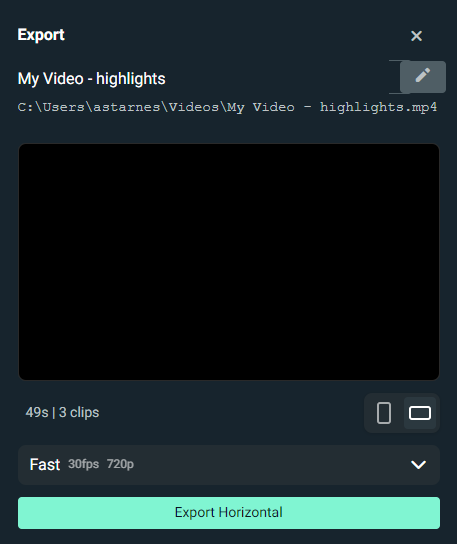
- Now that your highlight reel is downloaded, upload it to your preferred social channels.
By sharing your best moments on your social channels, you can grow your audience more quickly and keep your audience engaged between streams. We're excited to see what you make with Highlighter!