


 Ultra abonnement.

Cloudbot is a robot assistant that lives in your chat. It helps you answer questions, play games, and keep your stream safe from "bad words" or spam. This guide will help you get it running quickly and point you to more advanced features.
- Before You Start: Link Your Channels
- Turning on the Bot
- Giving the Bot Moderator Powers
- Editing/Adding Commands
- Protecting Your Chat (Mod Tools)
- Rewarding Your Viewers
- Add Games & Interactive Features
Before You Start: Link Your Channels
If you stream on multiple platforms like Twitch, YouTube, or Kick, you can link them all together. We highly recommend creating a Streamlabs ID to combine your accounts. If you need help creating a Streamlabs ID, check out our step-by-step guide on how to set up your Streamlabs ID here.
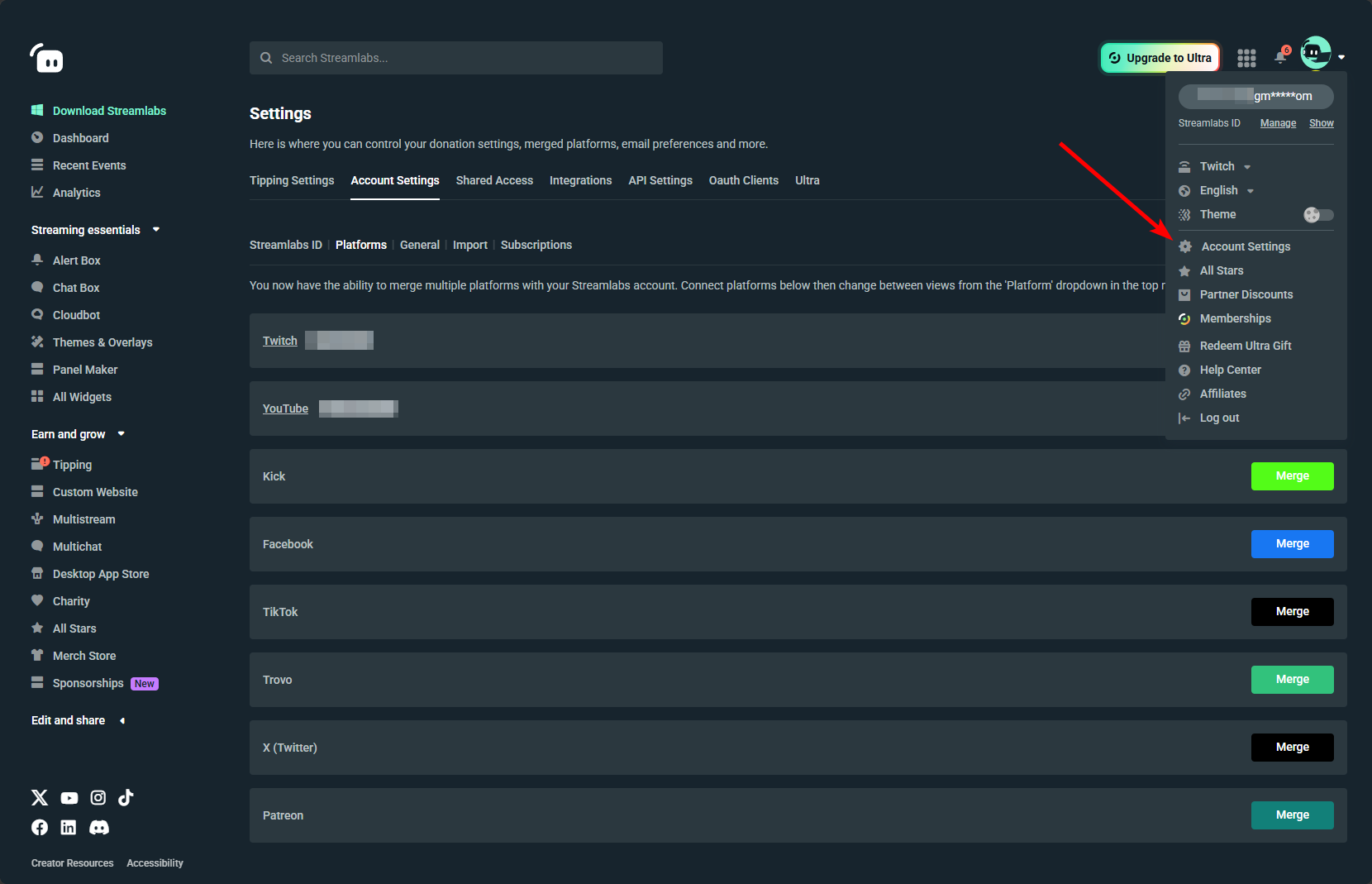
Here’s how to merge your accounts:
- Log into streamlabs.com.
- Click the arrow next to your profile picture in the top right corner.
- Click Account Settings.
- Click the Platforms tab on the left menu.
- Find the platform you want to add and click the Merge button next to it.
Step 1: Turn on the Bot
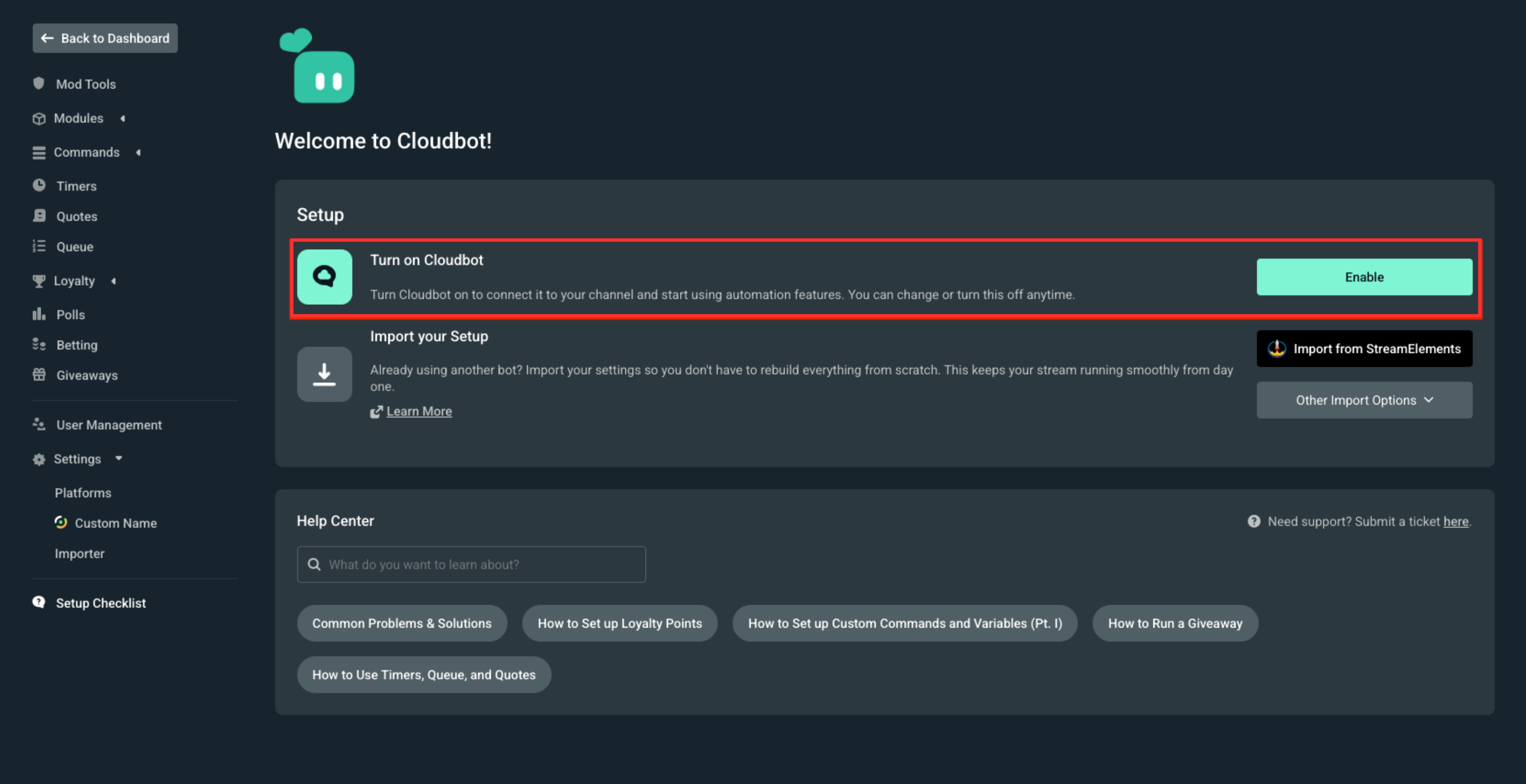
- On the left-hand menu, click on Cloudbot.
- Find the button and click Enable Cloudbot.
Step 2: Give the Bot Moderator Powers
The bot needs special permission to talk in your chat and remove messages.
- Twitch and Kick: Open your stream chat on the specific channel, type /mod Streamlabs, and press Enter.
- YouTube: Go to your YouTube Studio, click Settings, click Community, and add Streamlabs (https://www.youtube.com/channel/UCNL8jaJ9hId96P13QmQXNtA) as a moderator.
Step 3: Adding/Editing Commands
Commands let your viewers get information instantly by typing a short code, such as !socials. There are two different types of commands you can manage in Cloudbot:
Default Commands
These are premade commands used for moderation and built-in features.
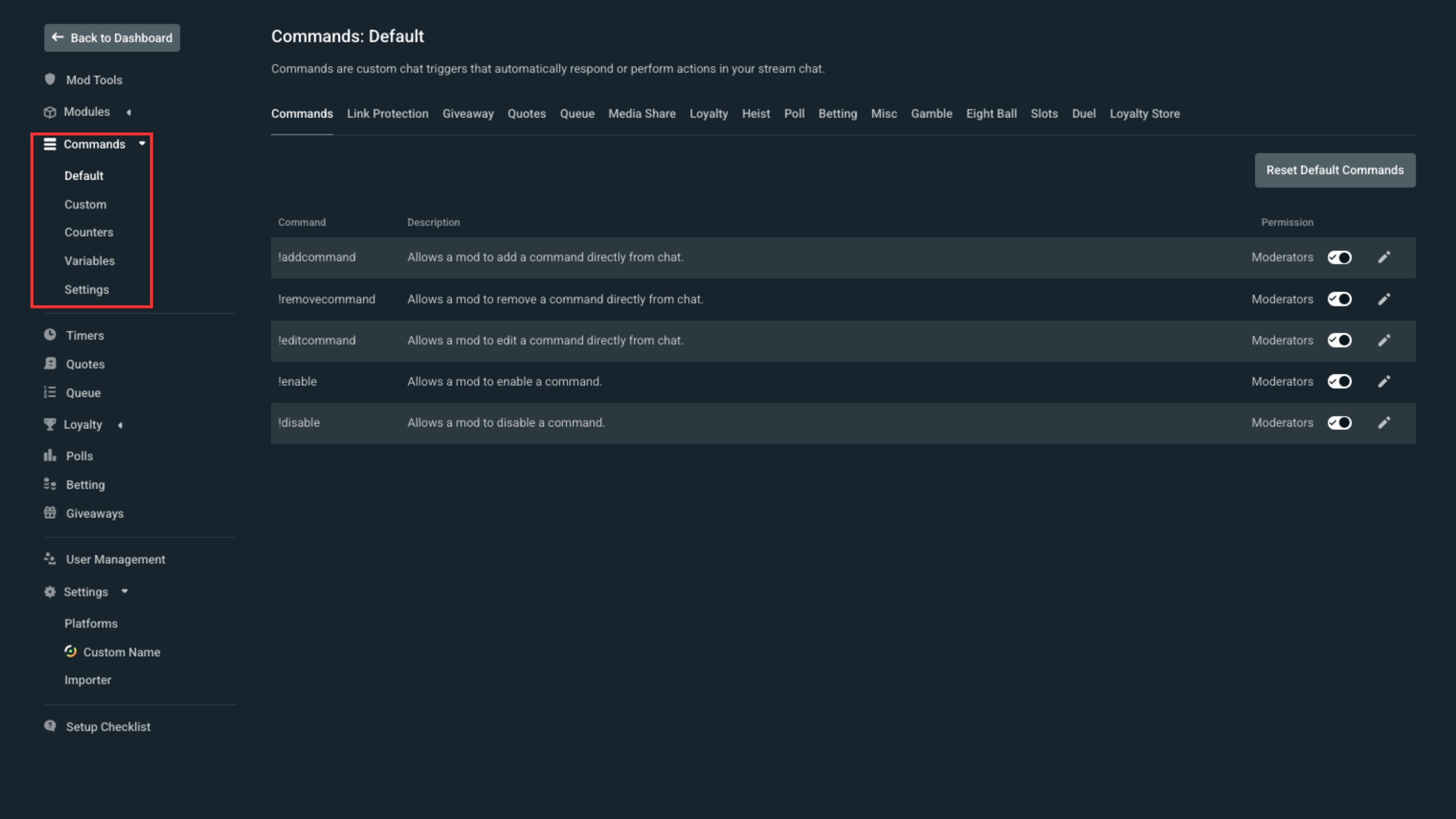
- Find them: Click Commands and then select the Default tab.
- Manage them: Use the switches to turn a command On or Off.
- Edit them: Click the pencil icon to change who can use the command (permissions) or to rewrite what the bot says.
Custom Commands
You can create your own commands so the bot can share specific information with your chat.
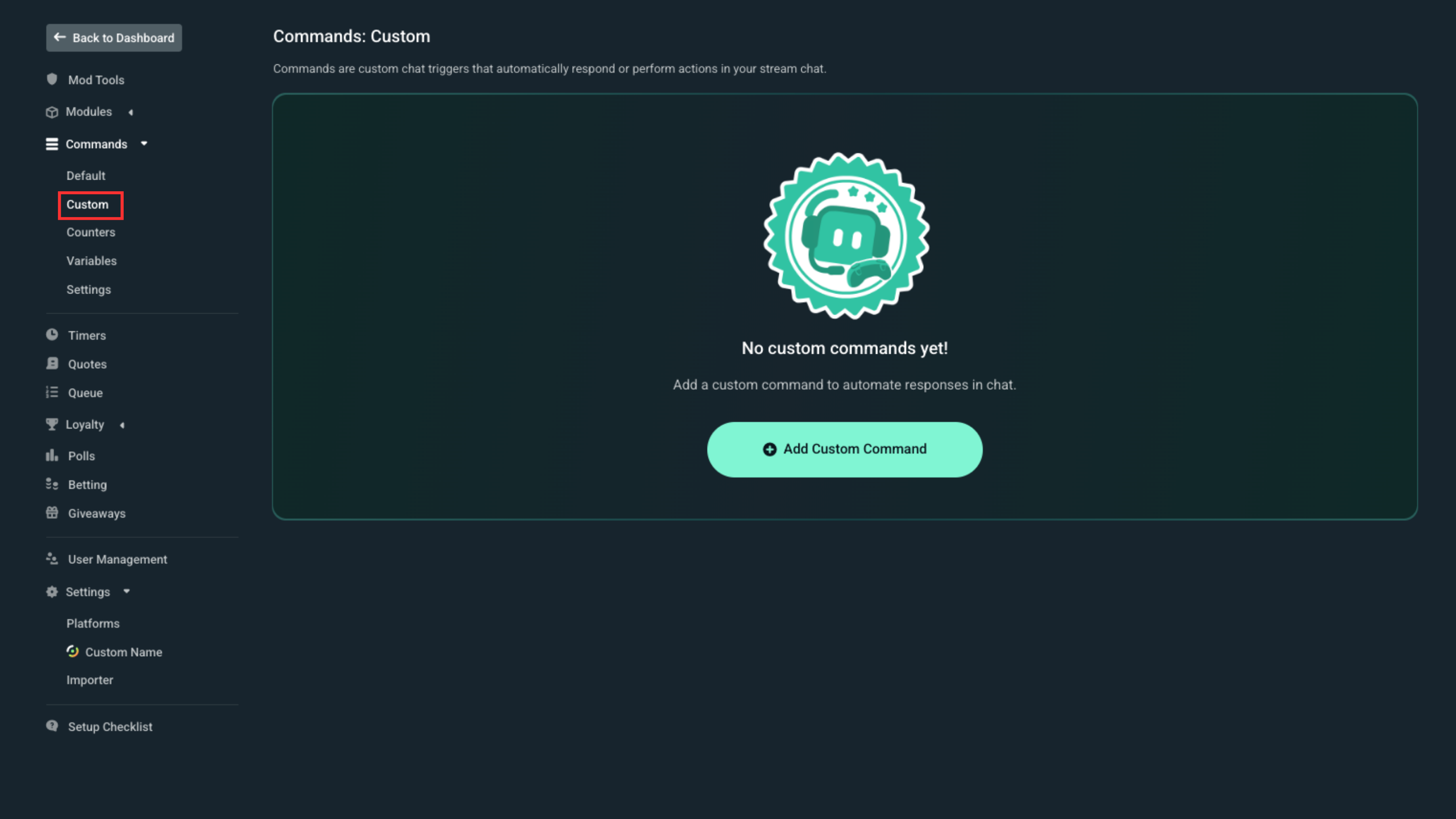
- Find them: Click Commands and then select the Custom tab.
- Create them: Click the Add Custom Command button to start.
- Customize them: You can type your own text, use templates to save time, or use variables to automatically insert things like the streamer's name.
Step 4: Protect Your Chat (Mod Tools)
The bot can act as your bodyguard by automatically deleting messages that break your rules. You can find these settings by clicking on Mod Tools in the Cloudbot menu.
Quick Setup
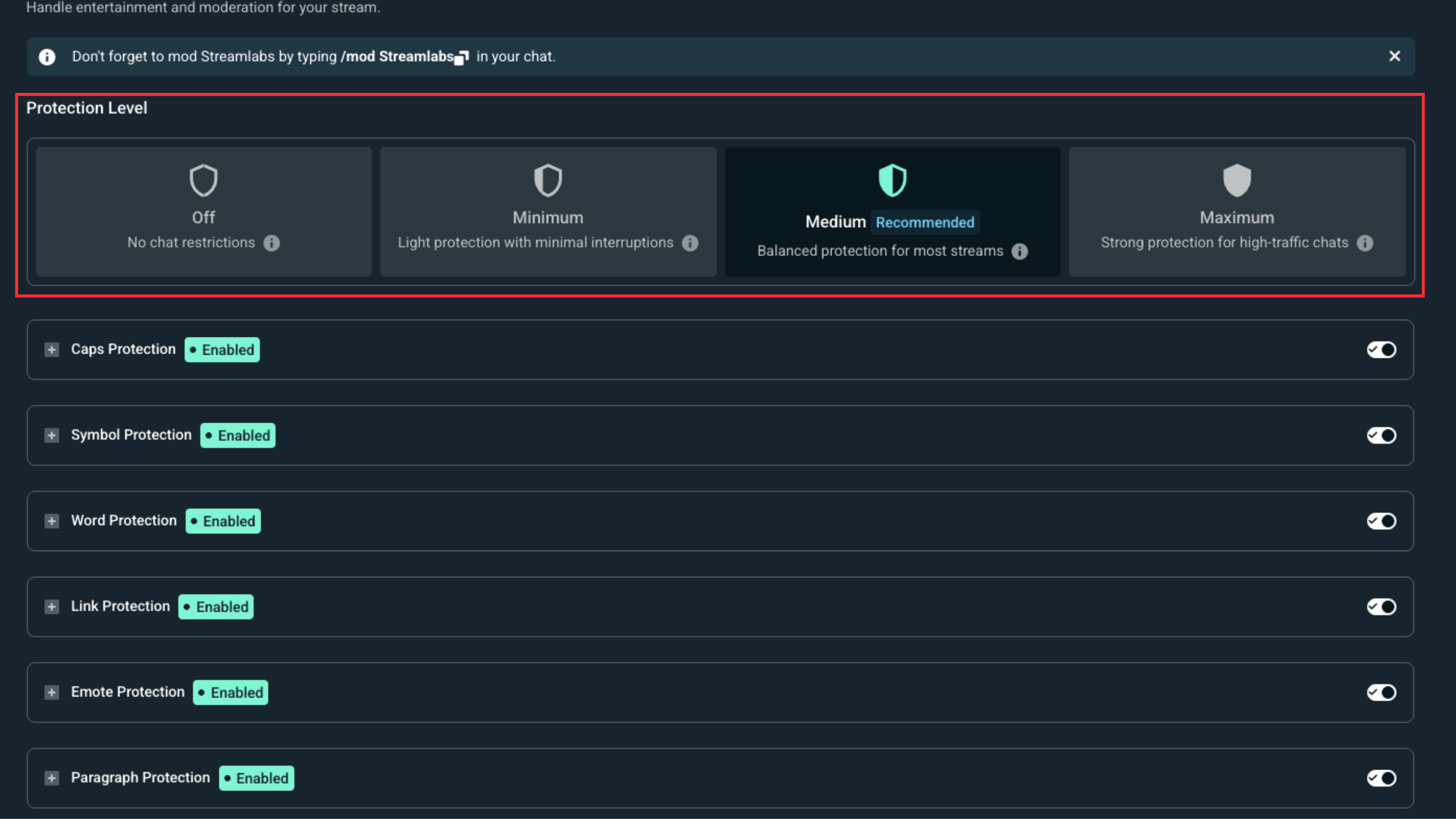
- Use the Protection Level buttons to quickly choose between preset safety options.
- Click the question mark (❓) icon next to the protection level to see exactly what each setting does.
Custom Setup
- If you want more control, leave the Protection Level off and turn on specific toggles like Caps or Link Protection yourself.
- Click + icon on any tool to change how strictly the bot enforces that specific rule.
Step 5: Reward Your Viewers
You can set up a loyalty system for your viewers to earn rewards or use those points to play games within your chat. Follow these steps to turn it on:
- Click on Loyalty.
- You will automatically be dropped into Settings.
- Click the toggle at the top Enable Loyalty System.
Now you can give your points a fun custom name, choose how many points viewers earn for different activities, and block specific users from earning points.
Creating Loyalty Redemptions
You can have people redeem special things such as perks, sound effects, or even codes.
- Click on Store.
- Click Add Your First item.
- Choose the type of item you want to create and type in your reward details.
The reward types that you can give are:
- Access Code: This allows the bot to automatically give away game keys or gift codes to your viewers that you provide.
- Sound Effect: Let viewers play a sound through your Streamlabs Alertbox.
- Stream Perk: This is for anything else, like offering to follow a viewer.
Step 6: Add Games & Interactive Features
You can enable games, media share, and other interactive features. To do this, you would:
- Click on Modules.
- Click into any relevant features you want to enable. Once you click in, you'll be able to change settings for each one.
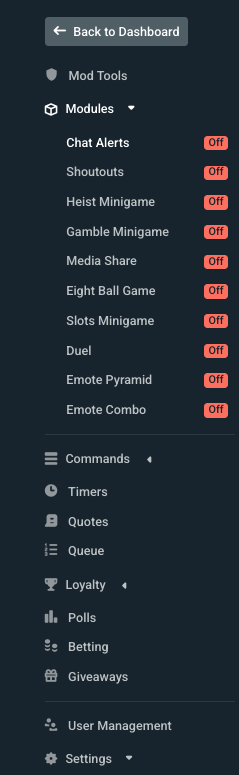
All of the modules are great, but some of our most popular are Chat Alerts, Shoutouts, Gamble Minigame, and Media Share.
More Information and Advanced Tools
Check out these deeper guides for specific Cloudbot features:
- Giveaways: How to give away prizes to your fans.
- Media Share: Let fans play videos on your stream via the bot.
- Timers and Quotes: Make the bot say things automatically or save funny things you've said.
- Troubleshooting: Is the bot not talking? Try these common fixes.
Need Help?
Our team is happy to help at https://streamlabs.com/support.