



 Ultra subscription.

What Are Modules?
Modules are extra features that increase engagement and allow your viewers to spend their loyalty points for a chance to earn even more such as media share, minigames and emote combos.
How Do I Set up Modules?
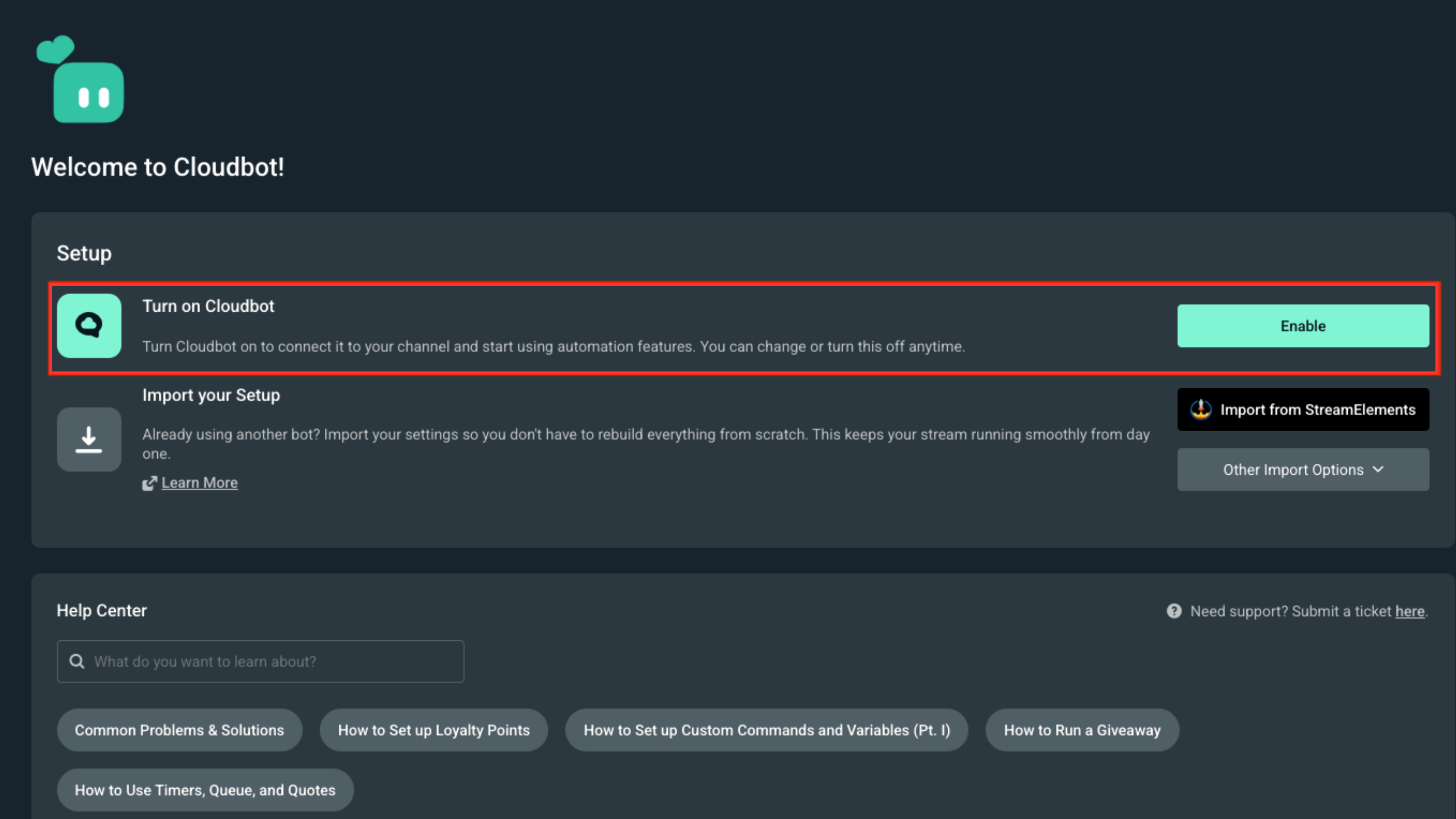
To get started, navigate to the Cloudbot tab on Streamlabs.com and make sure Cloudbot is enabled. It’s as simple as just clicking Enable.
What Modules Are Available?
Ten separate Modules are available, all designed to increase engagement and activity from viewers:
- Chat Alerts: Get notified in chat whenever an activity happens like a donation or subscription.
- Shoutouts: Recognize fellow streamers with an automatic shoutout when they join your chat.
- Heist Minigame: Allow your viewers to work together and go on an adventure to earn extra loyalty points.
- Gamble Minigame: Allow your viewers to gamble with their loyalty points by rolling a 100 sided die.
- Media Share: Allow your viewers to interact with your Media Share widget.
- Eight Ball Game: Allow your viewers to ask questions to eight ball.
- Slots Minigame: Allow your viewers to gamble with their loyalty points by playing slots.
- Duel: Allow your viewers to duel each other for points.
- Emote Pyramid: Congratulate viewers that can build a emote pyramid in your chat.
- Emote Combo: Allows viewers to trigger a combo by typing in a specific emote.
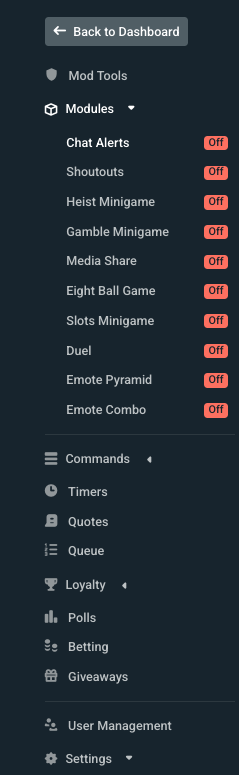
When you navigate to any of these modules, make sure to Enable the module at the top of the page to make sure it will be active.

Once you are done changing settings in each specific modules's page, don't forget to click Save Settings at the bottom right to make sure all of your changes are saved for each module.
Chat Alerts
This Module will display a notification in your chat when someone follows, subs, hosts, or raids your stream. All you have to do is click on the toggle switch to enable this Module.
By opening up the Chat Alert tab, you will be able to add and customize the notification that appears on screen for each category. If you don’t want alerts for certain things, you can disable them by clicking on the toggle.
When you click on Add Tip Alert for any of the categories, a window will pop up where you can set up extra variations.
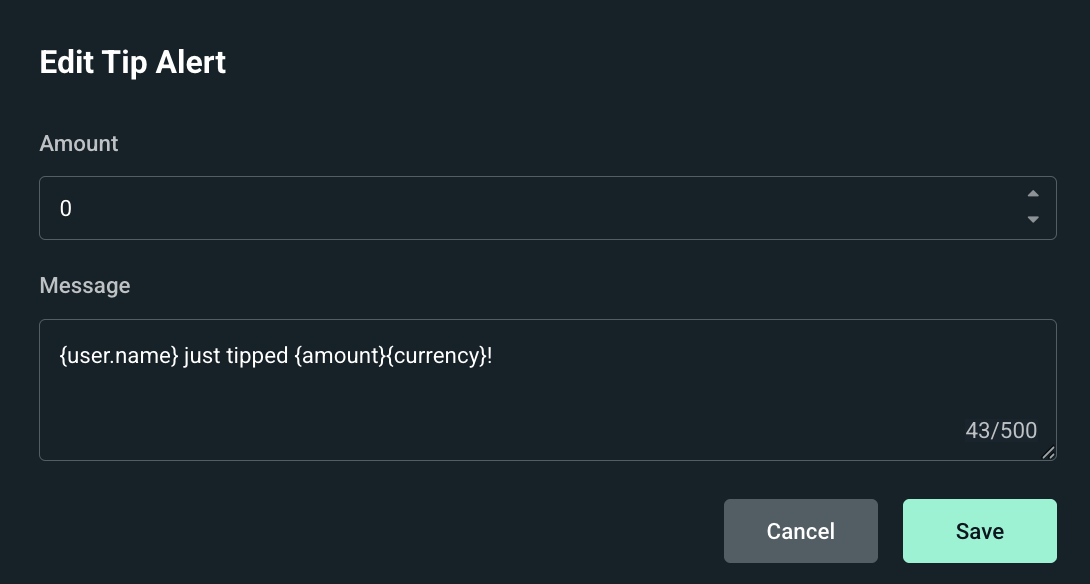
Here you can set the donation required to trigger the chat notification and customize your chat notification. You can make use of the following parameters in your message:
- {user.name} will get replaced by the name of the donor.
- {amount} will get replaced by the donation amount.
- {currency} will get replaced by the currency in which they donated.
After you have set up your message, click Save and it’s ready to go.
Heist Minigame
This module works in conjunction with our Loyalty System. To learn more, be sure to read our post on how to set up and use Loyalty Points with Streamlabs Cloudbot.
Loyalty Points are required for this Module since your viewers will need to invest the points they have earned for a chance to win more.
Once Loyalty Points is enabled, click on Heist Minigame in the left menu under Modules. Enable the minigame at the top of the page. Here you will see three distinct categories:
- General
- Chance to Win
- Winner Payout

In the General category the following options are available to customize:
- Min. Entries: The minimum amount of people required to join the heist before it starts. If this value is not met everyone will be refunded.
- Max. Amount: This is the maximum amount of loyalty points a user can invest in the heist.
- Start Delay: This is the number of seconds before the heist starts once initiated by the first user.
- Cooldown: This is simply the amount of time in seconds the heist will be unavailable after it has concluded.
The Chance to Win category contains settings to adjust the survival chance as a percentage based on whether a user is a Viewer, Subscriber or Moderator.
The Winner Payout category allows you to adjust the number of points a viewer will earn on top of what they invested. This is again in percentage form so if the value is set to 100 this means they’ll earn 100% on top of what they invested.
Example for a 1000 point bet: 1000 + (1.00 x 1000)=2000
Under Messages you will be able to adjust the theme of the heist, by default, this is themed after a treasure hunt. If this does not fit the theme of your stream, feel free to adjust the messages to your liking.
As with most Modules, they are usually associated with a command that is denoted by the tag listed next to the Module name. The command to initiate a heist is !heist <value>/all, if you need to adjust this command you can do so from within the default commands section. Do not forget to click Save Settings at the bottom right of the page to make sure all of your changes are saved.
Gamble Minigame
This minigame allows a viewer to roll a 100 sided dice, and depending on the result, will either earn loyalty points or lose everything they have bet on the dice.
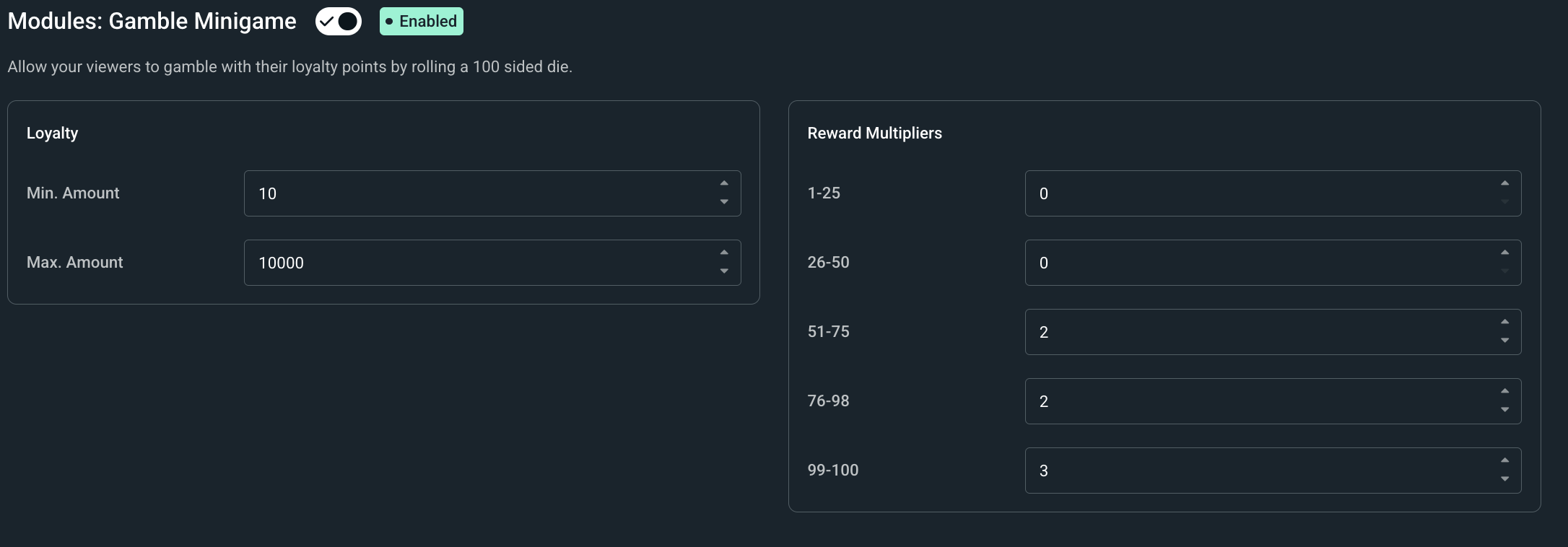
Once enabled, you can adjust the preferences to your liking. You have the ability to customize the following preferences:
- Min. Amount: This is the minimum amount of loyalty points your viewers are required to invest.
- Max. Amount: This is the maximum amount of loyalty points your viewers can invest.
- Reward Multipliers: This category contains settings to adjust the reward multiplier based on what number they roll. So if a viewer rolls a number between 51–75 they will get rewarded with double the points they have invested.
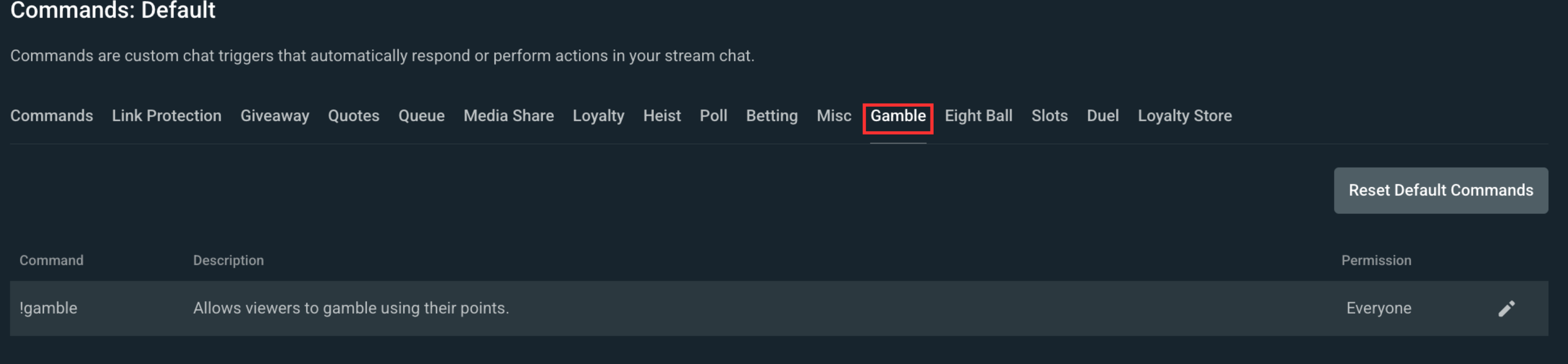
This module also has an accompanying chat command which is !gamble <value> or !gamble all. This command can be used either as !gamble 100 or !gamble all. When someone gambles all, they will bet the maximum amount of loyalty points they have available up to the Max. Amount that has been set in your preferences.
If you want to adjust the command you can customize it in the Default Commands section of the Cloudbot.
Media Share
The Media Share module allows your viewers to interact with our Media Share widget and add requests directly from chat when viewers use the command !request <youtube url>.
In order to set up this Module you need to do the following:
- Enable the Media Share Module.
- Enable the Media Share Widget which you can do HERE by clicking on the
Onbutton. - Add the Media Share Widget as a source by using the Widget URL or if you’re using Streamlabs Desktop simply add a Media Share Widget.
- You are required to have Media Share tab open in your recent events either on Streamlabs.com or through Streamlabs Desktop
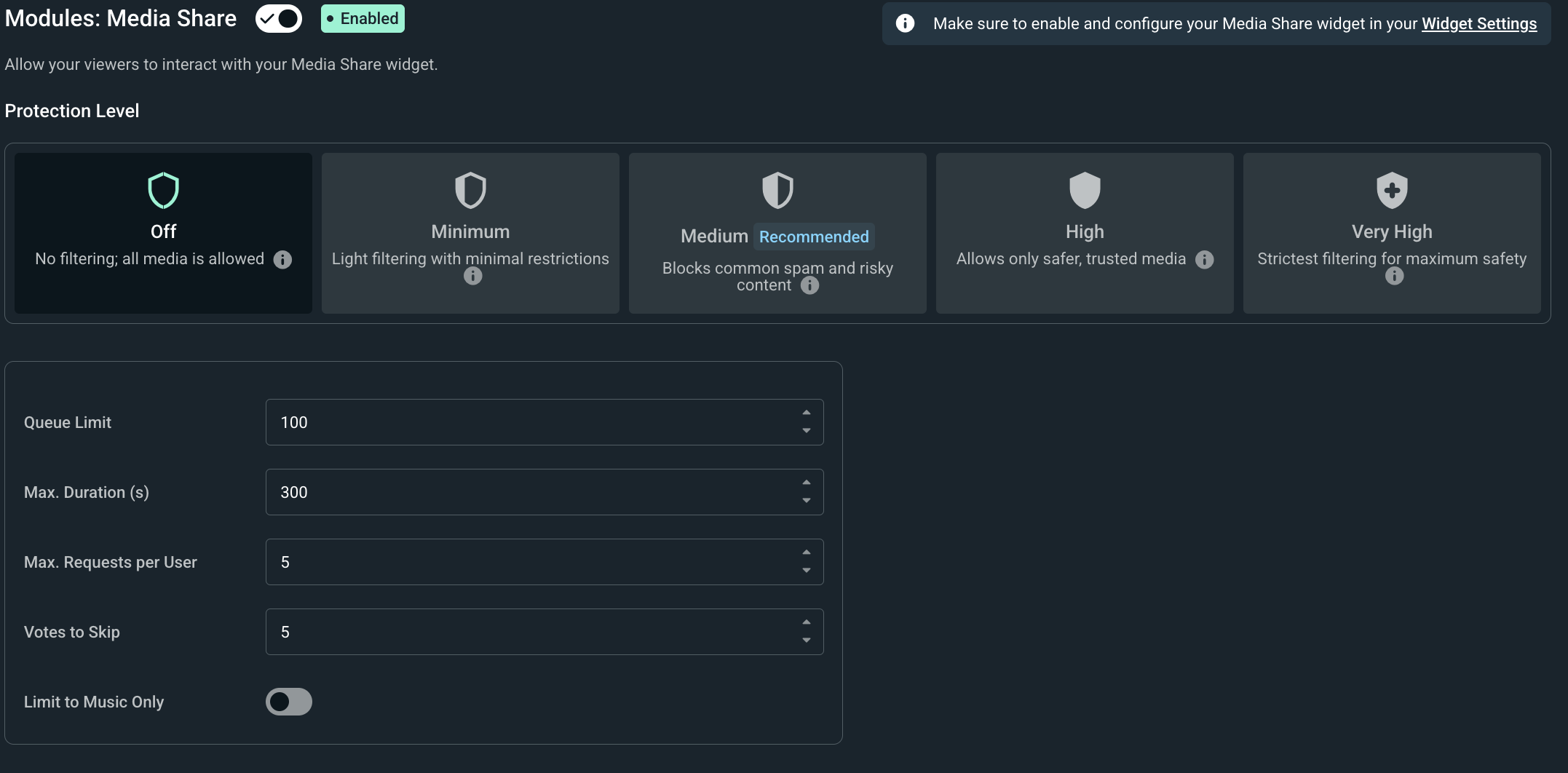
Once you have done the above you can adjust the following settings:
- Choose your protection level: This allows you to adjust how strict we are in regards to media requests. Adjust this to your liking and we will automatically filter out potentially risky media that doesn’t meet the requirements.
- Queue Limit: This is the maximum amount of videos that can be placed in the queue.
- Max Duration: This is the maximum video duration, any videos requested that are longer than this will be declined.
- Max Requests per User: This refers to the maximum amount of videos a user can have in the queue at one time.
- Votes Required to Skip: This refers to the number of users that need to use the !skip command before a video is skipped.
- Limit Requests to Music Only: If this is enabled, only videos classified as music on YouTube will be accepted, anything from another category will be declined.
Once you are done setting up you can use the following commands to interact with Media Share:
- !request <youtube_url> allows viewers to add media to the queue, in case you want to limit who can use the command and whether they need to use loyalty points to use this you can do so by altering the command and going through its settings.
- !video will show a viewer what is currently playing.
- !skip will allow viewers to band together to have media be skipped, the amount of viewers that need to use this is tied to Votes Required to Skip.
- !veto is similar to skip but it doesn’t require any votes and allows moderators to immediately skip media.
- !volume <value> can be used by moderators to adjust the volume of the media that is currently playing.
- !blacklist skips the current playing media and also blacklists it immediately preventing it from being requested in the future.
- !wrongvideo can be used by viewers to remove the last video they requested in case it wasn’t exactly what they wanted to request.
Eight Ball Minigame
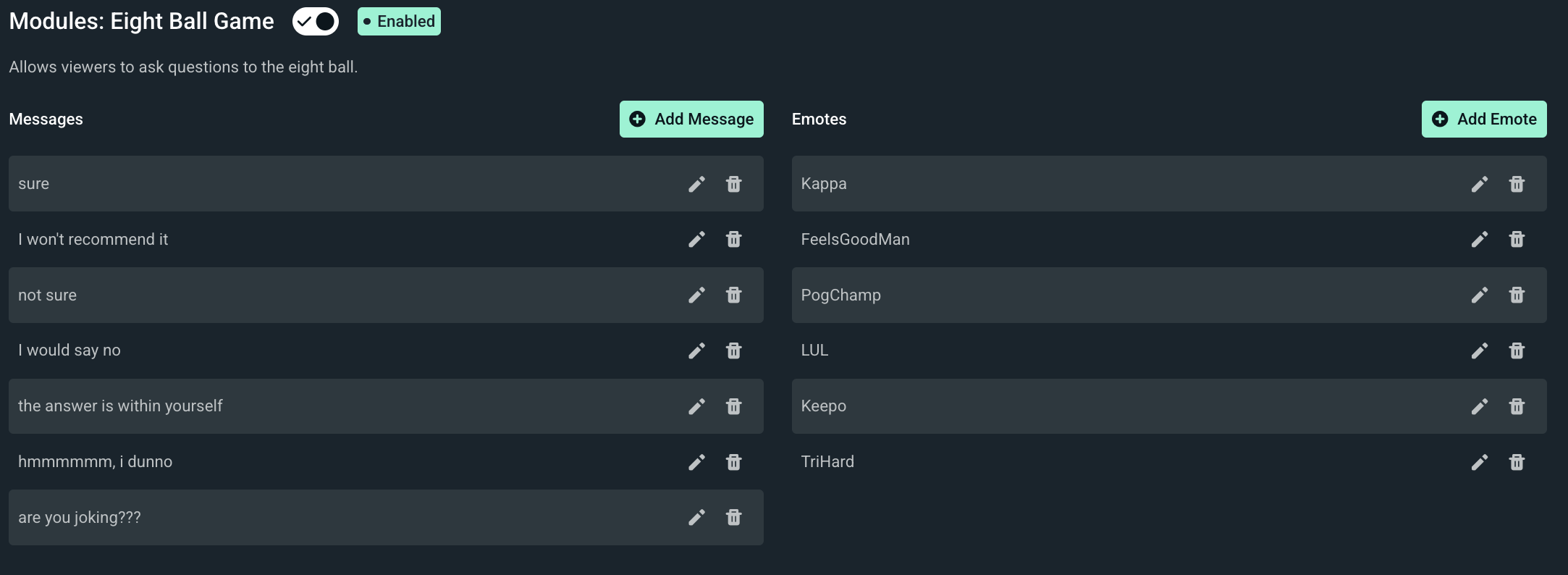
The Magic Eightball can answer a viewers question with random responses. Make sure to enable it at the top of the page.
There are two categories here Messages and Emotes which you can customize to your liking.
Whenever a viewer makes use of !8ball <question_here> our bot will pick one of the many responses under messages and reply with this, it will also automatically append one of the emotes listed under the emotes category.
Slots Minigame
The Slots Minigame allows the viewer to spin a slot machine for a chance to earn more points then they have invested.
You can fully customize the Module and have it use any of the emotes you would like. If you would like to have it use your channel emotes you would need to gift our bot a sub to your channel.
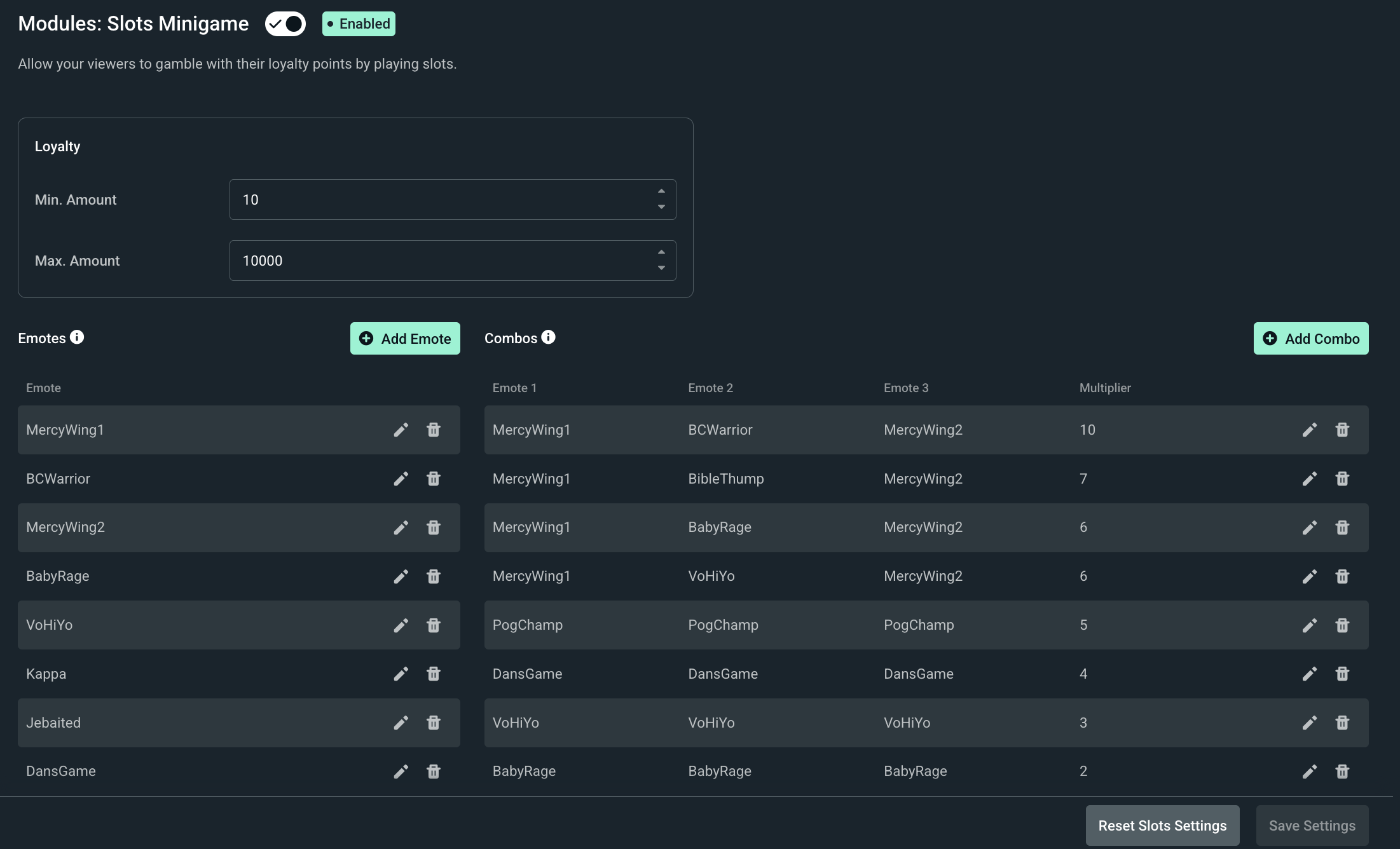
Let’s dive into some of the preferences:
- Min. Amount: This is the minimum amount of loyalty points your viewers are required to invest.
- Max. Amount: This is the maximum amount of loyalty points your viewers can invest.
- Emotes: You can add any emotes that you want the slot machine to use under this section.
- Combos: You are able to specify the Emote Combos and their Multiplier under this category. Once a user achieves one of the combinations, they will be rewarded with the points they invested times the multiplier.
Once you have set up the module all your viewers need to do is either use !slots <value> or !slots all. Don't forget to click Save Settings at the bottom right of the page to make sure all of your changes are saved.
Duel
This Module allows viewers to challenge each other and wager their points. Unlike with the above minigames this one can also be used without the use of points.
Simply by using it as !duel <username> you will be able to challenge another viewer. If you wish to wager your points against each other use !duel <username> <value> instead.
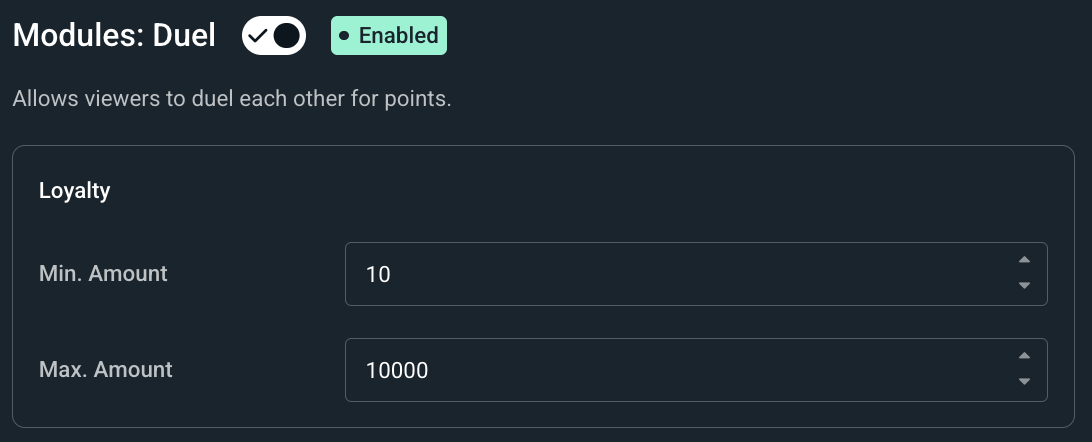
There are only two settings in this module:
- Min. Amount: This is the minimum amount of loyalty points your viewers are required wager.
- Max. Amount: This is the maximum amount of loyalty points your viewers can wager.
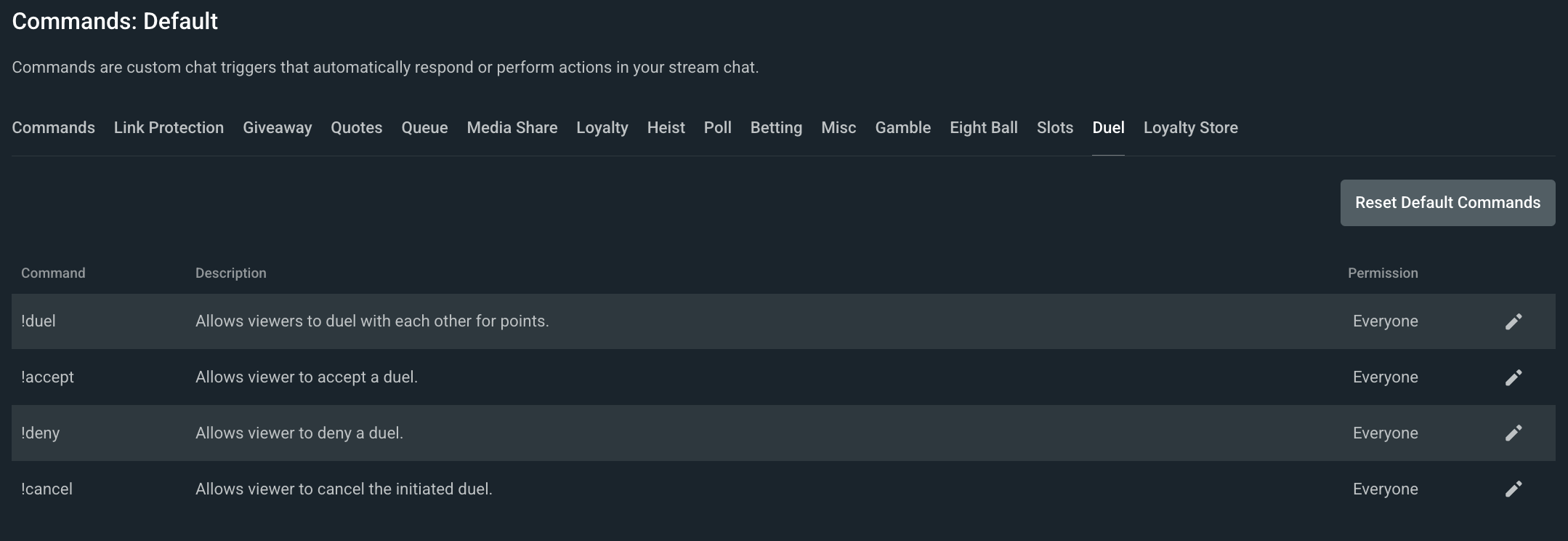
Duel contains a few other commands as well:
- !duel <username> <value> allows you to challenge a fellow viewer.
- !accept allows you to accept a challenge once someone has challenged you.
- !deny allows you to decline a duel in case you are not interested.
- !cancel allows you to cancel a challenge in case you want to challenge someone else instead.
Emote Pyramids
The purpose of this Module is to congratulate viewers that can successfully build an emote pyramid in chat.
In case you are not familiar as to what emote pyramids are they are pyramids build out of chat emotes here is an example of what one would look like:
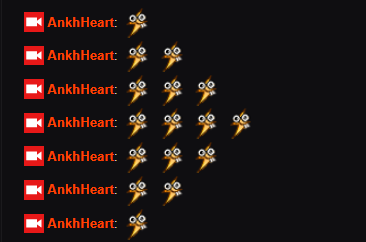
This would be considered a 4 wide pyramid since that is how many emotes long the middle portion is. In this case, the bot will reply with the following:

If you click the pencil icon next to each message, you are able to customize whenever a pyramid of a certain width is reached.

Emote Combo
Unlike the Emote Pyramids, the Emote Combos are meant for a group of viewers to work together and create a long combo of the same emote.
Let me give you an example:
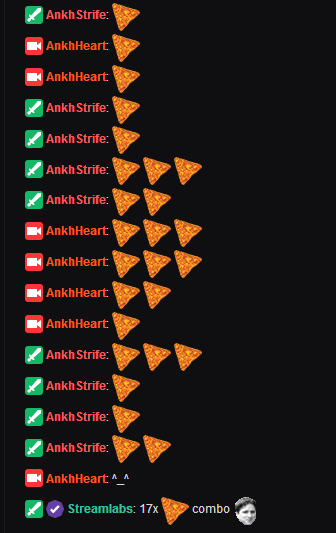
In the above you can see 17 chatlines of DoritosChip emote being use before the combo is interrupted. Once a combo is interrupted the bot informs chat how high the combo has gone on for.
Under the Messages category you are able to add messages that will be posted depending on the combo length. If you want to spice things up feel free to add a combo that does /timeout {user.name}, this will timeout the user that has broken the combo for 10 minutes.
If you have any questions or comments, please let us know by contacting us or joining our Discord server.