Ultra aboneliği.

What is it?
The Diagnostic Report is a tool that was built into Streamlabs Desktop to assist our support team and developers in identifying and resolving issues. The report gathers critical information about the application's current state, error messages, streaming settings, scene sources, and auto upload your cache to our developers. All of this helps provide insights to streamline the troubleshooting process.
What Information Is Collected:
Note: There is no identifying personal information gathered other than your usernames. All information collected here is stored and disposed of according to GDPR regulations. Only Streamlabs employees can access the information that is on your diagnostic report.
- General Streamlabs Information
- Date that the diagnostic report was created
- Version - Bundle
- Connected Platforms, usernames, & logged in platform
- Past 5 Stream error logs
- Crash log dates & times
- Streamlabs Desktop Settings
- Video Tab
- Output Tab
- Advanced > Network Tab
- Audio Tab
- Active Scene Collection
- Scenes
- Sources & their specific settings
- Transitions & Connections
- Local Computer Specific
- Operating System
- CPU Model & Cores
- Memory Total space & free space
- GPU Model, Driver Version, & last updated
- Whether or not Streamlabs Desktop is running as administrator
- Monitor Resolution & Refresh Rate
- Available Audio Output Devices (Desktop Audio Devices)
- Available Audio Input Devices (Microphone/Aux Devices)
- Available Video Capture Devices (Webcams & Capture Cards)
How to Share it
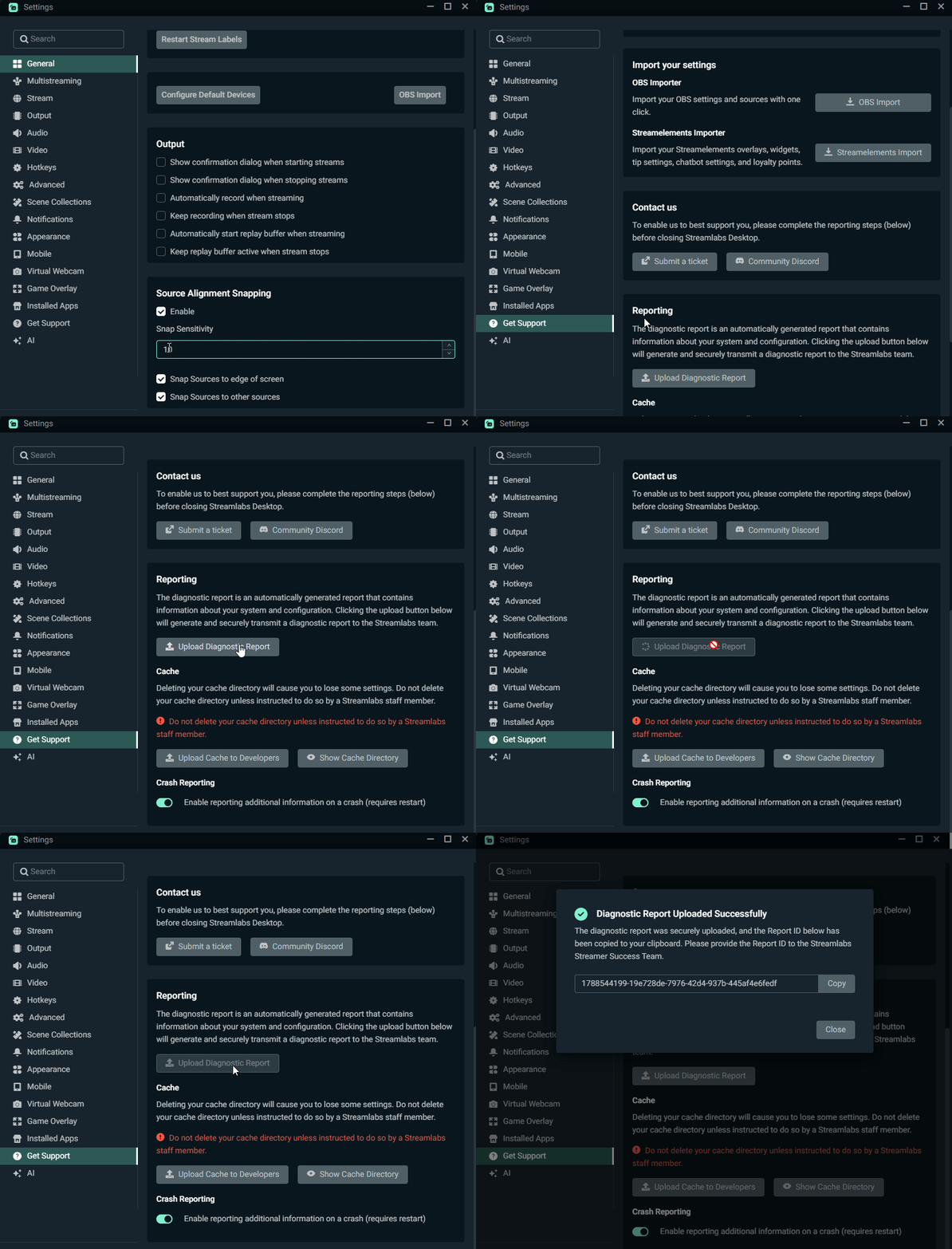
- In Streamlabs Desktop, go to Settings ⚙️
- Click Get Support
- Press Upload Diagnostic Report
- Your Diagnostic code will automatically be copied to your clipboard. However, You can copy it directly using the Copy button if you copied something else to your clipboard.