


 Ultra.

Live streaming to X gives creators another way to reach and engage their audience in real time. With Streamlabs, you can go live to X from Streamlabs Desktop, our Plugin for OBS, Streamlabs Mobile, or directly from your browser with Talk Studio.
Streamlabs’ integration with X also gives creators more ways to manage their broadcast and engage their community. You can schedule X streams directly from Streamlabs Desktop, use Cloudbot to manage and interact with X chat, and bring X activity on stream through supported widgets like Alert Box, Chat Box, Event List, The Jar, and Goals.
This guide walks through ways to stream to X and highlights Streamlabs features to help you manage and customize your broadcast.
Jump Ahead
- Quick Steps to Go Live to X
- How to Stream to X (Twitter) from Streamlabs Desktop
- How to Stream to X (Twitter) from Streamlabs Desktop via RTMP
- How to Stream to X (Twitter) from Streamlabs Plugin for OBS
- How to Stream to X (Twitter) from Streamlabs Mobile
- How to Stream to X (Twitter) from Browser (Talk Studio)
- How to Stream to X(Twitter) from Browser (Talk Studio) via RTMP
- Troubleshooting & Tips
- Advanced Features
- FAQ
Quick Steps to Go Live to X (Twitter)
Here is the quickest way to get started streaming to X with Streamlabs.
Step 1: Choose your streaming software
You can stream to X using:
- Streamlabs Desktop
- Streamlabs Plugin for OBS
- Streamlabs Mobile
- Streamlabs Talk Studio
Step 2: Connect your X account
Sign in to your X account through the Streamlabs product you are using and authorize Streamlabs to connect to your account.
Step 3: Set up your stream
Add your scenes, sources, overlays, widgets, camera, microphone, and any other elements you want to include in your broadcast.
Step 4: Go live or schedule your stream
When you're ready, go live directly to X. If you're using Streamlabs Desktop, you can also schedule an upcoming X stream in advance.
The sections below walk through the setup process for each Streamlabs product.
How to Stream to X from Streamlabs Desktop
Streamlabs Desktop offers a native integration with X, making it easy to connect your account and start streaming without manually configuring an RTMP stream key.
You can also use Streamlabs features such as overlays, widgets, Cloudbot, Multistream, and other creator tools.
Step 1: If you haven't already, download and install Streamlabs Desktop.
Step 2: Open Streamlabs Desktop, click the Settings gear icon, navigate to Stream, and select X from the available platforms.
/How to Stream to X (Twitter)4.png)
Step 3: Click Connect next to X and sign in to your X account when prompted. Authorize Streamlabs to access your account.
Step 4: Set up your broadcast by adding your scenes, sources, camera, microphone, overlays, and widgets.
Step 5: When you're ready to stream, click Go Live from the main dashboard.
Add your stream title and other broadcast details, confirm your settings, and start your stream.
How to Schedule an X Live Stream from Streamlabs Desktop
You can also schedule upcoming X live streams directly from Streamlabs Desktop.
Instead of creating your broadcast separately on X, you can set up your upcoming stream in Streamlabs while you prepare the rest of your broadcast.
To schedule an X stream:
Step 1: Connect your X account to Streamlabs Desktop.
Step 2: Open the stream setup flow on X and choose Schedule Broadcast.
Step 3: Add your stream details, including your title and scheduled date and time.
Step 4: Confirm the scheduled broadcast.
When it's time to stream, open Streamlabs Desktop and start your scheduled broadcast.
Scheduling directly in Streamlabs Desktop makes it easier to manage upcoming X streams without switching platforms.
How to Use Cloudbot with X
Cloudbot works with X live chat, giving creators more ways to manage and engage their community while streaming.
With Cloudbot for X, you can use features including:
- Default commands
- Custom commands
- Chat moderation
- Timeouts and bans
- Minigames
- Timers
For example, you can create custom commands that answer common questions, use moderation tools to manage disruptive viewers, or run interactive features that give your community more ways to participate in chat.
You can manage Cloudbot settings in Streamlabs to customize how the bot interacts with your X community.
Streamlabs Widgets for X
Streamlabs supports X across a range of widgets, allowing you to bring community activity directly into your broadcast.
Chat Box
Display your X live chat directly on stream so viewers can see the conversation as it happens.
Alert Box
Alert Box can recognize supported X activity, including:
- Likes
- Follows
- Subscriptions
Customize the visuals, sounds, animations, and messaging to match your stream's look and feel.
Recent Events
Track recent activity from your X community alongside activity from your other connected platforms.
Event List
Display supported X activity in a real-time on-stream event list.
The Jar
Use The Jar to recognize supported community activity through an interactive on-stream widget.
Follower Goal
X followers can contribute directly to your Streamlabs Follower Goal, letting viewers see your progress toward a follower milestone in real time.
Subscriber Goal
X subscriptions can contribute to your Streamlabs Subscriber Goal, giving your community a visual way to track your progress toward a subscription milestone.
Together, these integrations make it easier to bring your X community into the stream rather than treating X only as a place to distribute your broadcast.
Streaming to X on Streamlabs Desktop via RTMP
Streamlabs Desktop’s native X integration is the easiest option for most creators. However, RTMP can still be useful for certain workflows, such as streaming to multiple X accounts or using a custom ingest setup. To stream to X via RTMP, you will need access to an X stream key and RTMP URL.
Note: Keep your stream key and URL confidential, and don't share them on Stream.
Step 1: Make sure you have a verified X Premium oStreamium+ account and log in to X Media Studio Producer.
Step 2: Click on Premium, choose Media Studio, and click the Producer tab.
Step 3: Next, select Sources > Create Source. Here, select RTMP, choose the nearest region, and copy your RTMP URL andSourcem key.
Step 4: In Streamlabs Desktop, open Settings, go to Stream, select Stream to Custom Ingest (under Stream Type), click on Add Destination, and paste in your RTMP URL and stream key.
/How to Stream to X (Twitter)1.png)
/How to Stream to X (Twitter)10.png)
Step 5: To multistream, click Destination (instead of Stream to Custom Ingest) in the Stream settings, enter your RTMP details, and save.
/How to Stream to X (Twitter)7.png)
Step 6: Before you can go live, the X account owner must create a broadcast. The Broadcast lets them go live immediately or schedule a future broadcast.
In X Media Studio, click Broadcasts, then Create Broadcast. Complete the required sections, making sure to choose your previously created Source. Then schedule your Broplatform list. Create Broadcast.
/How to Stream to X (Twitter)9.png)
How to Stream to X Source from Streamlabs Plugin for OBS
If you prefer to use OBS Studio, you can easily connect your X account to the Streamlabs Plugin within OBS to stream.
Step 1: Connect your X account
- Install the Streamlabs Plugin for OBS.
- Open OBS Studio. If the sign-in screen does not pop up automatically, select Streamlabs from the top menu bar.
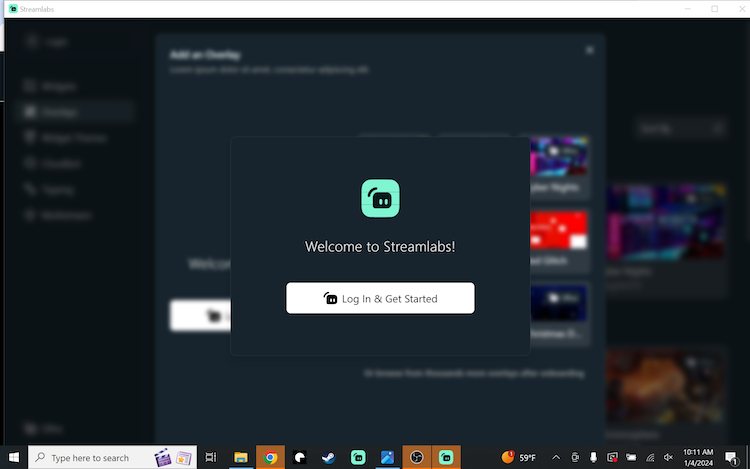
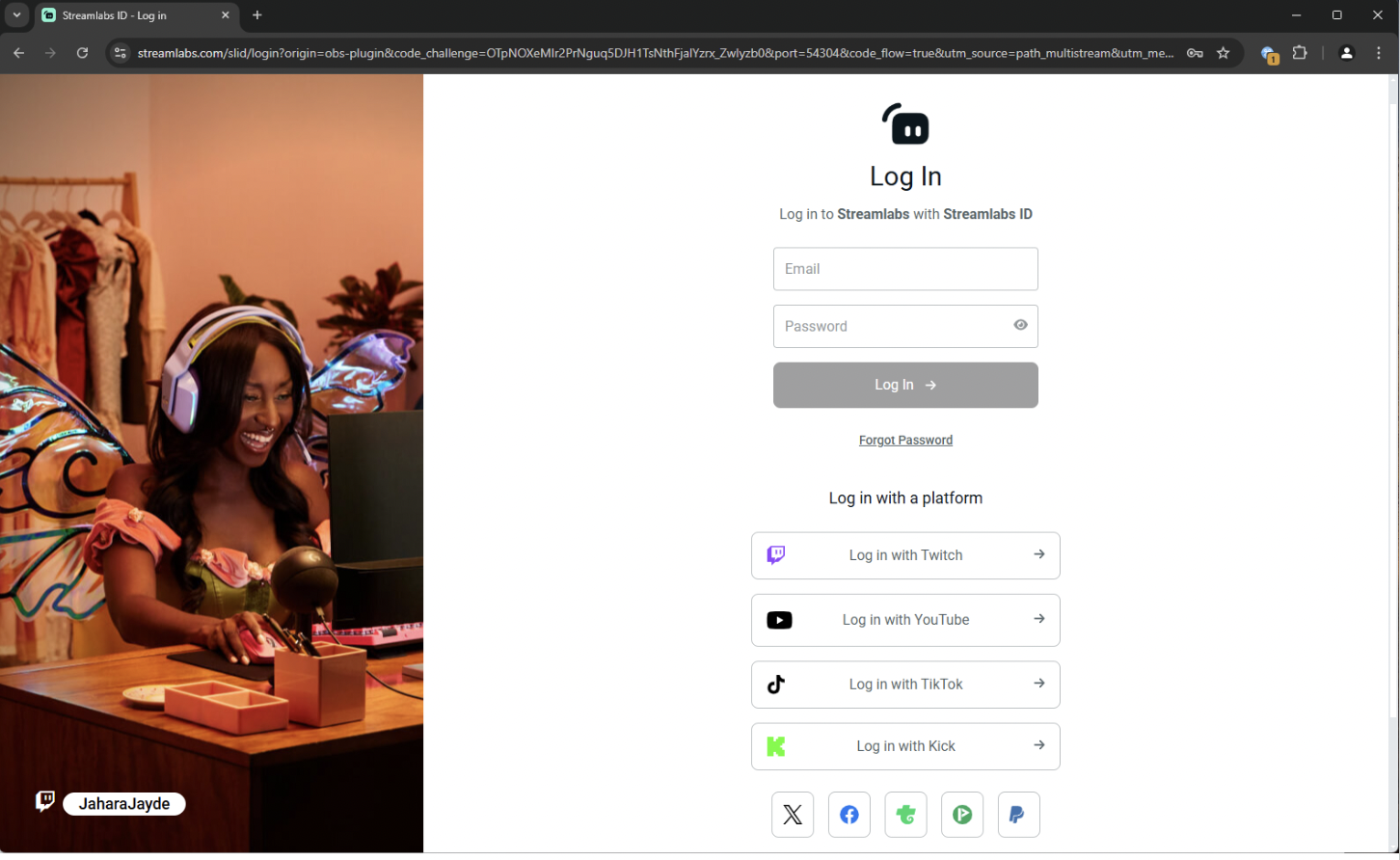
- Log in with your X account from the list of platforms, or use your Streamlabs ID.
- Authorize the plugin to connect to your X account.
Step 2: Set up your scenes and sources
- In the OBS Scenes panel, click the + icon and name your scene.
- In the OBS Sources panel, click the + icon to add your essential items:
- Display Capture or Game Capture: For your game or screen sharing.
- Video Capture Device: For your Camera.
- Audio Capture Device: For your active microphone.
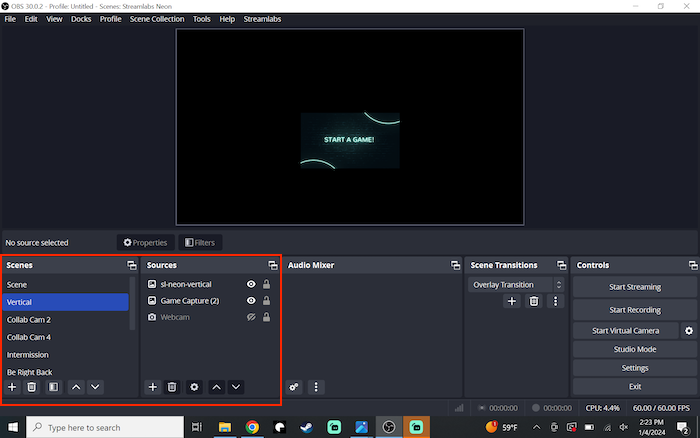
- Drag your camera source to the top of the list to place it above your other sources.
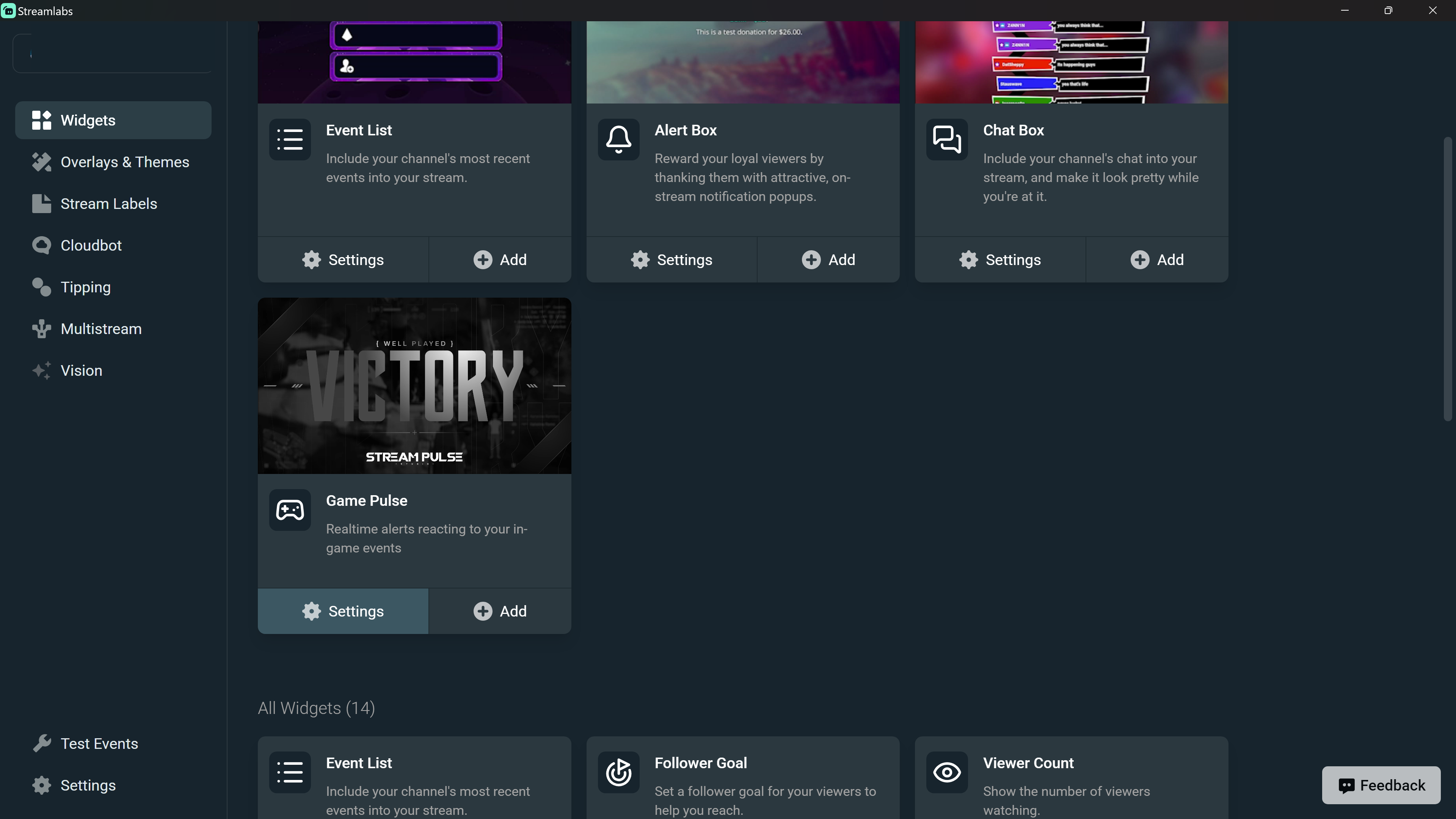
- To add fun widgets, open the Streamlabs Plugin window, click Widgets, and choose the items you want to install with one click.
Step 3: Go live
- Click Start Streaming in the main OBS editor window.
- Make sure the toggle switch for X is turned on.
- Fill out your stream Title, Description, and Category.
- Click Confirm & Go Live.
How to Stream to X (Twitter) from Streamlabs Mobile
You can easily connect your X account in Streamlabs Mobile to stream directly from your iOS or Android device.
Step 1: Connect your X account
- Download the Streamlabs Mobile App on your iOS or Android device.
- Open the app and tap the X button to log in.
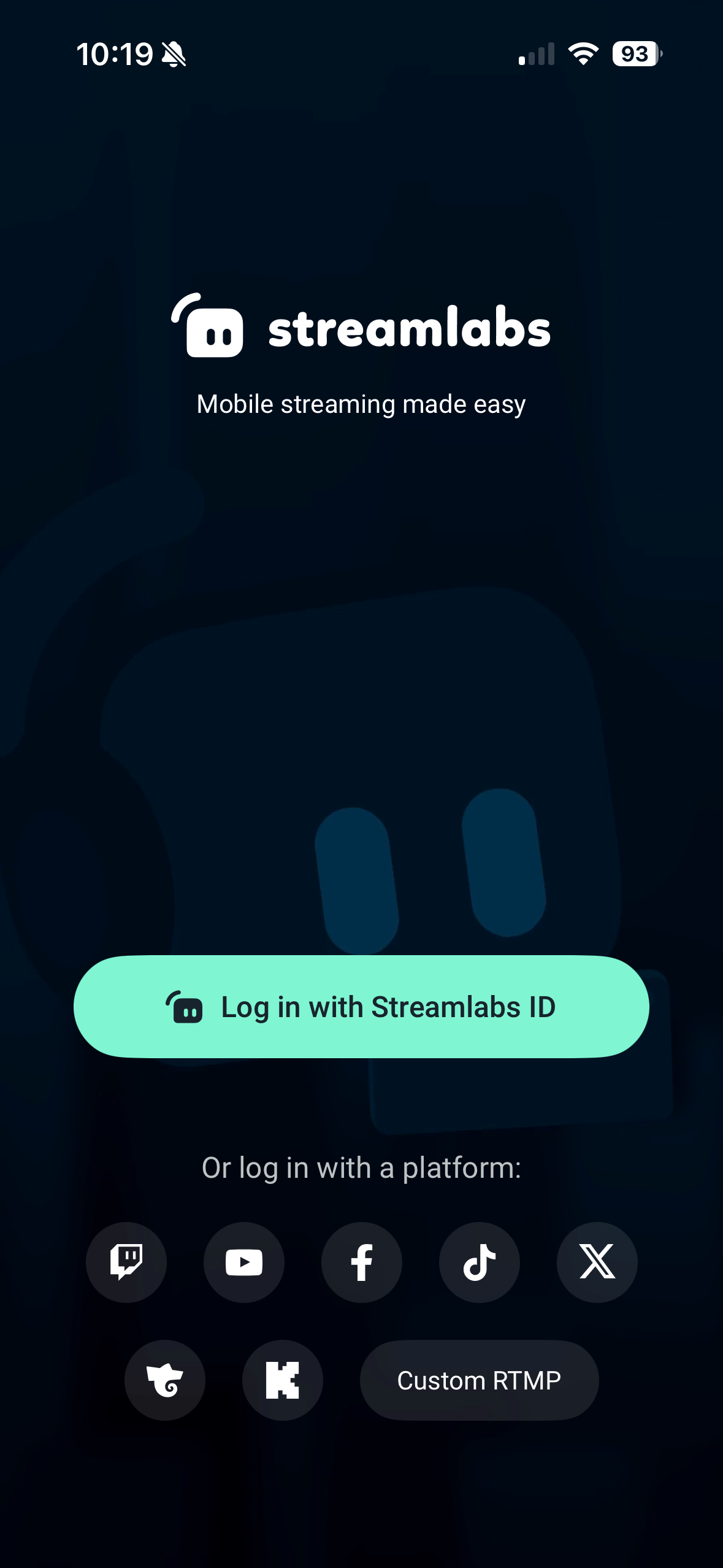
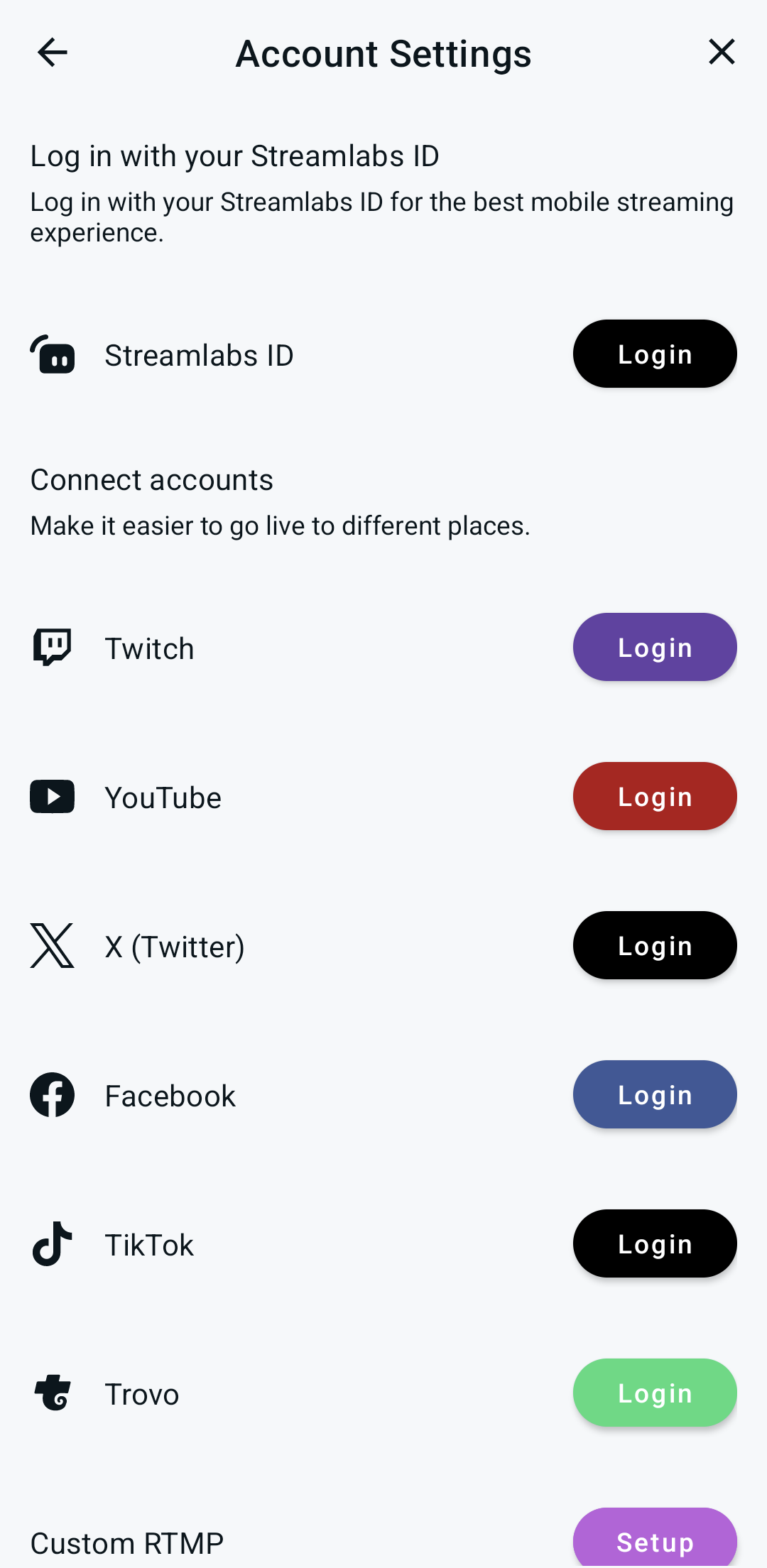
- Authorize the app to connect your channel.
- Give the app permission to use your mobile Camera and microphone.
Step 2: Scan your layout
- Tap the Menu button (three horizontal lines) in the top-left corner—Camera Scenes.
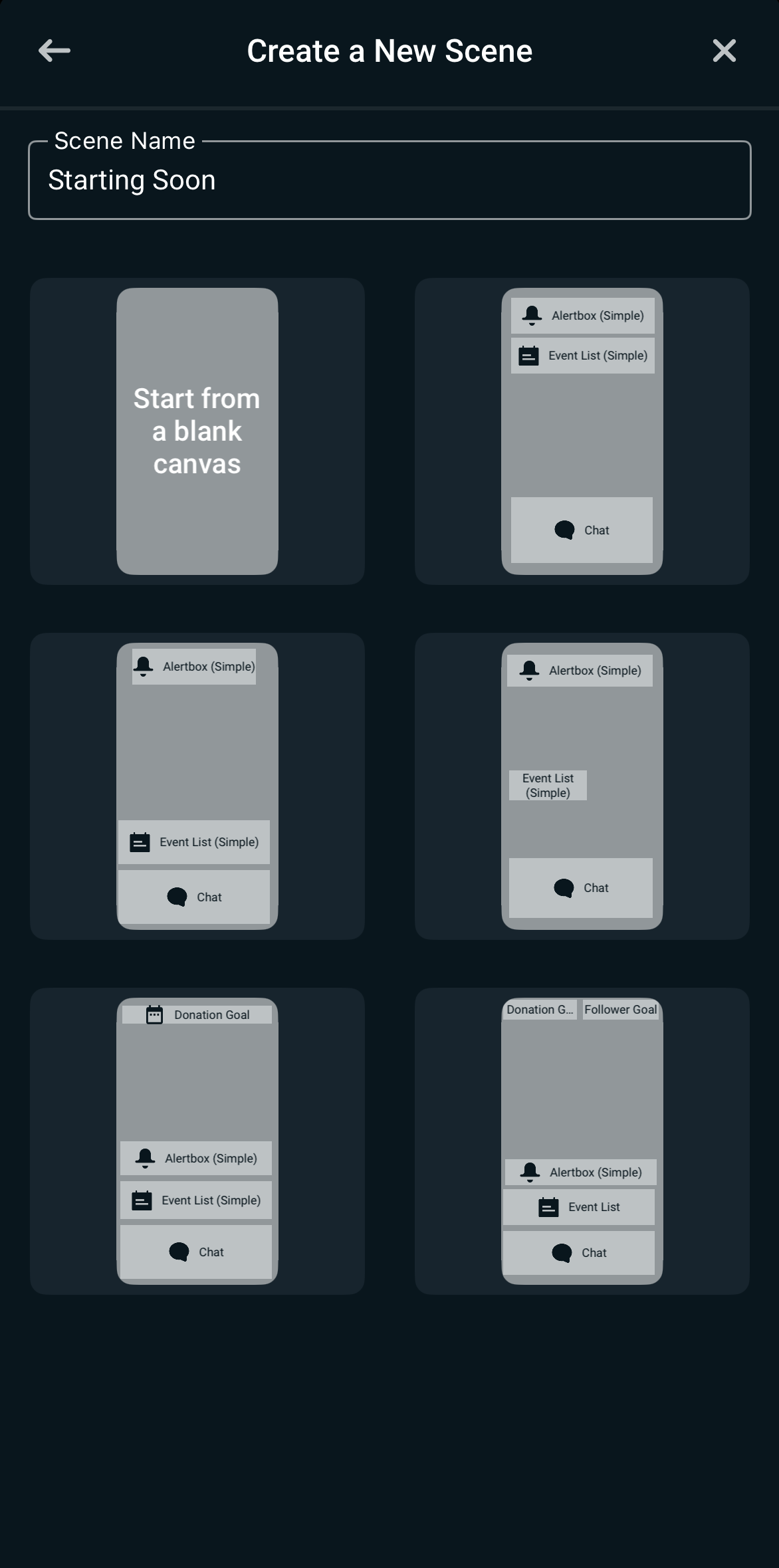
- Tap Create New Scene and name it. Build a Custom Scene or choose a Preset Template that automatically lays out your chat and alerts.
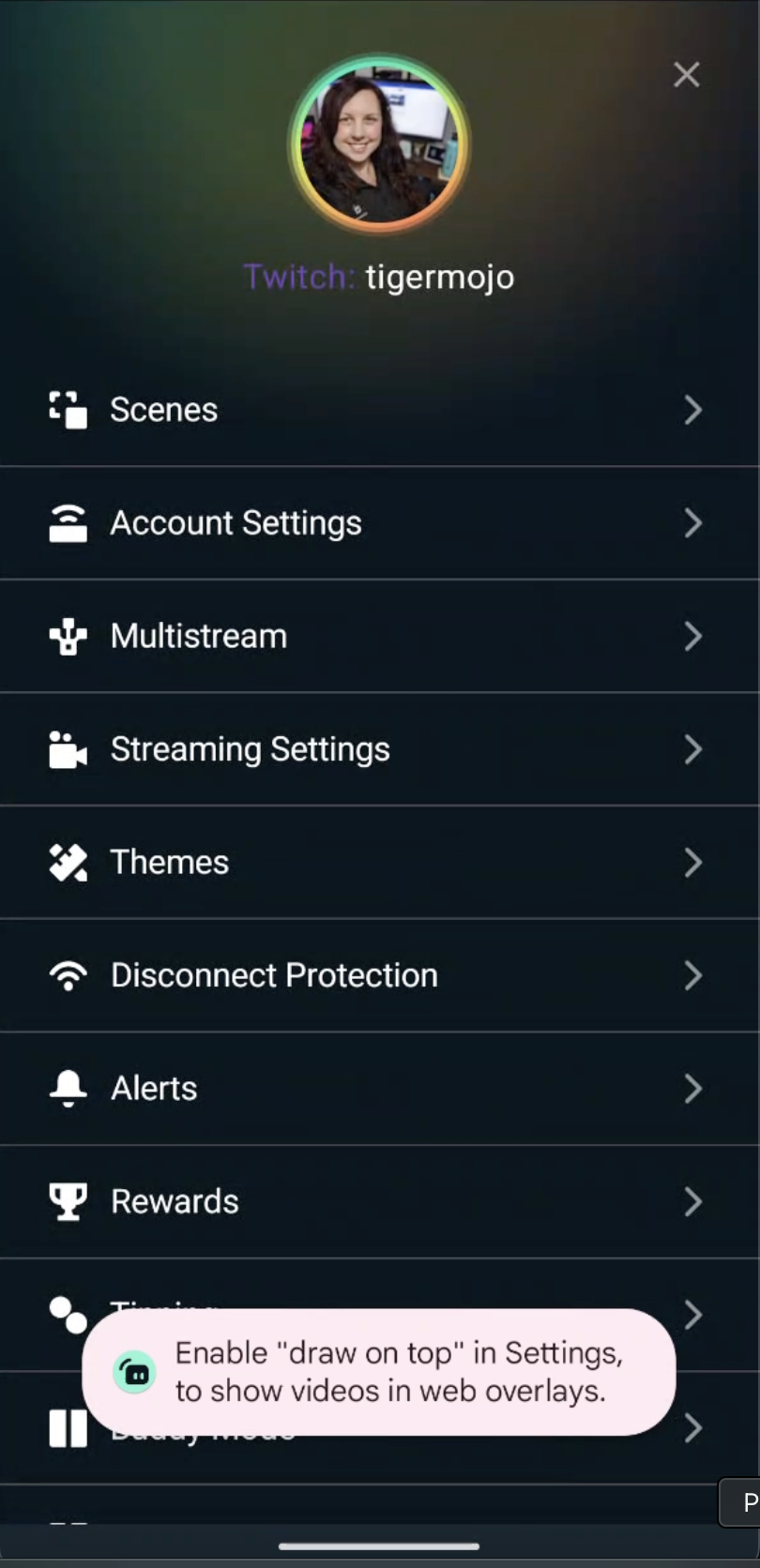
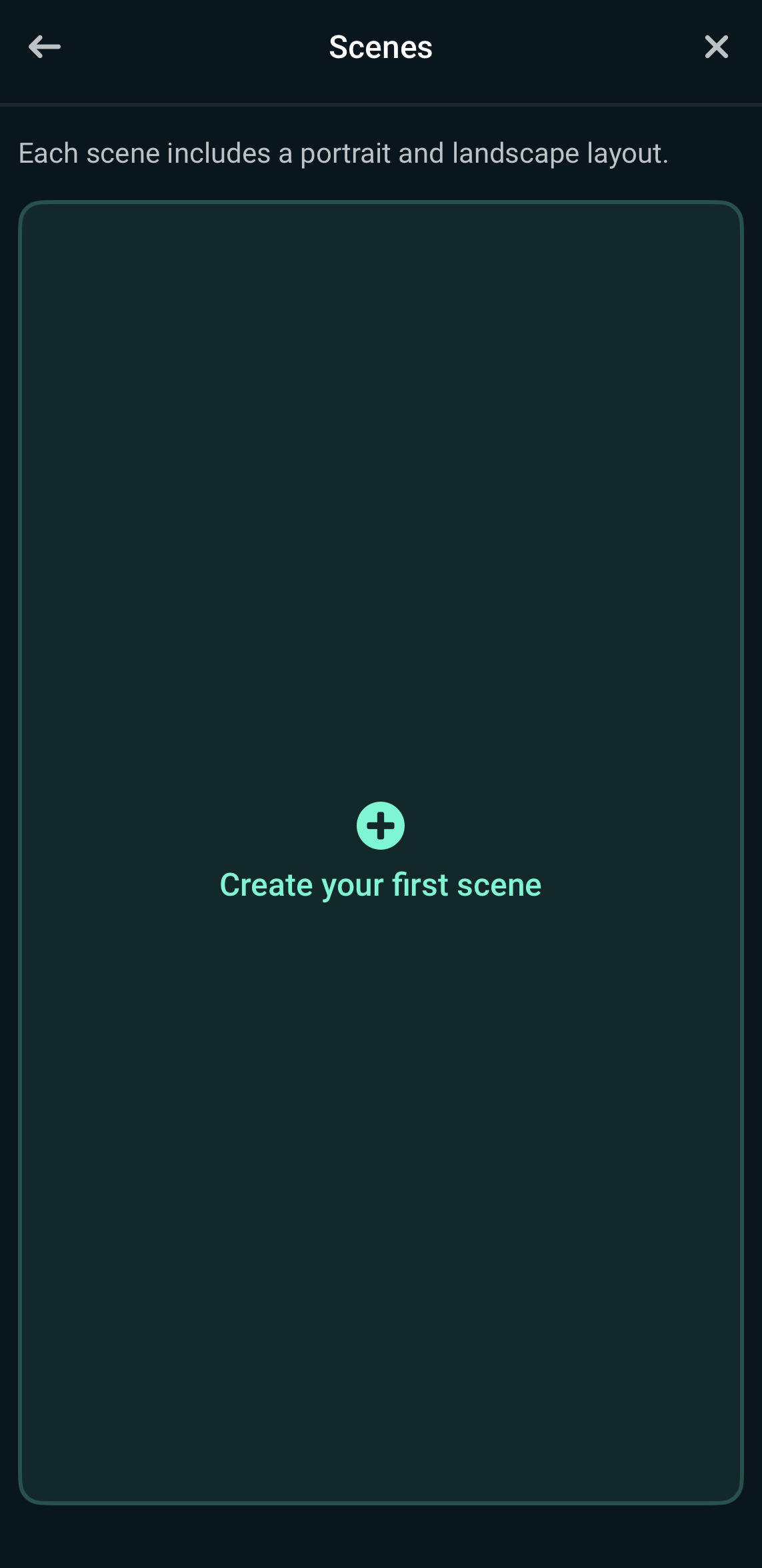
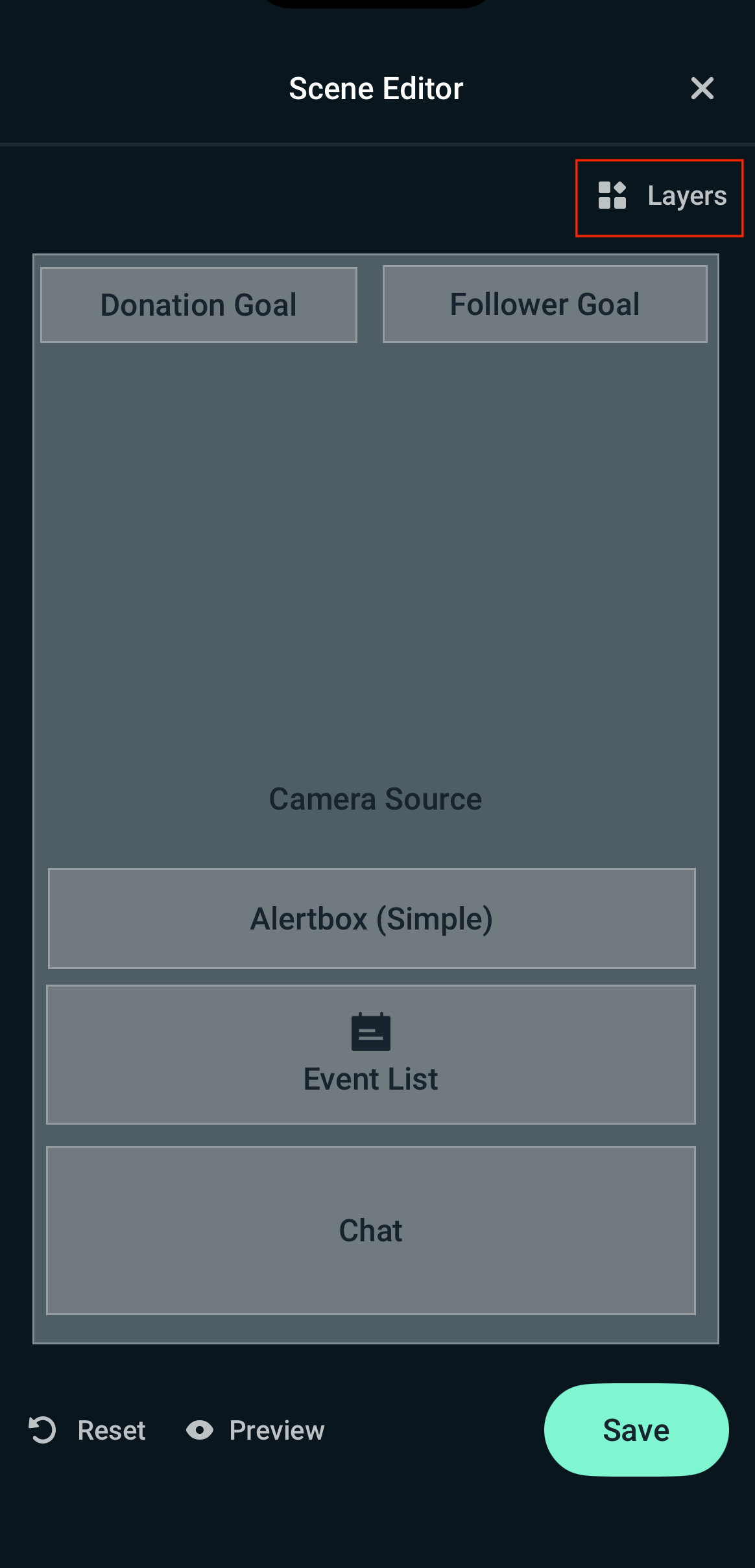
- Tap Layers to see and rearrange your active items.
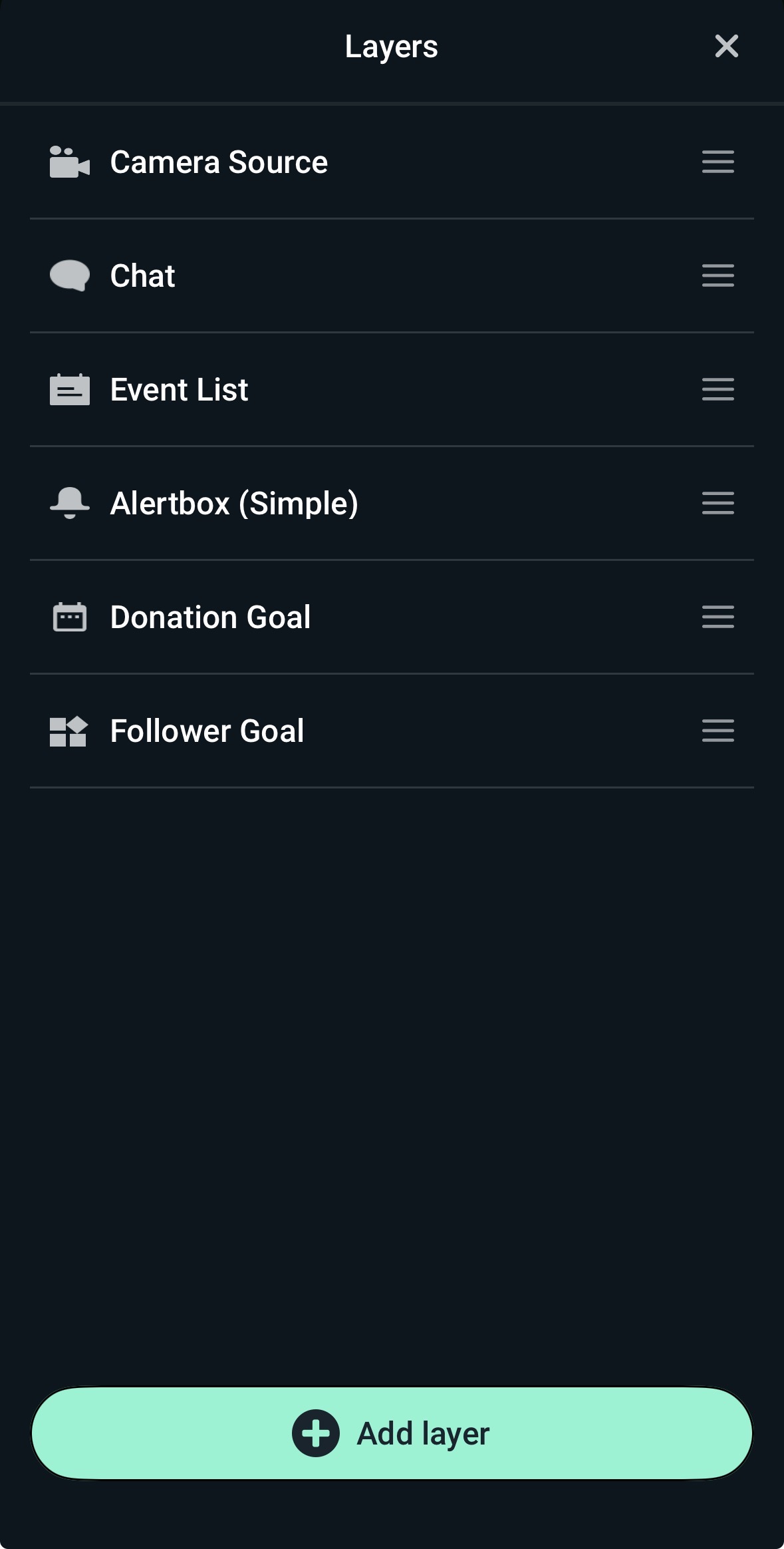
- Tap Add Layer to customize your layout with these elements:
- Camera: Adds your phone's built-in camera feed.
- Widget: Adds alerts, chat tracking, and stream event goals.
- Theme: Adds graphic overlays (requires a Streamlabs Ultra subscription).
- Guest: Adds a friend's video feed to your live mobile Broadcast.
- Streamlabs Graphic / Stream Label: Adds text overlays, such as top donor names.
- Custom Item: Lets you paste broadcasts, text, or local images.
- Reorder layers by dragging them up or down in the list. Items at the top appear above items below.
- Tap Preview in the bottom-left corner to test how your alerts look, then tap Save.
Step 3: Go live
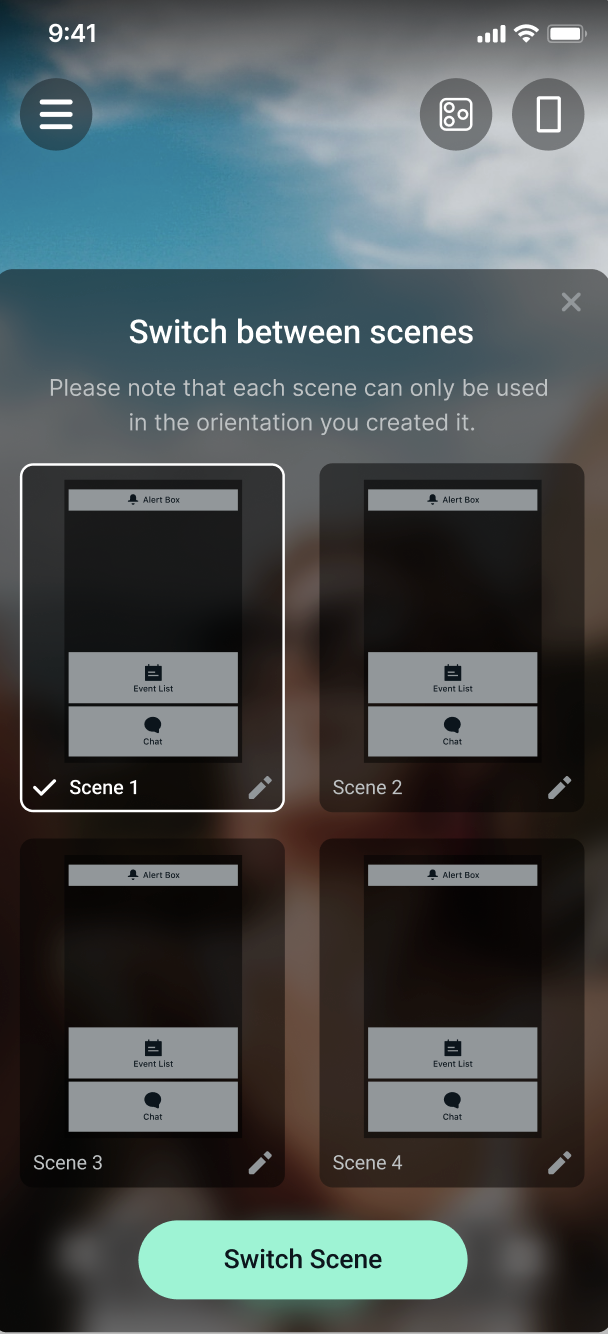
- Before going live, tap the phone icon (top right of your screen) to select the scene you want your viewers to see. You can also switch between scenes when you're live.
- Tap the main Go Live button and choose whether to stream your physical Camera or share your phone Screen
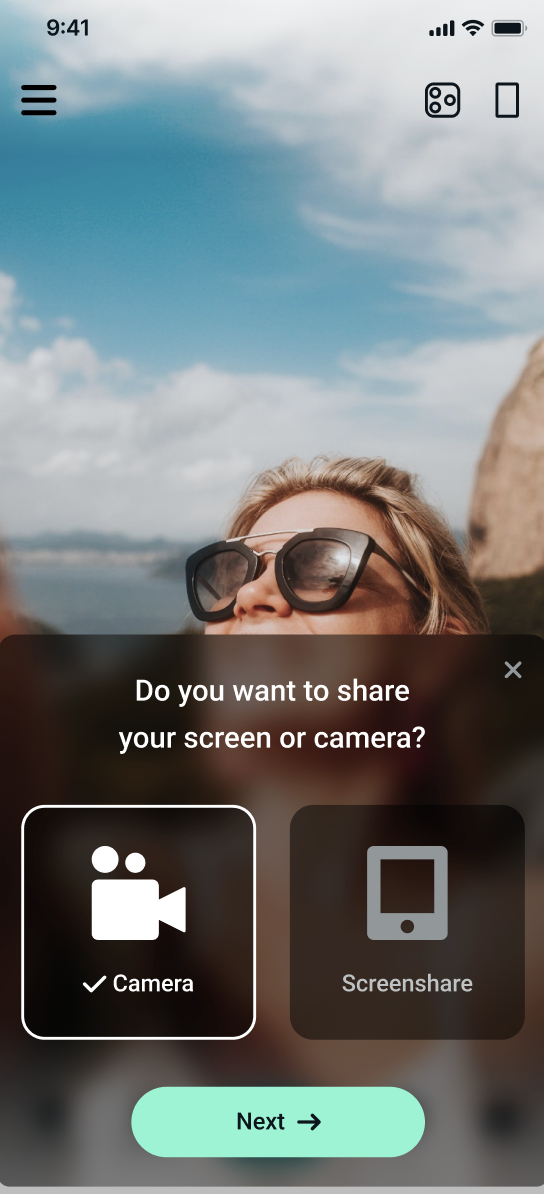
- Cameraoose X as your platform.
- Enter your video details: Title, Description.
- Pick your camera settings: video resolution, frames per second (FPS), and maximum bitrate.
- Tap Go Live to begin your Broadcast.
How to Stream from Browser (Talk Studio/Web)
If you don't want to download software to stream to X, you can stream from your browser with a tool like Talk Studio. Below are the steps to get set up.
Step 1: Open Talk Studio in your web browser and click Go Live.
Step 2: Click Add Destination, select X, and log in to connect your account.
/How to Stream to X (Twitter)3.png)
Step 3: For multistreaming, add additional destinations, then press Go Live to start streaming directly from your browser.
How to Stream from Browser (Talk Studio/Web) via RTMP
Reminder—you must have a verified X Premium or Premium+ account and log in to X Media Studio Producer. This is where you create your Source to generate a stream key and URL.
Step 1: Click on Premium, then choose the Media Studio Source tab
Step 2: Then select Sources > Create Source> RTMP. Choose the nearest region, and copy your RTMP URL and key.
Step 3: Open Talk Studio in your web browser and click Go Live.
Step 4: Click Add Destination and select Add Custom RTMP.
/How to Stream to X (Twitter)6.png)
Step 5: Next, enter the RTMP URL and stream key from your X Media Studio.
/How to Stream to X (Twitter)2.png)
Step 6: Name the destination, enter stream details, then click Add.
Step 7: On your Destination page, select X, then click your name. Name your stream and add a description, then click Go Live.
/How to Stream to X (Twitter)8.png)
Step 9: In X Media Studio, click Broadcasts, then Create Stream.
Complete the required sections, and choose your previously created Source. Then schedule your Stream, and click Create Broadcast.
Troubleshooting & Tips
If you have issues with your Source, make sure your account is verified, your stream keys are correct, and your internet connection is stable.
Ending the Livestream
Pressing End Stream disconnects the Stream from the RTMP. The "live" banner may disappear in a few seconds. However, if the Stream won't end or you want to end it remotely, click Stream in the X Media Studio Producer > Broadcasts section.
Advanced Features
Here are more advanced features, information, and in-depth guides to building out your X stream across Desktop, Plugin for OBS, Mobile, or Talk Studio.
X-Specific Articles
New Features To Explore
Key Features for Your Stream
- Ultimate Guide to Multistreaming
- Multistream on Mobile
- Tips for Troubleshooting Multistreaming on Desktop
- Multistreaming on Console
More In-Depth Setup Guides
FAQ
What Streamlabs tools can I use to stream to X?
You can stream to X using Streamlabs Desktop, Streamlabs Plugin for OBS, Streamlabs Mobile, or Streamlabs Talk Studio.
The best option depends on your workflow. Streamlabs Desktop provides the most complete desktop broadcasting experience, Plugin for OBS brings Streamlabs tools into OBS Studio, Mobile is designed for streaming from your phone, and Talk Studio lets you broadcast directly from a browser.
Do I need an X stream key to stream with Streamlabs?
No. When using Streamlabs' native X integration, you can sign in and connect your X account directly without manually entering a stream key.
You only need an X stream key and RTMP URL if you choose to use a custom RTMP workflow.
Can I schedule a live stream to X with Streamlabs?
Yes. You can schedule X live streams directly from Streamlabs Desktop. Add your stream details, choose when you want the broadcast to begin, and manage your upcoming X stream without leaving Streamlabs.
Does Streamlabs Cloudbot work with X?
Yes. Cloudbot supports X live chat and includes features such as default and custom commands, moderation tools (timeouts and bans), minigames, timers, and more.
Can I manage X chat from Streamlabs?
Yes. Streamlabs lets you view and interact with X live chat while you stream. You can also use Cloudbot to add commands, moderation tools, timers, minigames, and other community-management features.
Which Streamlabs widgets support X?
Streamlabs supports X across several widgets, including Chat Box, Alert Box, Recent Events, Event List, The Jar, Follower Goal, and Subscriber Goal.
These integrations let you bring X chat and community activity directly into your Stream.
What X activity can trigger Streamlabs alerts?
Streamlabs Alert Box supports X likes, follows, and subscriptions. You can customize how those alerts look and sound so you can recognize viewer activity directly on Stream.
Can I use X activity with Streamlabs Goals?
Yes. XStreamws can contribute to your Follower Goal, while X subscriptions can contribute to your Subscriber Goal.
Can I multistream to X and other platforms at the same time?
Yes. Supported Streamlabs products let you broadcast to X and other streaming destinations at the same time through Multistream.
Depending on the Streamlabs product and destinations you choose, you may need a Streamlabs Ultra subscription.
Can I stream to X from my phone?
Yes. Streamlabs Mobile for iOS and Android lets you connect your X account and go live directly from your phone.
What overlays and widgets can I use on my X stream?
You can customize your X broadcast with Streamlabs overlays and supported widgets, including Alert Box, Chat Box, Recent Events, Event List, The Jar, Follower Goal, and Subscriber Goal.
You can also use broader Streamlabs tools such as themes, stream labels, and goals, and contact us to customize your broadcast.
Can I automatically create clips from my X live streams?
Streamlabs Replay can help you identify and capture broadcast clips from stream recordings you may want to repurpose into additional content.
How do live streams on X appear to viewers?
Live streams on X appear as live video posts that viewers can watch and interact with on the platform.
If you have questions or comments, please contact us or join our Discord server.
