



 Ultraサブスクリプション1本。

When it comes to live streaming on platforms like Twitch and YouTube, broadcasters need a few key things to succeed. A strong audience and quality content are essential, of course, but another critical piece of the puzzle is reliable tools and widgets that make broadcasting easier. That's why we added the the YouTube Super Chat Goal widget to the Streamlabs widget roster.
Read on to learn how to set up this excellent tool for beginners and seasoned broadcasters alike!
How to Set up the YouTube Super Chat Goal Widget
Step 1: Log in to Streamlabs.com and make sure you sign into YouTube.
Step 2: Click on All Widgets and then find and click on Super Chat Goal or click here to go to the settings directly.


Step 4: Customize the name of the goal, the amount, when you’d like your goal to end, and any color or font customizations and click Save Settings.

How to Add a YouTube Super Chat Goal to Streamlabs Desktop
Step 1: Open Streamlabs Desktop and add a new source by clicking the + icon on the left side of the Sources panel.

Step 2: Scroll down to Widgets and click on Super Chat Goal. Adjust the size and spacing to your liking and you're done!

How to Add a YouTube Super Chat Goal to OBS
Step 1: Go to the YouTube Super Chat Goal widget on Streamlabs.com.
Step 2: Copy the widget URL. Be sure not to show this URL on your stream or share it publicly.

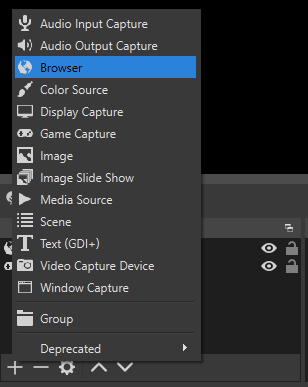
Step 3: Add a new browser source and paste the widget URL. Adjust the size and spacing and you're done!
We hope this new widget will help you on your journey as a content creator. If you have any questions or comments, please let us know by contacting us or joining our Discord server.