


 Ultra.

If you're a Twitch streamer looking to optimize the viewing experience for your web and mobile viewers, the Twitch Dual Format feature makes it simple. This new feature allows your audience to view streams horizontally (traditional) and vertically (optimized for mobile devices) simultaneously. It's a perfect opportunity to cater to the growing number of mobile viewers while still serving those who prefer the classic layout.
The best part? Streamlabs Desktop is enabling you to customize overlays, sources, and more for both views.
Keep reading to discover how Dual Format can help you reach more viewers on Twitch.
System Requirements
Below are the current minimum requirements for the Twitch Dual Format feature.
Minimum GPU and Driver Version:
- NVIDIA: GTX 900 Series, GTX 1050 variants, GTX 1060 variants, GTX 1650 variants (or later)
- AMD Radeon RX 5500 (or later)
Operating System: Windows 10/11
Upstream Bandwidth Bitrate:
- 13.5 Mbps (1080p)
- 22.5 Mbps or greater (1440p/2k, only available for select streamers)
Maximum Video tracks:
- up to 4 tracks when streaming at 1080p or lower
- up to 5 tracks when streaming at 1440 (2K)
Vertical Canvas: 1080x1920 (9:16)
How to Use Twitch Dual Format with Streamlabs Desktop
Make sure you're using the latest version of Streamlabs Desktop to customize your streaming canvas and utilize Dual Format streaming on Twitch.
Step 1: Launch Streamlabs Desktop and log in with your Twitch account.
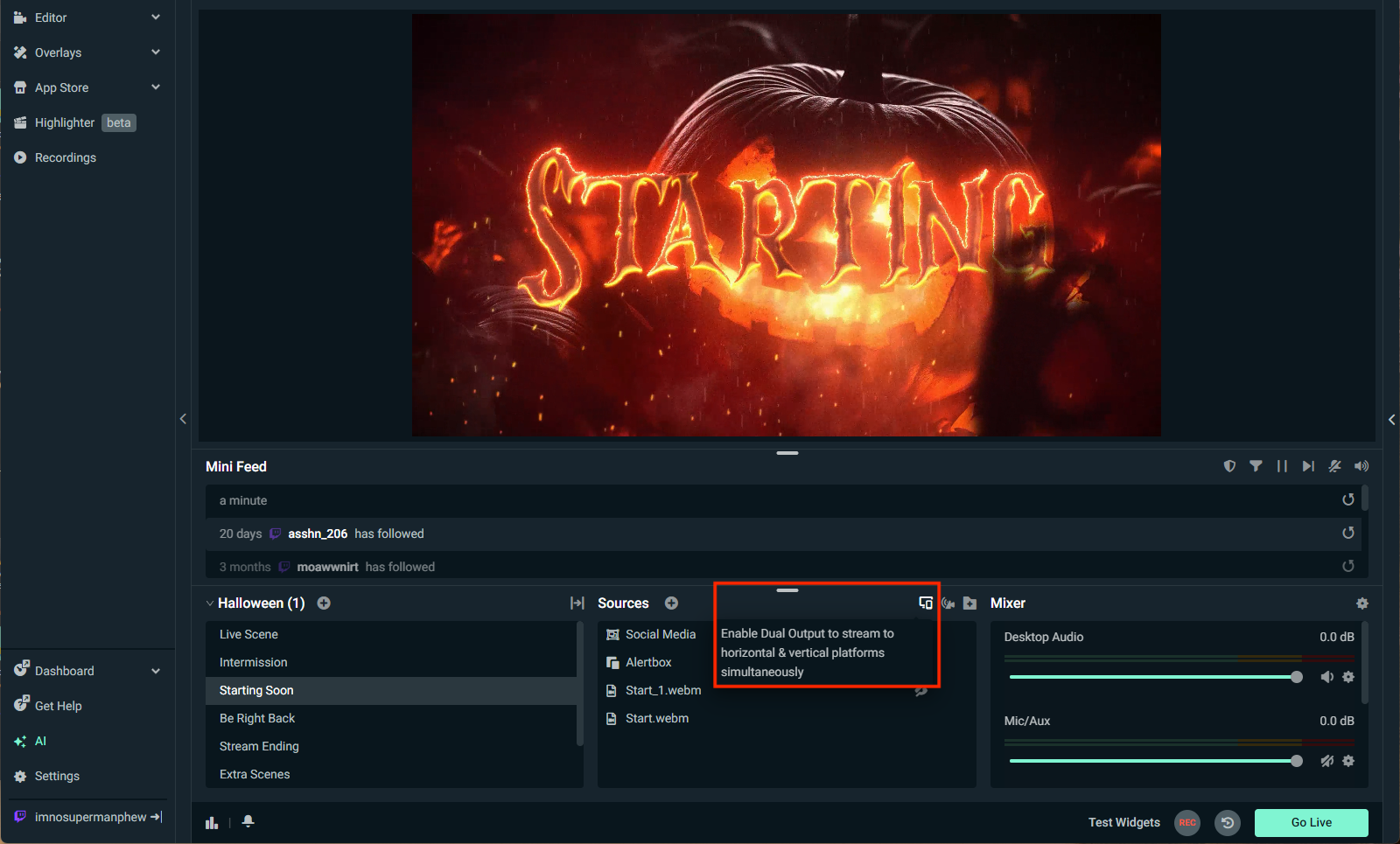
Step 2: Toggle on the Dual Output feature. You can do this right from the editor window in Streamlabs Desktop.
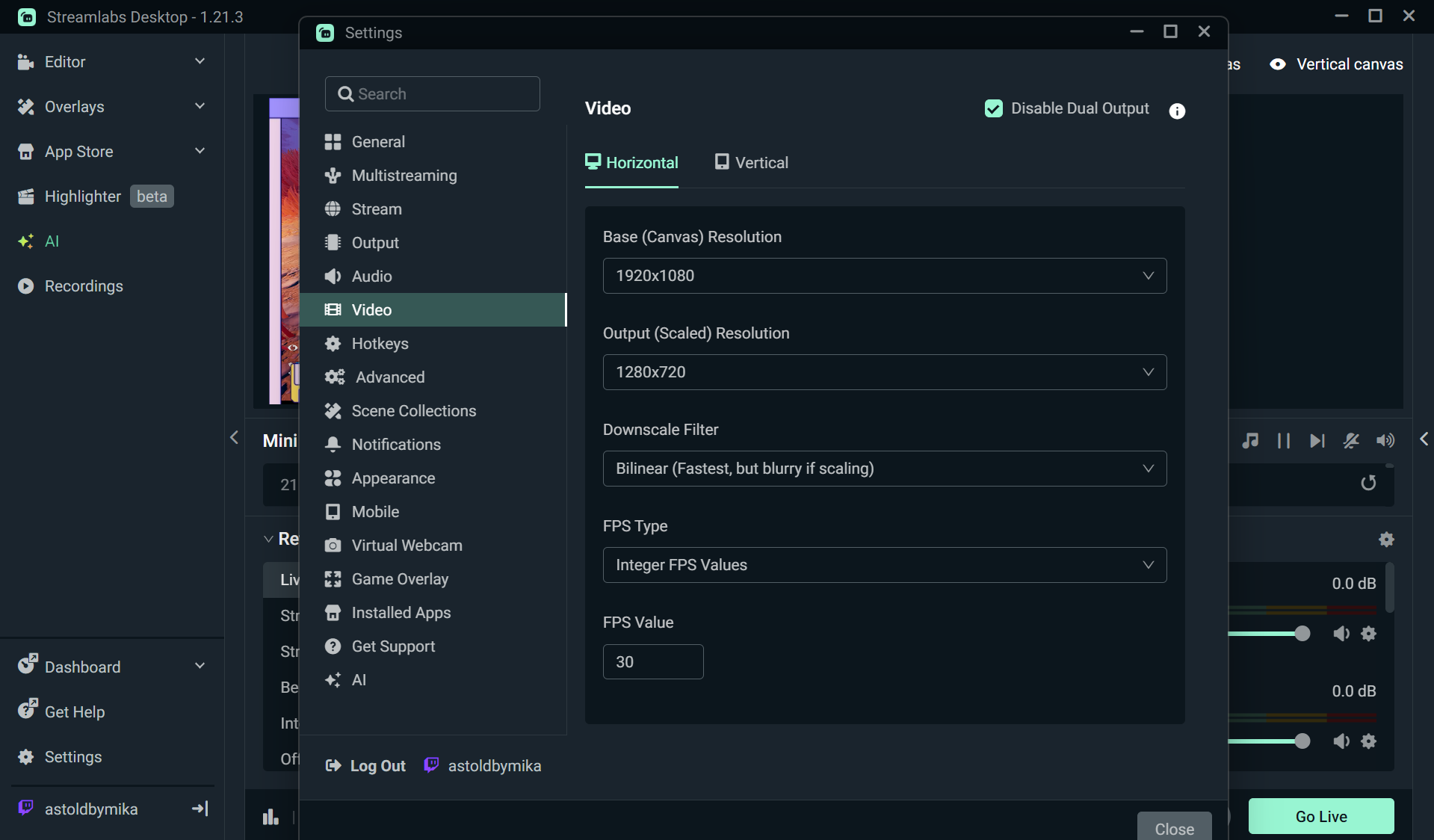
Step 3: Head to Settings > Video to set up your resolution and FPS for each canvas. Click Done when you're finished.
Step 4: Adjust your sources within the Editor by displaying or hiding what you wish viewers to see. Resize elements to make sure nothing important is cut off in either view.
Step 5: When you're ready to live stream, click Go Live. Make sure Twitch is selected as your destination, toggling on both options (last icon) to stream vertically and horizontally.
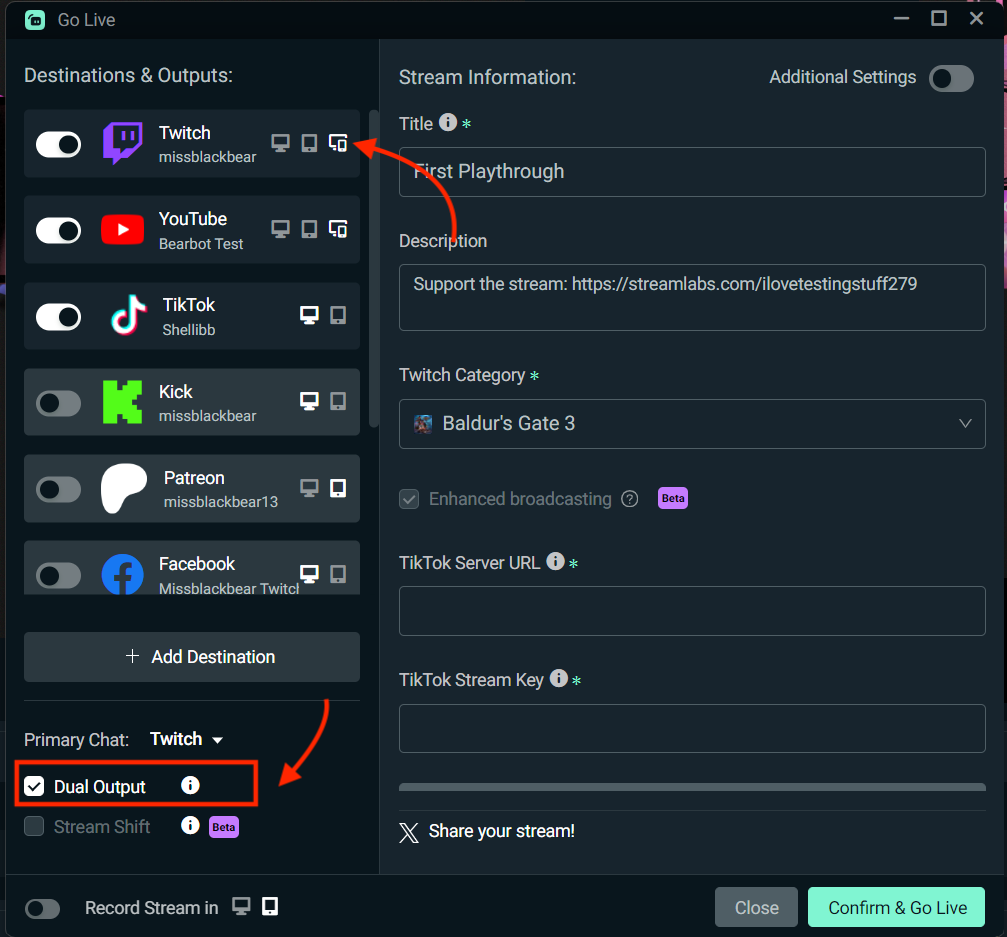
Step 6: Next, click Confirm and Go Live!
Step 7: Both stream layouts will broadcast simultaneously to Twitch. We recommend doing a test stream—watch your stream on a mobile device to preview your vertical stream and ensure all key elements display properly.
Step 8: Use inspector.twitch.tv to monitor performance. Streaming both formats requires more resources, so watch your CPU/GPU load and adjust as needed.
Things You Should Know
There are some known limitations when using Twitch Dual Format. Keep in mind that:
- System requirements for this feature are still being tested so you may experience some hiccups. Be sure to report any issues to help us improve the feature.
- You can still multistream to other platforms while streaming directly to Twitch with Enhanced Broadcasting (required for dual format streaming). Just keep in mind this may add more encoding load to your system, though most modern GPUs should be able to handle it without any issues.
- Vertical VODs will expire 7 days after the original stream and only the horizontal format will be available for the remainder of the retention period. The 7 day expiration also applies to 2k streams however clips from 2k streams will not expire.
Check Twitch's blog for a full list of current Dual Format limitations and bugs.
