



 Ultra subscription.
Here at Streamlabs we want to help you succeed with Streamlabs Sponsorship campaigns so you can earn more while you stream. Adding the Sponsorships App Conversion Goal widget to your stream allows you and your viewers to track conversions for your current sponsorship campaign, and will allow you to see your progress throughout the campaign duration, encouraging your supporters to engage with the campaign and watch your conversions climb.
In this blog, we’ll cover (click a section below to skip ahead):
- How to Customize Your Sponsorships App Conversion Goal Widget (Streamlabs Dashboard)
- How to Set up the Sponsorships App Conversion Goal Widget (Streamlabs Desktop)
- How to Set up the Sponsorships App Conversion Goal Widget in OBS Studio
How to Customize Your Sponsorships App Conversion Goal Widget (Streamlabs Dashboard)
Before setting up your Sponsorships App Conversion Goal widget, you’ll need to apply and be accepted into a Sponsorships campaign. Learn how to get started applying for sponsorships with our guide post.
Below we’re setting up a Conv
ersion Goal Widget for an existing sponsorship campaign running in Streamlabs Desktop. By default the Sponsorships App Conversion Goal widget will display progress for your currently active Sponsorships campaign.
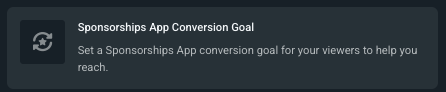
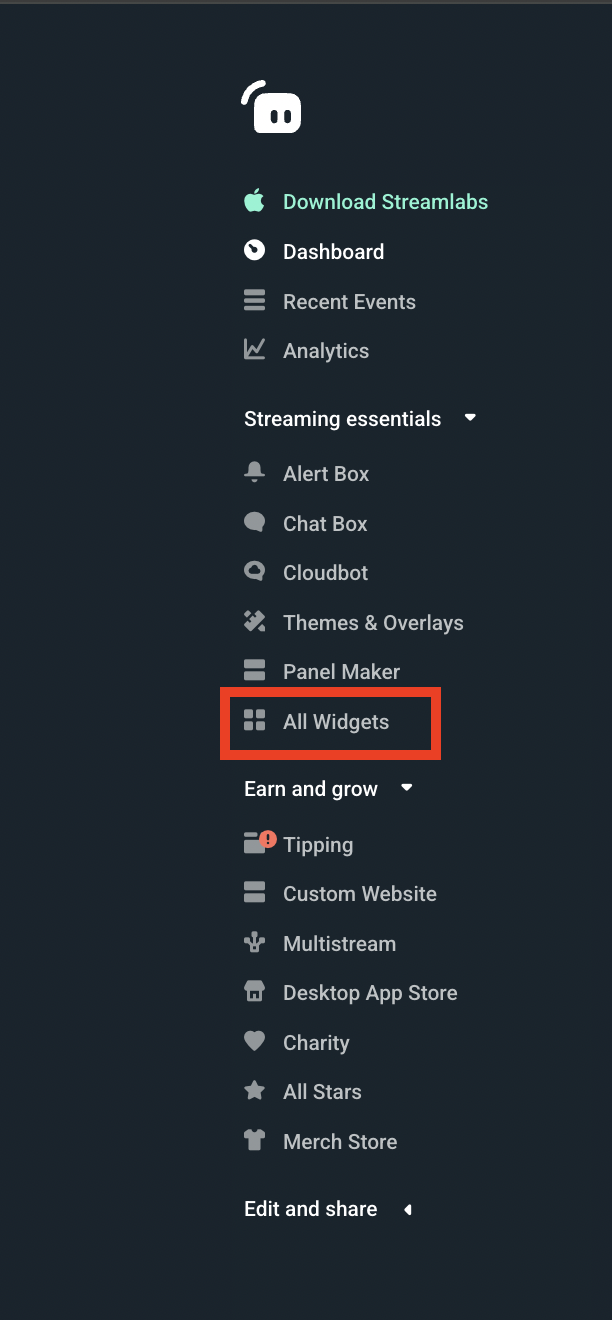
Step 1: Log in to your Streamlabs Dashboard and click All Widgets from the left-hand navigation bar. Click Sponsorships App Conversion Goal under the Goals section.
You can also click here to go directly to the settings page for the conversion goal widget.
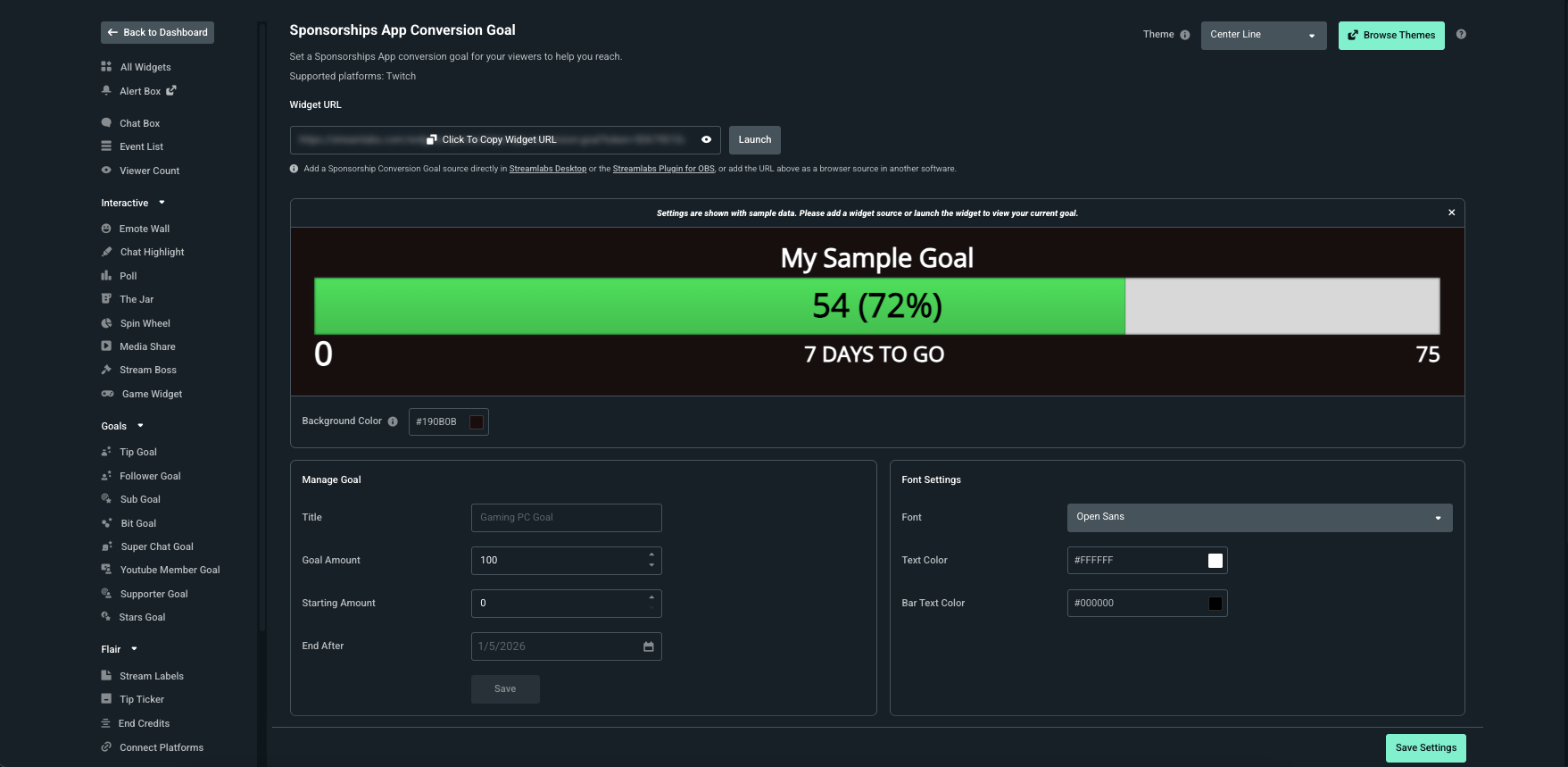
Step 2: Use the Manage Goal panel to enter your Goal Title (which we recommend you make your sponsorship campaign name), Goal Amount, Starting Amount and End Date. Click Save when you’re done to make sure you lock in your changes.
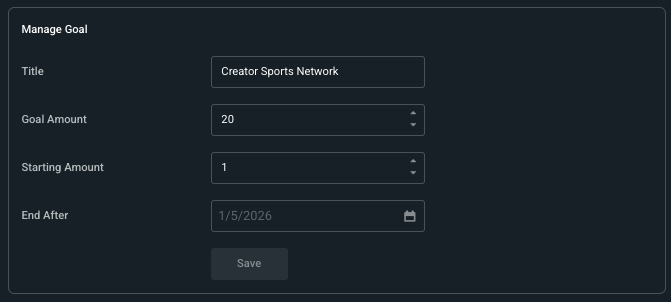
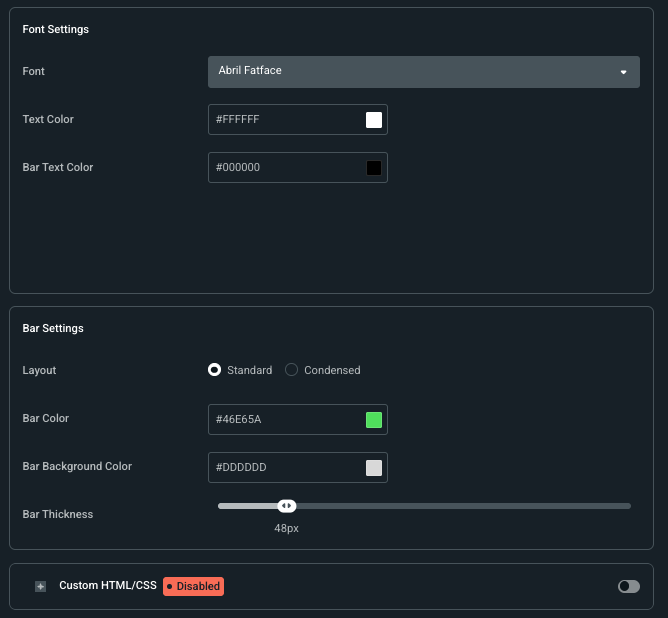
Step 3: From there, you can edit the layout, font, colors, and bar thickness to match your widget to your stream aesthetic. You’ll see a live preview (with sample data) as you make changes. The background is for preview purposes only-the live widget will have a transparent background on stream.
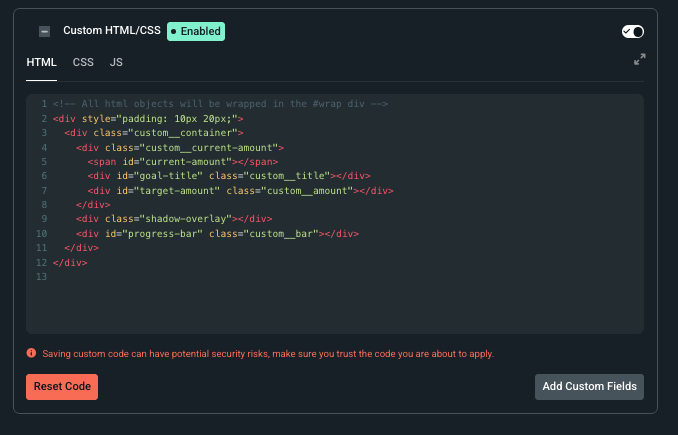
Step 4: Enable HTML/CSS to take full control with advanced customization (if you want!) FYI, changes made here will override all other changes made.
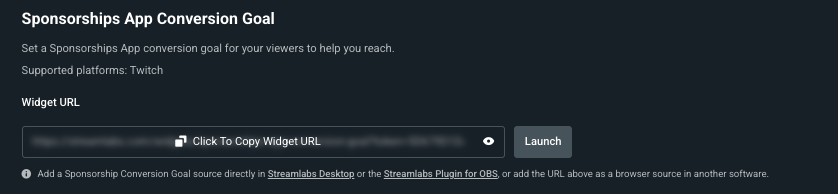
Step 5: Click Save Settings and copy the Widget URL to paste into any broadcast software that supports browser sources (e.g. OBS Studio, XSplit etc.) If you’re using Streamlabs Desktop or the Streamlabs Plugin for OBS, you can find the steps for adding the widget in the desktop applications as its own Source later in this guide.
How to Set up the Sponsorships App Conversion Goal Widget (Streamlabs Desktop)
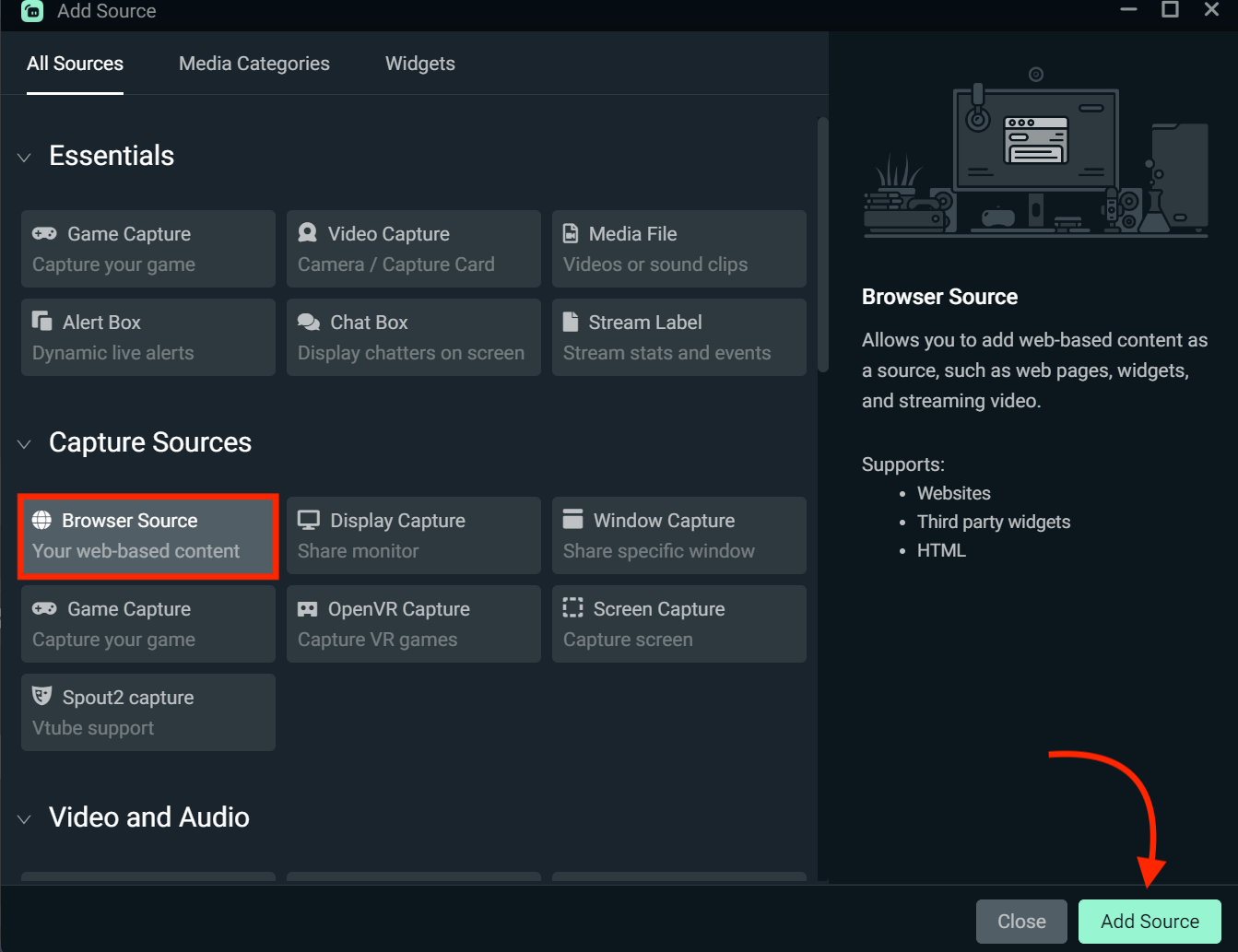
Step 1: Once you have set up your Sponsorships App Conversion Goal widget and copied the widget URL as described above, open Streamlabs Desktop and find the option to add a Browser Source. In Streamlabs Desktop, this would be Plus sign (+ in main editor > Browser Source > Add Source).
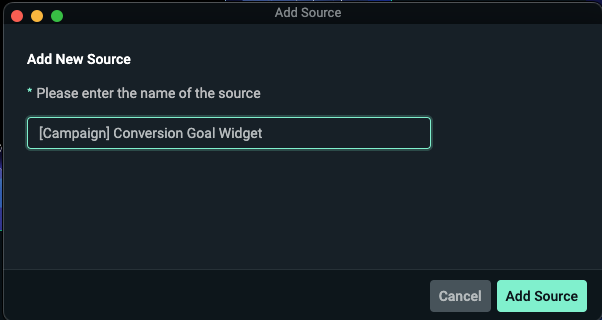
Step 2: When prompted, we recommend naming the source “[Campaign Name] Conversion Goal” so you don’t mix them up in your sources list. Hit Add Source once you’ve input a name.
Step 3: Paste the link for the conversion goal widget in the URL field. When you’re done, press Close.
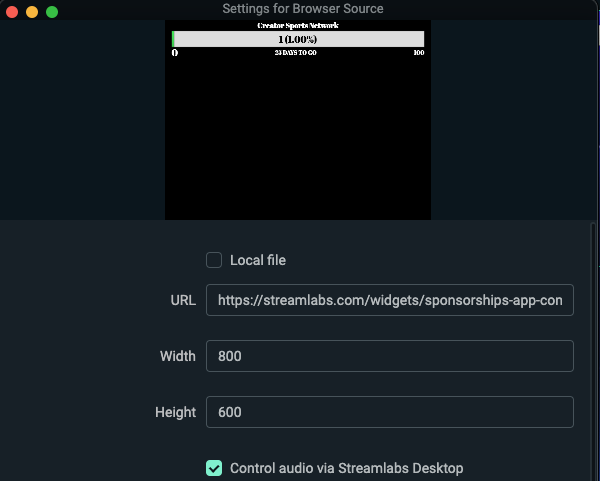
Step 4: The conversion goal widget will appear on screen for you to resize, drag, etc to fit your layout.
NOTE: It may take up to 24 hours for your conversions to update for the goal widget.
How to Set up the Sponsorships App Conversion Goal Widget in OBS Studio
Step 1: Once you have set up your Sponsorships App Conversion Goal widget and copied the widget URL as described in the setup instructions, open OBS Studio.
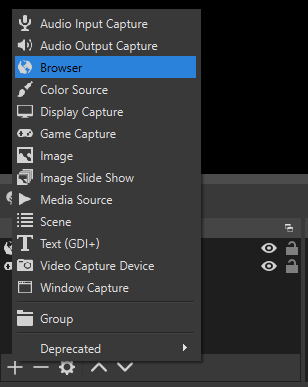
Step 2: Add a new browser source and paste the widget URL. When prompted, we recommend naming the source “[Campaign name] Conversion Goal” so you don’t mix them up in your sources list. When you’re done, press Close.
We hope you find this widget helpful in driving more conversions and revenue from the Sponsorships campaigns you are taking part in. If you have any questions or comments, please let us know by contacting us or joining our Discord server.