



 Ultra subscription.

The Spin Wheel widget is a tool from Streamlabs that is designed to encourage passive viewers to participate in your stream. Whether you use the widget to host giveaways or as a way to add an element of surprise (think random game or challenge selections), the Spin Wheel widget is a tool you should consider adding to your live stream if it's starting to feel a bit mundane.
The Spin Wheel can make your live stream more interesting by gamifying the experience for you and your viewers. Additionally, you can customize the widget to your liking with tailormade widget themes to fit the vibe and aesthetic of your stream.
Jump Ahead:
- How to Set Up The Spin Wheel Widget
- How to Add Spin Wheel to Streamlabs Desktop
- How to Add Spin Wheel to OBS Studio
- How to Add Spin Wheel to XSplit/Other Streaming Software
How to Set up The Spin Wheel Widget
Step 1: First, visit Streamlabs.com and log into your dashboard.
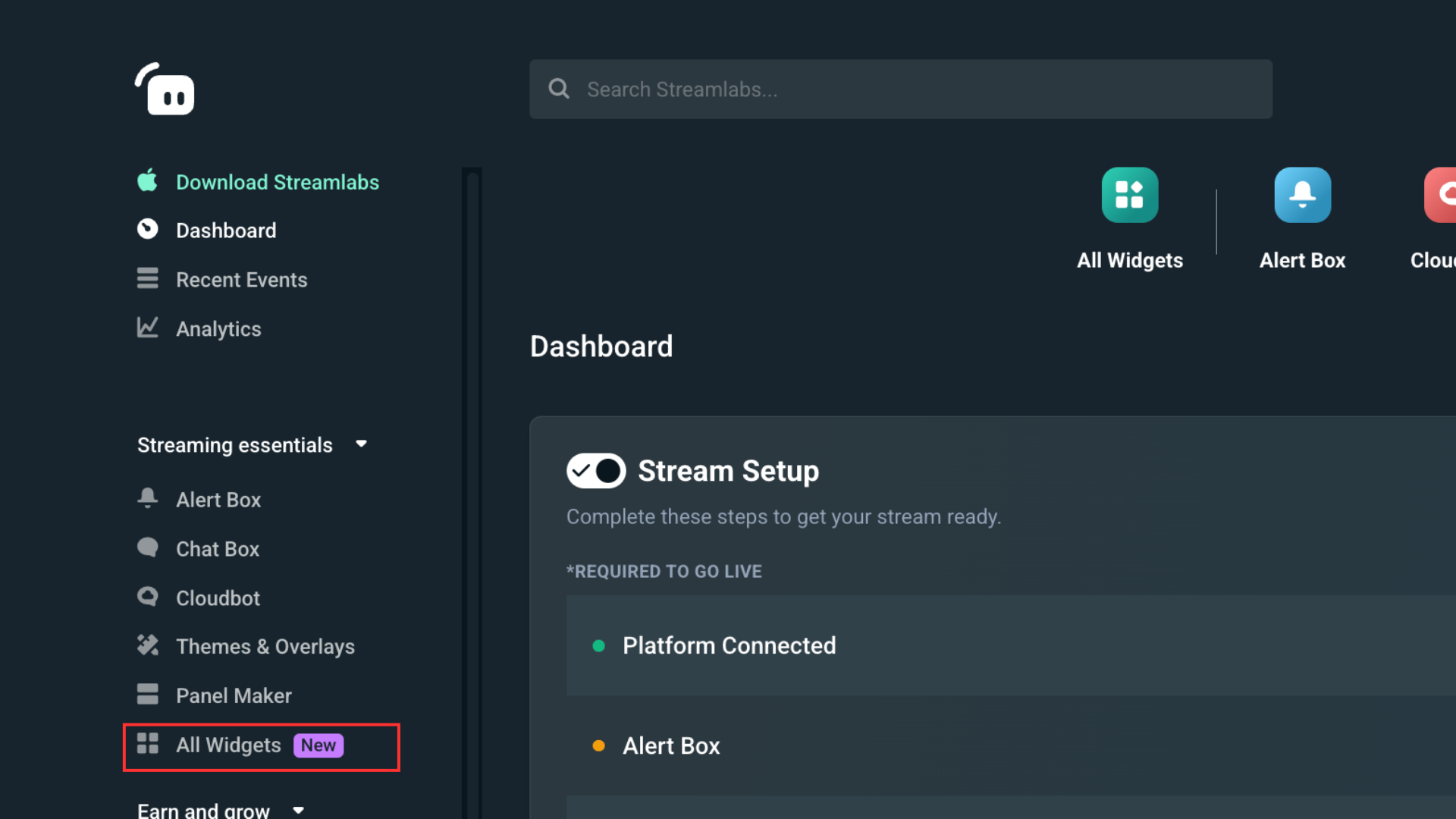
Step 2: On the left side of the dashboard click on All Widgets.
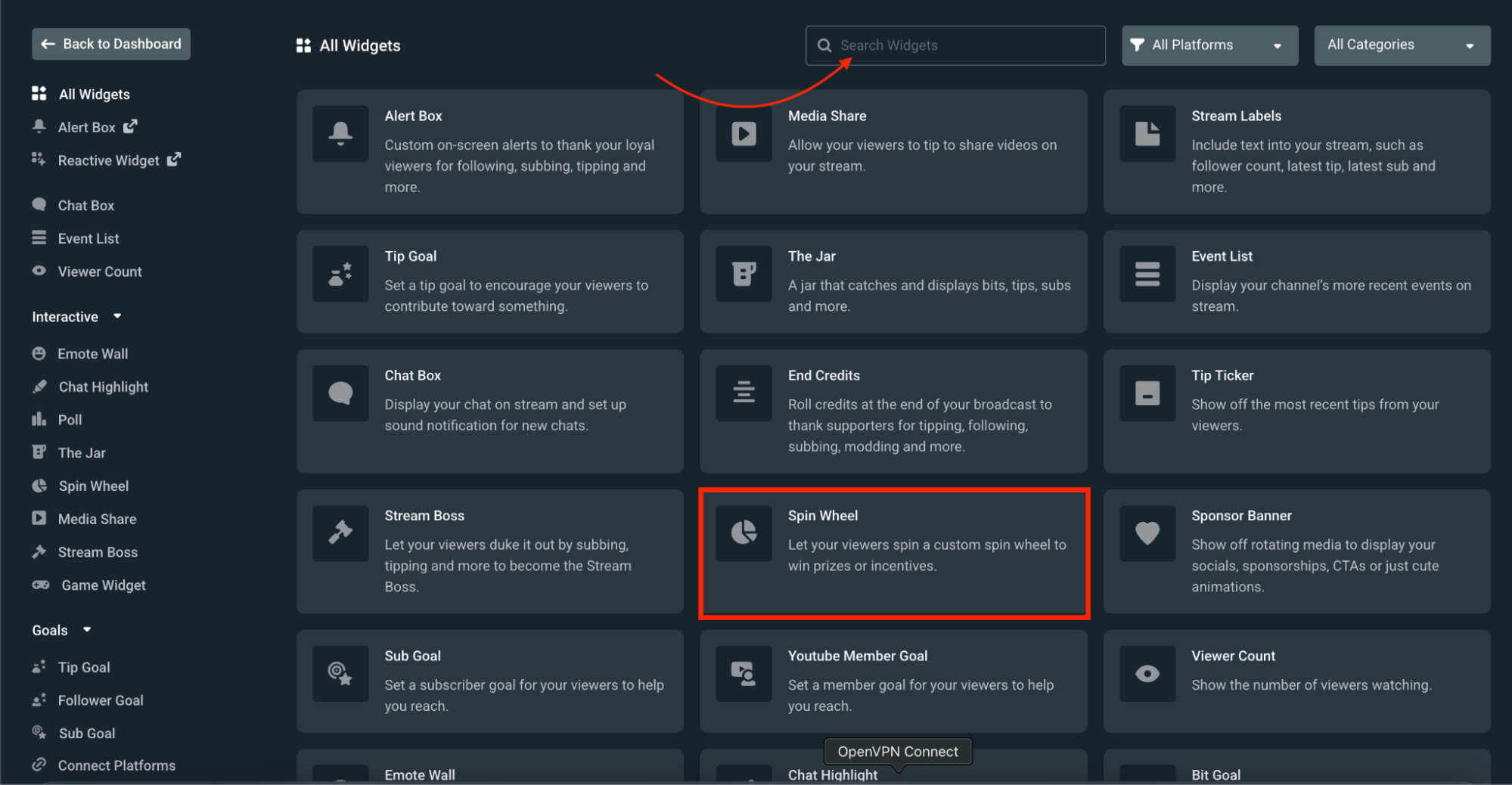
Step 3: Next, scroll down to find Spin Wheel or search for the widget in the search bar-click to open the widget's settings.
Step 4: Now it's time to customize the Spin Wheel with the items, games, tasks etc. that you'd like it to choose from.
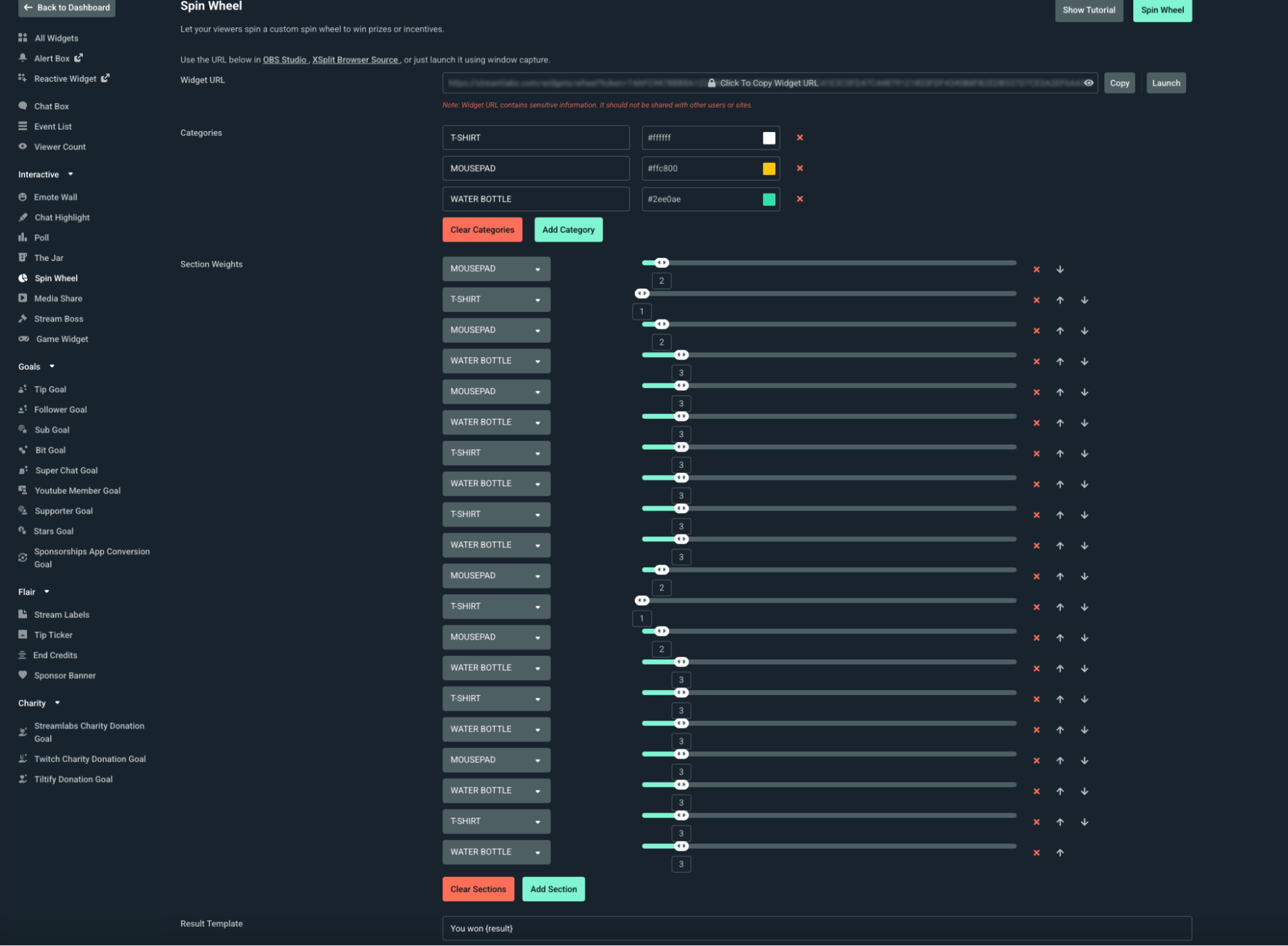
On this page, you have full control over the items you want to include in your Spin Wheel.
Note: When editing your Spin Wheel you may find it useful to click Launch next to the Widget URL and click Save Settings at the bottom of the page as you edit elements so you can see what your changes look like as you make them.
If at any point you want to reset the widget, click Defaults then Save Settings at the bottom of the page.
Categories
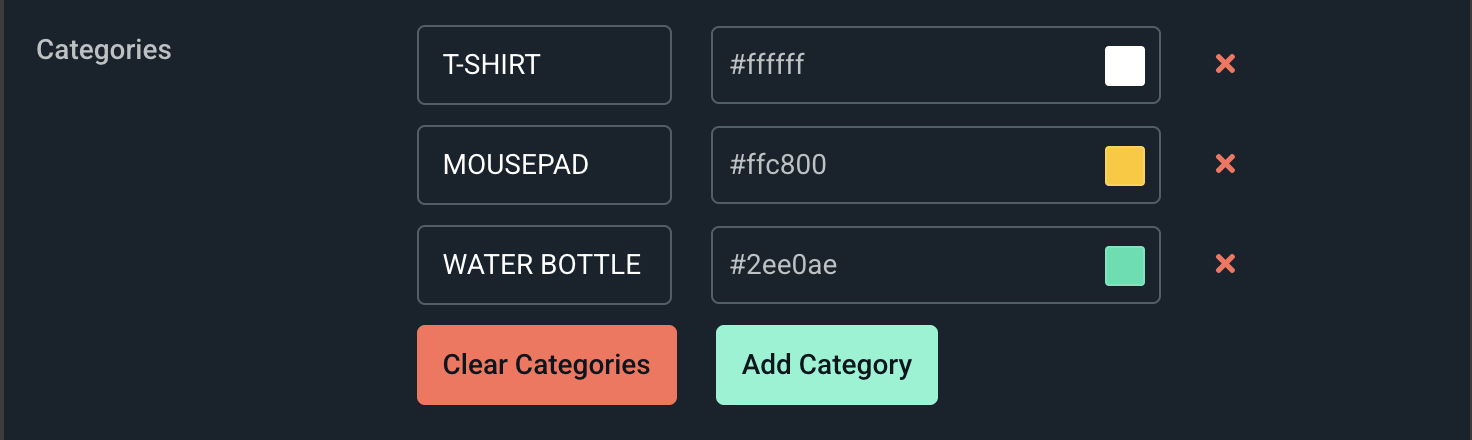
You can add new items to your spin wheel by using the categories sections. T-shirts, mousepads, and water bottles are included by default, but you can change them to whatever you want.
Section Weights
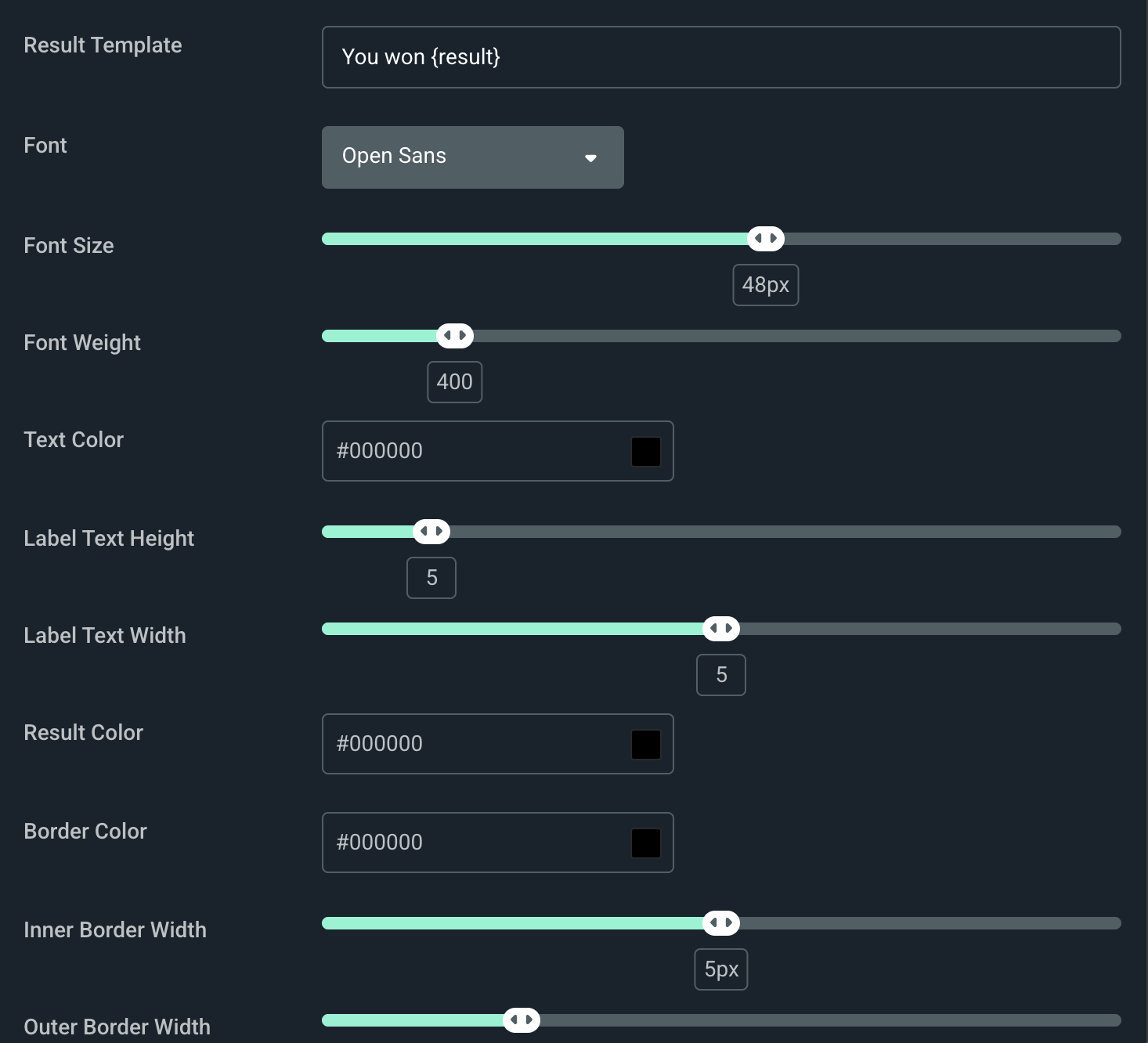
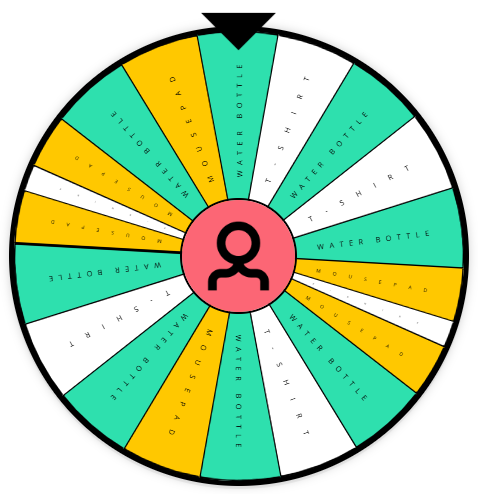
Section Weight determines how small or large each section aka slice of the Spin Wheel pie is. The higher the number, the larger the section. The lower the number the smaller the section. You can see how the default weights appear below.
As you scroll down the page, you'll find more customization options to edit, such as font size, text color, the speed of the Spin Wheel, and even the image of the ticker or the image displayed in the center of the wheel.
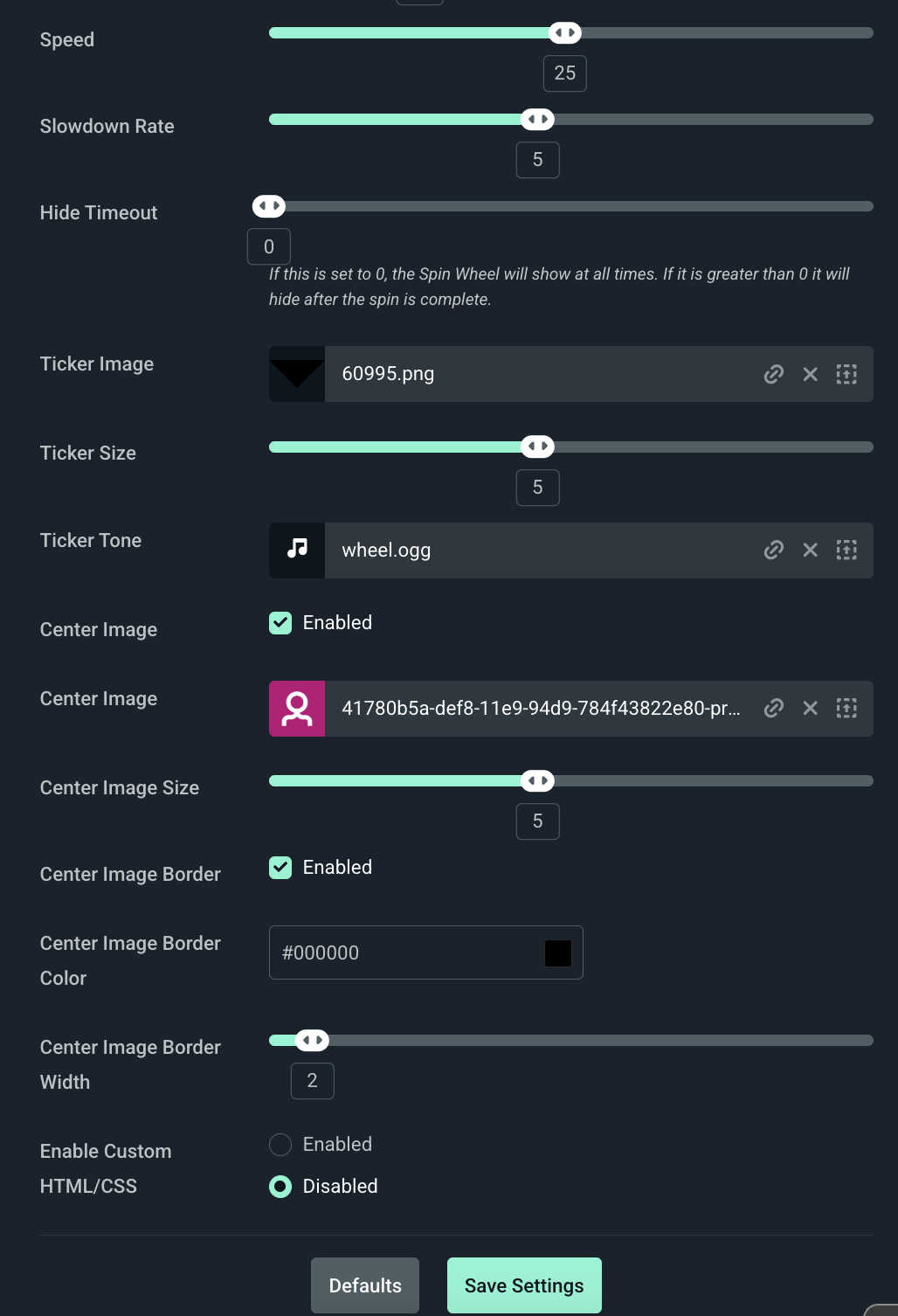
After you're done customizing your Spin Wheel click Save Settings.
How to Add Spin Wheel to Streamlabs Desktop
The Spin Wheel Widget is built into Streamlabs Desktop, so all you need to do is open the sources tab and add it. There's no need to fuss with widget URLs or browser sources.
To add the Spin Wheel to Streamlabs Desktop, complete the following steps.
Step 1: Open Streamlabs Desktop.
Step 2: Navigate to the sources panel and press the + (plus sign) to add a new source.
Step 3: Find the Spin Wheel widget from the list then click Add Source.
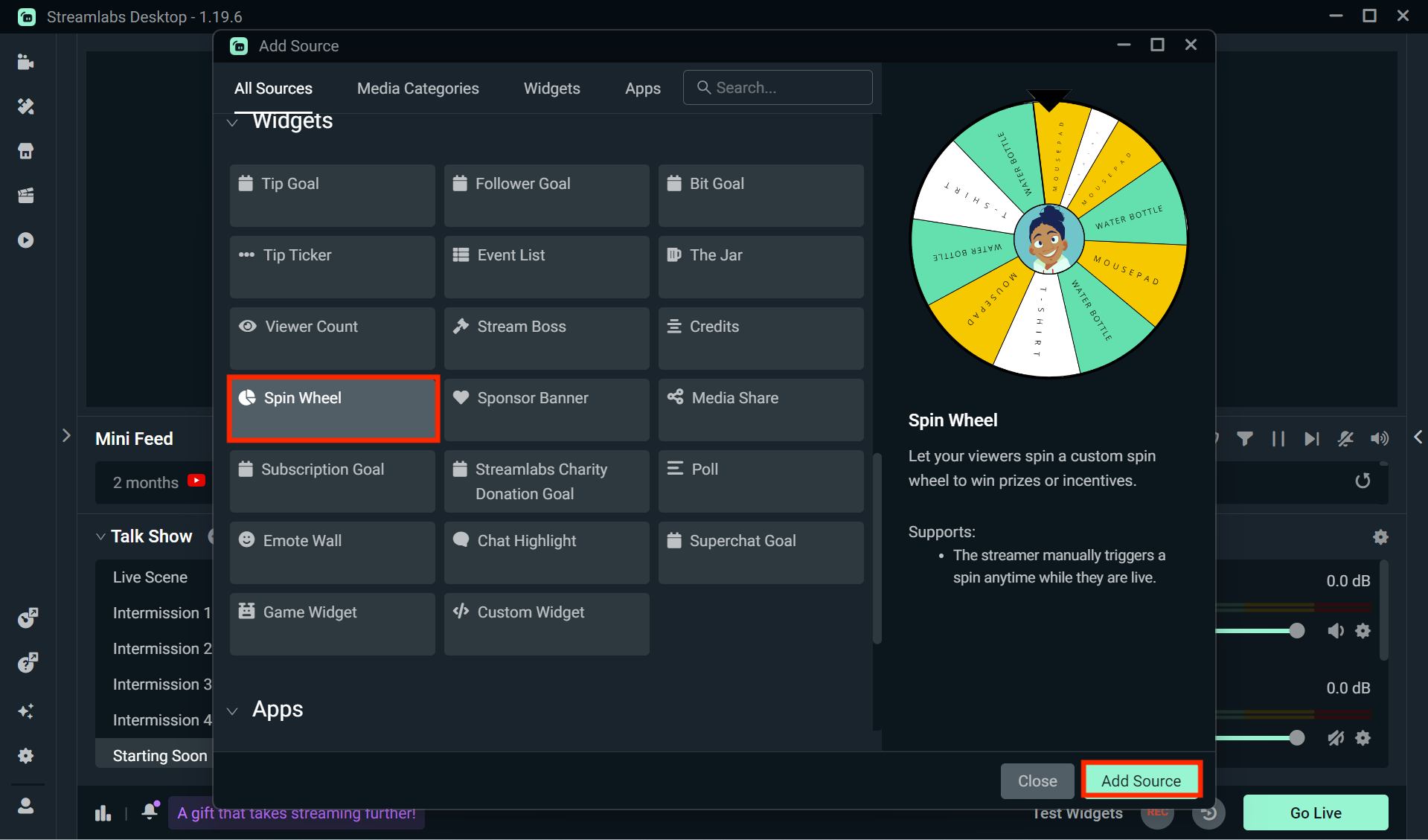
Step 4: Next, name your spin wheel source so you can identify it in your list of sources then click Add Source again.
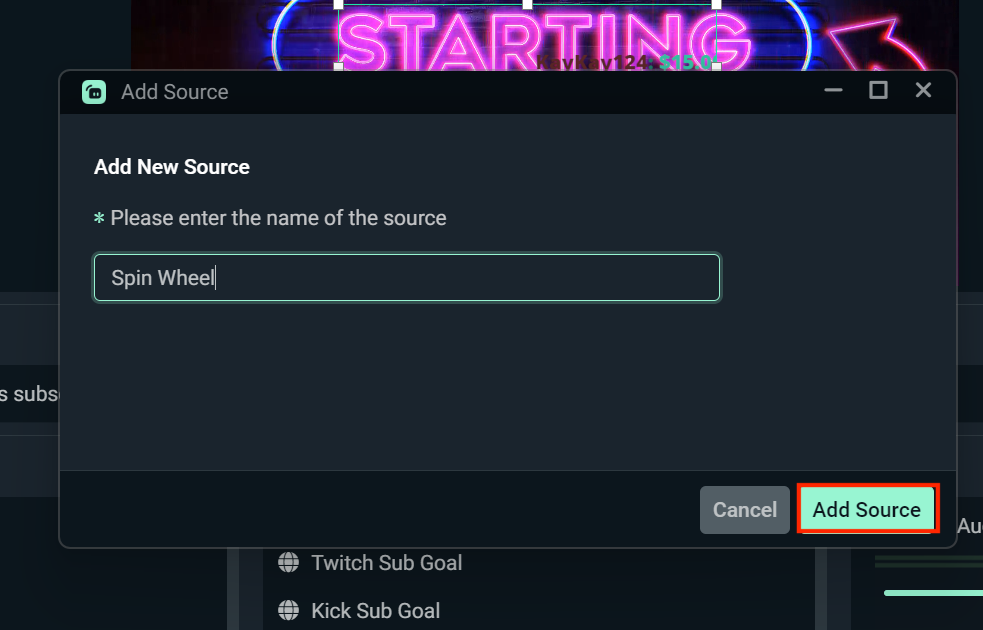
Step 5: You should now see settings for your Spin Wheel widget. If you need to make changes to the settings you applied from your dashboard, you can do so here.
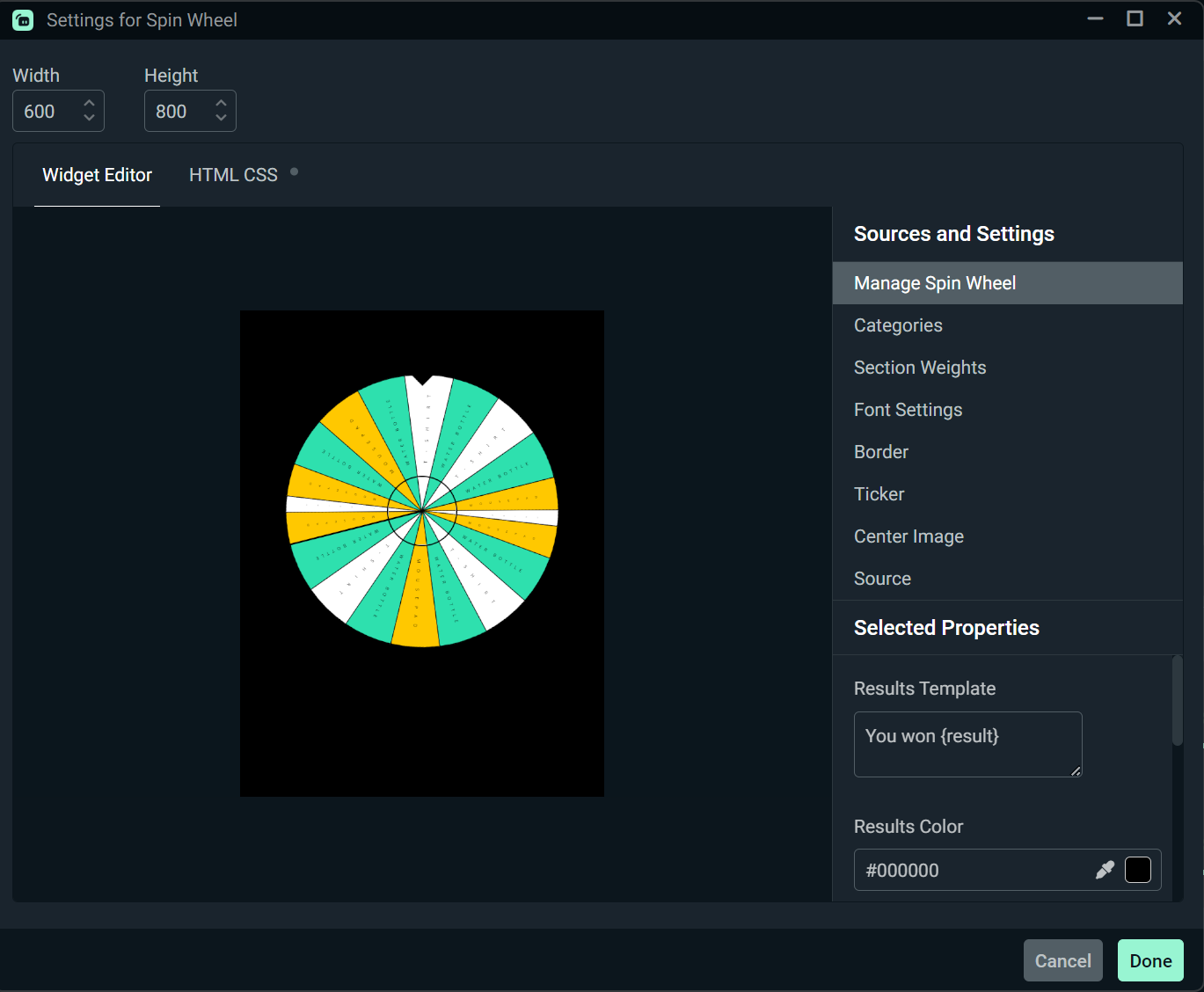
When you're finished, hit Done.
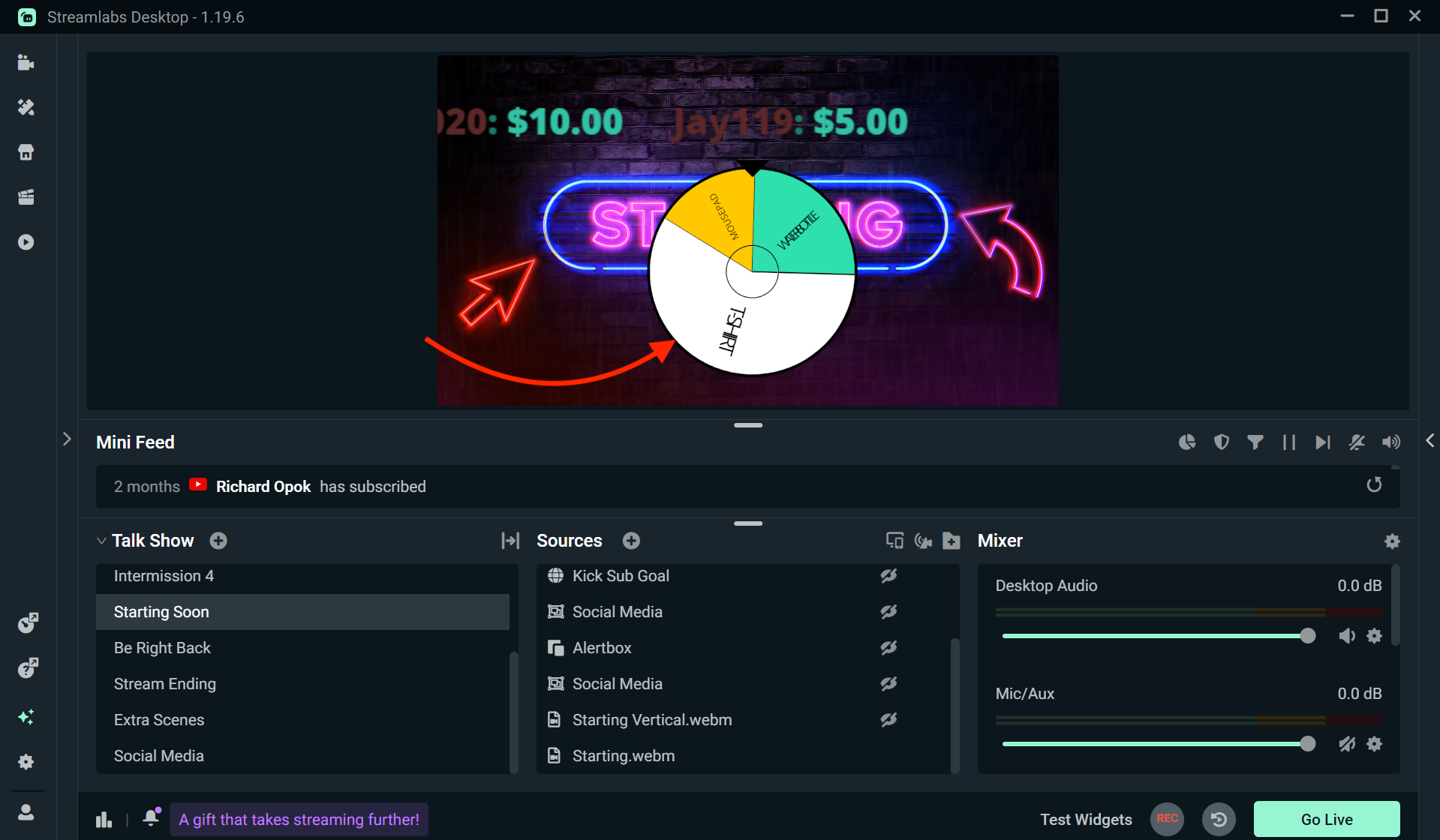
Step 5: Now your Spin Wheel widget will appear in your current scene. To add to another scene, repeat the steps above.
How to Add Spin Wheel OBS Studio
With the Streamlabs Plugin for OBS, you can seamlessly use some of your favorite Streamlabs widgets like Spin Wheel within the OBS Studio interface with just a few clicks. Here's how.
Step 1: Open OBS Studio and make sure the Streamlabs Plugin for OBS is installed and you're logged in.
Step 2: In the top navigation panel, click the Streamlabs. This will take you to all settings for the Streamlabs for OBS plugin.
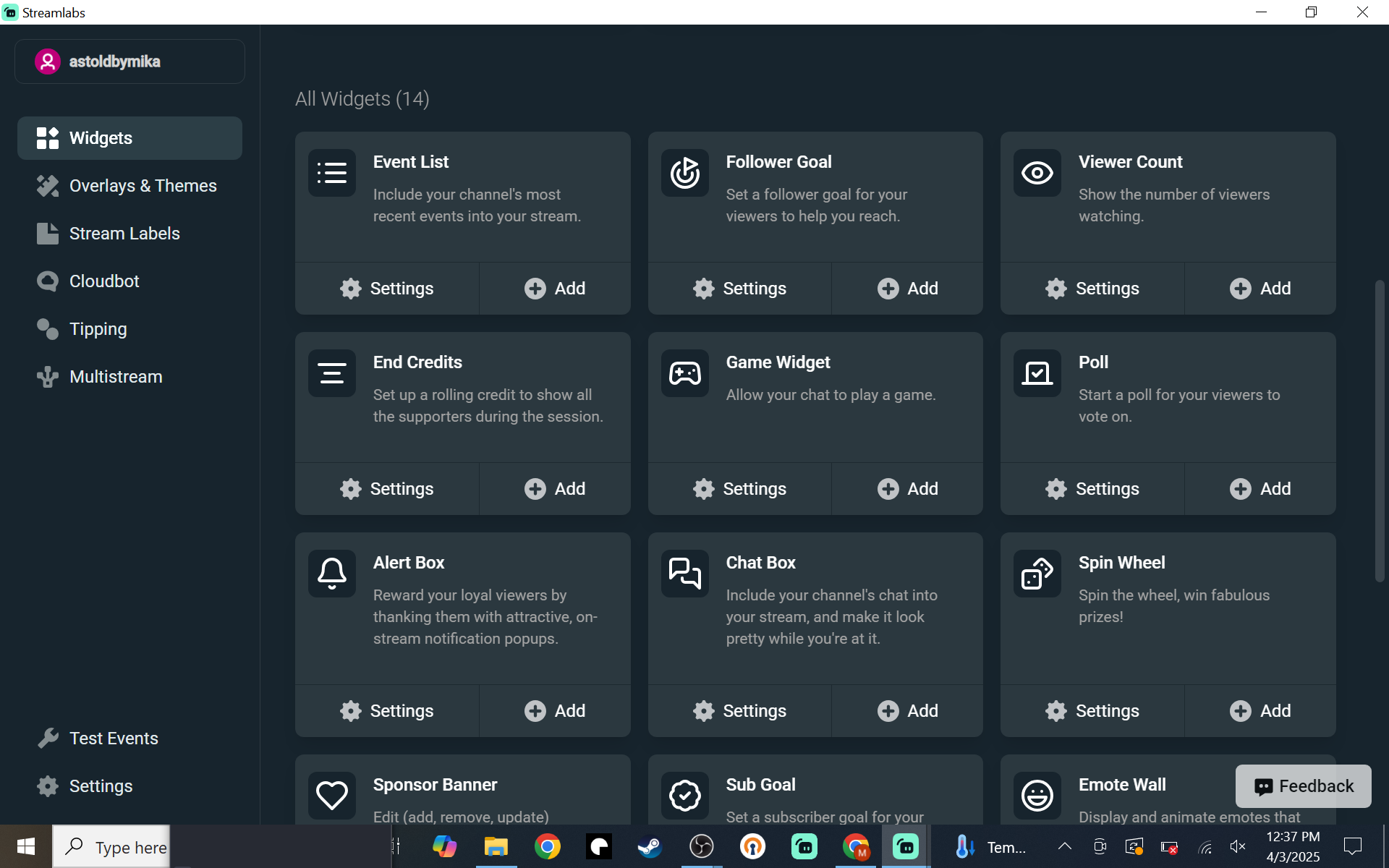
Step 3: From the widget list, select Spin Wheel, then click + Add. If you need to set up or make changes to the widget, click Settings to go to your Streamlabs Dashboard.
Step 4: The Spin Wheel widget should now show under Sources in OBS Studio. Resize and move the credits widget like any other source.
How to Add Spin Wheel XSplit/Other Streaming Software
If you're using a streaming software outside of Streamlabs Desktop or OBS such as XSplit, you can still use the Spin Wheel widget. Here's how.
Step 1: Head to your Spin Wheel settings on your Streamlabs.com Dashboard and copy the unique widget URL at the top of the page.
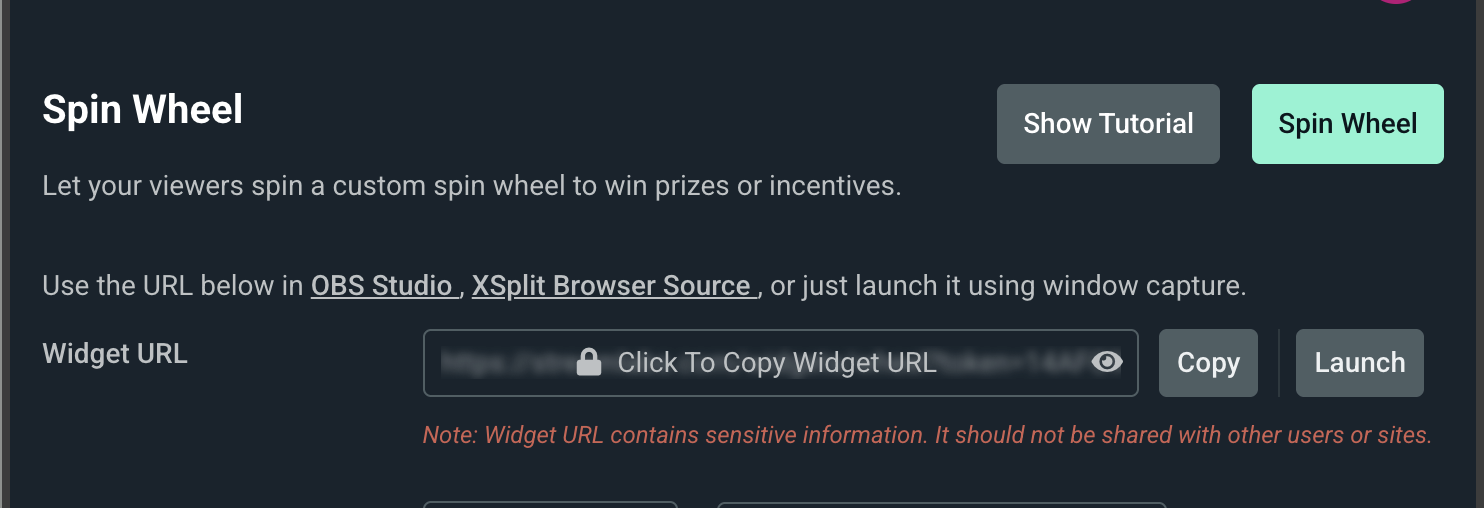
Step 2: Open XSplit, or your preferred streaming software and add a Browser Source by clicking the + button in the Source panel, then select Browser Source (or the equivalent).
Step 3: Paste your Spin Wheel widget URL into the URL field, set your desired width and height, then click OK. Resize and place the browser source in your canvas. Your Spin Wheel will now display automatically during your stream.
Note: To make changes to your Spin Wheel outside of Streamlabs Desktop you must use your Streamlabs web dashboard.
If you have any questions or comments, please let us know by contacting us.