


 Ultra subscription.

Donation goals are stream overlays that track the progress of your fundraising campaign in real-time. They’re a great way to display and celebrate progress while you’re live with your viewing audience.
In this guide, we'll walk you through how to set up, customize, and display your Streamlabs Charity Donation Goal widget. If you haven't set up your charity campaign yet, you can do so by following this guide. Now that you’ve built and published your campaign, you’re ready to add a donation goal widget to your stream.
In this blog, we'll cover:
- How to Set up the Streamlabs Charity Donation Goal Widget in Streamlabs Dashboard
- How to Set up and Add the Streamlabs Charity Donation Goal Widget in Streamlabs Desktop
- How to Add the Streamlabs Charity Donation Goal Widget in OBS Studio
How to Set up the Tip Goal Widget in Streamlabs Dashboard
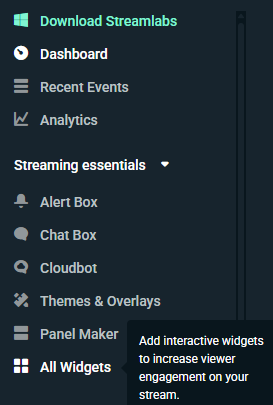
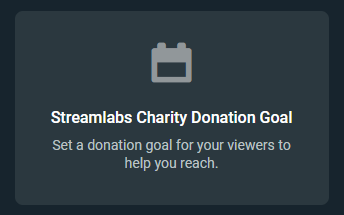
Step 1: Log in to your Streamlabs Dashboard, click All Widgets in the sidebar, then select Streamlabs Charity Donation Goal under the Goals section or click here to access the widget setup directly.
Step 2: Customize the appearance of your widget by adjusting the font and bar settings or add custom HTML/CSS. Once you're happy with your settings, click Save Settings.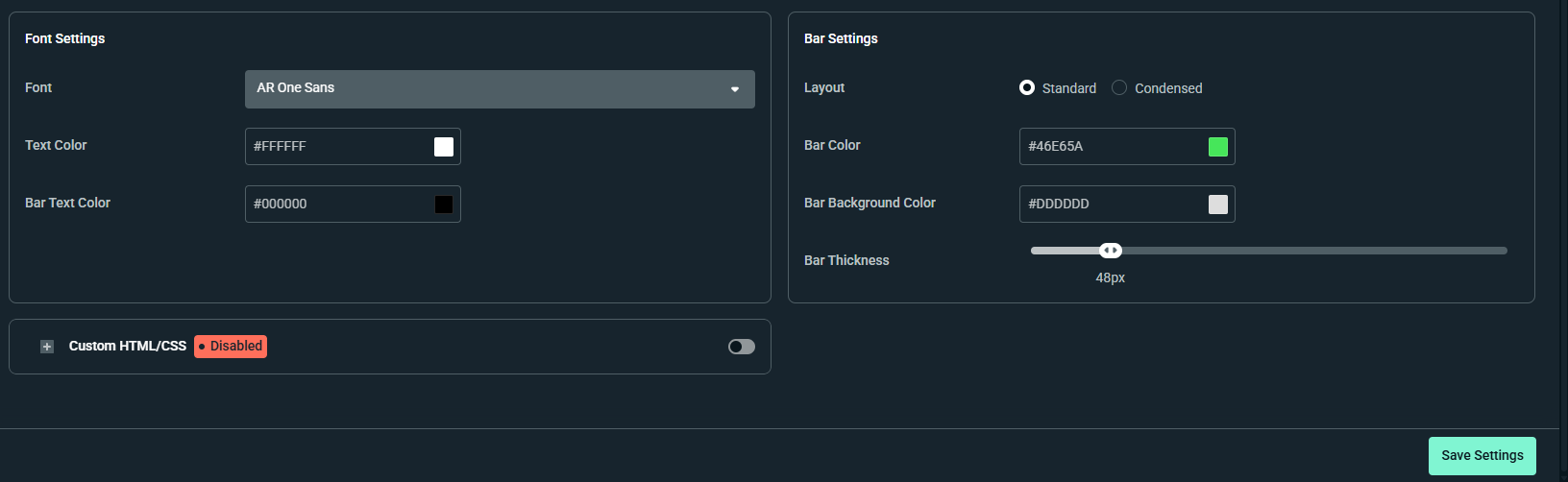
Want to level up your stream appearance? Check out our premade widget themes for goal widgets in our widget theme library.
How to Add the Streamlabs Charity Donation Goal Widget in Streamlabs Desktop
You can add the Streamlabs Charity Donation Goal in Streamlabs Desktop with just a few clicks.
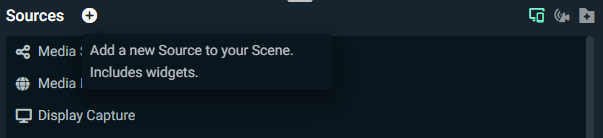
Step 1: Select the + next to Sources to add a new source.
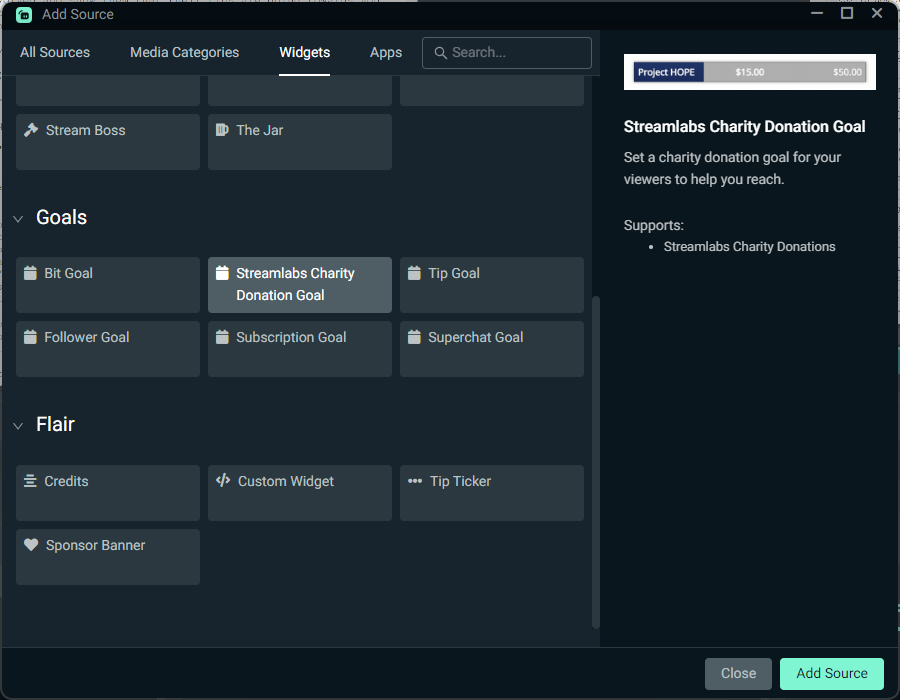
Step 2: Scroll to the Widgets section, choose Streamlabs Charity Donation Goal, and click Add Source. Adjust the size of the widget on your stream until you are happy, and you're done!
How to Add the Streamlabs Charity Donation Goal Widget in OBS Studio
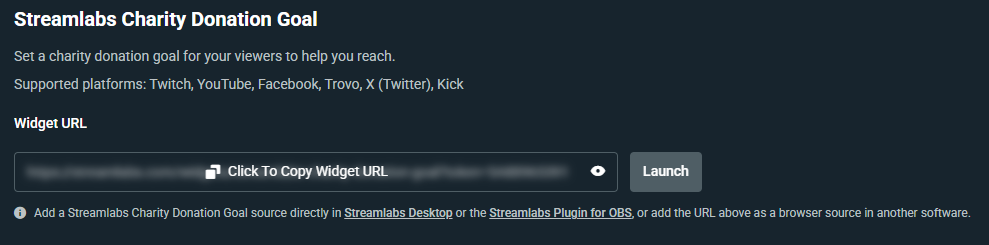
Step 1: On your Streamlabs Charity Donation Goal widget settings page, click to copy on the widget URL. Do not show this URL on your stream.
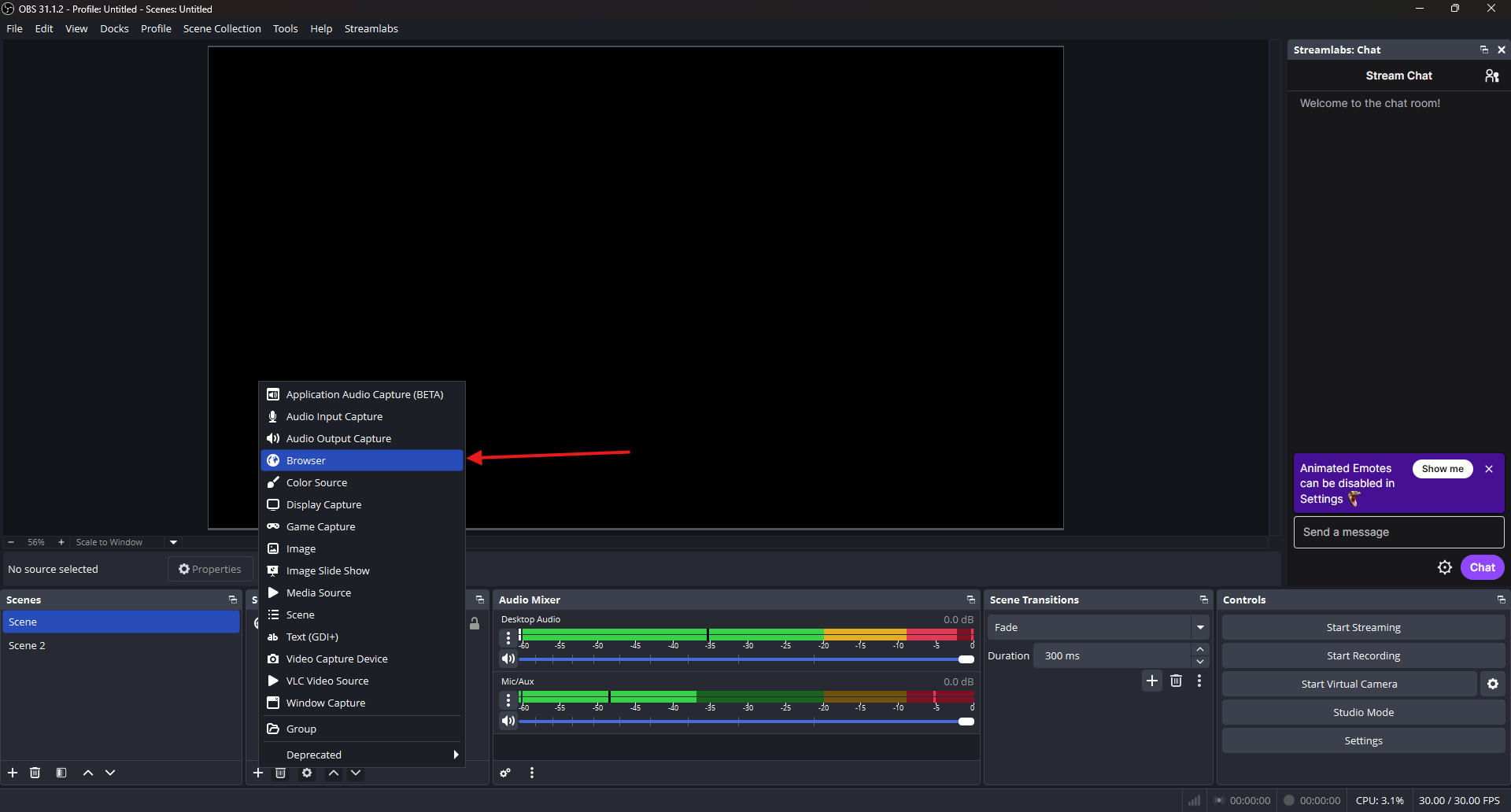
Step 2: In OBS, click the + icon under the Sources panel and choose Browser.
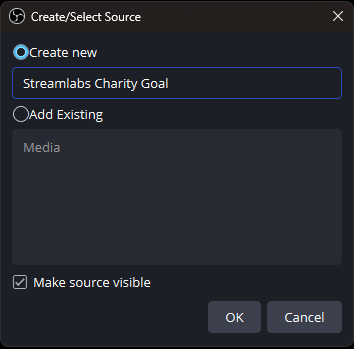
Step 3: Name the source something clear like Streamlabs Charity Goal and click OK.
Step 4: Paste the widget URL you copied earlier into the URL field, adjust the sizing if you wish, and click OK.
Step 5: Adjust the position and size of the widget until you're happy and you're done!
We hope the Streamlabs Charity Donation Goal widget helps you drive more donations to your favorite charities. If you have any questions or comments, please let us know by contacting us or joining our Discord server.