


 Ultra subscription.

If you accept tips (via Streamlabs Tipping) while live streaming, the Streamlabs Tip Ticker widget is an easy, engaging way to highlight your supporters on stream with a stock market style scrolling graphic.
This customizable widget automatically displays your most recent tips across your stream without any manual input or extra work after initial setup. Plus you can add themes to the widget to make it stand out and encourage more support.
In this blog, we'll walk you through customizing the widget and adding it to Streamlabs Desktop, OBS Studio or another live streaming software.
Jump Ahead:
- How to Customize Streamlabs Tip Ticker
- How to Add Tip Ticker in Streamlabs Desktop
- How to Add Tip Ticker in OBS Studio/XSplit/Other Streaming Software
How to Customize Streamlabs Tip Ticker
Step 1: Head over to your Tip Ticker settings on your Streamlabs.com Dashboard.
Step 2: From your web browser you can adjust a variety of settings for your Tip Ticker including:
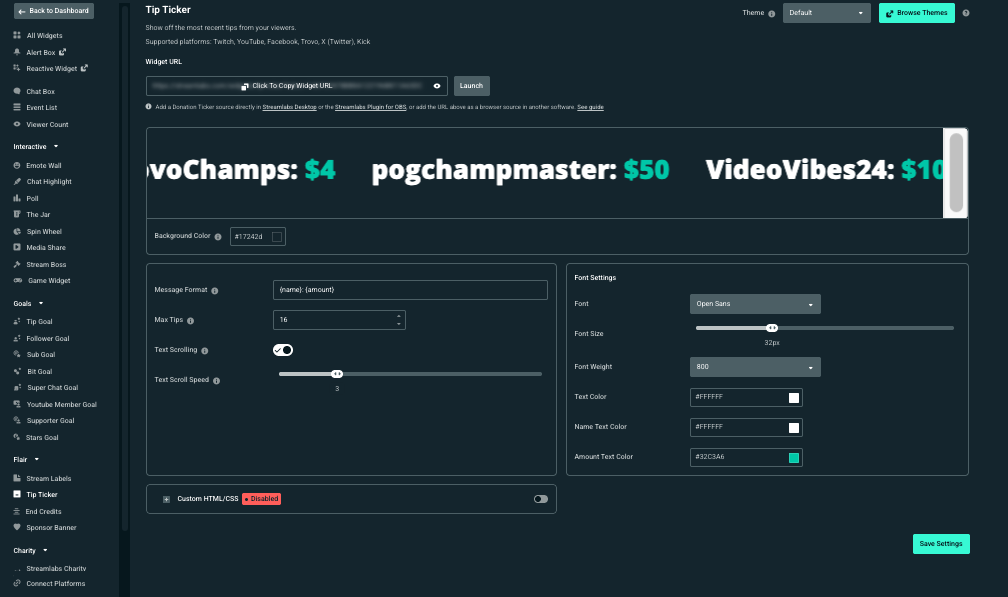
- Background color—for preview purposes only (this background will not be shown on stream).
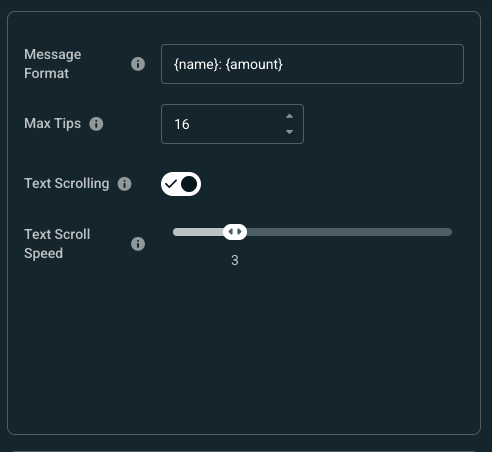
- Message Format—each tip displayed in the ticker will show in this format. {name} = name of the tipper and {amount} = their tip amount
- Max Tips—sets the maximum number of tips the ticker will show at once. Must be greater than zero.
- Text Scrolling—if unchecked, will disable scrolling entirely.
- Text Scroll Speed—how fast the ticker should scroll across the screen from 1 (slowest) to 10 (fastest)
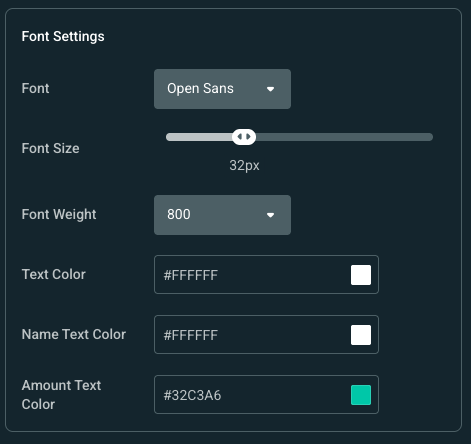
- Font—changes the font the widget displays in. (You can use https://fonts.google.com/ to browse available fonts.)
- Font Size—changes how big or small the Tip Ticker's font is on stream.
- Font Weight—changes how thick the font displays on stream.
- Text Color—changes the color of any extra text added around the {name} or {amount}.
- Name Text Color—changes the color for the usernames who tipped.
- Amount Text Color—changes the color for the tip amount received.
- Custom HTML/CSS—enable to add custom code for advanced customization.
Bonus method: Some widget themes include designs for the Tip Ticker widget. Browse available themes here and update your Tip Ticker by clicking Select & Install and ensuring Donation Ticker is checked on the popup, then click Install.
How to Add Tip Ticker in Streamlabs Desktop
Step 1: Open Streamlabs Desktop and navigate to the Sources panel at the bottom of your screen.
Step 2: Click the + icon to add a new source, then choose Tip Ticker from the list of available widgets.
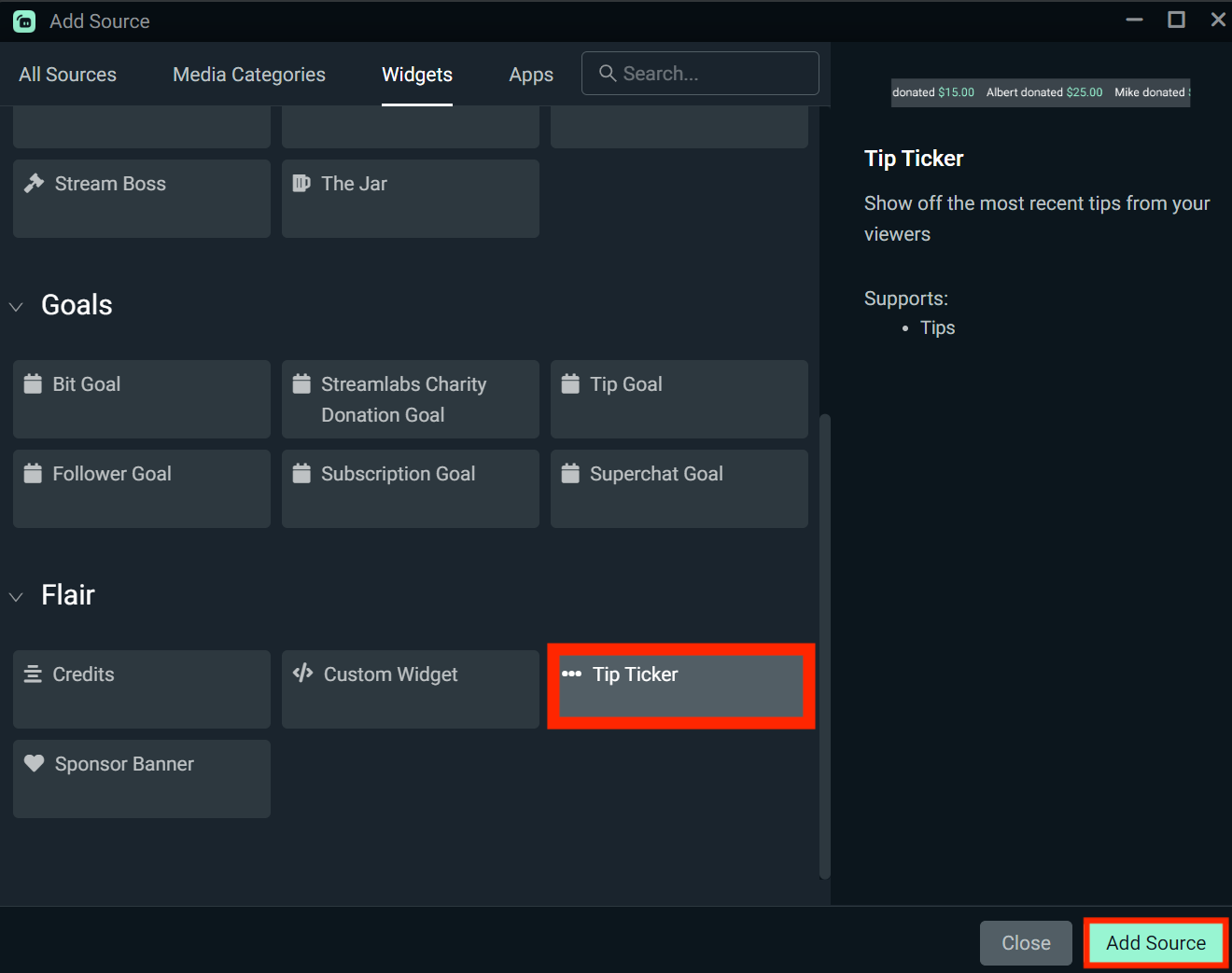
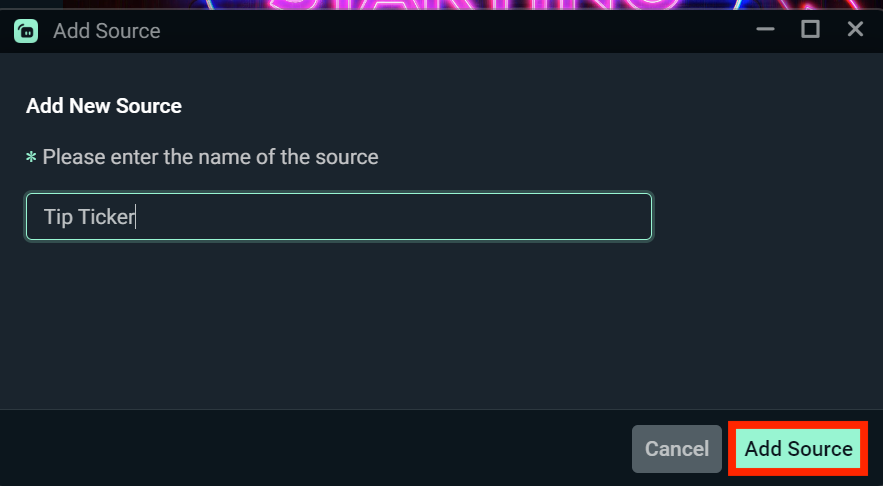
Step 3: Next, name your Tip Ticker source, then click the Add Source button.
Step 4: You should see a preview window, plus settings of your Tip Ticker widget. Here you can change settings for your Tip such as the font size, color, scroll speed and custom code as you would from your Streamlabs.com Dashboard.
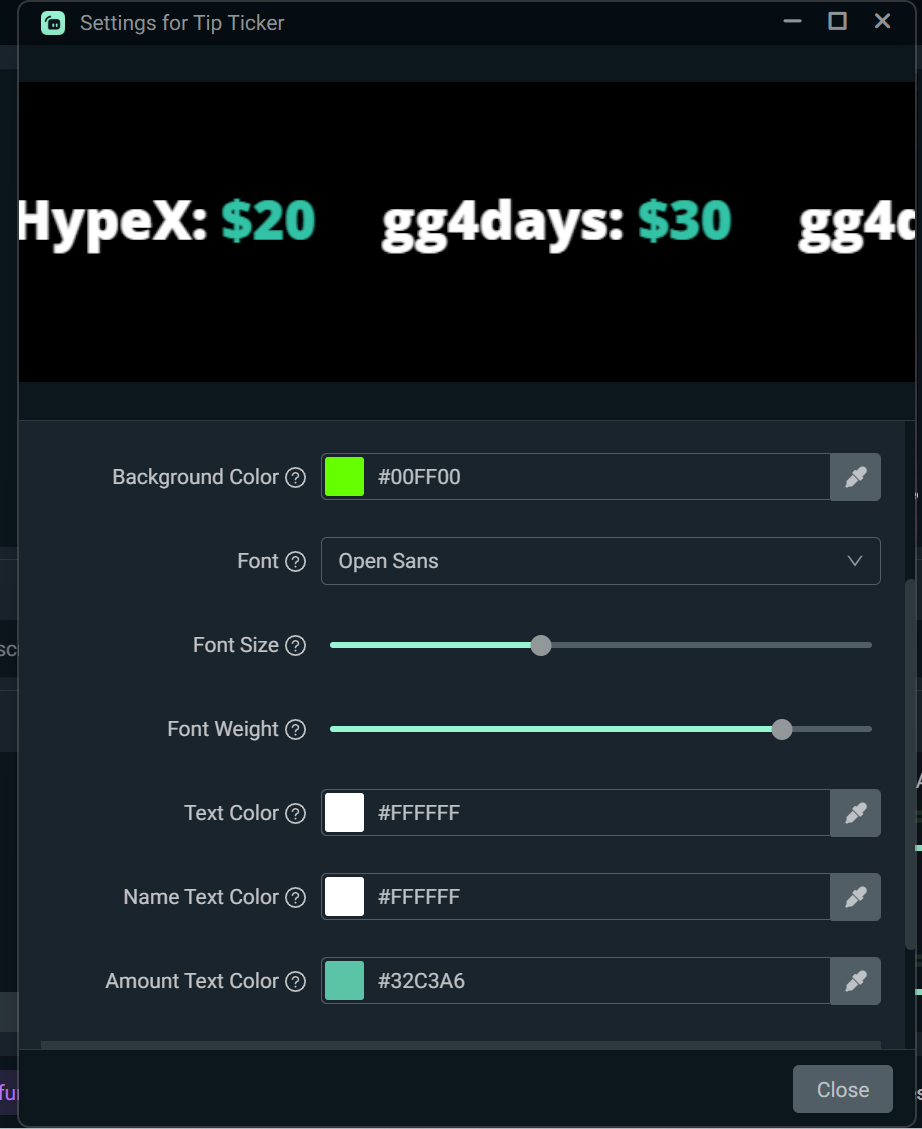
Hit the Close button to save your settings. Your Tip Ticker will now appear on stream using the settings you configured on your Streamlabs.com dashboard. You can also make changes to settings from this window.
Step 5: Next, adjust the widget's size and placement in your canvas. When everything looks good in your preview, finish customizing your stream as you see fit then hit the Go Live button to start streaming.
How to Add Tip Ticker in OBS Studio, XSplit, or Other Streaming Software
If you're using a streaming software outside of Streamlabs Desktop such as OBS or Xsplit, you can still use the Tip Ticker widget. Here's how.
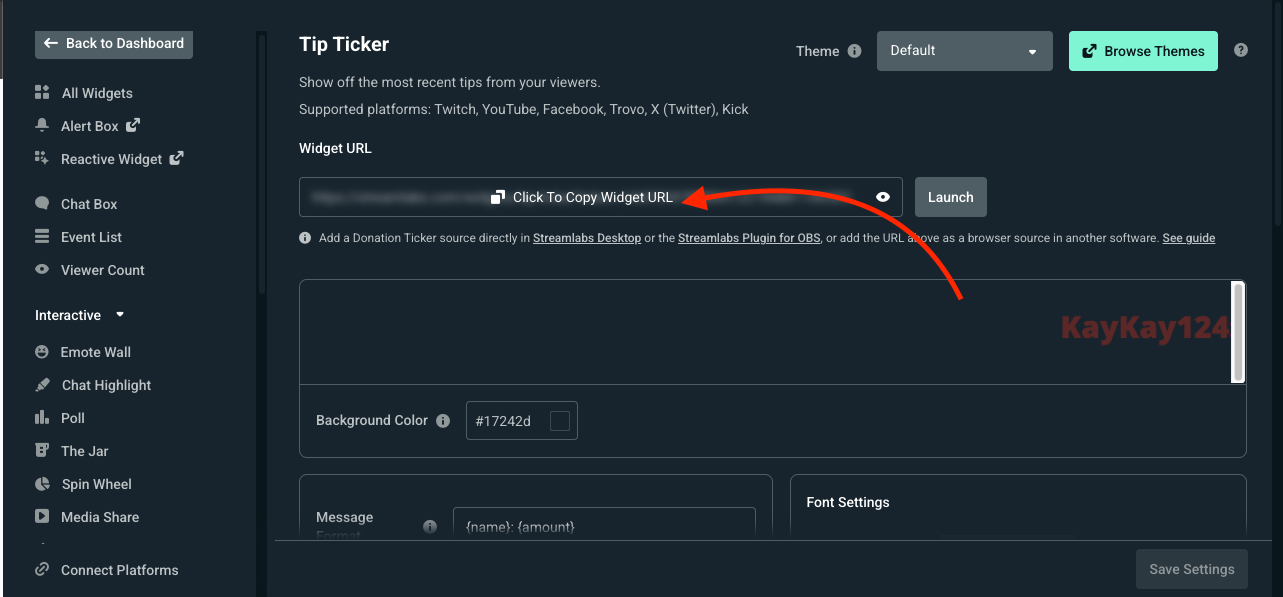
Step 1: Head to your Tip Ticker settings on your Streamlabs.com Dashboard and copy the unique widget URL at the top of the page.
Step 2: Open OBS Studio, XSplit, or your preferred streaming software and add a Browser Source by clicking the + button in the Source panel, then select Browser Source (or the equivalent).
Note: If you don't see a Browser Source option in OBS, you may need to reinstall with the Full Installer available here as not all distros include it.
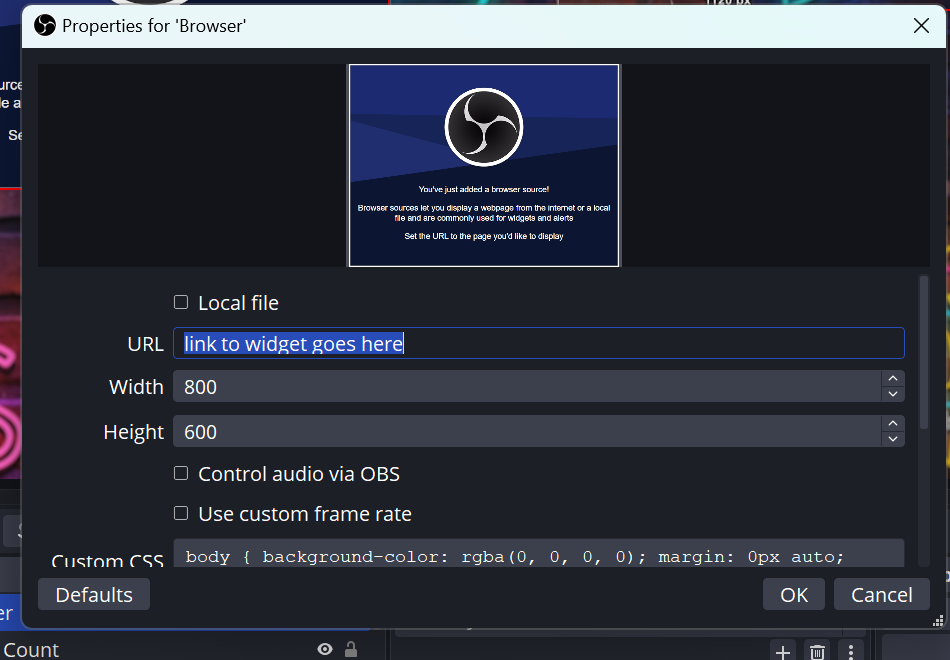
Step 3: Paste your Tip Ticker widget URL into the URL field, set your desired width and height, then click OK. Resize and place the browser source in your canvas. Your Tip Ticker will now display automatically during your stream.
Note: To make changes to your Tip Ticker outside of Streamlabs Desktop you must use your Streamlabs web dashboard.
The Tip Ticker widget is a simple yet powerful way to celebrate your supporters while encouraging more people to support-add one today to make your stream feel more dynamic and community-driven.
If you're looking for other ways to enhance your live stream, be sure to check out other Streamlabs Widgets that you can use to liven up your stream.