



 Ultra subscription.

Why Are Custom Commands Useful?
Custom commands help you provide useful information to your community without having to constantly repeat yourself, so you can focus on engaging with your audience.
How Do I Create a Custom Command?
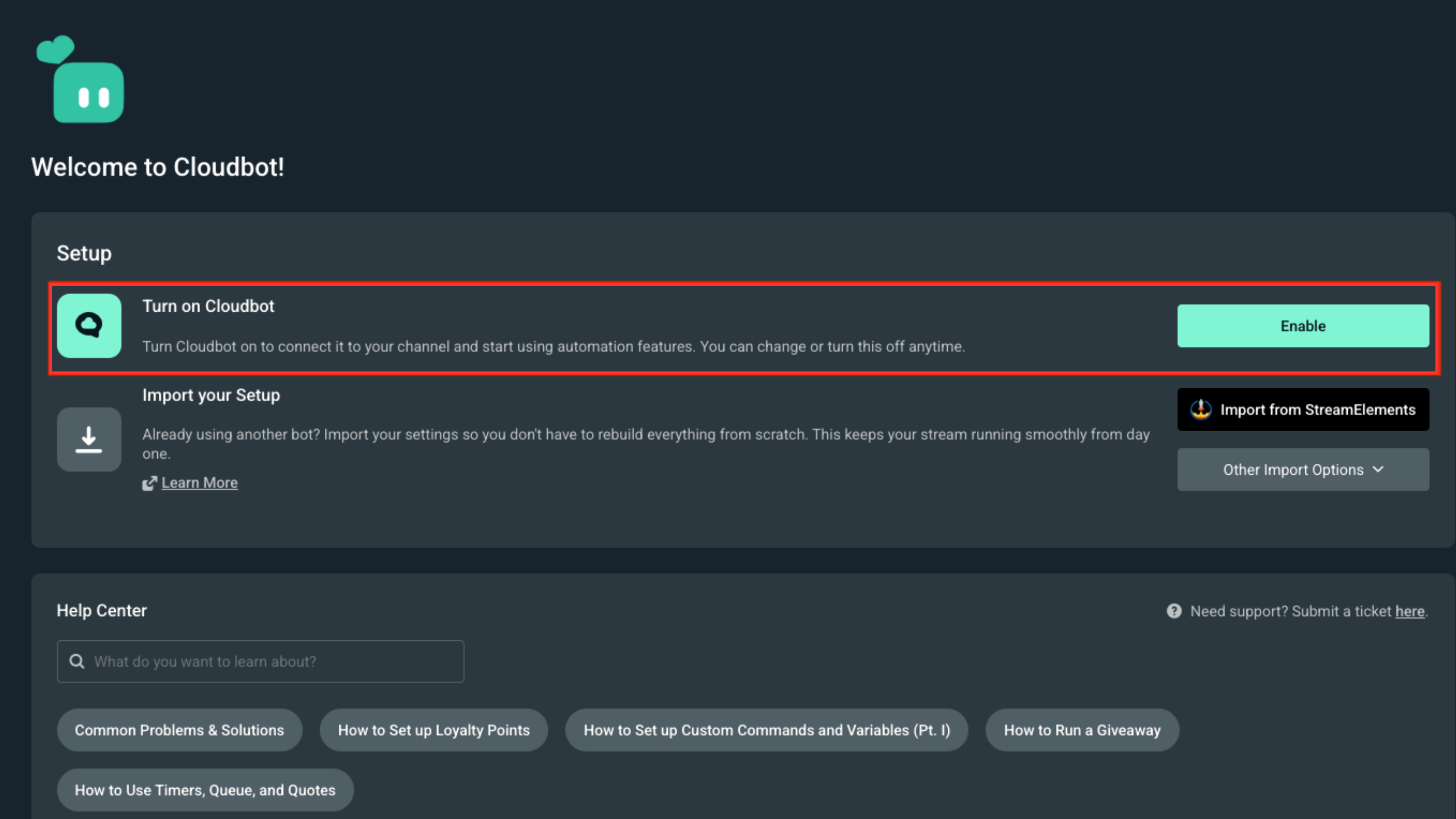
To get started, all you need to do is go here and make sure the Cloudbot is enabled first. It’s as simple as just clicking Enable.
Once you have done that, it’s time to create your first command. Do this by clicking Commands in the left menu, then navigating to Custom. This will open up the following modal.
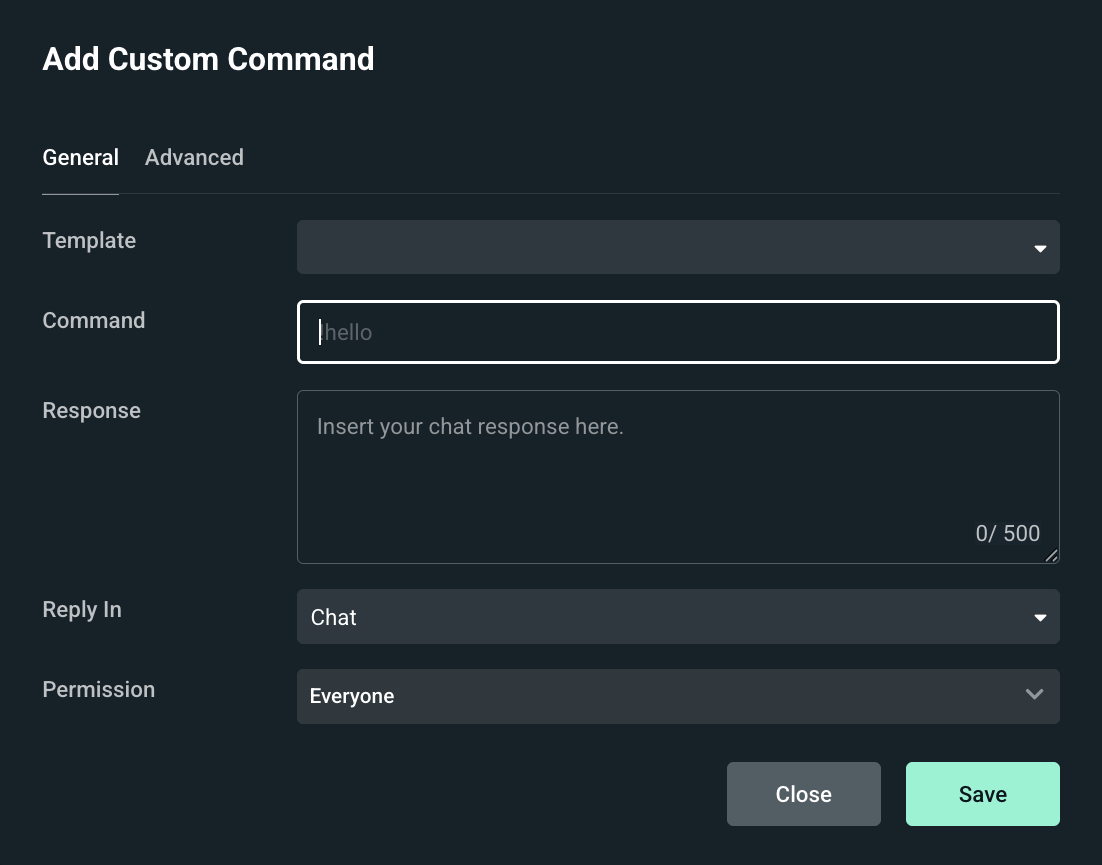
Let’s go over some of the basics. If you aren’t very familiar with bots yet or what commands are commonly used, we’ve got you covered.
To get started, check out the Template dropdown. It comes with a bunch of commonly used commands such as !uptime, !so <target>, !blind, !followage, and many more.
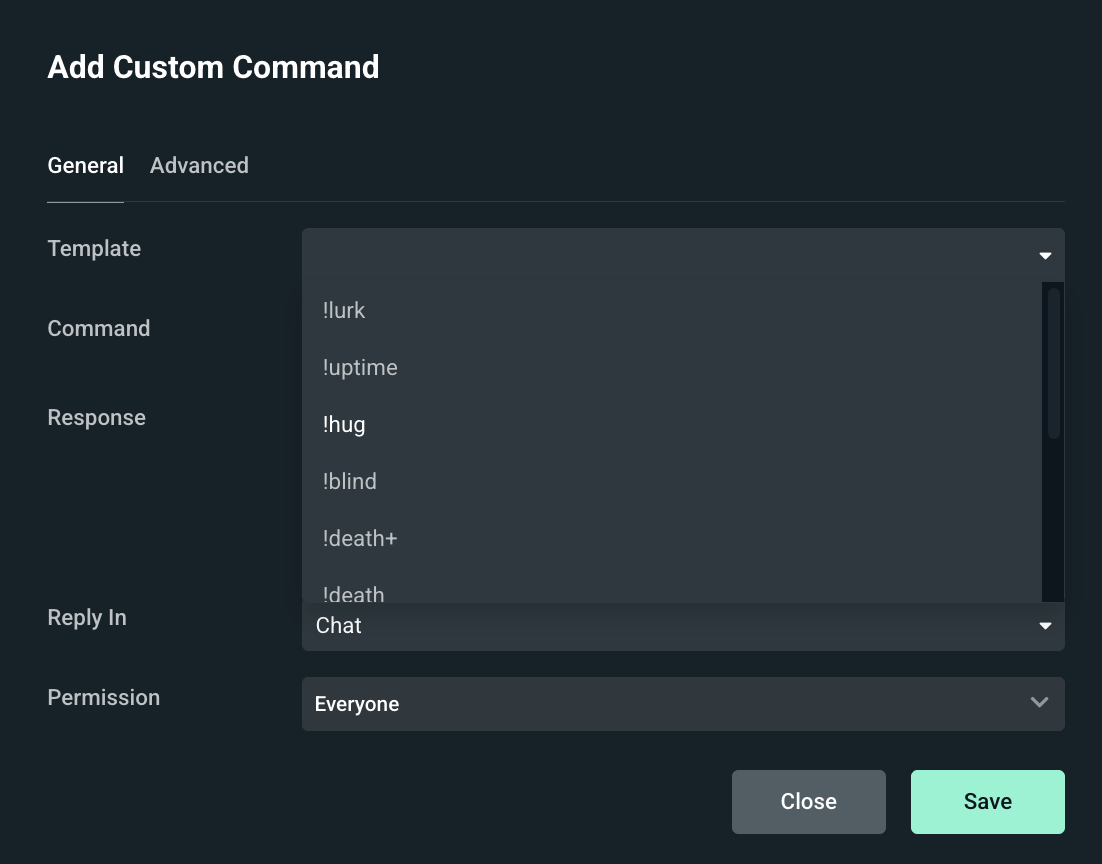
Once you have picked a command you will probably start seeing strange things such as {uptime}, {channel.name}, {touser.name}, or something similar. These strange entities are variables.
What Are Variables?
Variables are pieces of text that get replaced with data coming from chat or from the streaming service that you’re using.
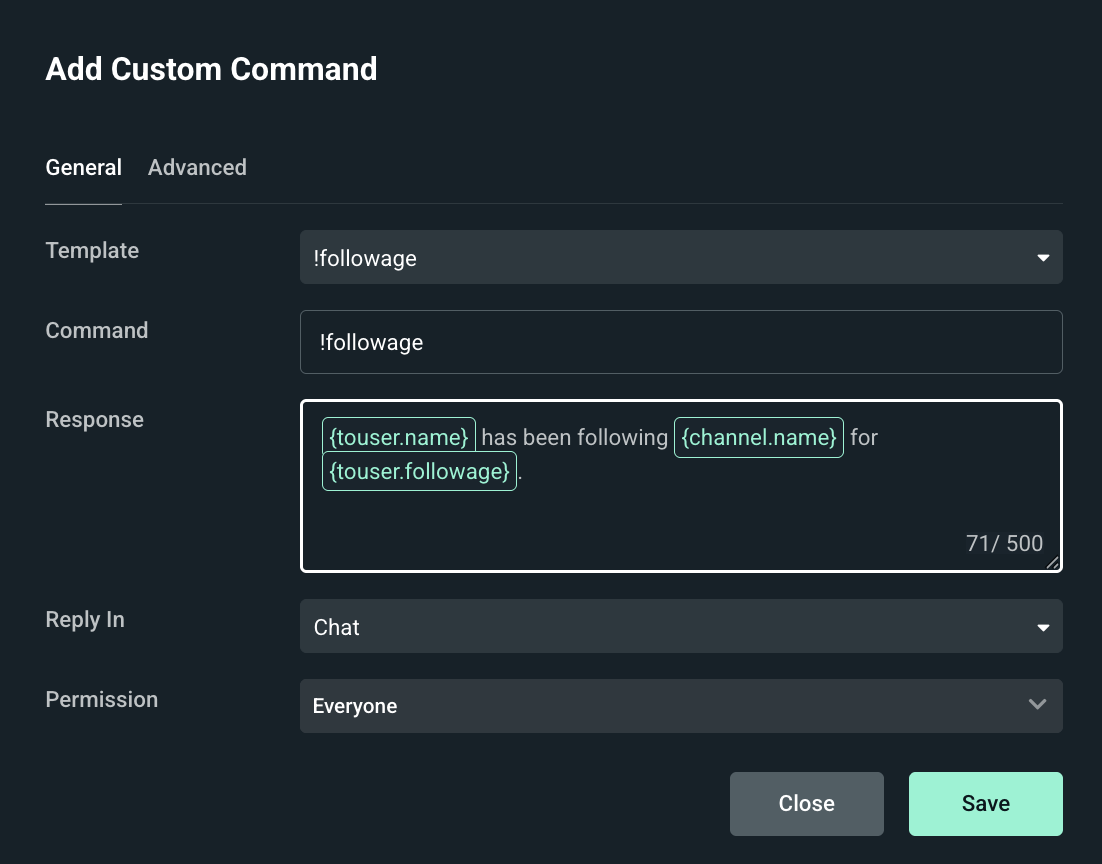
In the above example you can see we used !followage, this is a commonly used command to display the amount of time someone has followed a channel for.
{touser.name} will get replaced by either the user’s own name or a different users name depending on how the command is used (more on that below).
{channel.name} will get replaced by the name of the channel.
{touser.followage} will get replaced with the amount of time that the user has been following the channel for.
The !followage command can be used in these two ways:
- !followage will display the amount of the time the user sending the message has been following the channel.
Example: AnkhHeart has been following Streamlabs for 2 years 1 month. - !followage Poujie will display how long another user, in this case, Poujie, has been following the channel.
Example: Poujie has been following Streamlabs for 2 years 10 months.
If you want to learn more about what variables are available then feel free to go through our variables list here.
What Is "Reply In"?
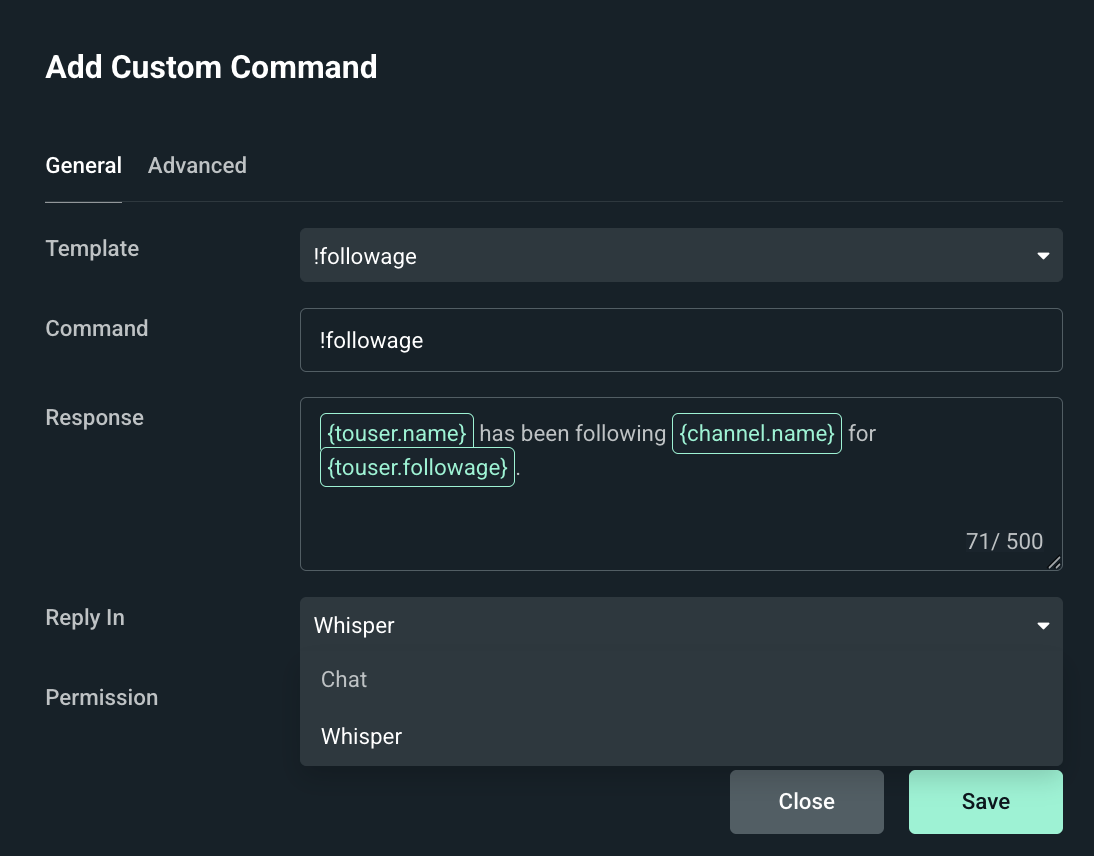
The Reply In setting allows you to change the way the bot responds. The two options are Chat or Whisper.
If a command is set to Chat the bot will simply reply directly in chat where everyone can see the response. If it is set to Whisper the bot will instead DM the user the response. The Whisper option is only available for Twitch at this time.
This is useful for when you want to keep chat a bit cleaner and not have it filled with bot responses.
What Are Permissions?
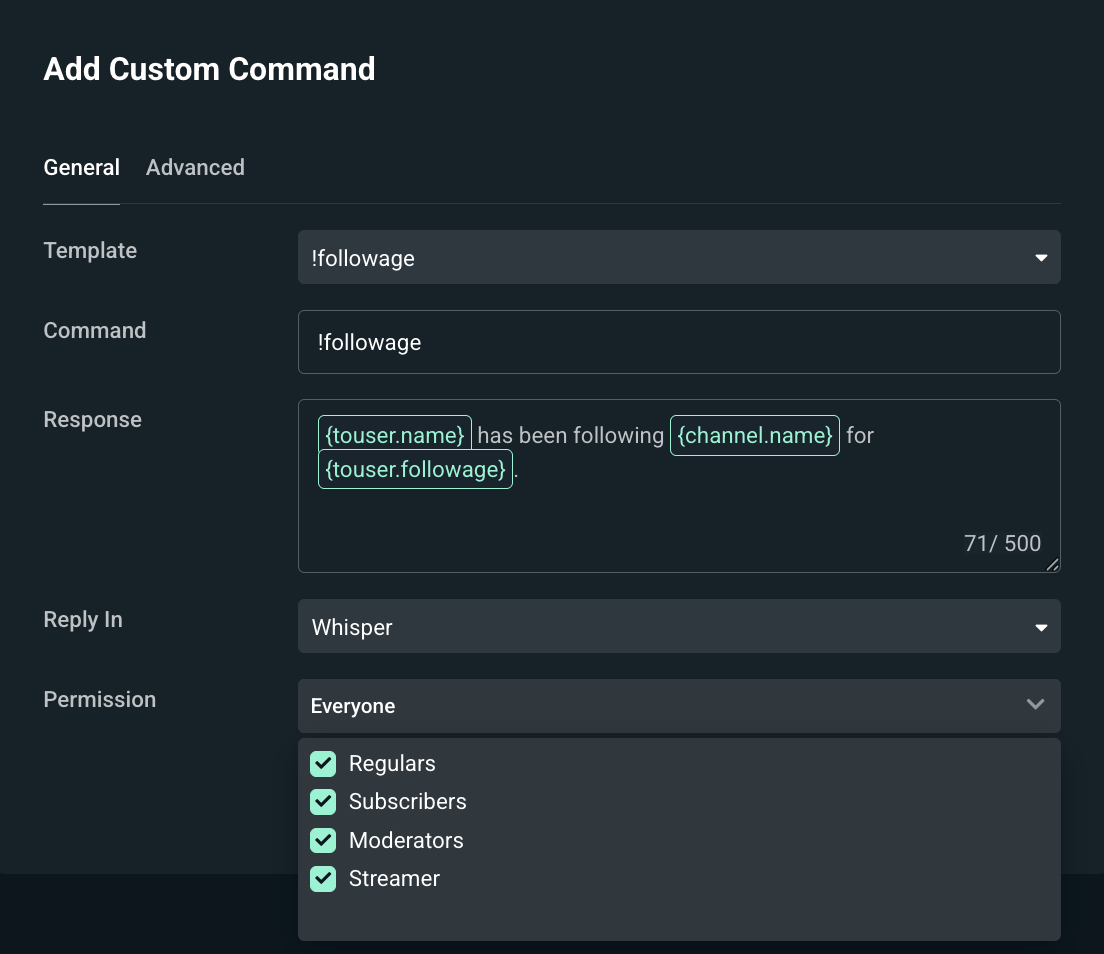
Permissions are a way for you to control who can use the command. The common options are Regulars, Subscribers, Moderators & Streamer. If all of these are checked then anyone can use the command.
If you want to create a command that can only be used by Subscribers then you are able to do so as well.
Want to learn more about Cloudbot Commands? Check out part two about Custom Command Advanced Settings here. If you have any questions or comments, please let us know by contacting us or joining our Discord server.