


 Ultra subscription.

At Streamlabs, we understand that moderators are critical to keeping streams safe and supporting streamers while they are busy on stream. Knowing this, we created Shared Access with mods in mind to make it easier for streamers to stay protected while giving permissions to trusted mods to help manage their streams.
Shared Access allows streamers to customize permissions and add users to their account that can complete very specific tasks (as determined by the creator). For example, you can set up moderators to help you do things on stream or in the backend such as accessing your Cloudbot for viewing analytics in your Streamlabs Dashboard.
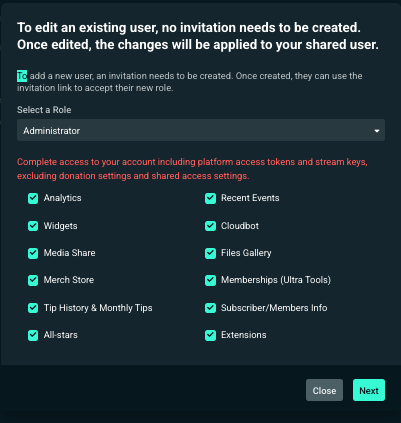
There are three roles: Moderator, Administrator, and Custom.
- Moderators: Dashboard access, ability to skip/repeat alerts, Media Share controls, and Cloudbot access
- Administrator: Complete access to your account, including platform access tokens and stream keys, excluding donation settings and shared access settings
- Custom: Custom access according to selected options
Please note: to keep payment info safe, mods with shared access can not see your settings page no matter what role access they have.
Table of Contents:
- How to Control Shared Access in Streamlabs Dashboard
- How to Access Accounts That Are Shared with You
How to Control Shared Access in Streamlabs Dashboard
Step 1: Log into your Streamlabs.com Dashboard and head to your account settings page.
Step 2: Next, click the Shared Access tab. Here you will find:
- My Access: Accounts you've been granted access to
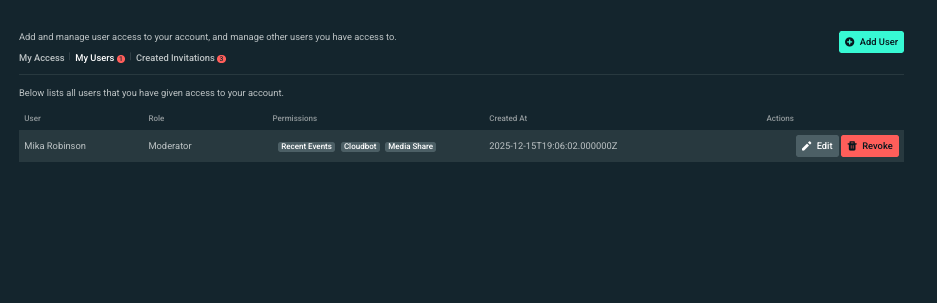
- My Users: Access you've granted other users to your account
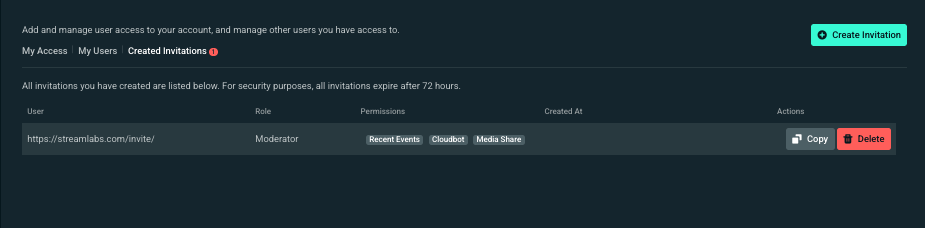
- Created Invitations: Pending invites you've created/sent to grant others shared access
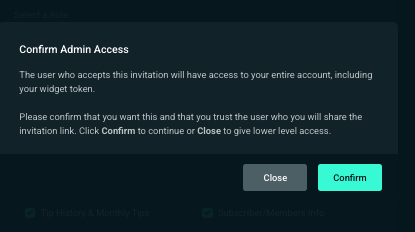
Step 3: Click Add User to begin. Select a Role type (moderator, administrator, or custom) and assign specific permissions by checking off options in the window. When you're done, hit Next and confirm.
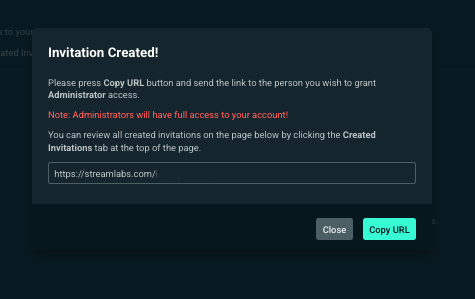
Step 4: You will receive an on-screen notification confirming an invitation has been created to share access-copy the URL and share with a trusted individual you wish to invite. Once your mod has accepted your invite (they have 72 hours before the link expires), they will be set to help you manage your stream.
Managing Invitations
If you want to see your past invitations, you can see them under Created Invitations and either grab the link again or delete the invitation, if needed.
Managing Shared Access Permissions
If you ever need to edit a user's Shared Access permissions, you can do so by clicking the edit button next to the respective user and adjusting the permissions. You can also Revoke all access here.
Enhanced Security Measures
No matter what role you give your mods, they will never be able to see your settings page to keep your payment info safe. In addition, we've added other security measures in place such as:
- Security messages when sending admin invites to be hyper-clear about the level of access you are giving.
- Hidden link URLs when creating invitations to prevent streamers from potentially sharing it on their live stream.
How to Access Accounts That Are Shared with You
Step 1: If you haven't yet, click the link the streamer whose account you are trying to use Shared Access for has shared with you and click Accept Invite.
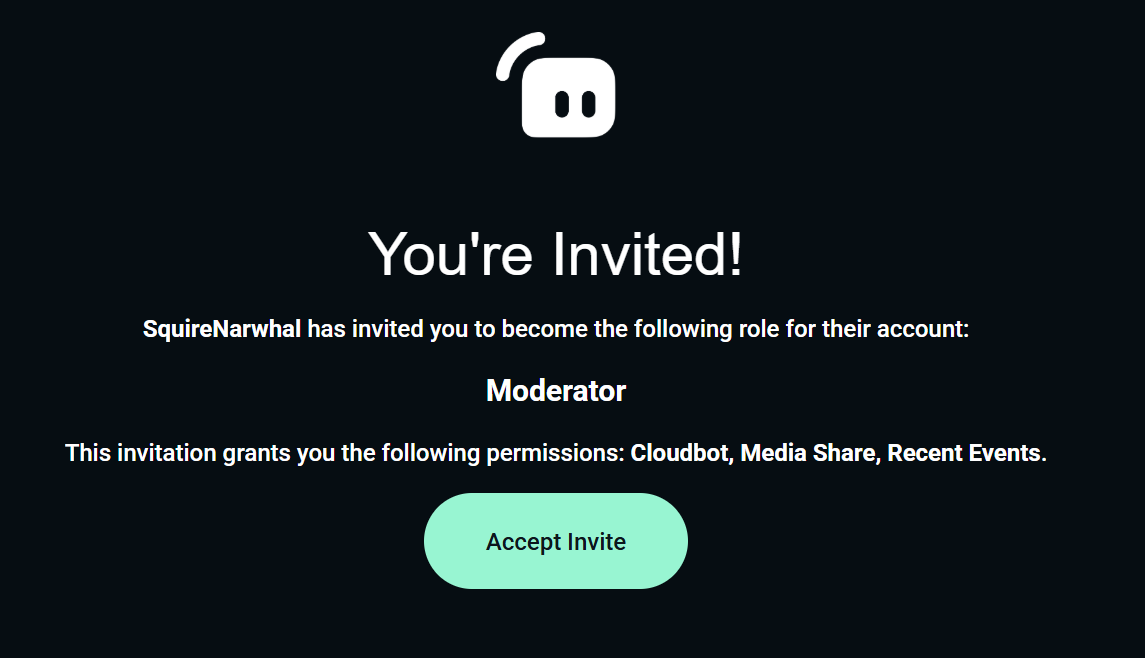
Step 2: Click View My Access on the following screen or log into your Streamlabs.com Dashboard and head to your account settings page.
Step 3: Next, click the Shared Access tab. You will see accounts that have given you Shared Access under My Access.
Step 4: Click Access Account next to the account you would like to access.
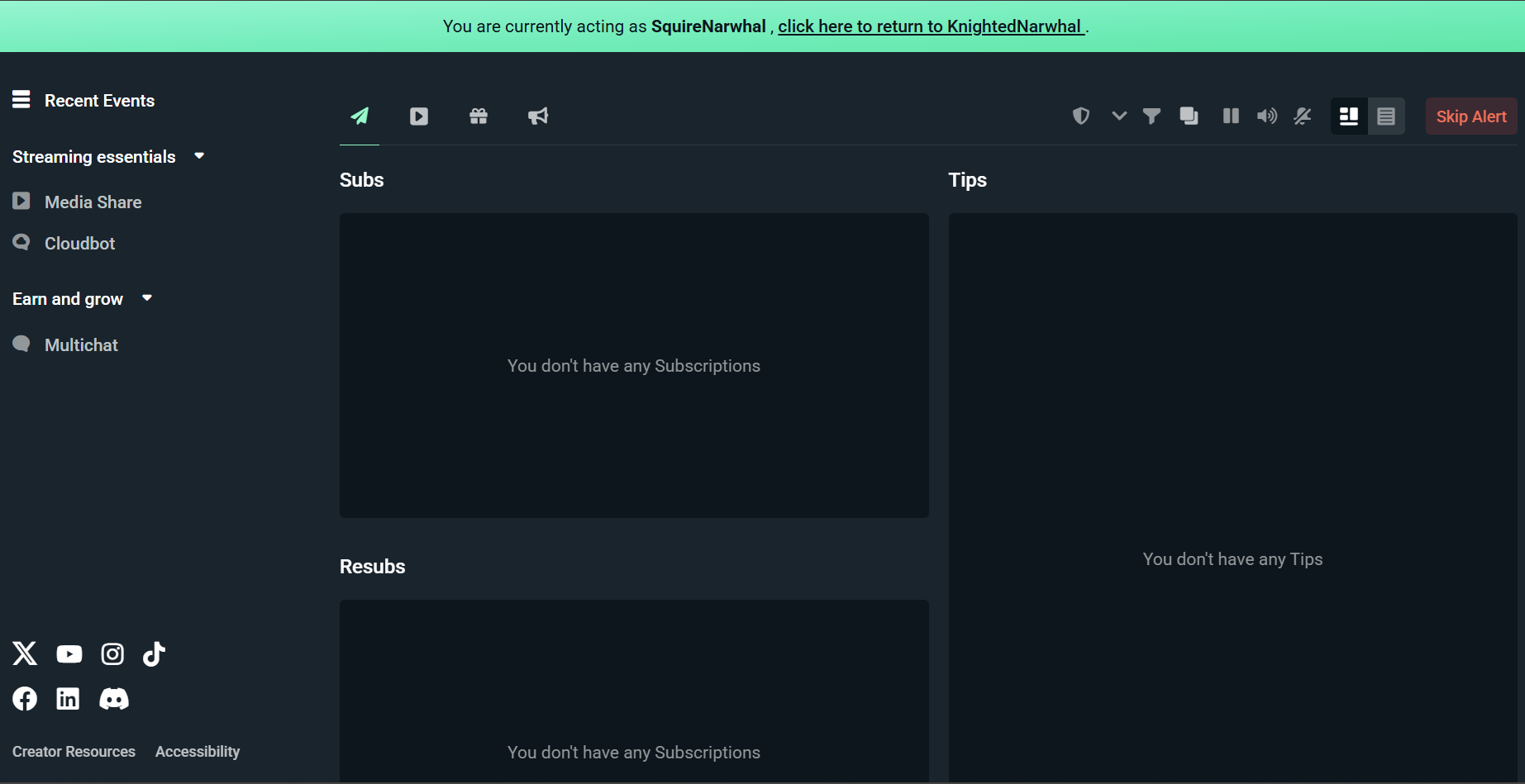
Step 4: You will see a banner at the top noting the account you are now acting as. You will only see the features that the streamer gave you access to. From here you can start moderating recent events, Media Share, or any other features you have Shared Access for.
Step 5: To return to your own account, click at the top where the banner says "click here to return to [your username]."
Now, you can begin managing your live streams better and feel protected when doing so. As always, if you have any questions or feedback, please don't hesitate to reach out to our team or join our Discord server.
