



 Ultraサブスクリプション1本。

Tipping is a great way to earn money from your live stream. When a viewer sends you a tip, the money goes straight from their account to yours. Streamlabs never holds onto your funds. This guide will teach you how to set up your tip page.
- Connect Your PayPal Account
- Customize Your Tip Page
- Add the Link to Your Channels
- Additional Resources
Step 1: Connect Your PayPal Account
You need to link a payment company so viewers can send you money. To keep your real name and personal info hidden from viewers, you should use a PayPal Business Account instead of a personal one. We have a guide to help you with protecting your information with a PayPal Business account here.
- Log into your Streamlabs Dashboard.
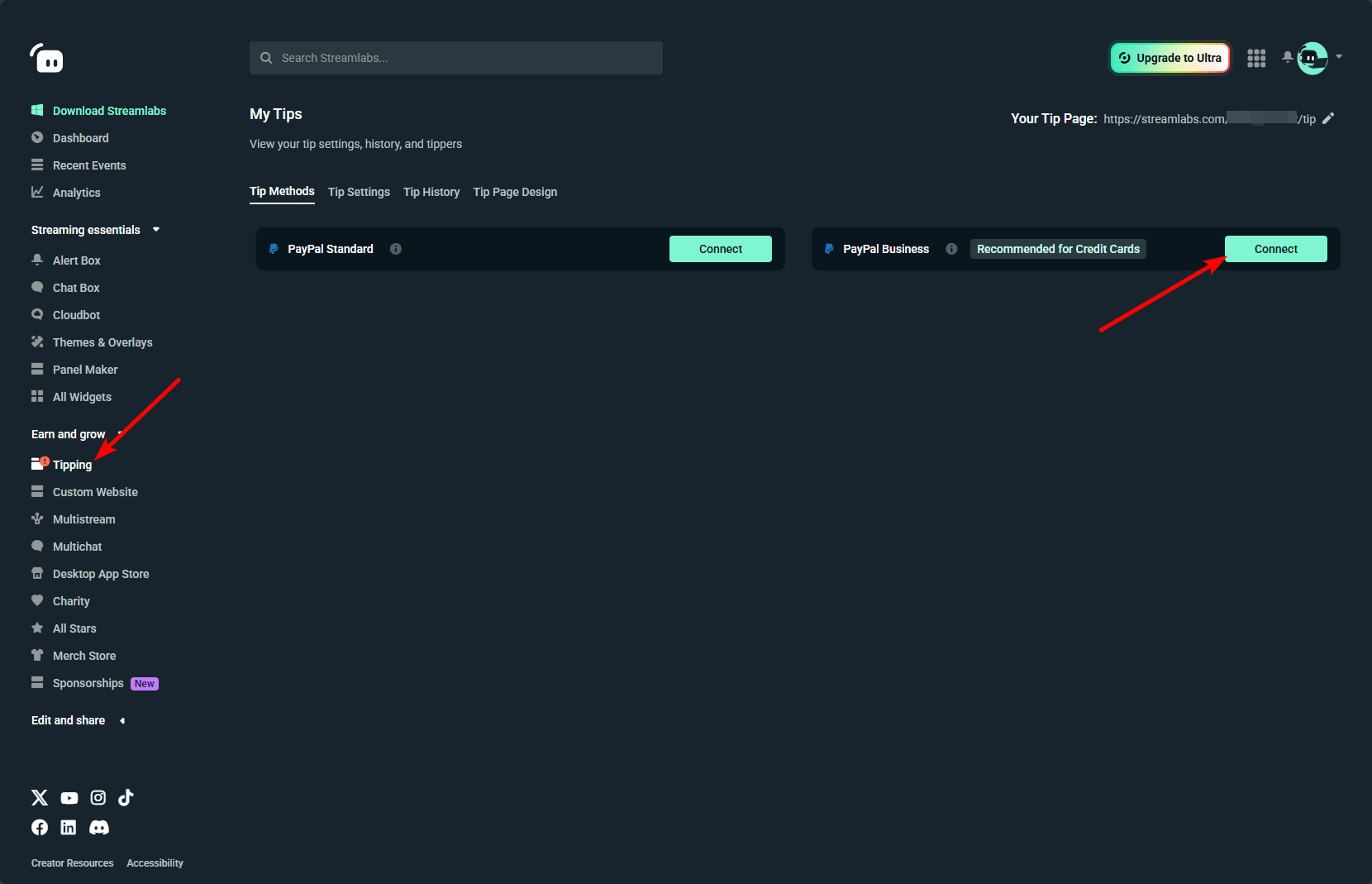
- On the left menu, click on Tipping.
- Click Connect next to one of the PayPal options:
- PayPal Business (recommended): Accept Venmo (US only) & credit cards; requires a PayPal business account (it’s free!)
- PayPal Standard: Accepts only PayPal
- Log into PayPal in the pop-up window and accept the terms.
Step 2: Customize Your Tip Page
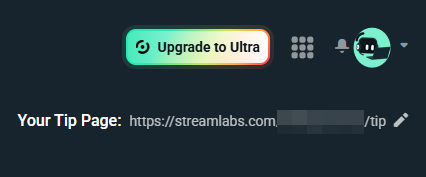
Once you connect your account, you will get a special website link called a Tip Page URL that you can share with your audience.
- Find Your Link: In Tipping, it is at the top right under your profile picture.
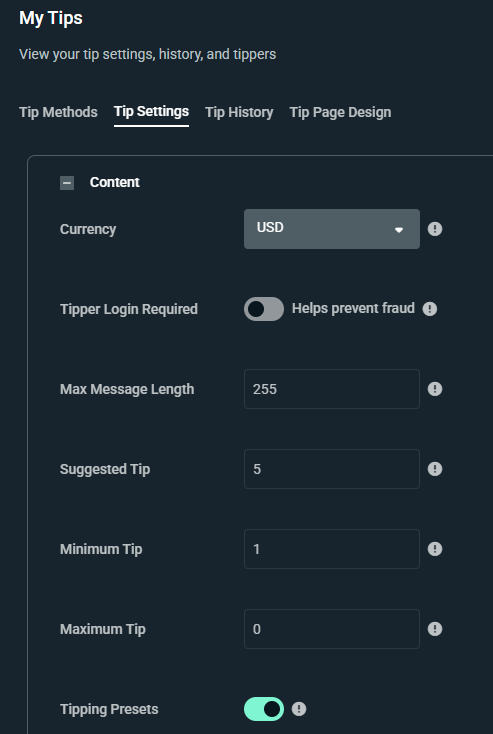
- Tip Settings: Adjust your currency, minimum tip, tip presets and more.
- Tip Page Design: This is where you can enable Monthly Tipping and do light adjustments to your tip page.
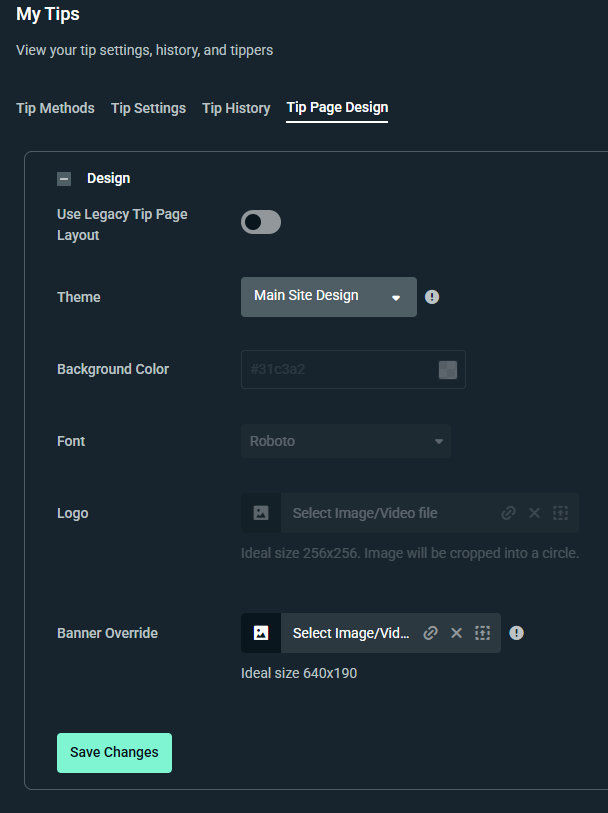
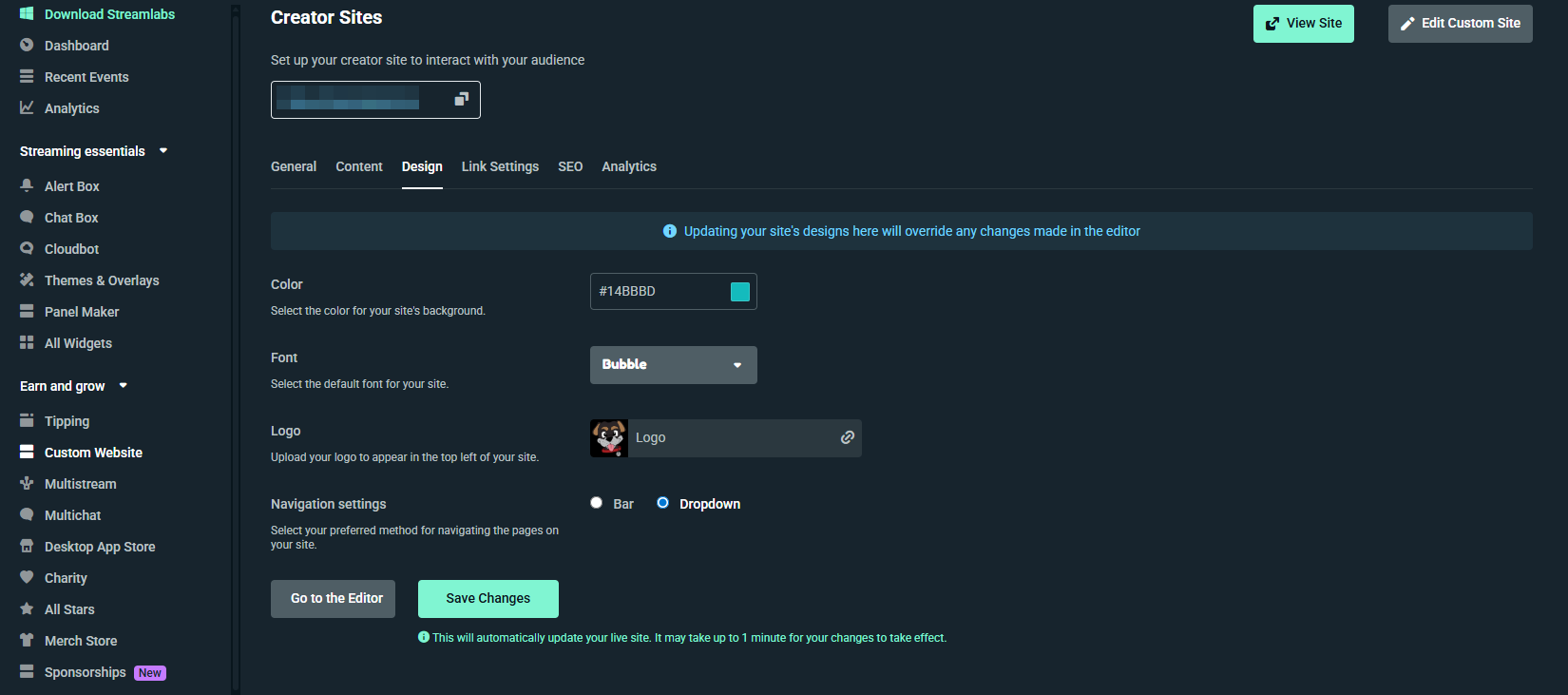
- More Customization: On the left-hand side, click Custom Website and go to Design to add more customization such as font and your logo.
Step 3: Add the Link to Your Channels
To get tips, you need to put your link where viewers can find it.
- Twitch & Kick: Turn on "Edit Panels" below your video player, click the plus (+) sign to create an image panel named "Donate," and paste your Tip Page URL into the image link box.
- YouTube: Paste your link into your channel's "More Info" section and add it to your stream descriptions whenever you go live.
- Facebook: Add your link directly to your Page Bio or About information and pin it to your stream descriptions when you broadcast.
- Instagram & TikTok: Paste your link into your main profile bio section.
Additional Resources
Have a question that wasn’t answered here? Check out our guides below:
- Monthly Tipping: Learn how to let fans support you automatically with monthly tips.
- Banning a Tipper: Dealing with a troll? Learn how to clear the messages and ban them from tipping again.
Need Help?
Our team is happy to help at https://streamlabs.com/support.