


 Ultra.

With the Viewer Count widget, you can display the number of people watching you on every platform you stream to—all in one place. It’s perfect for multistreamers, those who love tracking growth, single monitor streamers, and anyone who wants to encourage more viewers to join the fun.
Jump Ahead:
- What Is the Viewer Count Widget?
- How to Set up Viewer Count in Streamlabs Dashboard
- How to Set up Viewer Count in Streamlabs Desktop
- How to Set up Viewer Count Widget in OBS Studio
What Is the Viewer Count Widget?
The Viewer Count widget presents a real-time display of how many people are watching your stream. It works across Twitch, YouTube, Facebook, and Kick, allowing you to:
- Celebrate milestones by setting and sharing viewer goals.
- Encourage viewers to share your channel to help you expand your reach.
- Unite your community, even when you’re multistreaming and your audience is spread across multiple platforms.
With the Viewer Count widget, you can also personalize the look with unique themes (exclusively available for Streamlabs Ultra subscribers).
How to Set up Viewer Count in Streamlabs Dashboard
Step 1: Log into your Streamlabs Dashboard, click All Widgets on the left menu, and choose Viewer Count. Alternatively, click here to go straight to the Viewer Count settings page.

Step 2: On the Viewer Count widget settings page, you can customize the widget to your liking:
- General Settings—choose which platforms you want the widget to tally viewers for.
- Font Settings—change your font style, size, weight and color.
- Custom HTML/CSS—fully customize your widget using your own code.
- Background color—this is for preview purposes only to give you an idea of how the widget may appear on your stream.
Add a Viewer Count source directly in Streamlabs Desktop or the Streamlabs Plugin for OBS, or add the URL above as a browser source in another software. Keep reading to learn more.
How to Set up Viewer Count in Streamlabs Desktop
Step 1: Open Streamlabs Desktop and click the + Add Source button in the Sources panel.
Step 2: From the widget list, select Viewer Count and click Add Source.
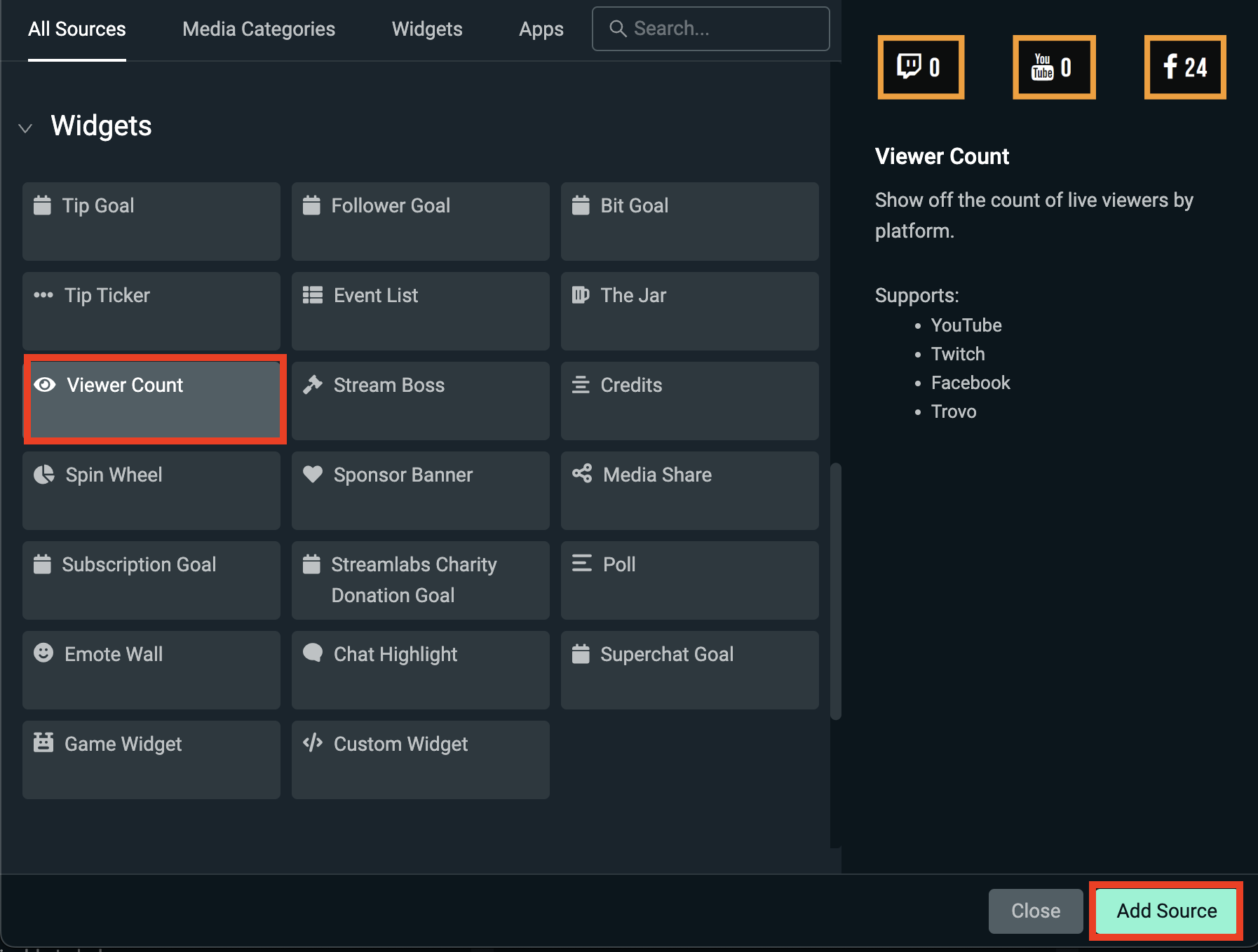
Step 3: Name your new source or leave the default, then click Add Source again.
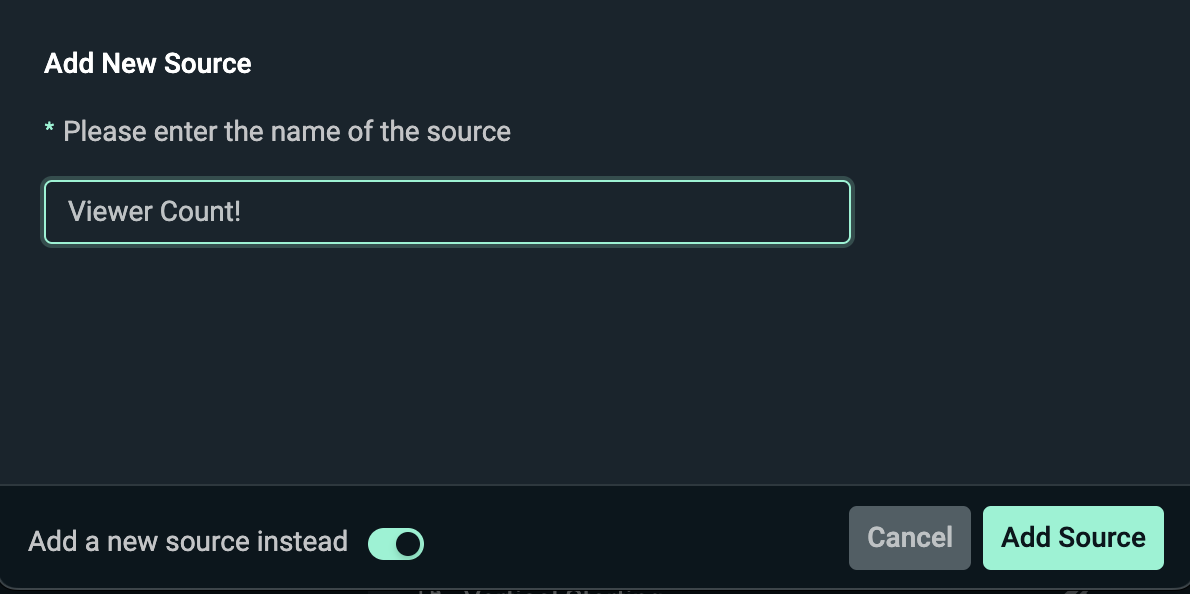
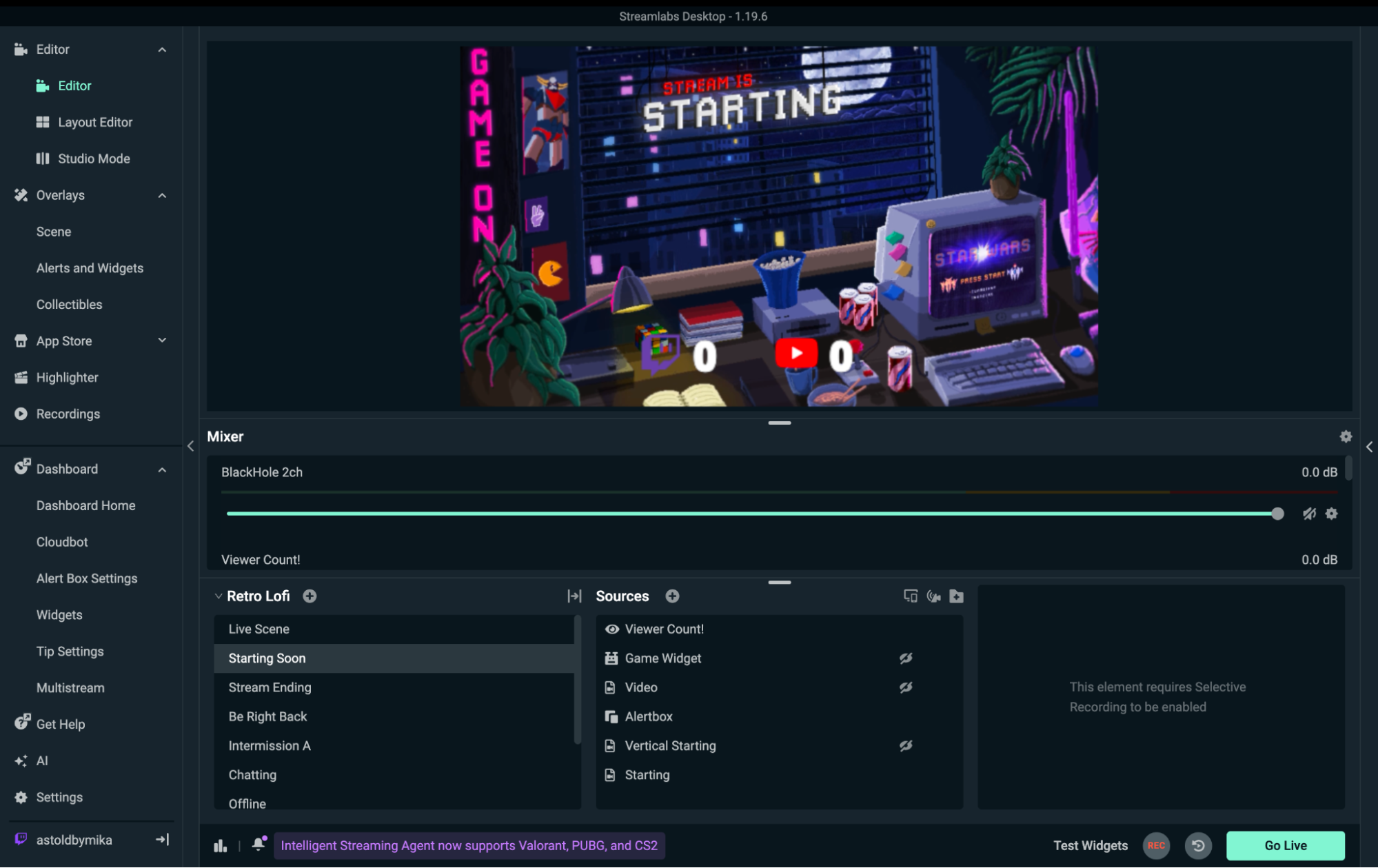
Step 4: Customize your widget appearance in the settings window that appears. Adjust font and other visual settings to match your brand identity.
Step 5: Click Done, then drag and resize the Viewer Count widget in your scene as needed.
How to Set up Viewer Count Widget in OBS Studio
For OBS Studio users (with the Streamlabs Plugin):
Step 1: Open OBS Studio, ensure the Streamlabs Plugin is installed, and log in.
Step 2: In the navigation menu, click Streamlabs to access your widget settings.
Step 3: From the widget options, select Viewer Count and click +Add. If you need to adjust settings, click Settings to return to your Streamlabs Dashboard.
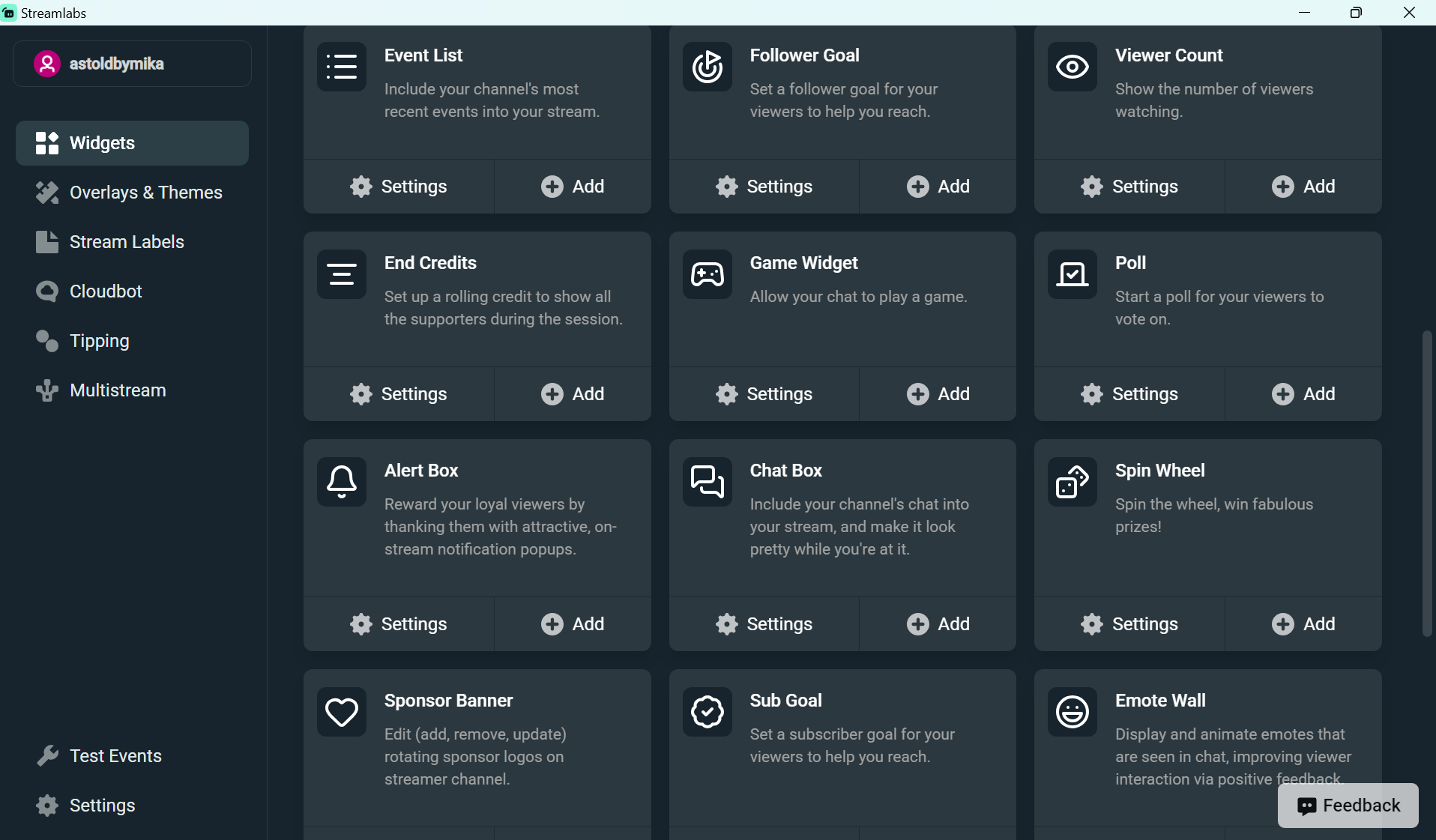
Step 4: Click +Add under Viewer Count and the widget will appear as a source in your current scene. Move and resize as desired.
Note: If you’re using OBS without the Streamlabs Plugin or are using different software to stream like XSplit, you will need to copy and paste the widget URL (from your Streamlabs Dashboard) into your scene as a browser source.
Now your Viewer Count widget is set up and ready to showcase your growing community on stream. Whether you're streaming in one place or everywhere at once, it’s a simple and effective way to engage your audience and celebrate milestones together.
Looking for even more ways to power up your stream? Try combining the Viewer Count with widgets like Alert Box, Tip Ticker, or Chat Box for maximum engagement.
If you have any questions or comments, please let us know by contacting us or joining our Discord server.
