


Telegram is a go-to app for private messaging, enabling people to create large group chats (up to 200,000 members), and share media files of all different types. While the platform has historically been known for its privacy-forward features for personal and business related messaging, it has also become a surprisingly useful space for creators who want more control over how they share and connect with their audiences.
One of Telegram's newer additions is Live Stories, a feature that lets you live stream directly to your Story so people can watch in real-time. Whether you want to share quick updates/BTS or go live regularly with fans or followers,Telegram makes it fairly simple to get started.
Jump Ahead:
- Streaming to Telegram Live Stories from Native Mobile App
- Streaming to Telegram via Desktop/Streaming Software
In this blog, we'll walk you through how to stream to Telegram Live Stories using your mobile device for a quick setup, as well as how to stream using software like Streamlabs Desktop if you want a polished, customizable stream.
Streaming to Telegram Live Stories from Native Mobile App
As we briefly mentioned, going live from the Telegram app is likely the quickest way to get started if you're skipping over customization. Below are the steps for streaming to Telegram via Live Stories.
Step 1: Before you can stream to Telegram Live Stories, make sure your app is updated to the latest version.
Step 2: Next, click the settings icon  , then My Profile.
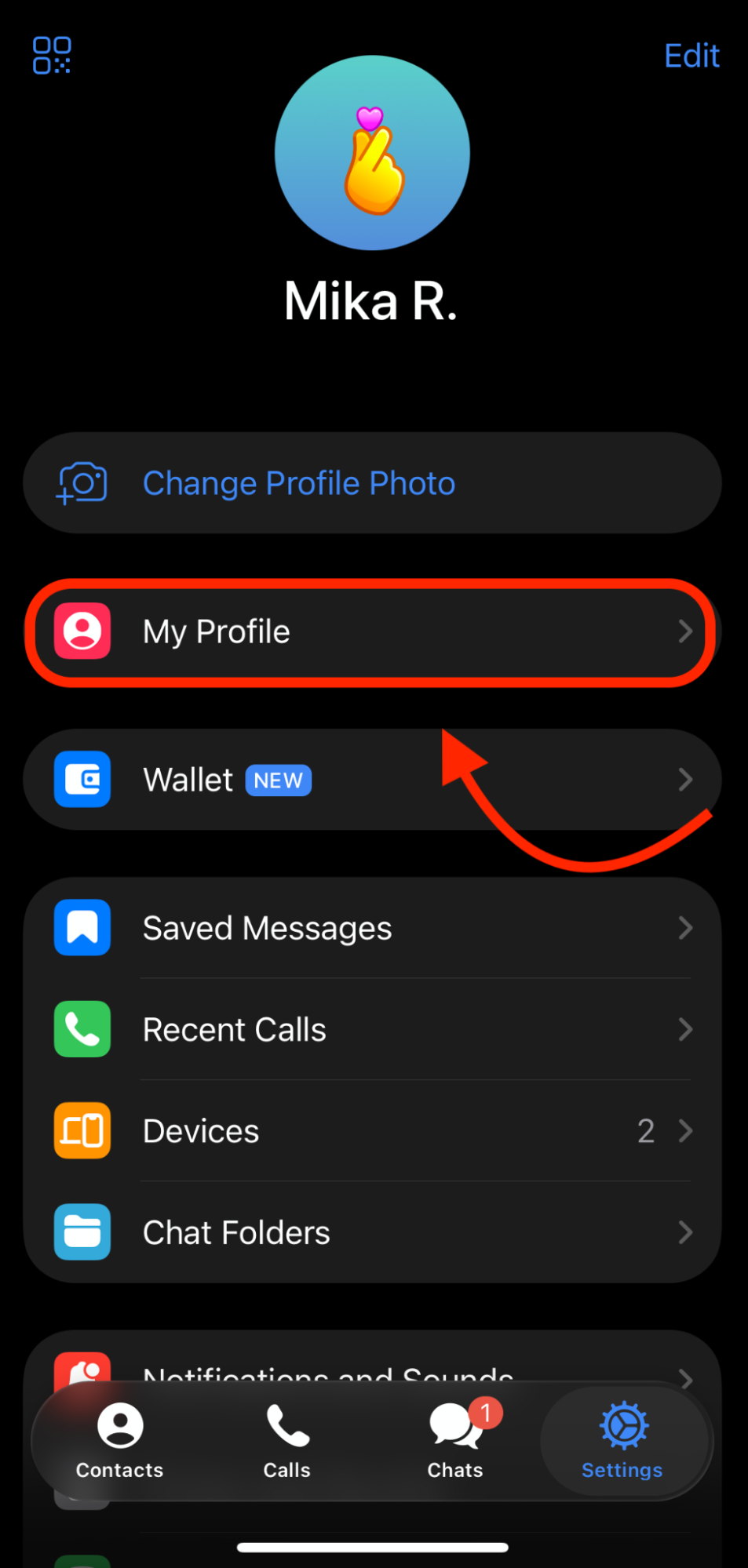
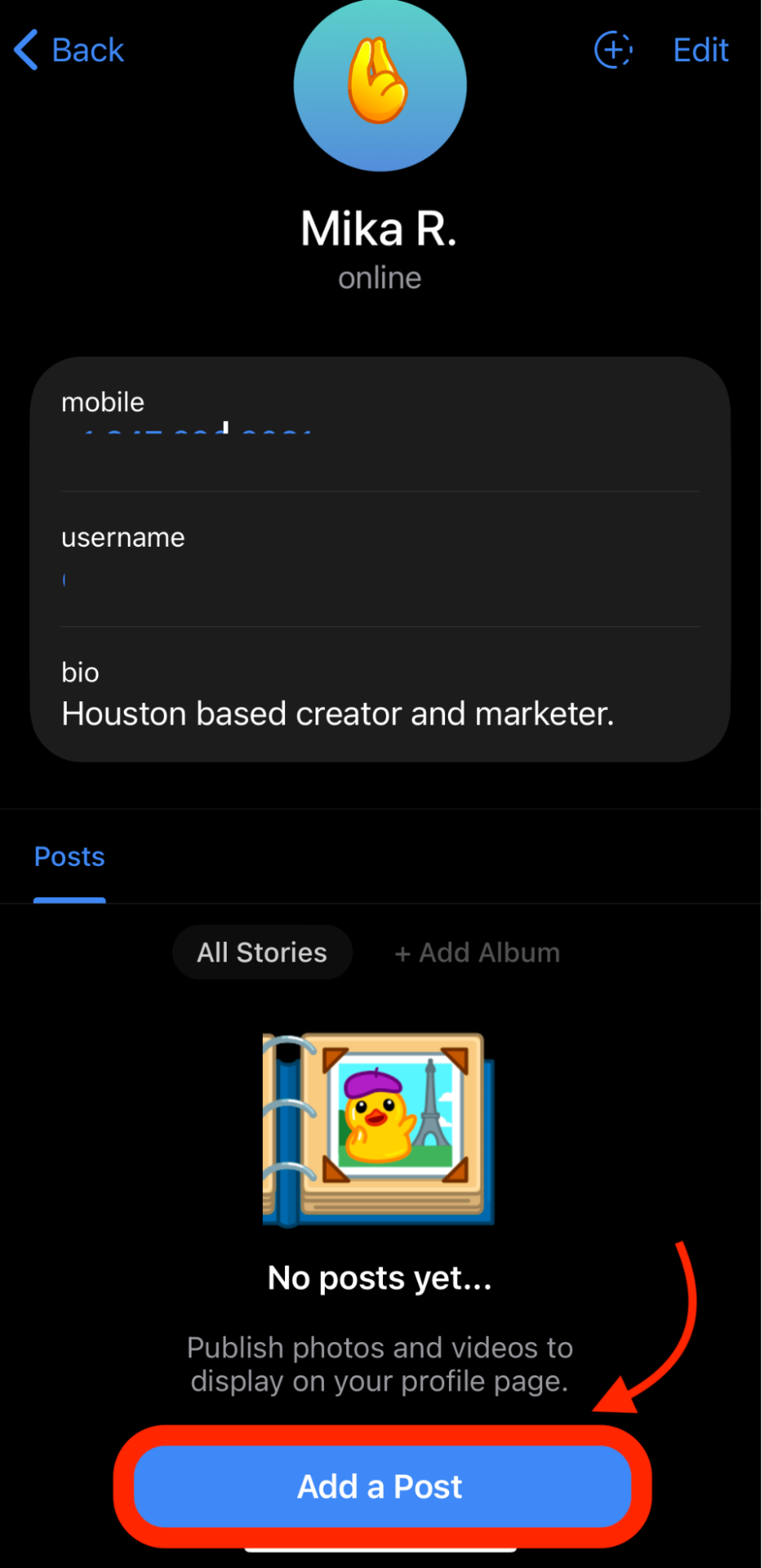
Step 3: Scroll to the bottom of your screen, then click Add a Post.
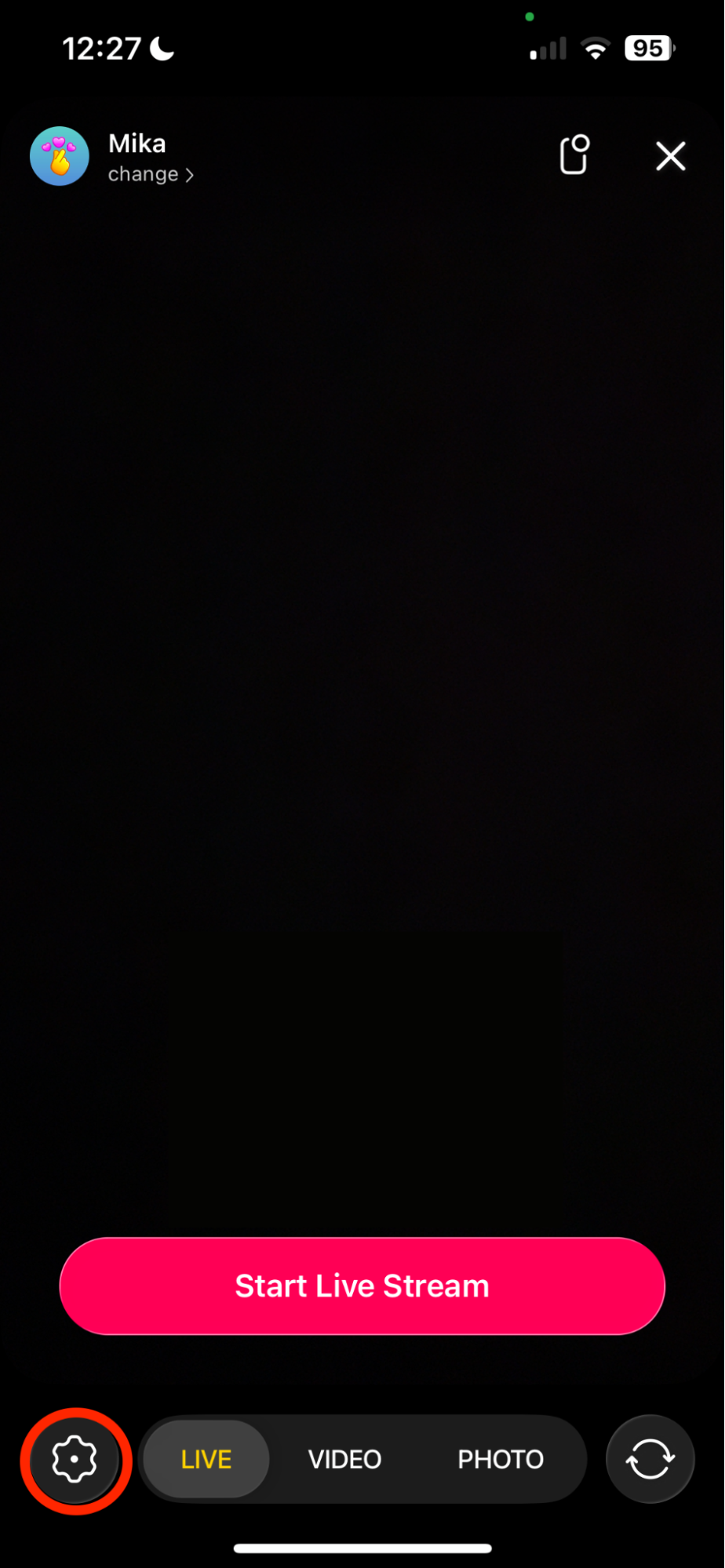
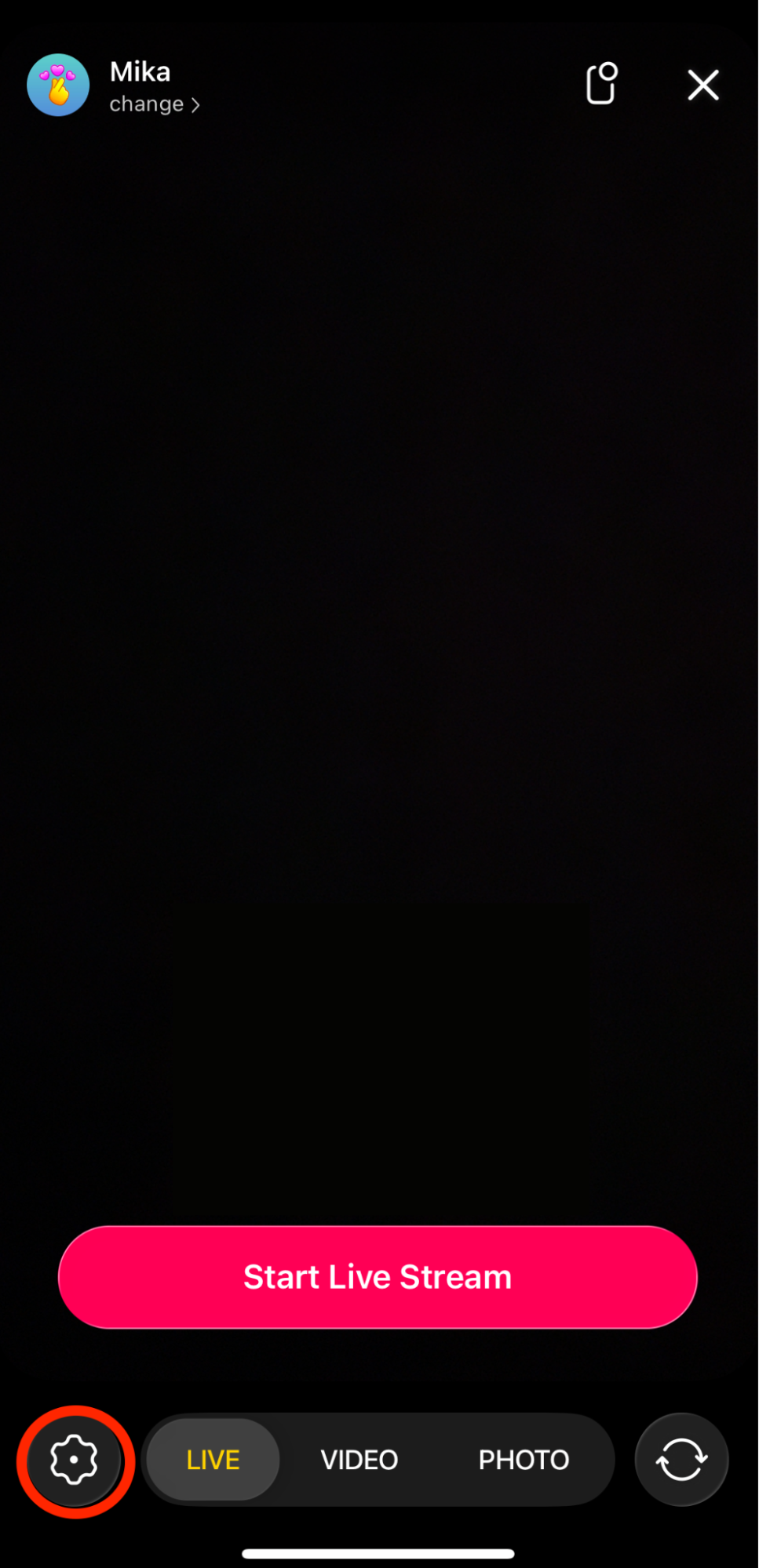
Step 4: Here, you should see a preview of your camera. You can immediately go live using default settings by clicking the Start Live Stream button. However, we recommend customizing your stream first.
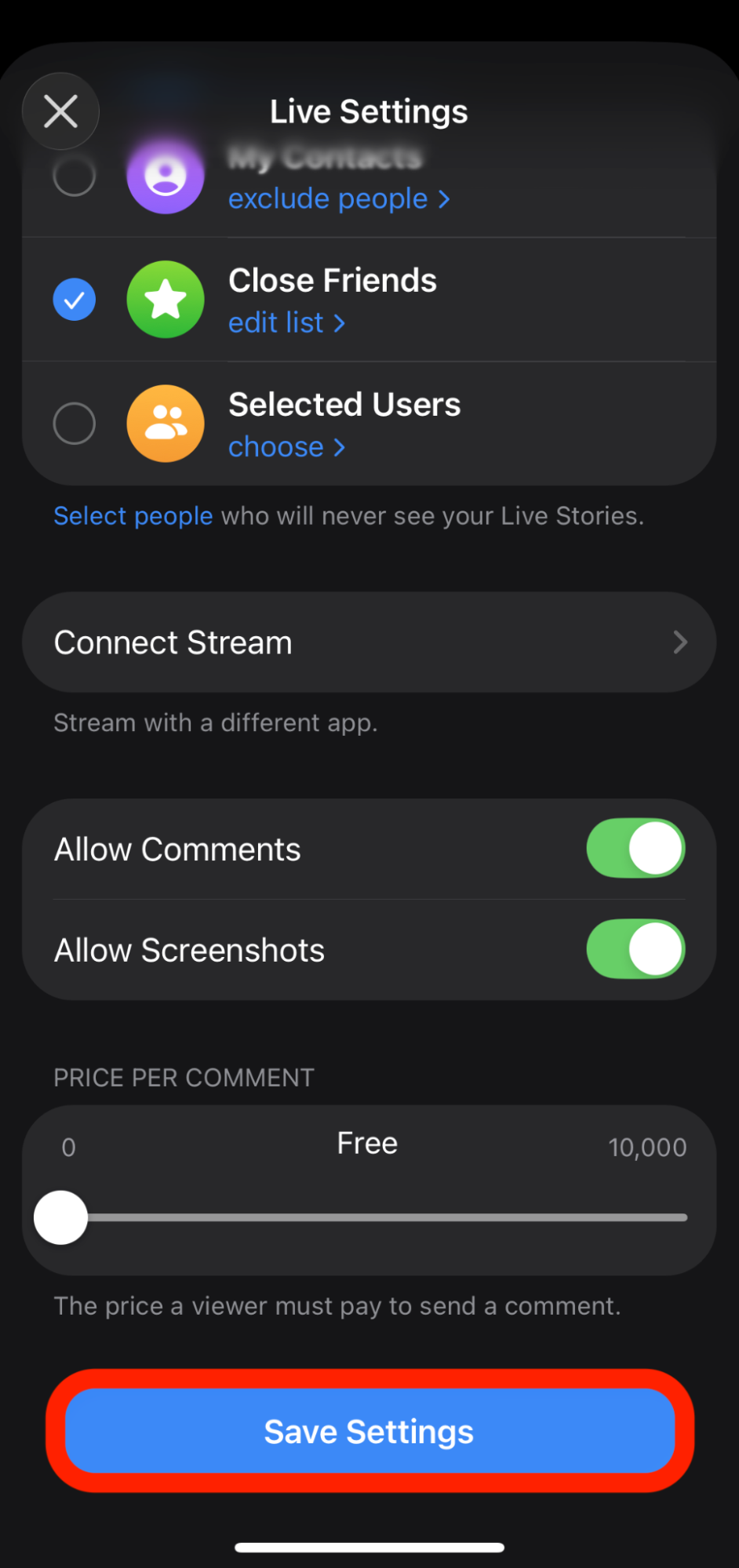
Step 5: Next, click the settings icon (next to Live) to open your settings. Here you can adjust:
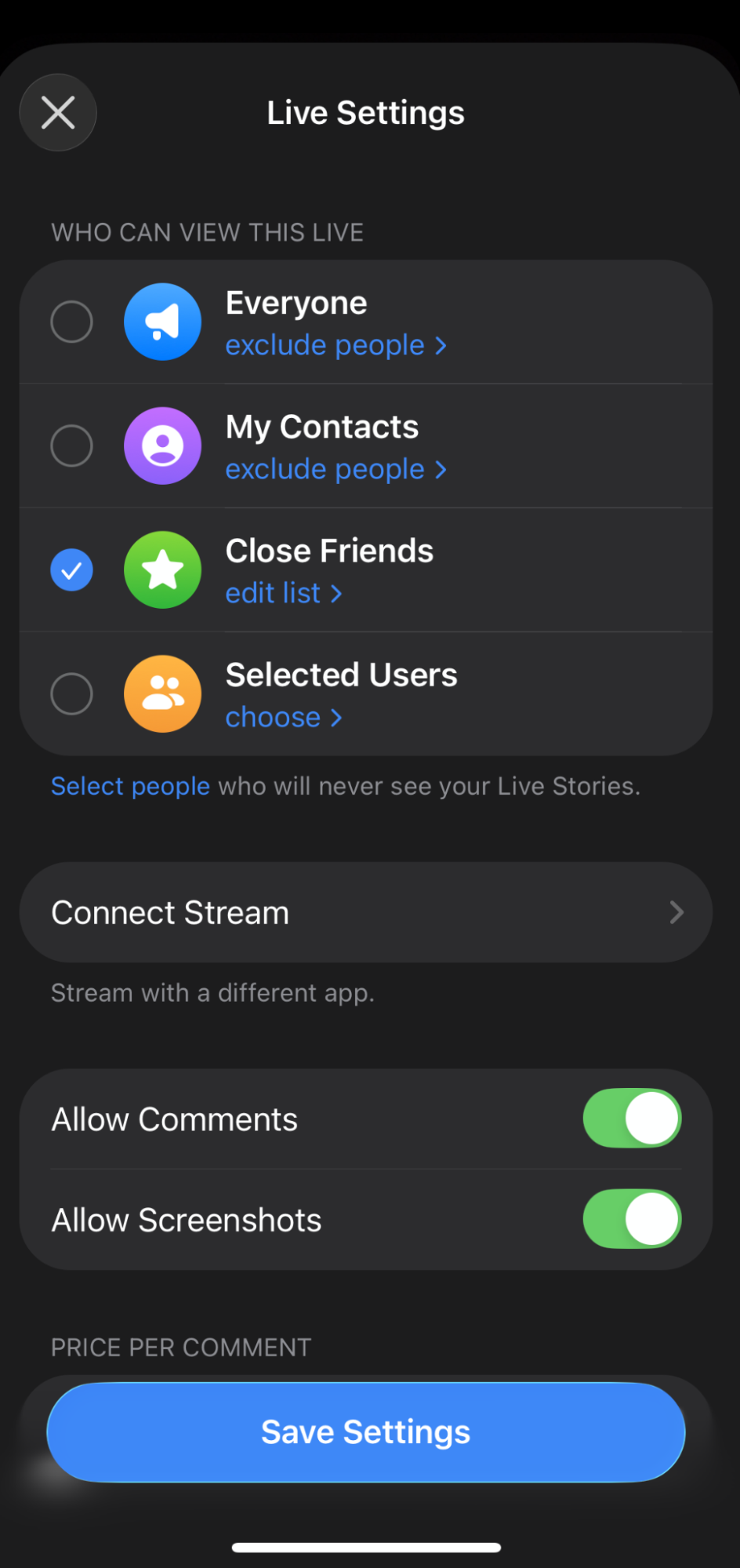
- Your audience (everyone, contacts, close or select users)
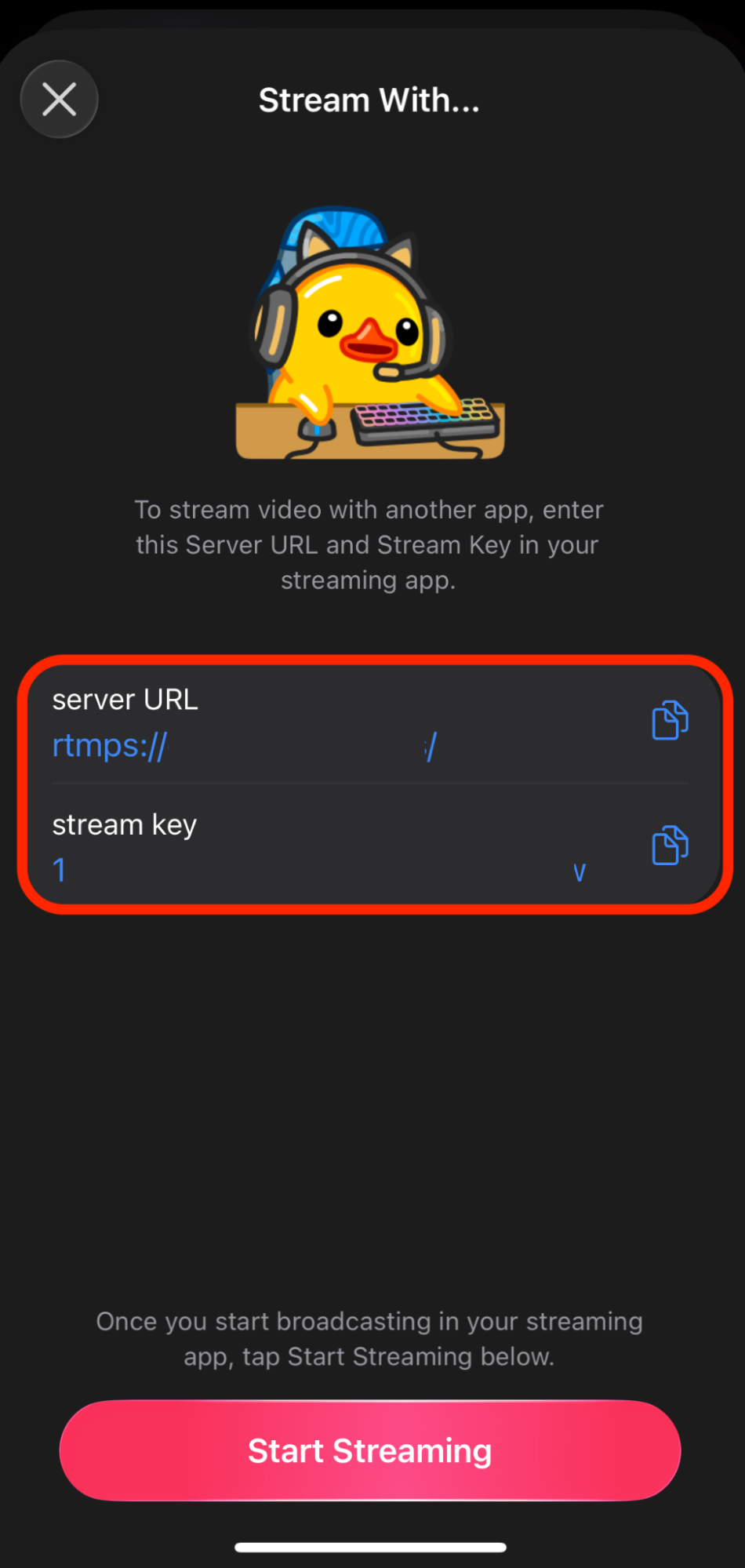
- Connect Stream (to receive Server URL and stream key for RTMP streaming via third party streaming software)
- Allow Comments
- Allow Screenshots
- Price per comment (a price a viewer must pay in Telegram Stars/in-app currency to leave a comment)
Click Save Settings when you're done.
Step 6: Once your settings have been saved, you'll be redirected to the main live screen. If you're ready, click the Start Live Stream button.
Streaming to Telegram via Desktop with Streaming Software
Telegram provides Server URLs and Stream Keys so you can stream to the platform using third party software. Here we'll be using Streamlabs Desktop, however, the steps will generally be the same for most live streaming software.
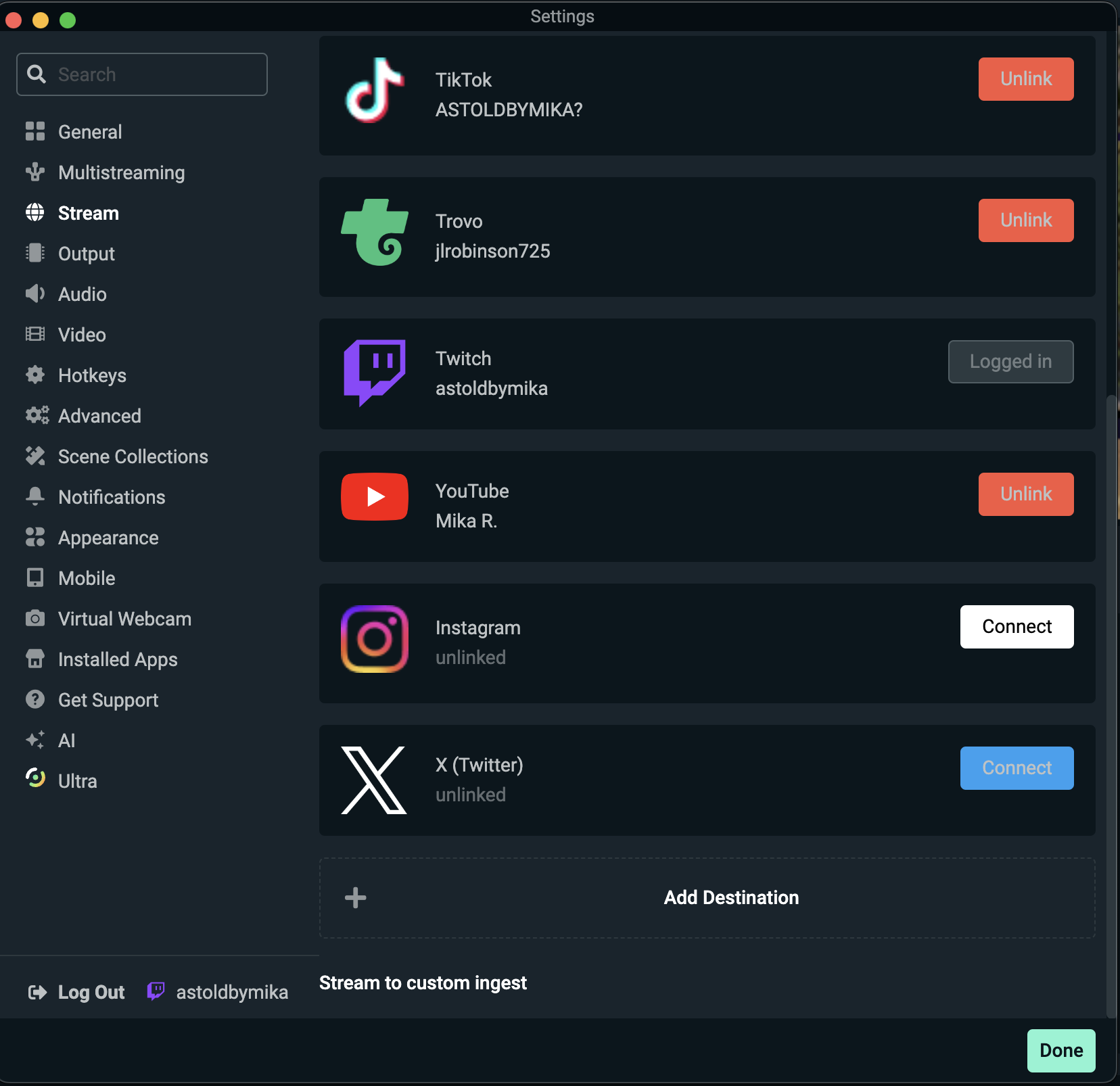
Step 1: Launch Streamlabs Desktop on your computer then head to Settings > Stream.
Step 2: Here are all platforms you have connected to Streamlabs Desktop. Begin adding Telegram by clicking the Stream to Custom Ingest button.
Step 3: Open the Telegram app and grab the RTMP streaming info (stream URL and stream key) by clicking Settings > Connect Stream.
Step 4: Select Custom Streaming Server as the Stream Type and input the server URL and stream key from Telegram in Streamlabs Desktop.
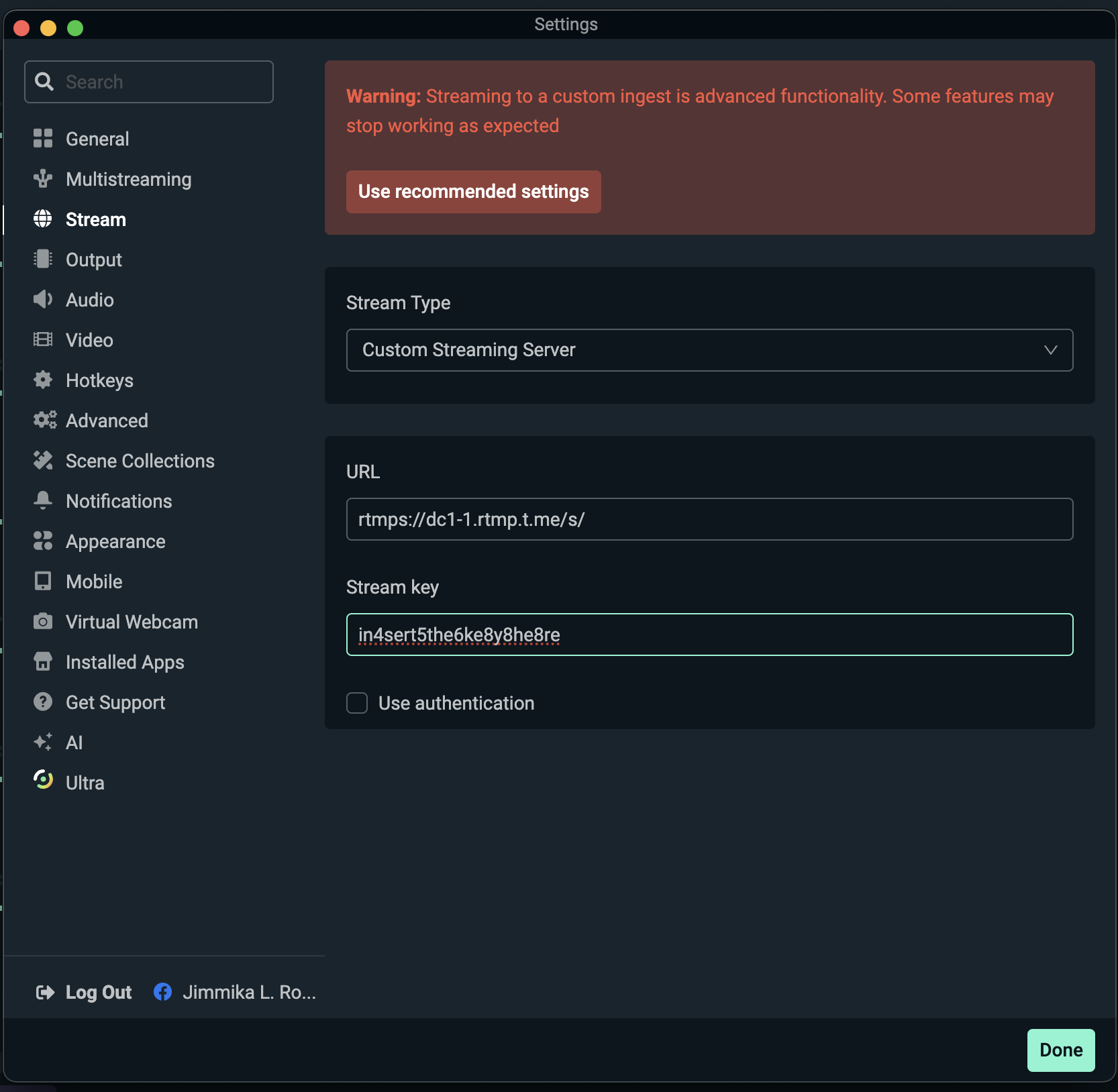
Hit Done or Close to save your settings.
Note: Adding Telegram as a custom ingest destination will stream your live to Telegram only. Step 6 details how to multistream to Telegram plus another platform.
Step 5: Customize your live streams with alerts, widgets, overlays and more in Streamlabs Desktop as you see fit (check out this guide if you're not sure where to start).
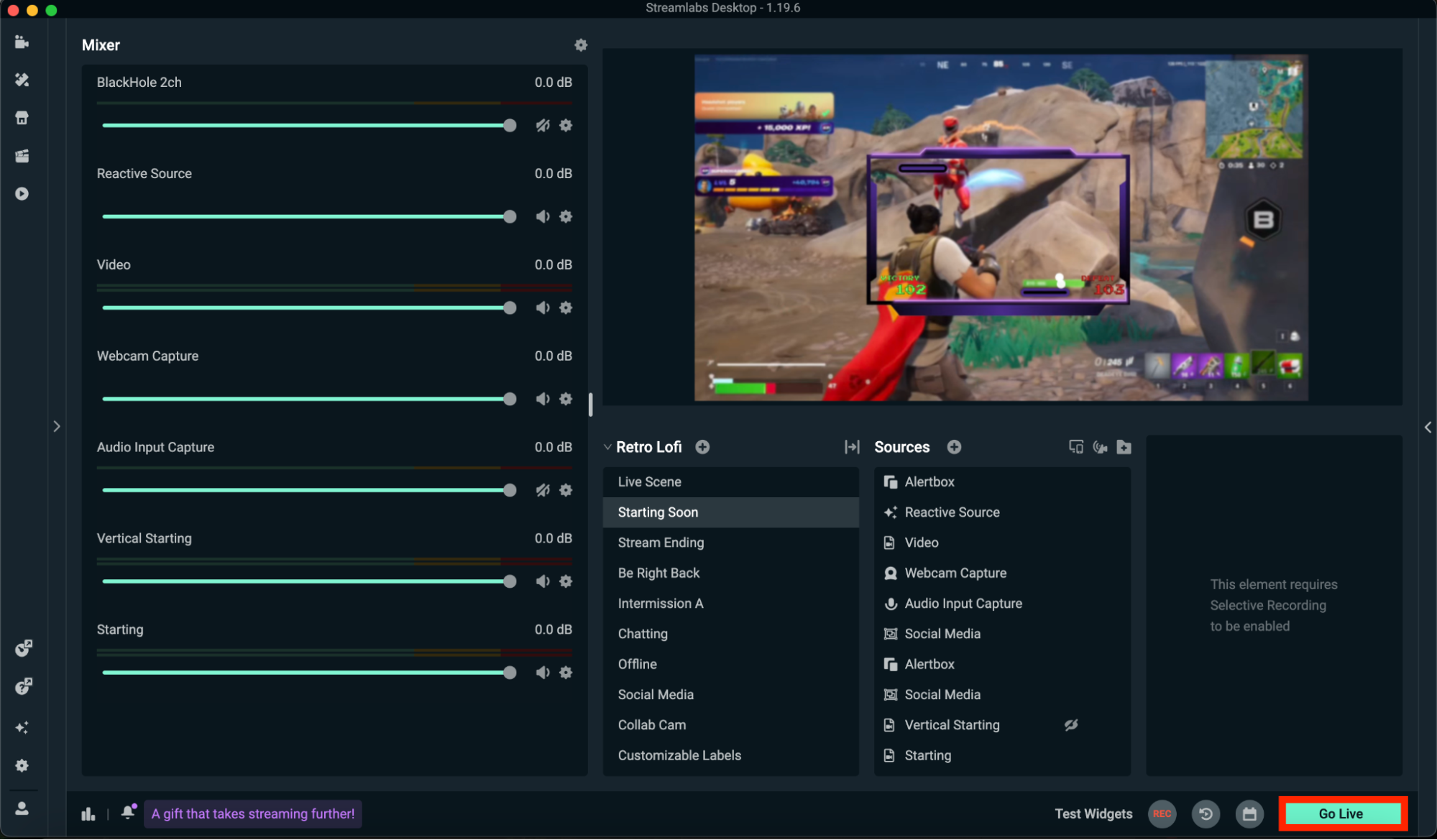
Step 6: When you're ready to go live to Telegram, hit the Go Live button in the main editor of Streamlabs. The software will immediately start streaming to your custom RTMP destination.
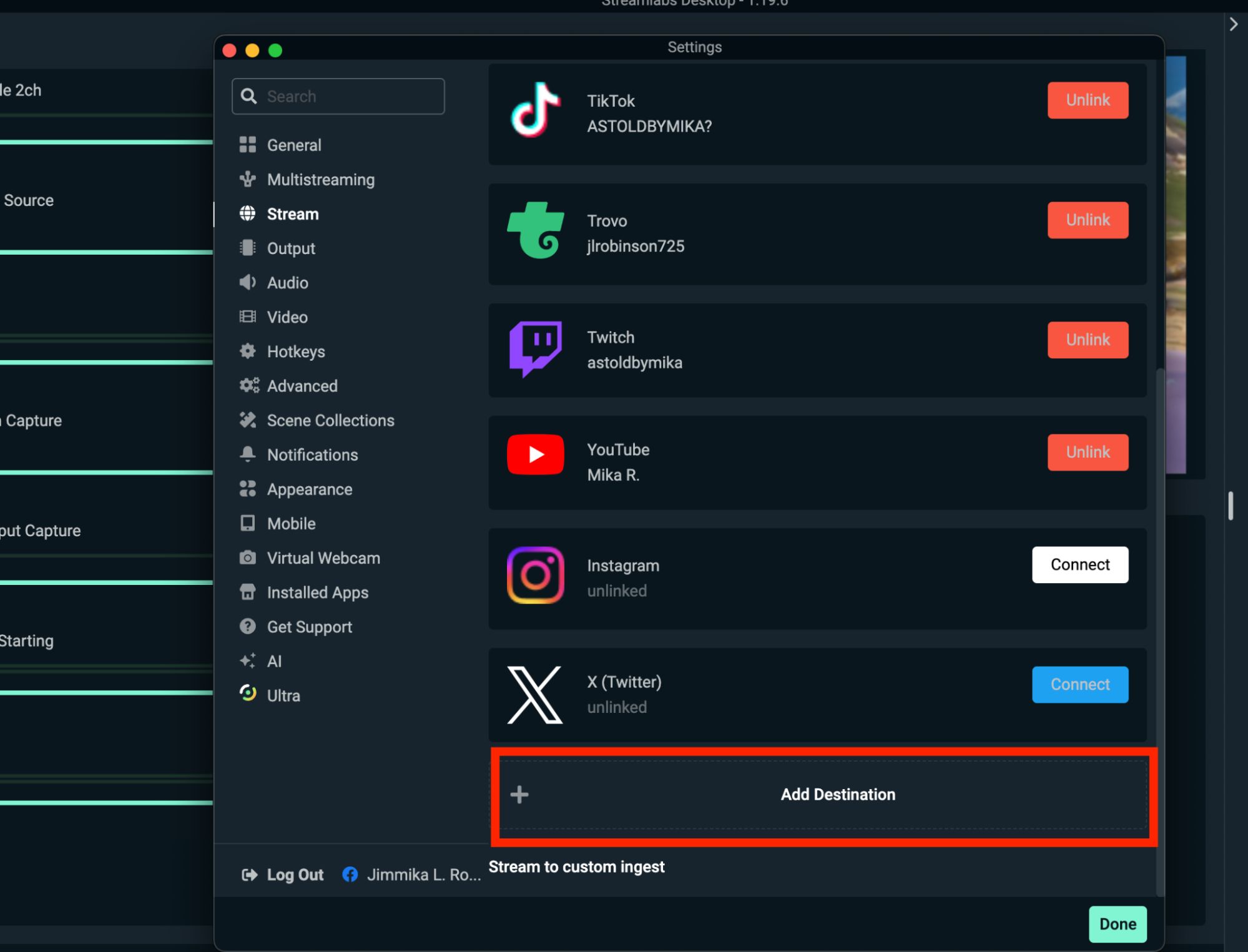
Pro-Tip: Expand your reach by multistreaming to other platforms while you stream on Telegram via RTMP.
Head to Settings > Stream > Add Destination and input your stream URL and stream key. This will enable you to stream to Telegram plus one or more platforms, exclusively available to Streamlabs Ultra subs.
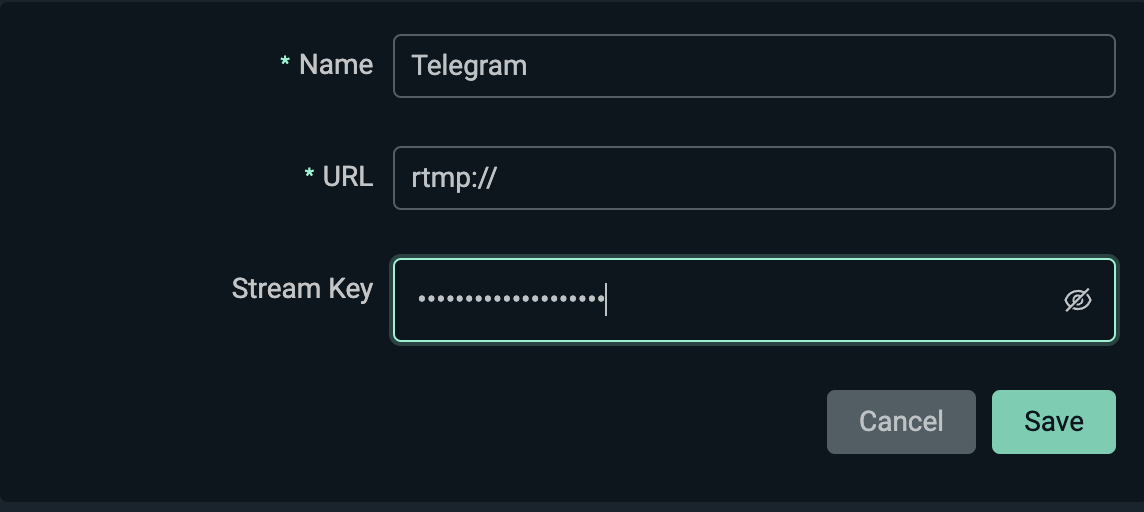
P.S. You can also live stream to Telegram using Streamlabs Mobile, a mobile live streaming software for streamers looking to customize their live on the go. Think of it as a lighter version of Streamlabs Desktop.
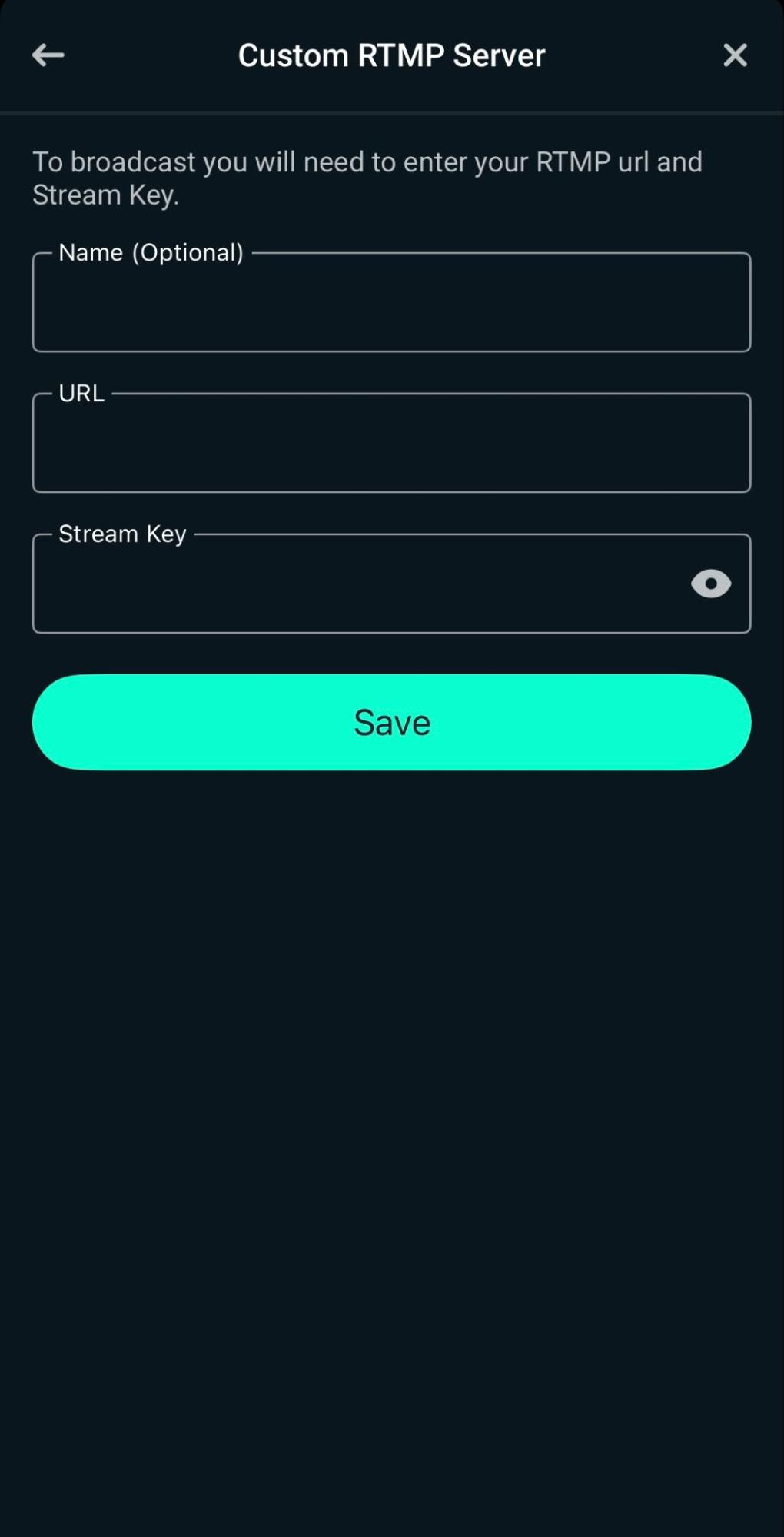
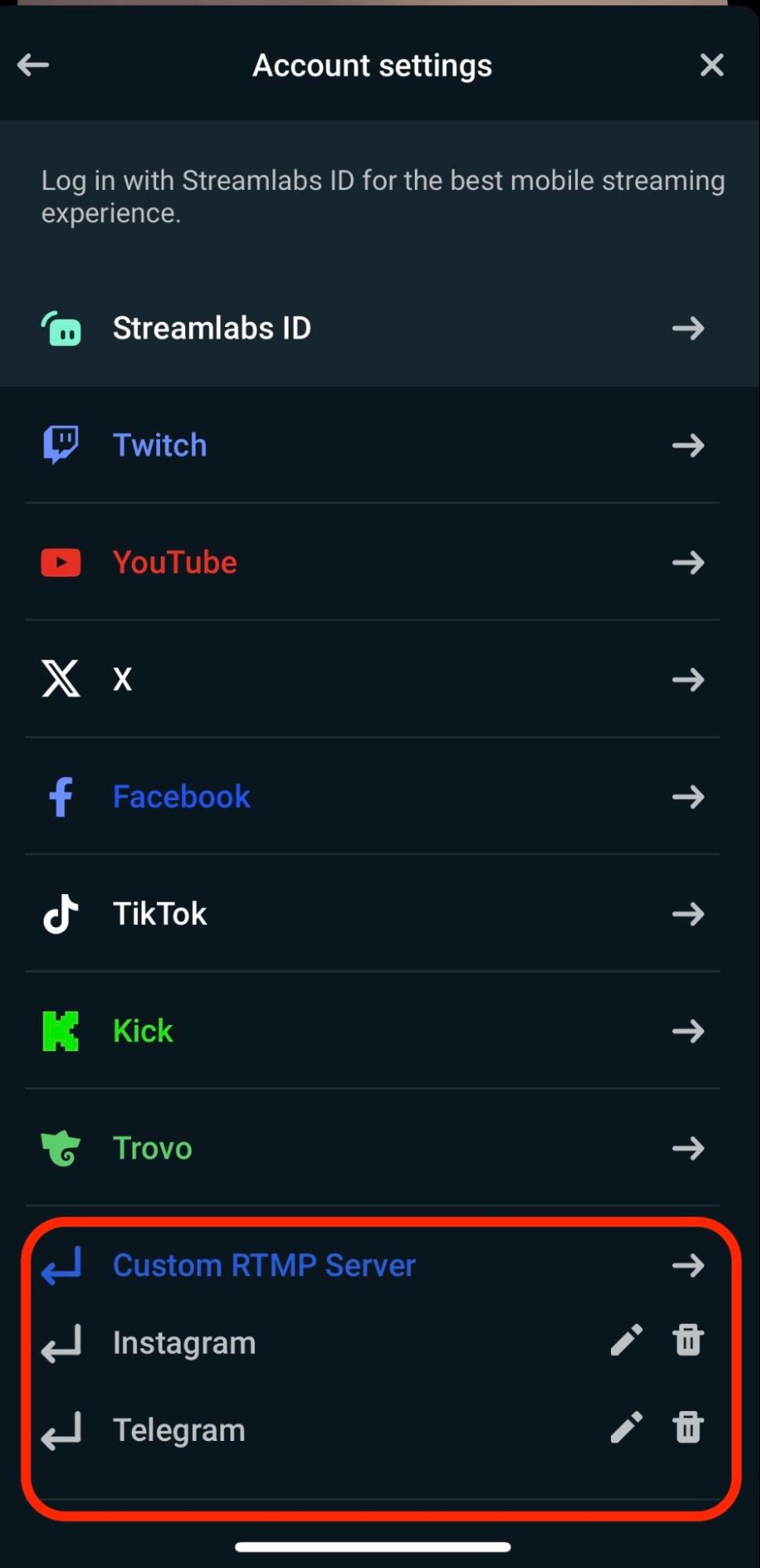
Add a new platform in your Account Settings in Streamlabs Mobile by inputting your Telegram stream URL and stream key.
That's it! You're ready to go live on your Telegram story using Streamlabs or another streaming software. If you have any questions, reach out to our support team so we can help you get started streaming ASAP!