


 Ultra subscription.

Having issues with the Sidekick? You can find troubleshooting steps below based on different experiences & questions you may have!
1. [Most Asked] My system is slow and doesn't handle the co-host well. Responses stutter or are delayed
The Sidekick is a resource heavy feature if you have the co-host part enabled. Below are system requirements to be able to handle the processes without issues.
GPU: NVIDIA GeForce RTX™ 3060, Quadro RTX™ 4000, TITAN RTX™, or higher
VRAM:
- 8 GB when using Producer and Tech Support features without the 3D avatar (voice-only mode)
- 12 GB for dual-PC setups (Dual PC setup splits the workload across two machines, where one PC handles gameplay while the second PC manages the encoding and Streaming Agent tasks)
- 24 GB for a single PC with the full workload (Agent + streaming + gameplay are all handled by one machine)
Operating system: Windows 11 recommended
Drivers: Up to date Geforce Game Ready drivers (if not compatible try Nvidia Studio Driver instead)
If your system is not able to handle the virtual part of the agent, please make sure your Co-host is disabled by going to the Co-host settings and toggling it off
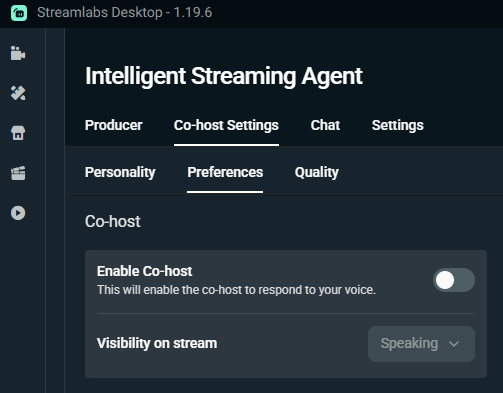
2. I'm getting crashes when Co-Host is enabled
The most common reason for the crash is that the hardware system is not able to handle the 3D process (on screen co-host part). If you see the error message like this on a crash that comes from Unreal engine, it means the virtual Co-host is failing to render.
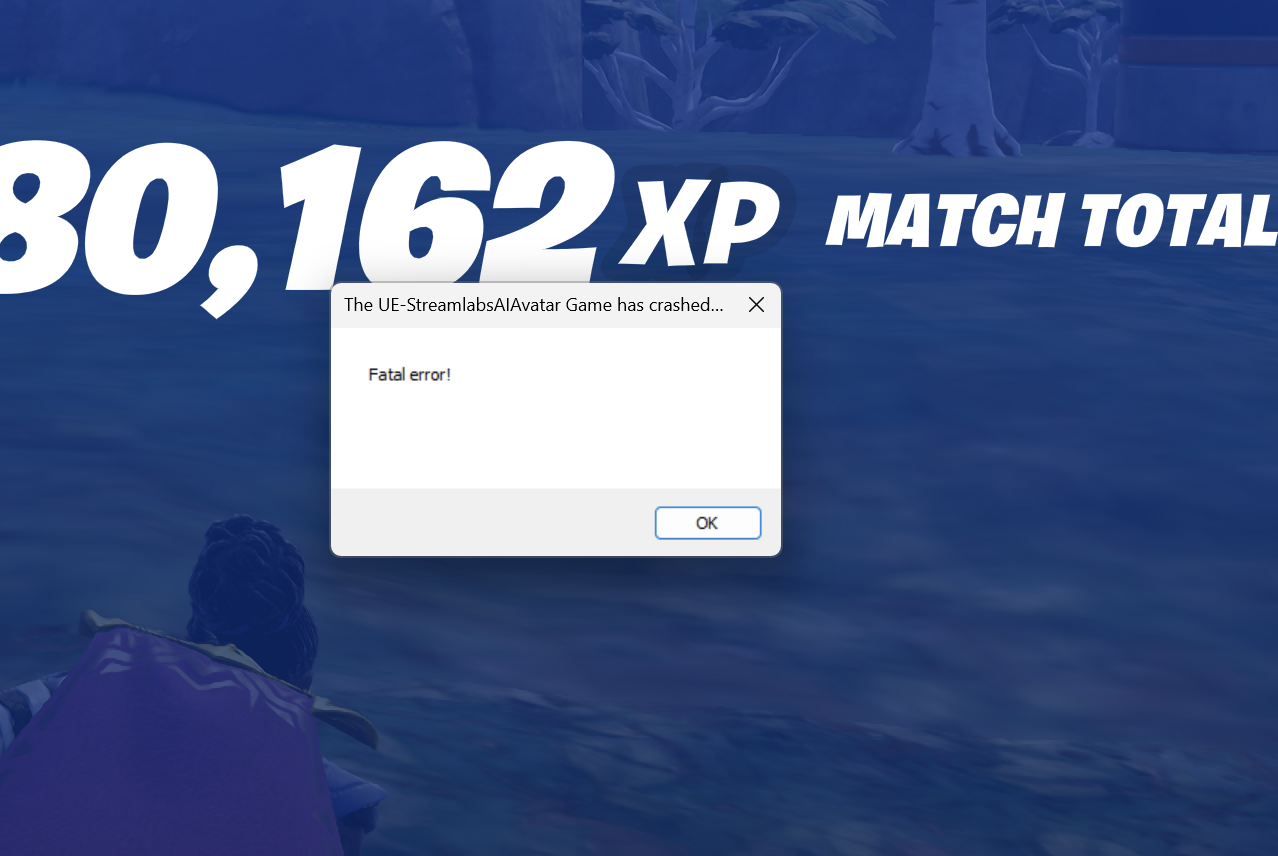
Please toggle off Co-host in the settings and see if it helps.
3. My agent doesn't respond to my questions
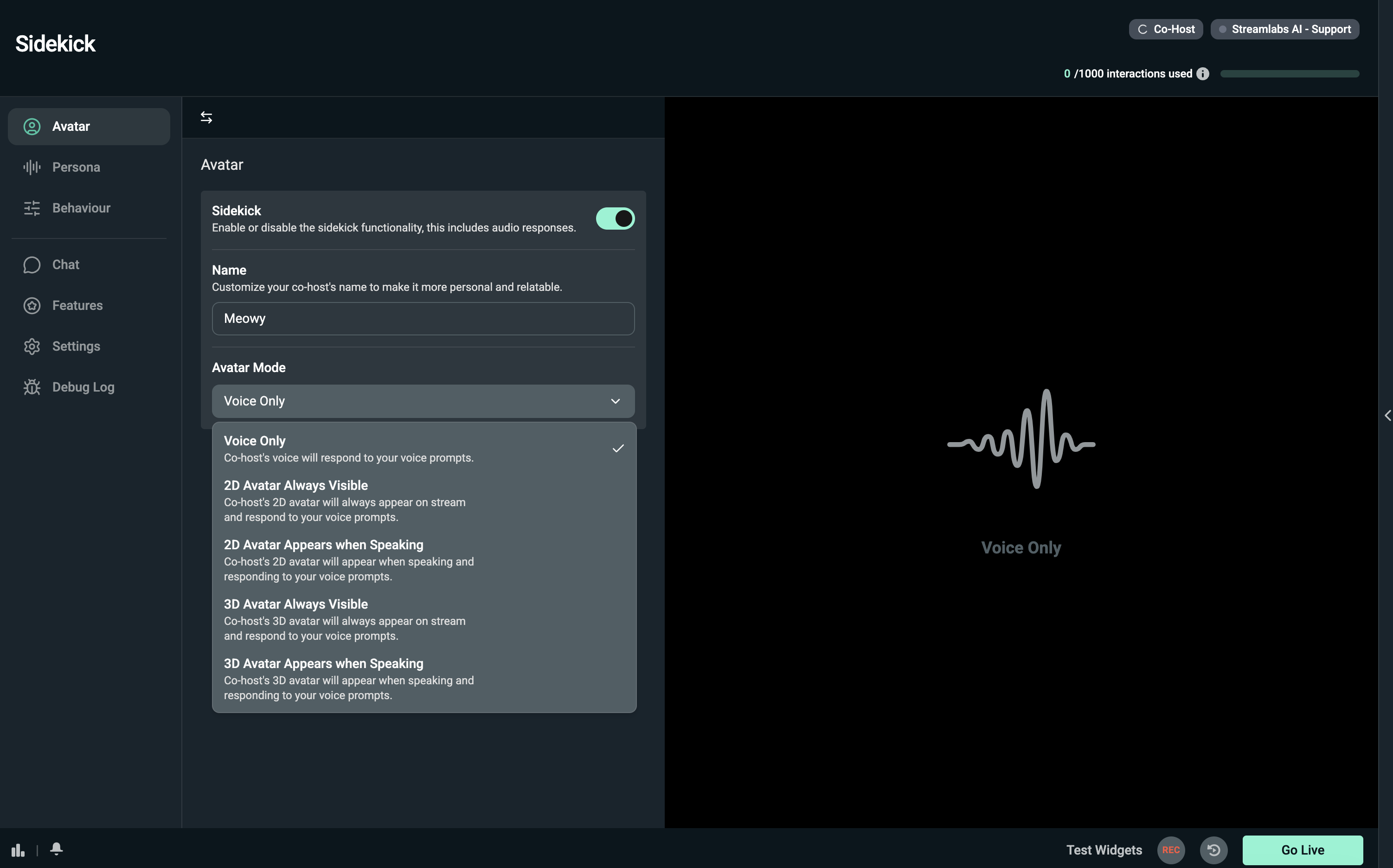
- Check if Sidekick is enabled in the Avatar tab
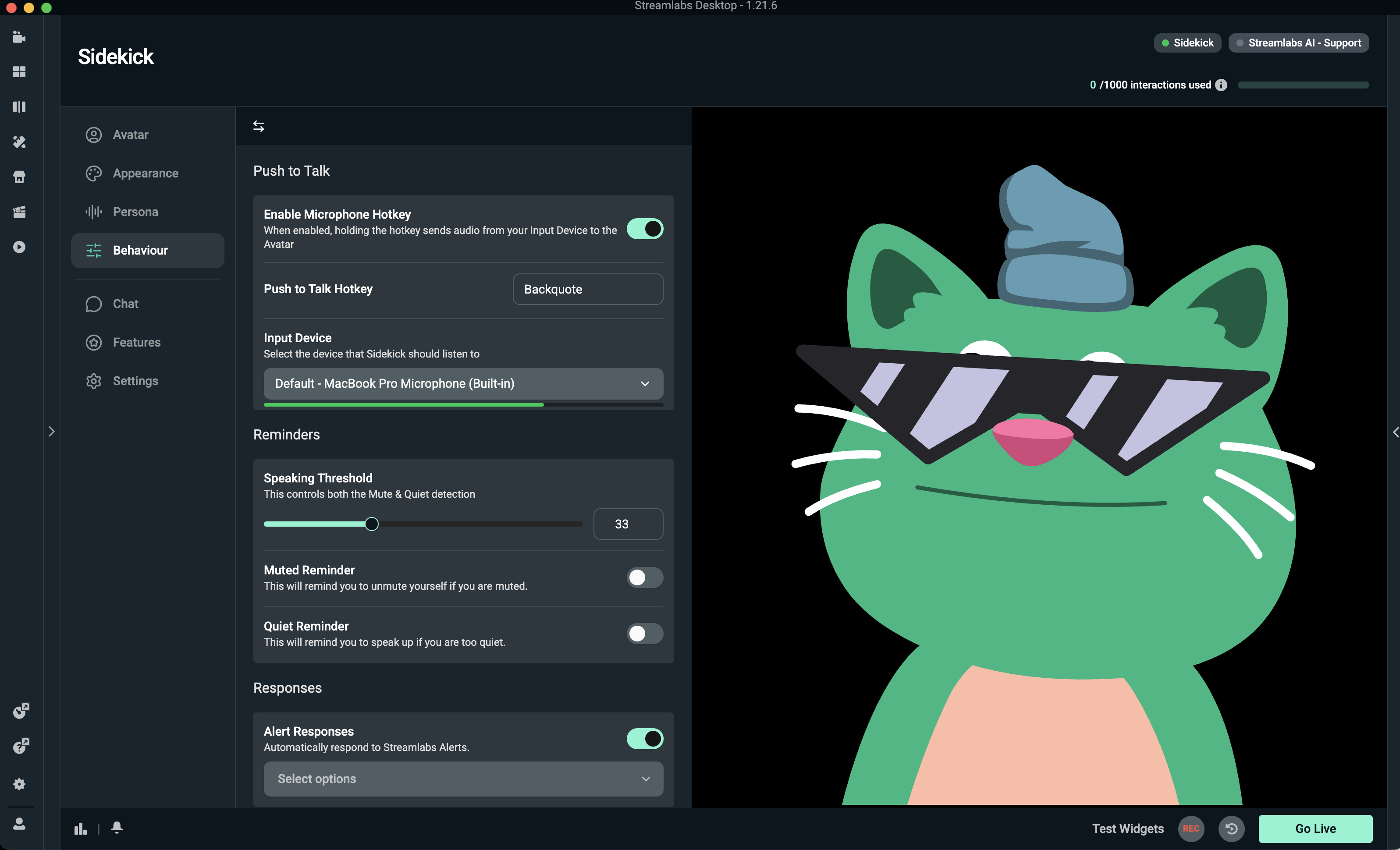
- Enable the hotkey to be able to interact with the Sidekick and make sure you use the hotkey when you'd like to trigger the response.
- Make sure the correct Input device has been selected in Sidekick settings. If your microphone doesn't get picked up (you don't see audio bar moving when speaking), it may be related to your audio setup
Example of all 3 settings below:
- Audio response happens when you push the hotkey to talk. If you asked the question within chat tab, Sidekick will only respond in the chat window
-
- Same tip goes to Output Device—make sure that correct audio device is picked by your PC in Sound Settings in order to hear the responses.
- Try refreshing the processes by closing Streamlabs Desktop, go to your Task Manager and make sure you stop the following processes from running:
-
- All Streamlabs Desktop processes (if some didn't get killed automatically and you see some zombie processes)
- UnrealGame processes
- BootstrapPackagedGame
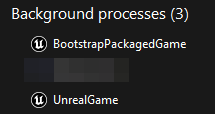
- Restart Streamlabs Desktop after this and make sure your Co-host settings are disabled but the Sidekick is enabled from the Avatar tab.
- Try talking to your Sidekick now and see if response comes through.
4. I have a dual PC and use a capture card, but my kills and victories are not triggering Producer functionality or agent comments. What can cause it?
Some capture cards don't support multi app setup that may affect your experience. Examples below:
- Elgato Cam Link 4K
- Elgato Game Capture HD60 S+
- Elgato Game Capture HD60 X
- Elgato Game Capture 4K60 S+
(source link: https://help.elgato.com/hc/en-us/articles/360042392672-Elgato-Capture-Devices-and-Multi-App-Support)
If you have a different capture card and still experience the issue, please reach out to us and we will help take a look! In addition, we have moved automations out of the Sidekick app and into Desktop now, making it even easier to tweak your settings and trigger actions from your gameplay. Learn more about automations here.
5. I have AMD GPUs and can't get the 3D Sidekick to work. What should I do?
AMD GPUs have limited support. On screen 3D Sidekick is not available with AMD GPUs. 2D avatars are available with AMD GPUs, as they only require the minimum system requirements for Streamlabs Desktop in order to run. All other functionality (such as audio-only mode, Producer, and Chat responses) will also still work.
6. Producer Tab: I added automations but they don't work
We have moved automations out of the Sidekick app and into Desktop now, making it even easier to tweak your settings and trigger actions from your gameplay. Learn more about automations here.
