



 Ultra subscription.

Music has a special way of bringing communities together and making every live stream unique. With Streamlabs Media Share widget and Cloudbot, you can easily enable song requests, empowering your viewers to share their favorite music live on your stream. This guide shows you step-by-step how to set it up, moderate the queue, and maximize engagement.
What Is Song Request via Media Share?
The Streamlabs Media Share widget lets your tippers send in YouTube links for songs (or other clips) to be played during your stream. With optional Cloudbot integration, you can allow viewers to simply use a chat command (no tips required!) to add videos to the queue. This system puts you in full control with tools to automatically filter, moderate, and style your audience’s song request experience.

While there is technically no distinction within Media Share between music and non-music YouTube videos, you can skip any non-music requests to turn your Media Share into a Song Request widget.
Setting up Media Share for song requests is exactly the same as setting it up for any other kinds of media requests. Check out our full guide here on setting up Media Share via tipping and Cloudbot, how to manage Media Share requests, how to grant mod access, and how to add Media Share to your stream.
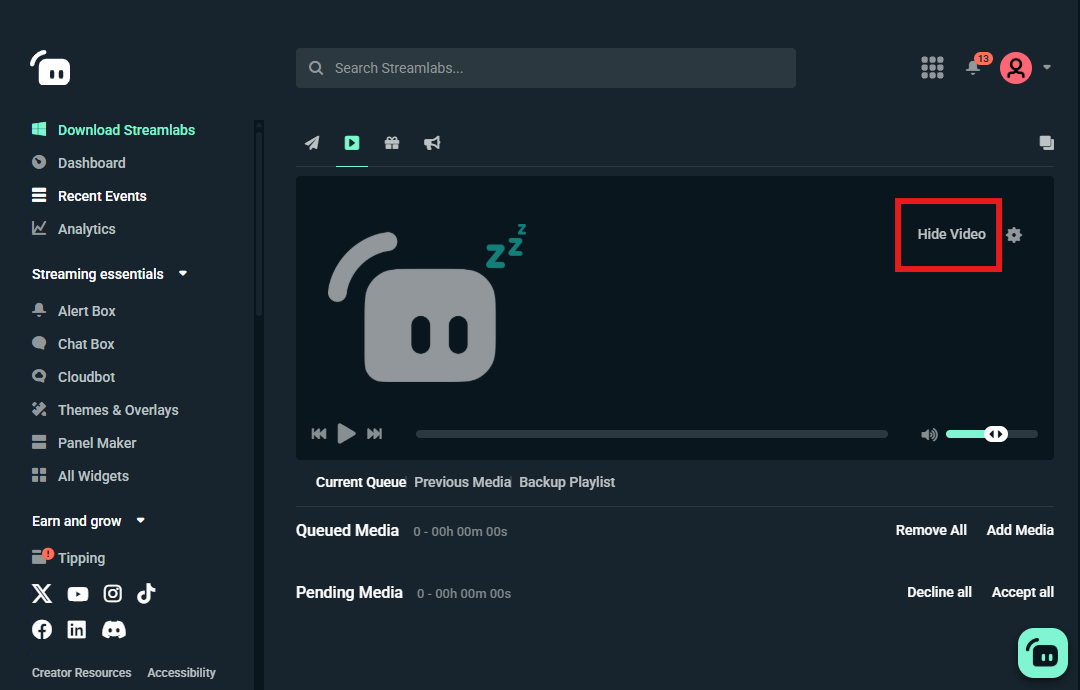
By default, the Media Share widget will show the visuals for the requested YouTube video on your stream. If you want an audio-only experience, visit your Dashboard and go to Recent Events > Media Share and click Hide Video.
Best Practices & Pro Tips
- Moderate the queue by setting user limits and approvals—especially for streams with larger audiences.
- Encourage participation by occasionally promoting !request and showing how viewers can shape your stream’s soundtrack.
- Keep things friendly by enabling spam filters, buffer times, and moderator approvals.
- Personalize commands with fun aliases like !sr or !playsong.
With song requests enabled through Media Share and Cloudbot, you turn your chat from spectators into an active part of your show. Whether you want a chill background playlist or a non-stop party, Streamlabs puts you in control.
If you have any questions or comments, please let us know by contacting us or joining our Discord server.