


 Ultraサブスクリプション1本。

Mobile and IRL streaming give creators more freedom to go live from almost anywhere, whether you’re streaming from an event, campus, café, travel destination, or somewhere else away from a stationary setup. But streaming from the real world also comes with one major challenge: your internet connection.
Network Boost is a Streamlabs Mobile feature that helps improve stream reliability without requiring extra hardware. Instead of relying on one connection, Network Boost uses multiple internet connections, such as WiFi and cellular data, to help support your stream while you’re live on the go.
Even if your stream looks great when you start, mobile connections can change quickly. Cellular may weaken as you move around, public WiFi may fluctuate, and crowded locations can make it harder to maintain a stable stream. That’s where Network Boost comes in.
Jump Ahead:
How Does Network Boost Work? (Easiest Setup)
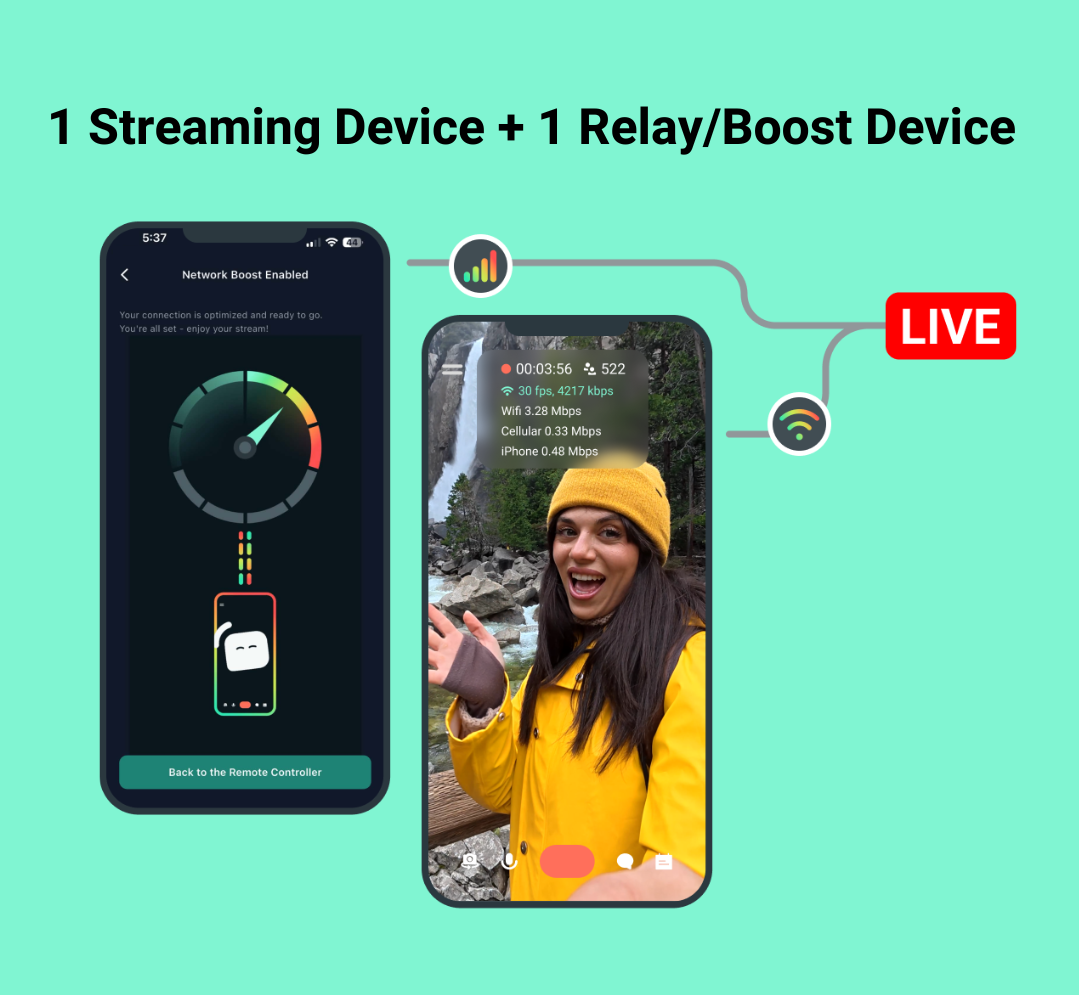

Network Boost helps support your mobile stream by using multiple internet connections. For example, instead of relying only on cellular data, Network Boost can help support your stream with another available connection, such as WiFi or a hotspot.
For most creators, Network Boost can be set up directly in Streamlabs Mobile. For more advanced setups, such as using a router or connecting three or more devices/connections, you’ll use the Streamlabs Controller app to connect and manage those additional connections.
📝 Note: At launch, your primary streaming device must be iOS. Your secondary device can be iOS or Android.
Before getting started, make sure you have:
- Streamlabs Mobile installed on your primary streaming device
- An active Streamlabs Ultra or Ultra+ subscription
- Access to more than one internet connection, such as WiFi, cellular data, or a hotspot
If you’re IRL streaming, you’ll typically need at least two devices: your primary streaming device and one relay/boost device. Your relay device should host the hotspot connection, and your primary streaming device should connect to that hotspot before you go live.
Step 1: Before opening Streamlabs Mobile, connect your primary streaming device to the hotspot or internet source you plan to use with Network Boost.
Step 2: Open Streamlabs Mobile on your primary streaming device and log in to your Streamlabs account using Streamlabs ID or your preferred streaming platform.
Step 3: In Streamlabs Mobile, go to Main Menu > Network Boost and tap Enable Network Boost.
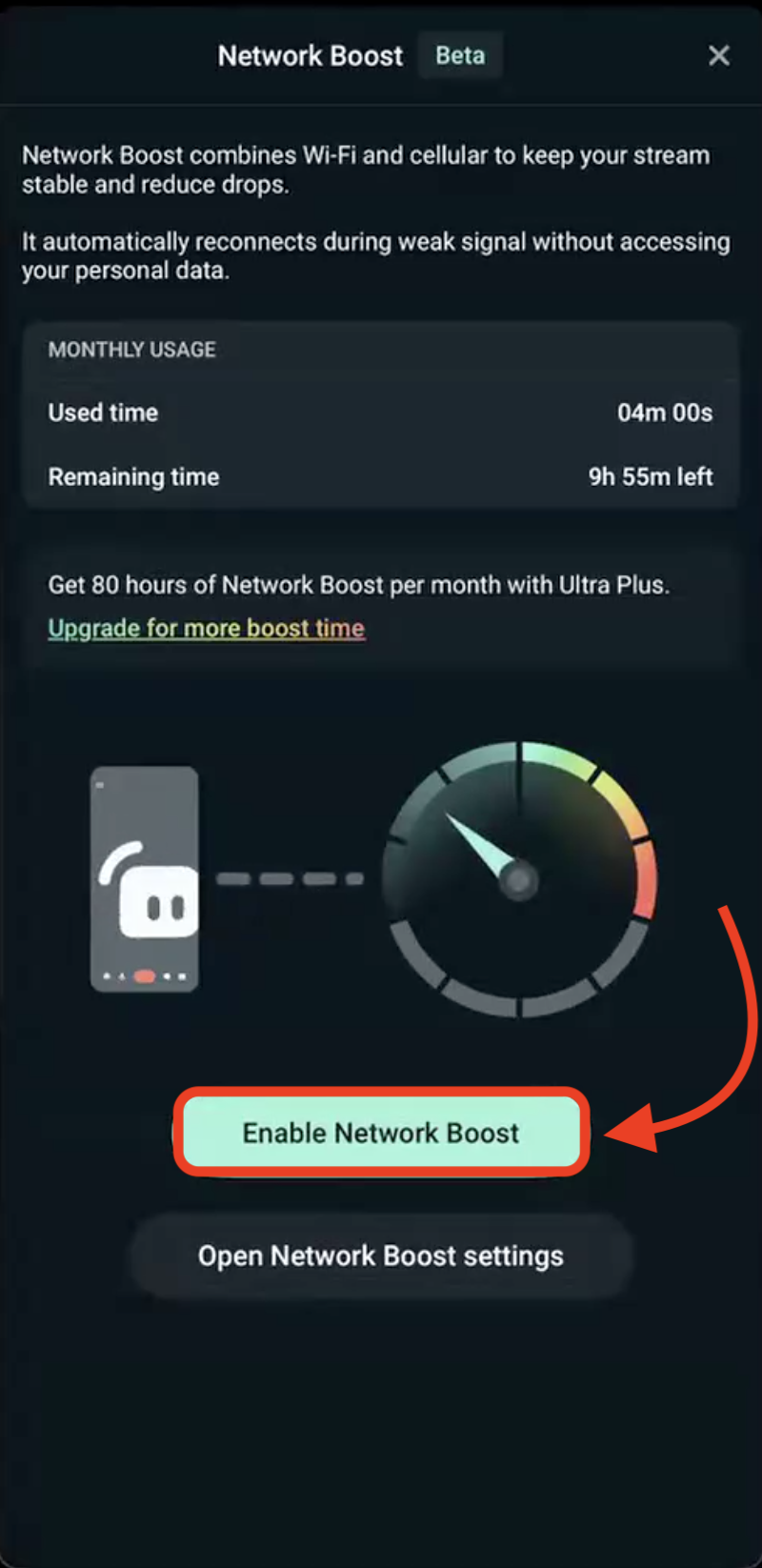
Step 4: If prompted, grant the required system permissions. This prompt should only appear the first time you enable Network Boost.
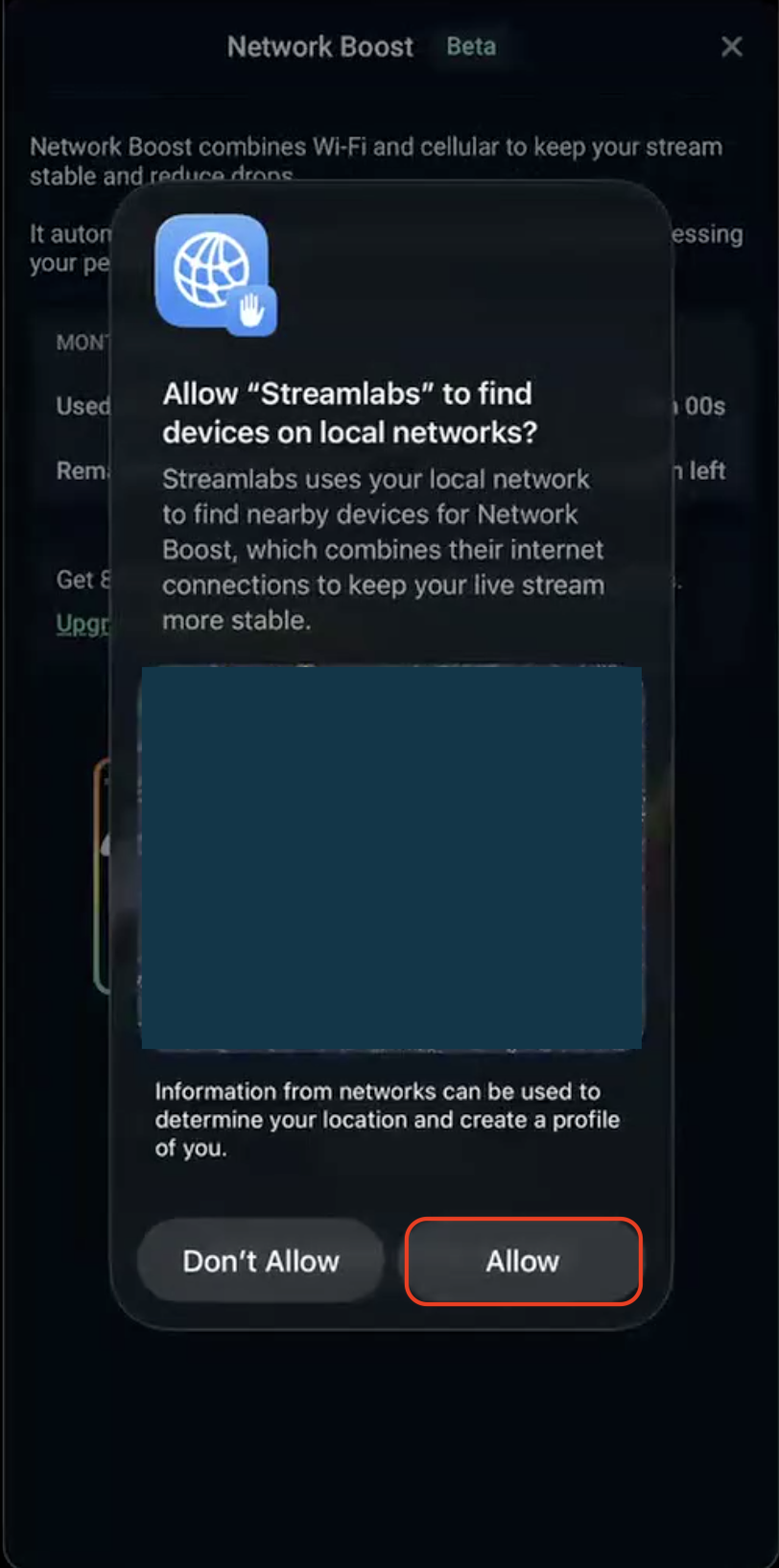
Step 5: After enabling Network Boost, you can either open Network Boost settings to manage your connection manually or return to the main preview screen.
If a relay device is detected, Streamlabs Mobile will show an auto-connect prompt. Tap Connect and wait a few seconds for the connection to complete.
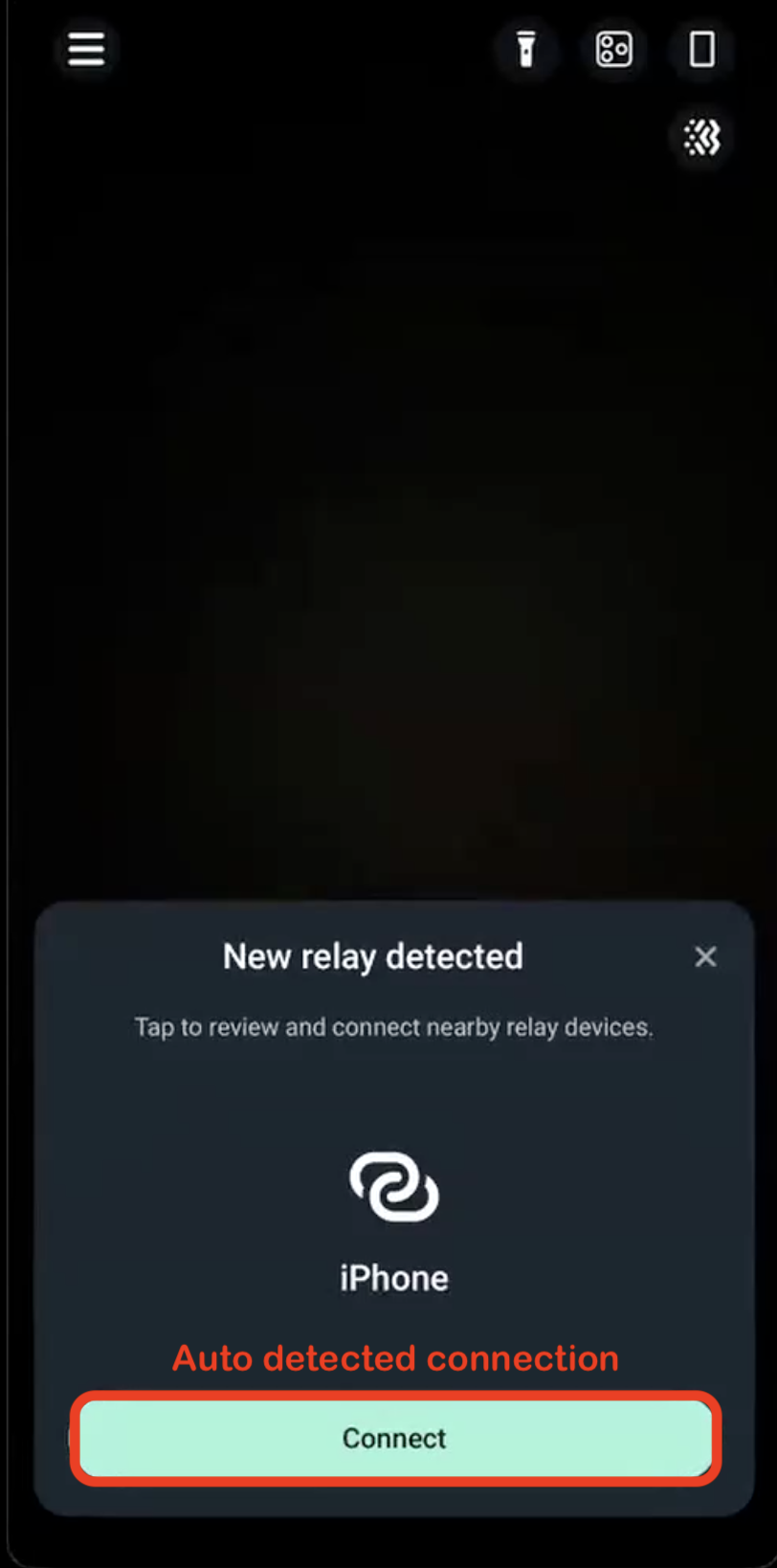
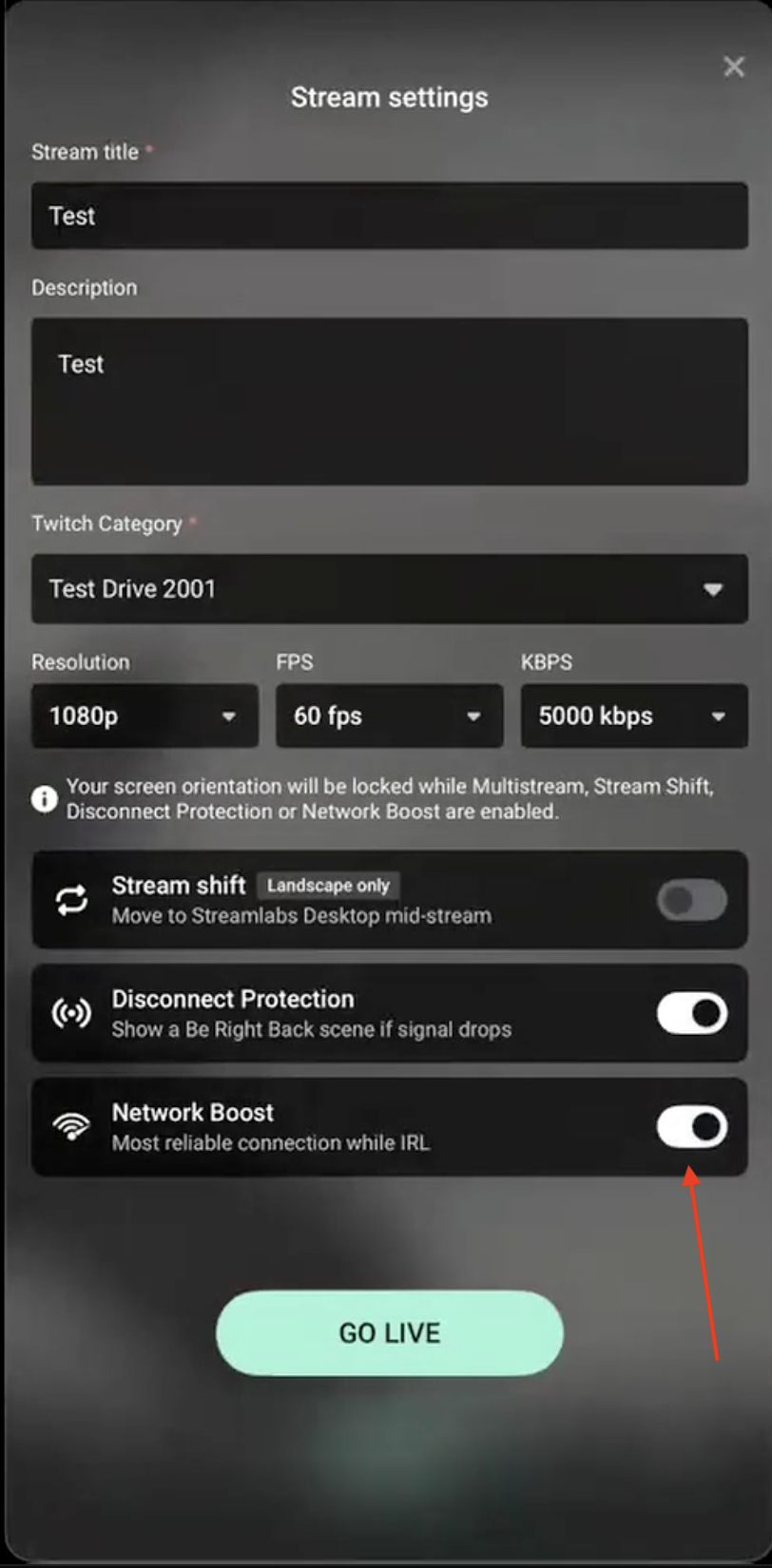
Step 6: When you’re ready, continue through the Go Live flow. Network Boost should appear as On before you go live.
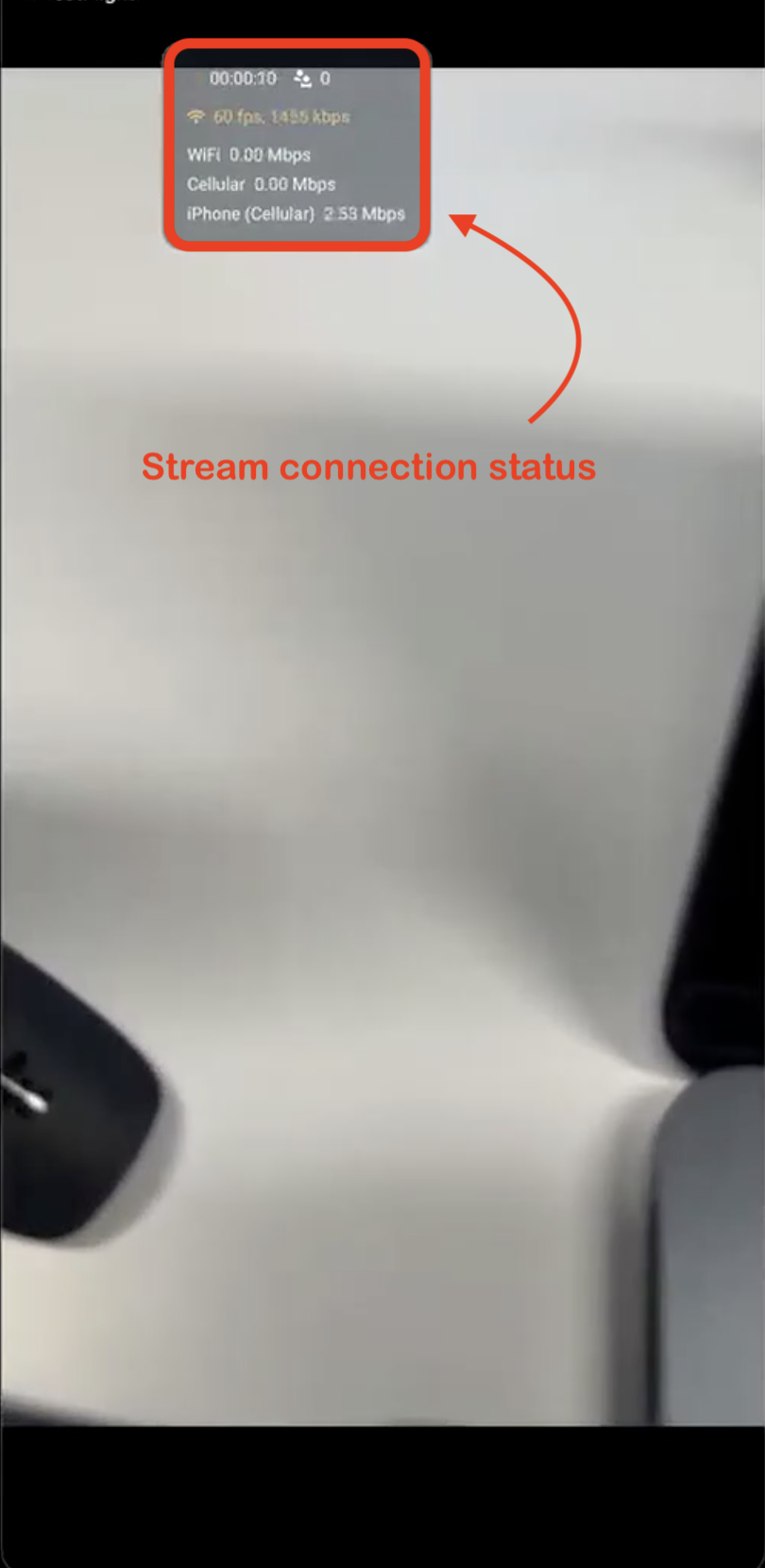
Step 7: Once live, you can view your stream status for each connection type. The status box will collapse automatically, but you can tap it anytime to expand it again.
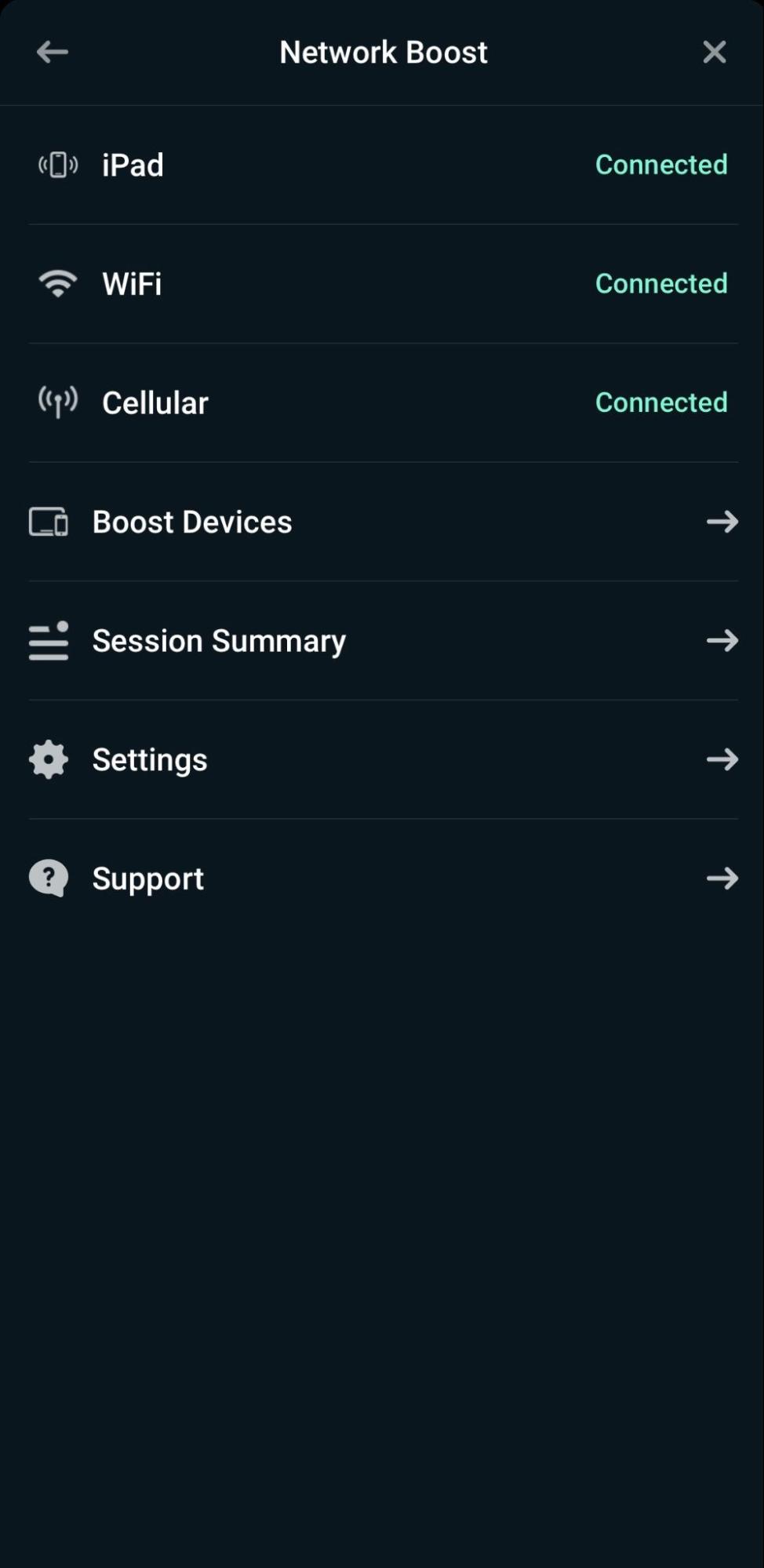
Also, you can disable or forget any connections in the main Network Boost menu in Streamlabs mobile.
How to Set Up Network Boost (for three or more connections)
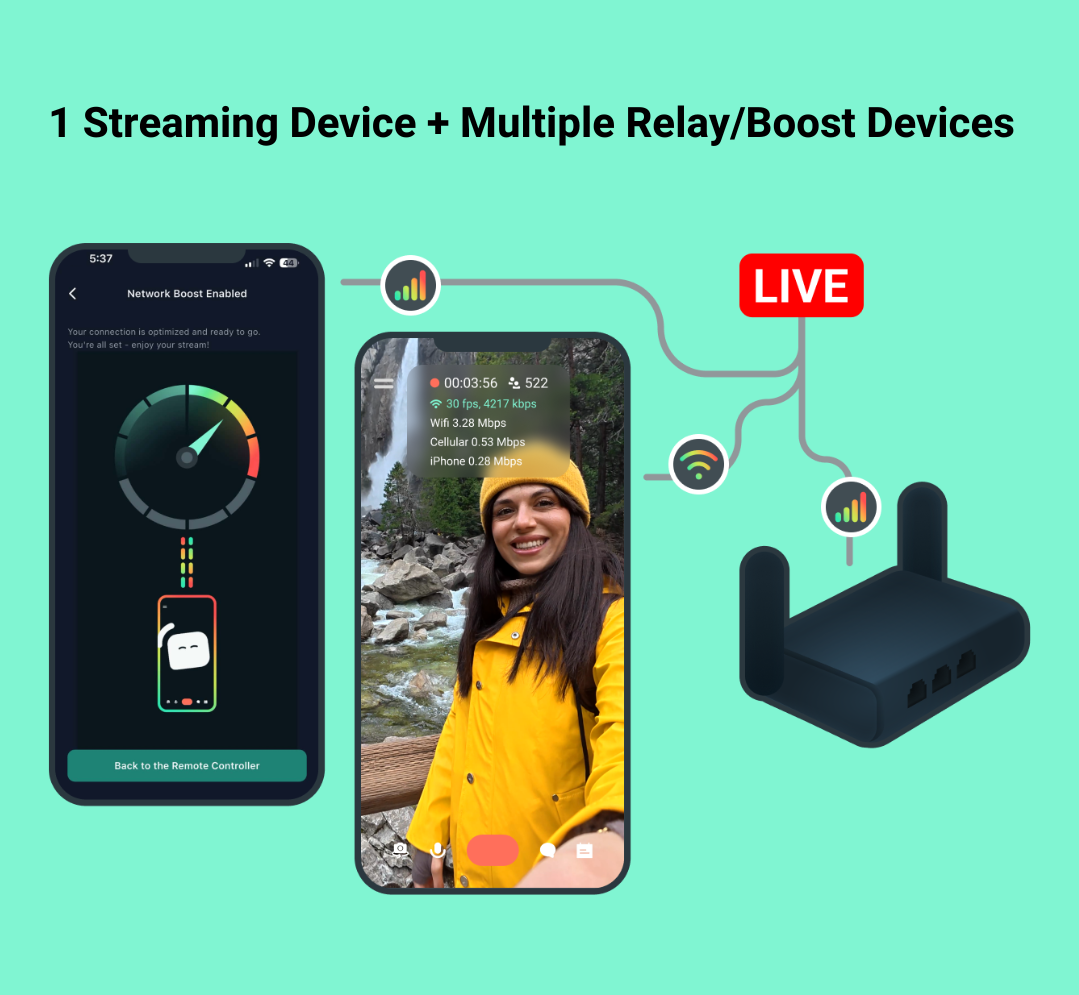
If you’re using a router, three or more phones, or multiple relay devices, you’ll need Streamlabs Controller to connect and manage your boost devices. Before getting started, make sure you have:
- Streamlabs Mobile installed on your primary streaming device
- Streamlabs Controller installed on your relay device or devices
- An active Streamlabs Ultra or Ultra+ subscription
Step 1: Choose one relay device to host the hotspot. Your primary streaming device and any additional relay devices should connect to that hotspot.
Step 2: On your relay device, open the Streamlabs Controller app. For relay use, you do not need to log in.
Step 3: In the Controller app, tap Enable Boost and stay on the configuration screen.
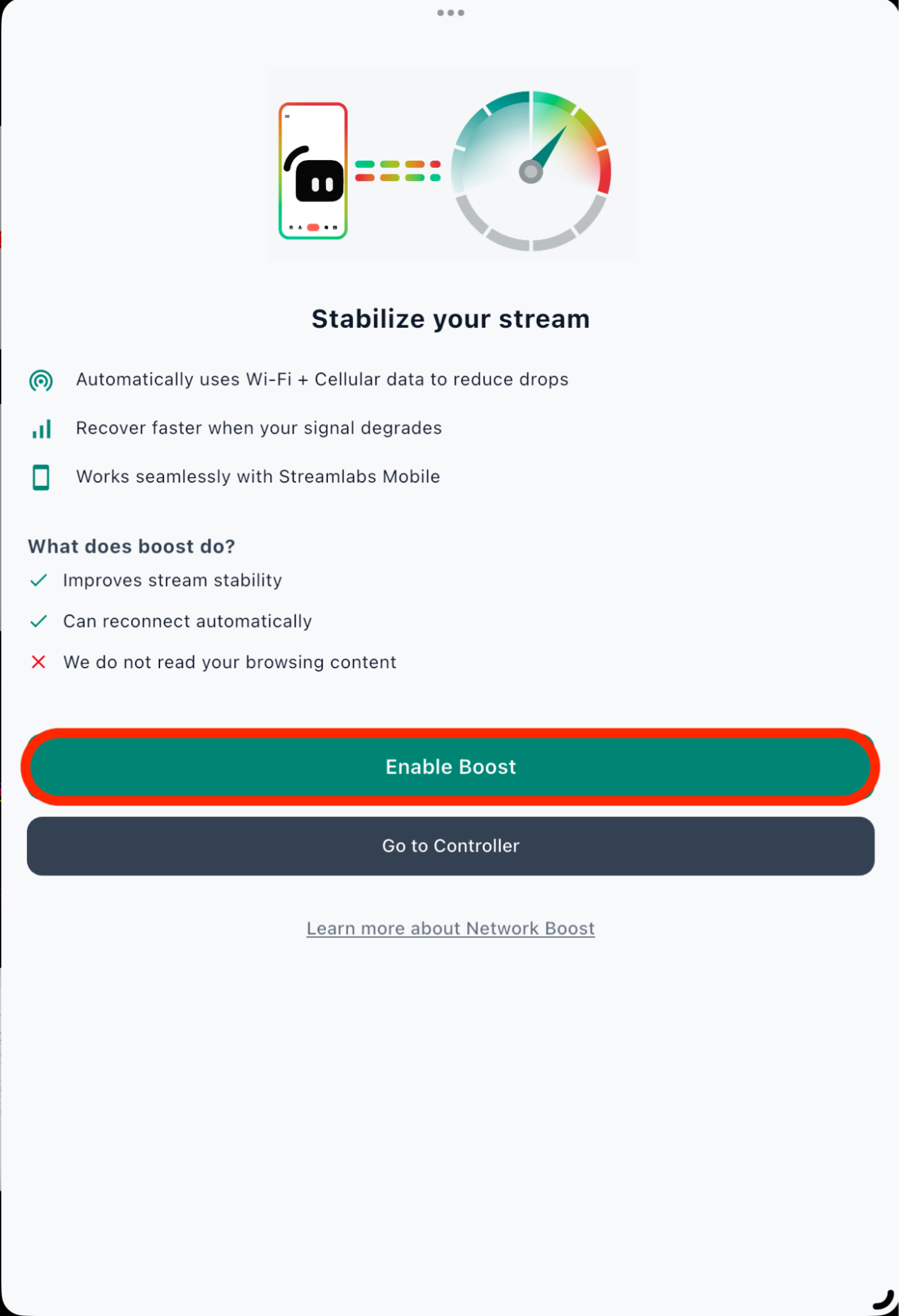
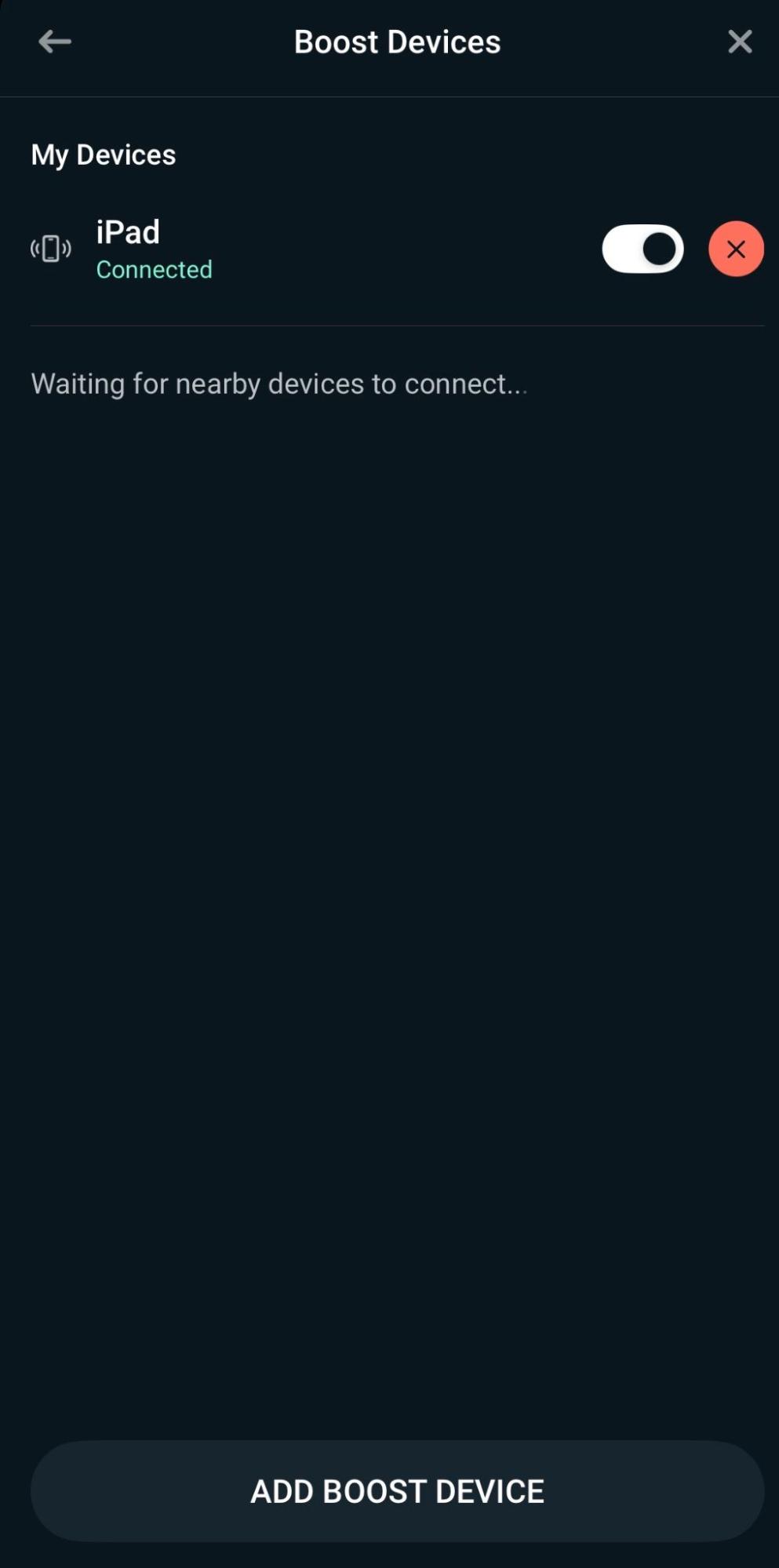
Step 4: Once you hit Enable Boost you’ll see details for turning your current device into a boost/relay device. Either scan the QR code in Streamlabs Mobile (on your primary streaming) by going to Main Menu > Network Boost > Open Network Boost Settings > Boost Devices > Add Boost Device or input the details manually.
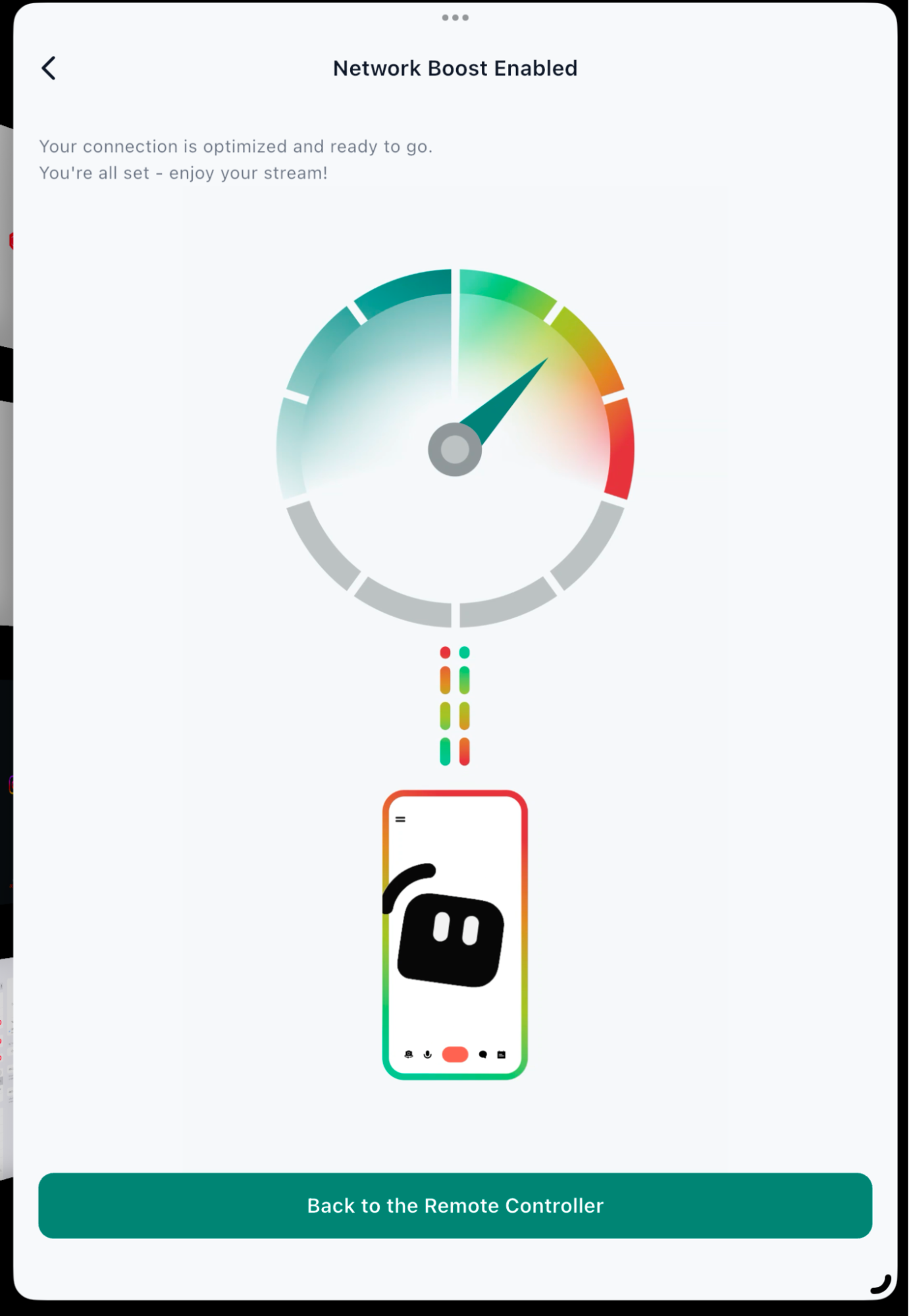
Step 5: Once your boost device is enabled, you should see the confirmation screen in the Streamlabs Controller app. The device will also be listed in Streamlabs Mobile.

Frequently Asked Questions
Do I Need Extra Hardware to use Network Boost?
No. Network Boost does not require a dedicated IRL backpack, encoder, router, or hardware bonding setup. For many creators, you can use devices and connections you already have access to, such as WiFi, cellular data, or a hotspot. Depending on your setup, you may need a secondary device running Streamlabs Controller to act as a relay or manage multiple boost devices.
Is Network Boost only for IRL Streaming?
Network Boost is especially helpful for IRL and mobile streaming, but it can support any mobile stream where connection reliability matters. Even when you start streaming from home and move outside, Network Boosts helps your stream smoothly transition as your device goes from home WiFi to cellular data.
You may want to use Network Boost if you’re streaming from:
- A busy event
- A convention center
- A café or public space
- A campus
- A travel location
- A place where WiFi or cellular service may be inconsistent
What’s the difference between Network Boost vs. Traditional IRL Streaming Setups
Traditional IRL streaming setups can require dedicated hardware, extra configuration, multiple accessories, and extra data or service costs. These setups can be powerful, but they may be more than what many mobile creators need.
Network Boost gives Streamlabs Mobile creators a simpler way to add connection support to their mobile streams without extra hardware. It’s built for creators who want to stream from more places without building a full IRL backpack setup.
Ready to try Network Boost? Download Streamlabs Mobile and unlock Network Boost with Streamlabs Ultra.
If you have any questions or comments, please let us know by contacting us or joining our Discord server.