



 Ultra subscription.

Tip goals are a great way to get your viewers involved and show them that their tips are going towards you and the stream, or even a specific product or incentive. When support feels concrete, your viewers may feel encouraged to contribute to your goals. With the Streamlabs Tip Goal widget you can track donations received through your Streamlabs tip page against a goal of your choosing.
In this guide, we'll walk you through how to set up, customize, and display your Tip Goal widget.
In this blog, we'll cover:
- How to Set up the Tip Goal Widget in Streamlabs Dashboard
- How to Set up and Add the Tip Goal Widget in Streamlabs Desktop
- How to Add the Tip Goal Widget in OBS Studio
How to Set up the Tip Goal Widget in Streamlabs Dashboard
Step 1: Log in to your Streamlabs Dashboard, click All Widgets in the sidebar, then select Tip Goal under the Goals section.
Step 2: Use the Manage Goal panel to enter the Title of the goal and what Goal Amount (amount of money you are aiming to raise). As you receive tips, the bar will fill up and show the current total. The Starting Amount value can be used if you have already raised some tips and want to have them go towards the goal. Lastly, set an end date in the End After box. This will decide the deadline for the goal. When you are ready, click Save on the Manage Goal section.
Note: An existing goal cannot be edited. if you want to change something in the goal such as the goal amount, end date or current amount raised, you will need to end the goal and enter in your current amount as a starting amount to continue your progress. Be sure to note your current amount raised before you end your goal to edit these values. 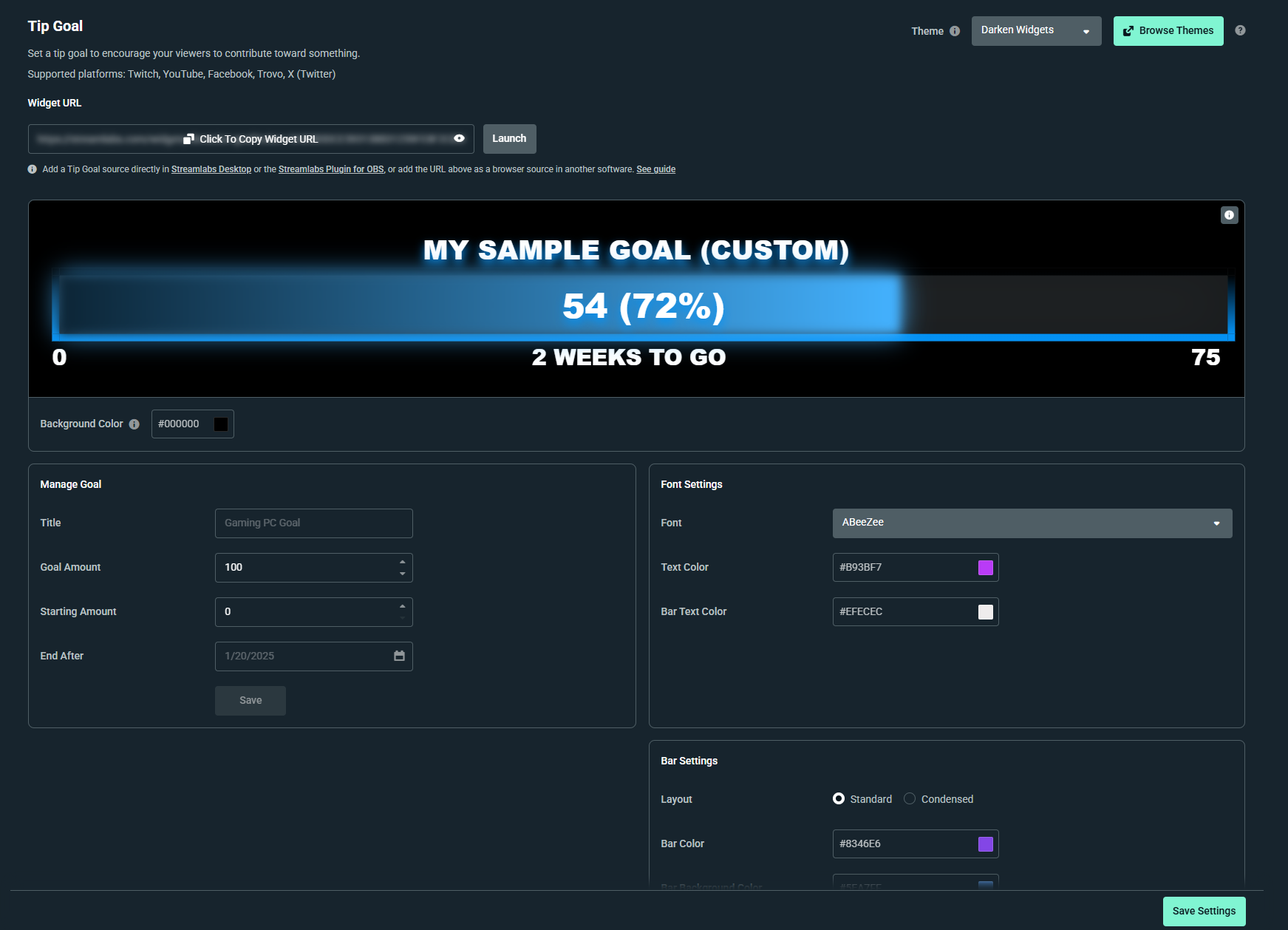
Step 3: Customize the look of your Tip Goal widget. You can customize to the standard or condensed layout as well as choose your font, colors, and bar size. You can also apply custom HTML/CSS for a more professional look. A live preview (with sample data) helps you visualize how the widget will appear on stream.
Want to level up your stream appearance? Check out our premade widget themes for the Tip Goal in our widget theme library.
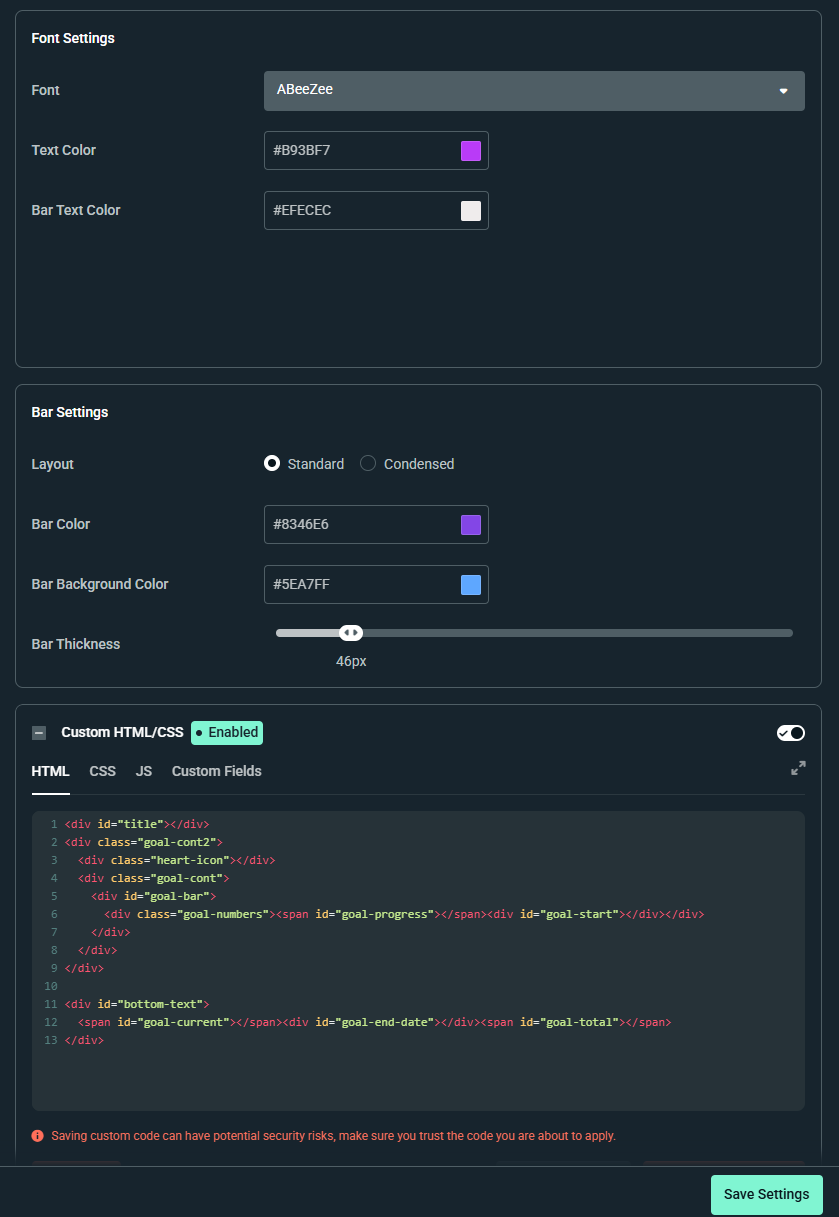
Step 4: Once you are happy with your updates click Save Settings.
Now that you have your Tip Goal settings customized, see below for instructions on how to add the Tip Goal widget in different streaming softwares.
How to Add the Tip Goal Widget in Streamlabs Desktop
You can add the Tip Goal in Streamlabs Desktop with just a few clicks.
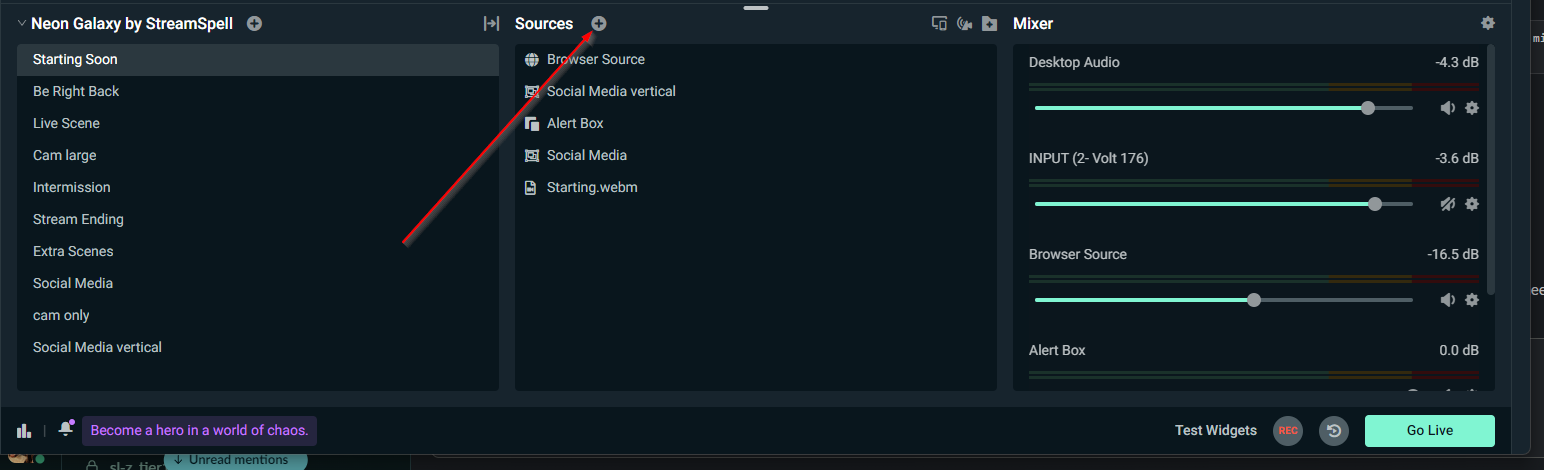
Step 1: Select the + next to Sources to add a new source.
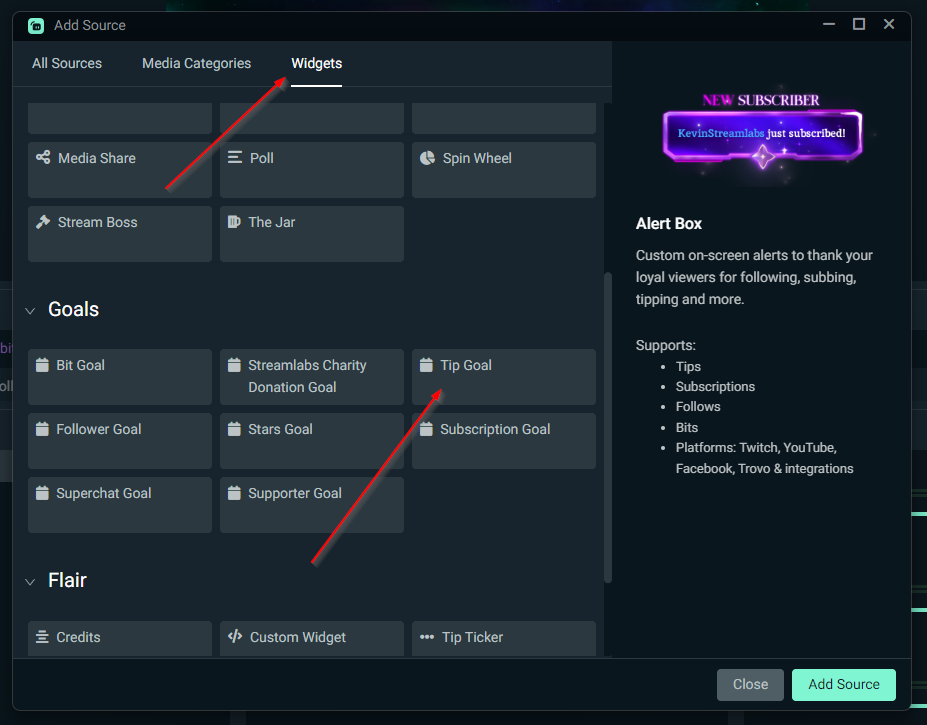
Step 2: Scroll to the Widgets section, choos Tip Goal, and click Add Source. Adjust the size of the widget on your stream until you are happy, and you're done!
Note: You will need to do this for each scene you would like to display the goal on, and choose Add as existing as you the source to each scene.
How to Add the Tip Goal Widget in OBS Studio
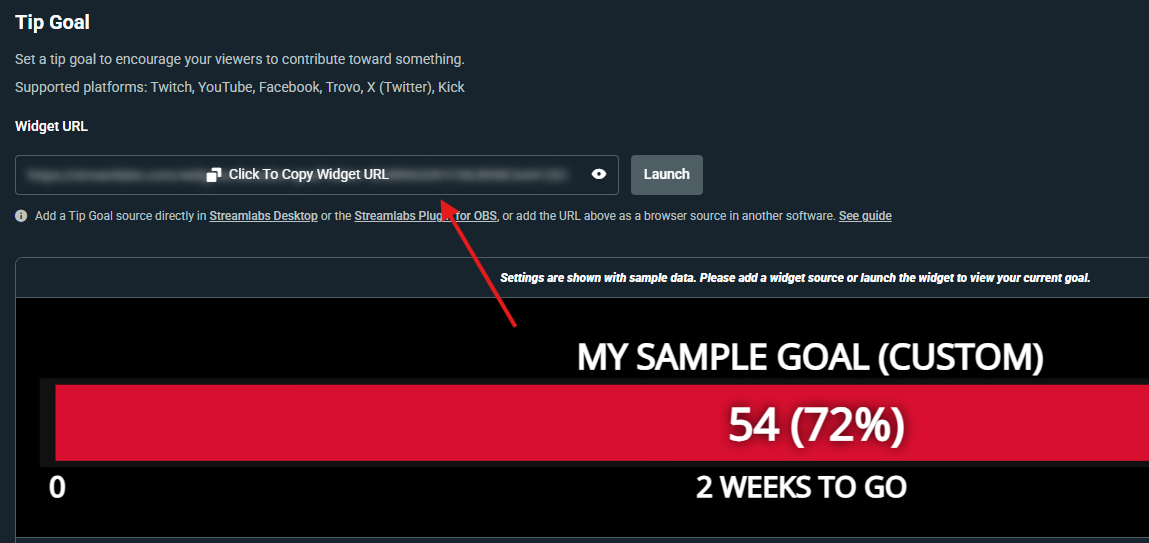
Step 1: On your Tip Goal widget settings page, click to copy on the widget URL. Do not show this URL on your stream.
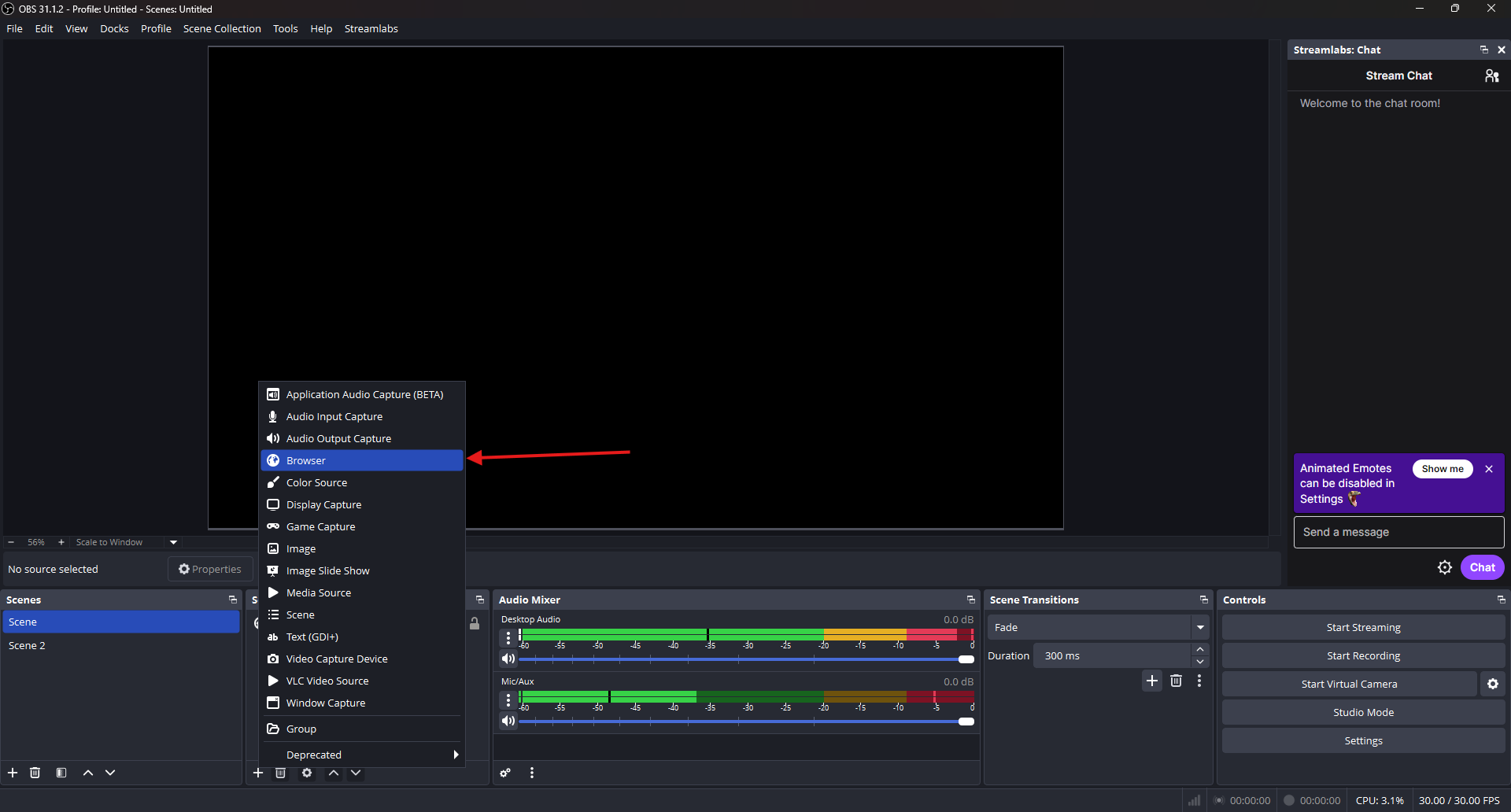
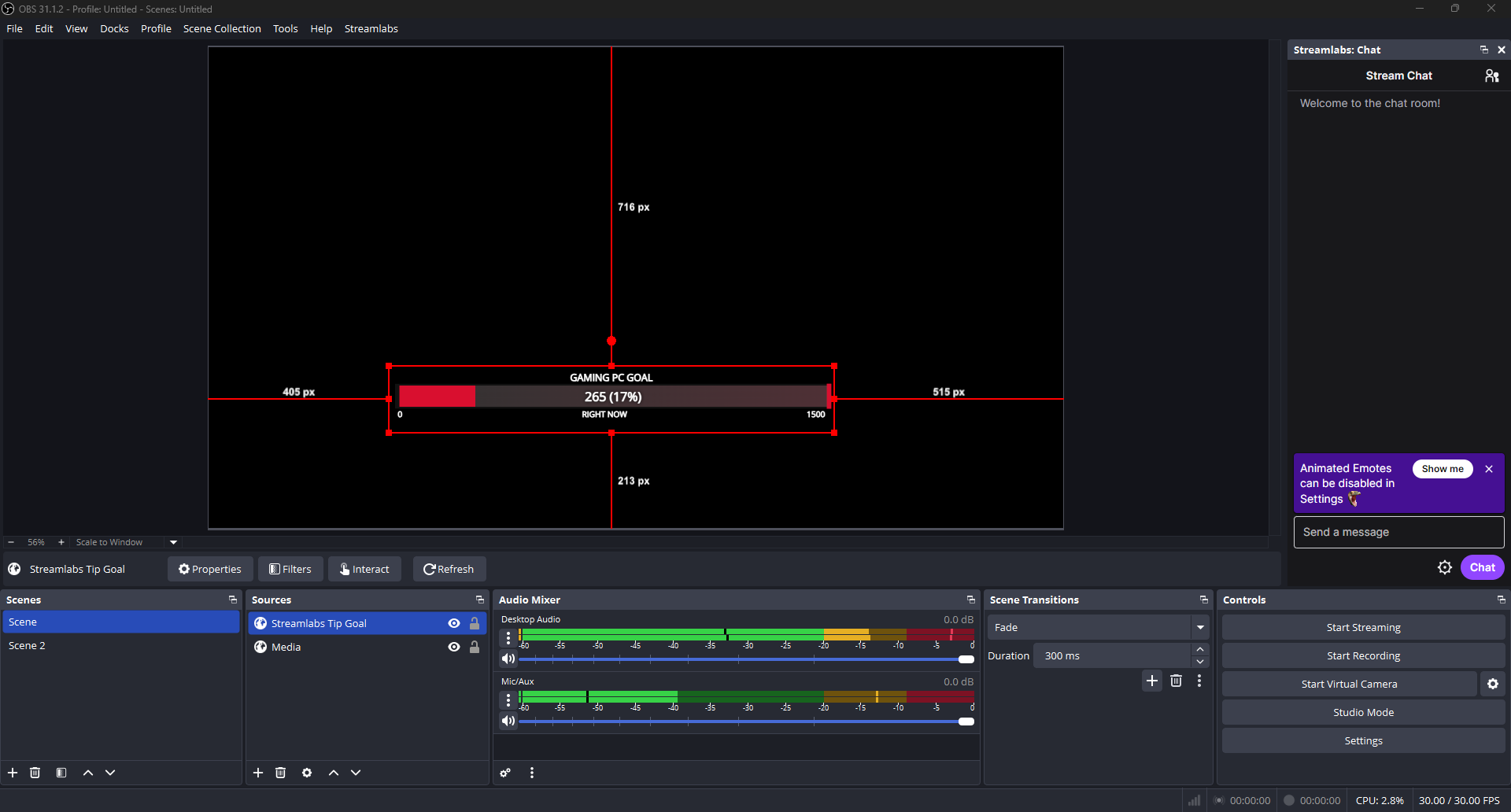
Step 2: In OBS, click the + icon under the Sources panel and choose Browser.
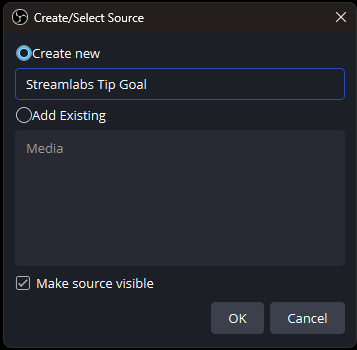
Step 3: Name the source something clear like Streamlabs Tip Goal and click OK.
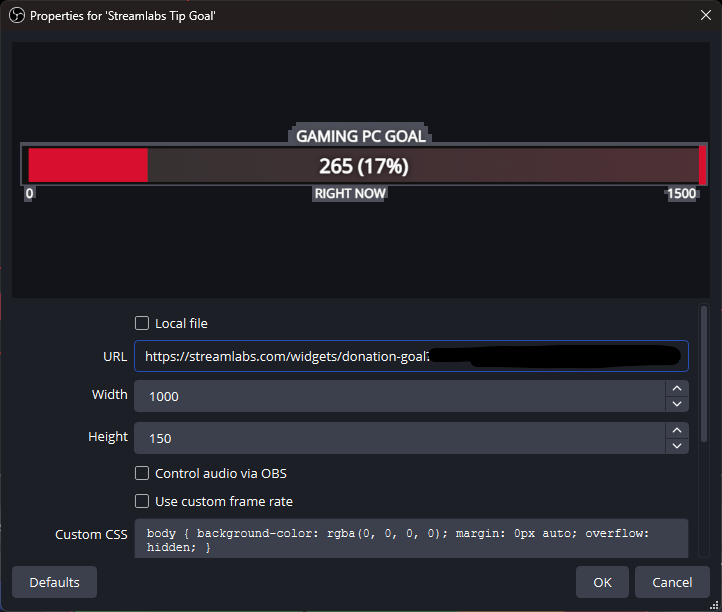
Step 4: Paste the widget URL you copied earlier into the URL field, adjust the sizing if you wish, (in this example we used 1000px Width by 150px Height) and click OK.
Step 5: Adjust the position of your Tip Goal widget until you're happy and you're done!
We hope you find the Tip Goal widget helpful in driving donations from your streams. If you have any questions or comments, please let us know by contacting us or joining our Discord server.