


 Ultra.

The new Streamlabs Sidekick is like having a whole production crew built right into Streamlabs Desktop. This guide walks you through installation and basic configuration, helping you unlock automated production, interactive avatars, and real-time tech support so you can level up your stream.
Table of Contents:
- Key Features
- System Requirements
- How to Setup the Sidekick
- Final Check Before Streaming
- Interaction Limits
- FAQ
Key Features
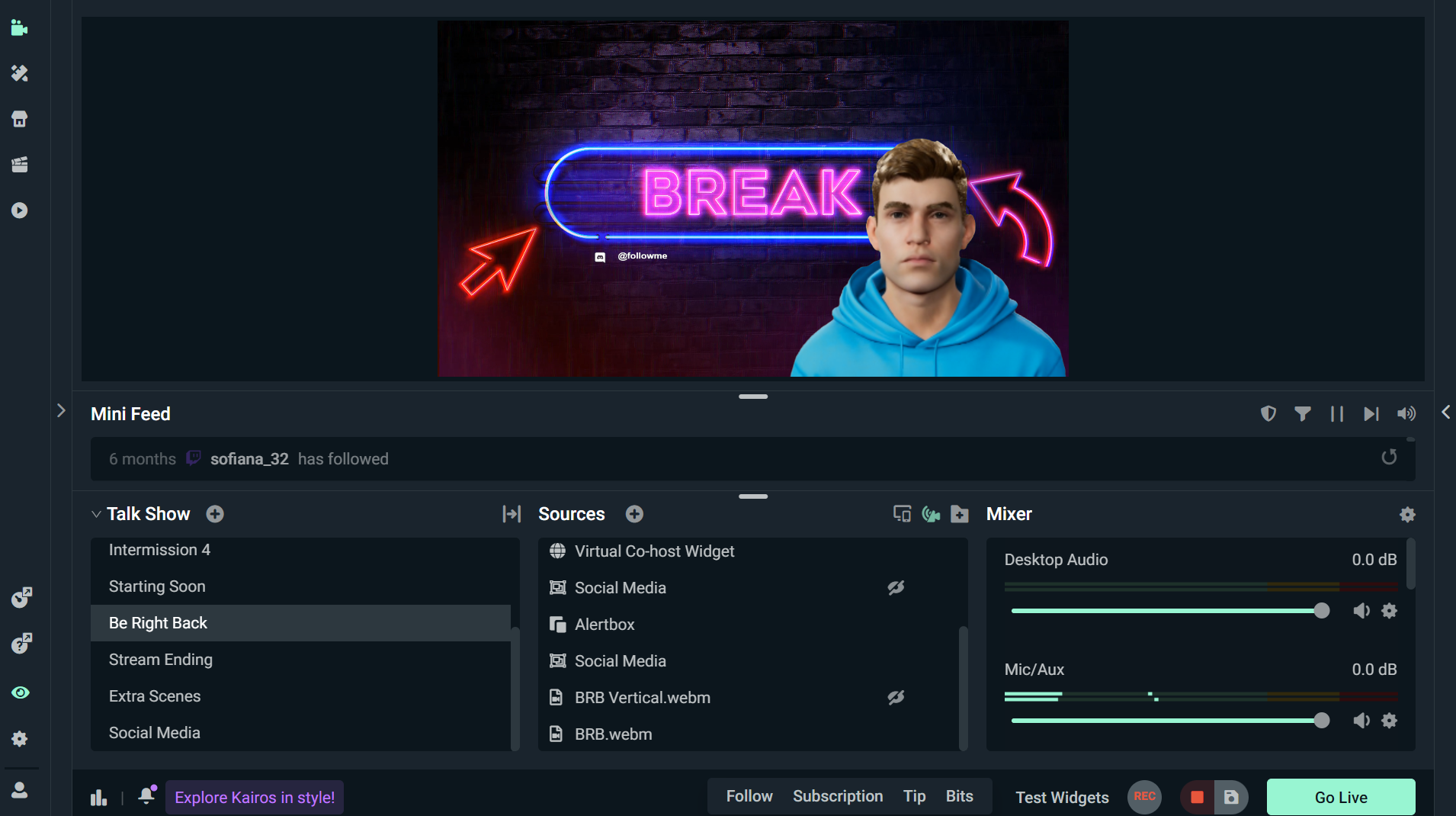
Here's what it can do:
- Co-host: Use a real-time, interactive 2D or 3D avatar (optional) to engage viewers and react to your gameplay.
- Producer: Use simple voice commands to let your sidekick control stream tasks like switching scenes, controlling audio, starting polls in chat, and more. Automations related to game events can be decorated with Sidekick commenting and instructions, now configured natively in Desktop.*
- Tech Assistant: Monitor stream health, identify issues, and assist with troubleshooting instantly.
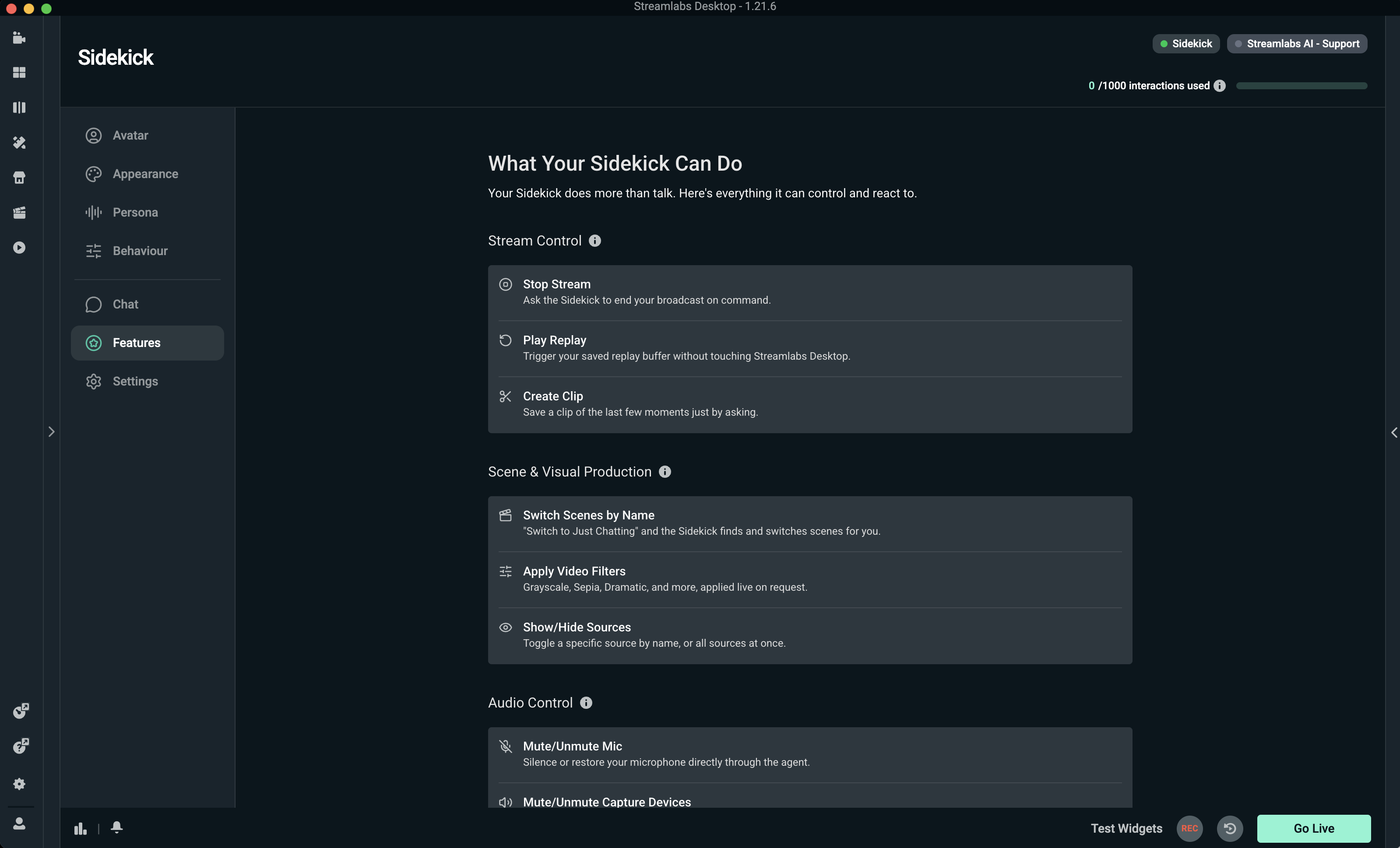
If you want more insight into all of the features and capabilities of your streaming sidekick, head to the Features tab and you’ll see a full list of everything your sidekick can do for you.
System Requirements
Below you can find the minimum system requirements to use the 3D on-screen avatar or the 2D avatar. If you are using the sidekick in voice-only mode, you only need to meet Streamlabs Desktop minimum requirements. *If you are using MacOS, you will only be able to use the 2D avatars.
| Hardware Requirements at a Glance | ||
| Stream Sidekick Setup | VRAM | GPU |
| 3D Avatar (Single PC Setup) | 24 GB |
RTX™ 30-Series: 3090, 3090 Ti RTX™ 50-Series: 5090 |
| 3D Avatar (Dual PC Setup) | 12 GB |
All of the cards in the 24GB tier RTX™ 30-Series: 3060, 3080, 3080 Ti RTX™ 40-Series: 4070, 4070 SUPER, 4070 Ti SUPER, 4080 SUPER, 4090 RTX™ 50-Series: 5070, 5070 Ti, 5080 |
| 2D Avatar or Voice Only | Streamlabs Minimum Requirements | |
Note: If your specific GPU model is not listed in the table, it may still be compatible if it meets the VRAM requirements. Use our guide to check your system's VRAM and determine which setup is right for you.
How to Setup the Sidekick
Excited to try out the Intelligent Streaming Agent on your next stream? Keep reading to find out how to install and set up your personalized Agent from customizing avatar personality settings to setting up automations and more.
Step 1: Install the Sidekick
- Open Streamlabs Desktop and select the App Store.
- Search for Sidekick and select Install.
- Open Desktop. You should see the app in your left navigation now.
- Read the welcome screen and terms. Press Accept to agree to the terms to finish setting it up.
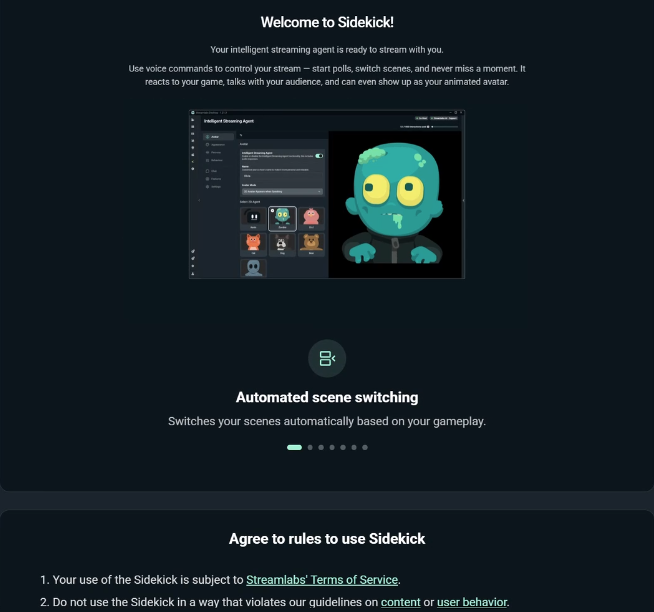
- Go through the guided tour for each tab. We recommend going through each tab but you can press Skip to explore it yourself.
Step 2: Personalize your 2D or 3D Sidekick
You have multiple options for choosing and personalizing your on-screen sidekick. You do not have to make it visible, and you can still take advantage of the benefits of using the sidekick without it being on-screen. If you want to have your sidekick visible, though, we’ll take you through how to set up and customize either a 2D or 3D avatar below.
Enable Voice Only Avatar (without appearing on-screen)
- Open the Avatar tab. Make sure the Sidekick toggle is on.
- Look under Avatar Mode. Voice Only is the default setting, but in the event it is not already selected, click the drop down menu to select it. From here, you will be able to use the sidekick without seeing any visual 2D or 3D avatar on-screen.
Setup your 2D Avatar
A 2D avatar is a great choice for streamers who want to personalize their sidekick without it being a human-like character. In addition, the 2D avatars have a much lower impact on your computer, running at the same impact as voice only mode. This makes it a great solution for anyone who has a limiting setup, or doesn’t want potential stream issues coming up related to CPU load.
You can run the 2D avatars with the minimum Streamlabs Desktop tech specs.
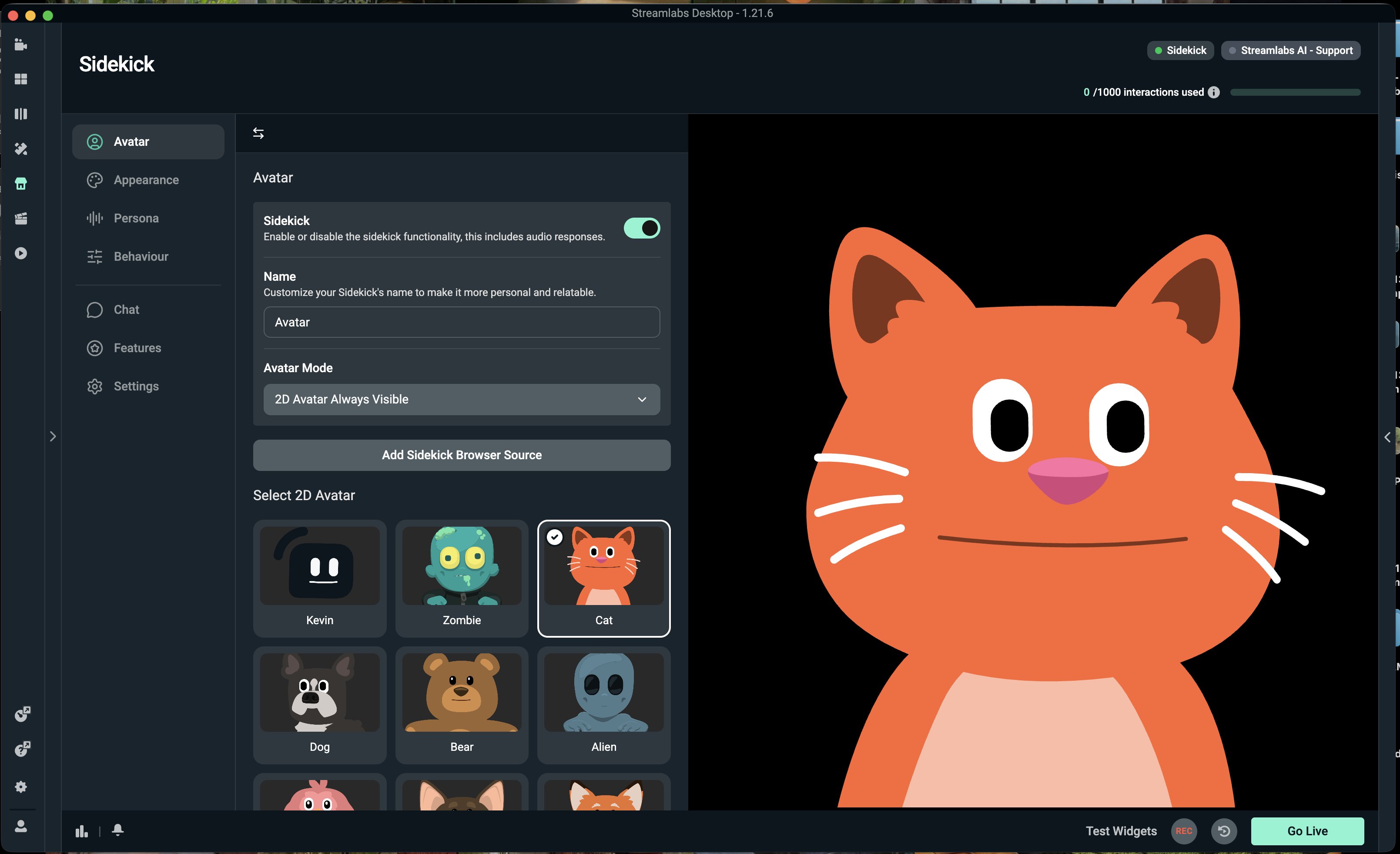
- Open the Avatar tab and make sure the Sidekick switch is turned on.
- Under Avatar Mode, choose 2D Avatar Always Visible or 2D Avatar Appears When Speaking. You can always change this later.
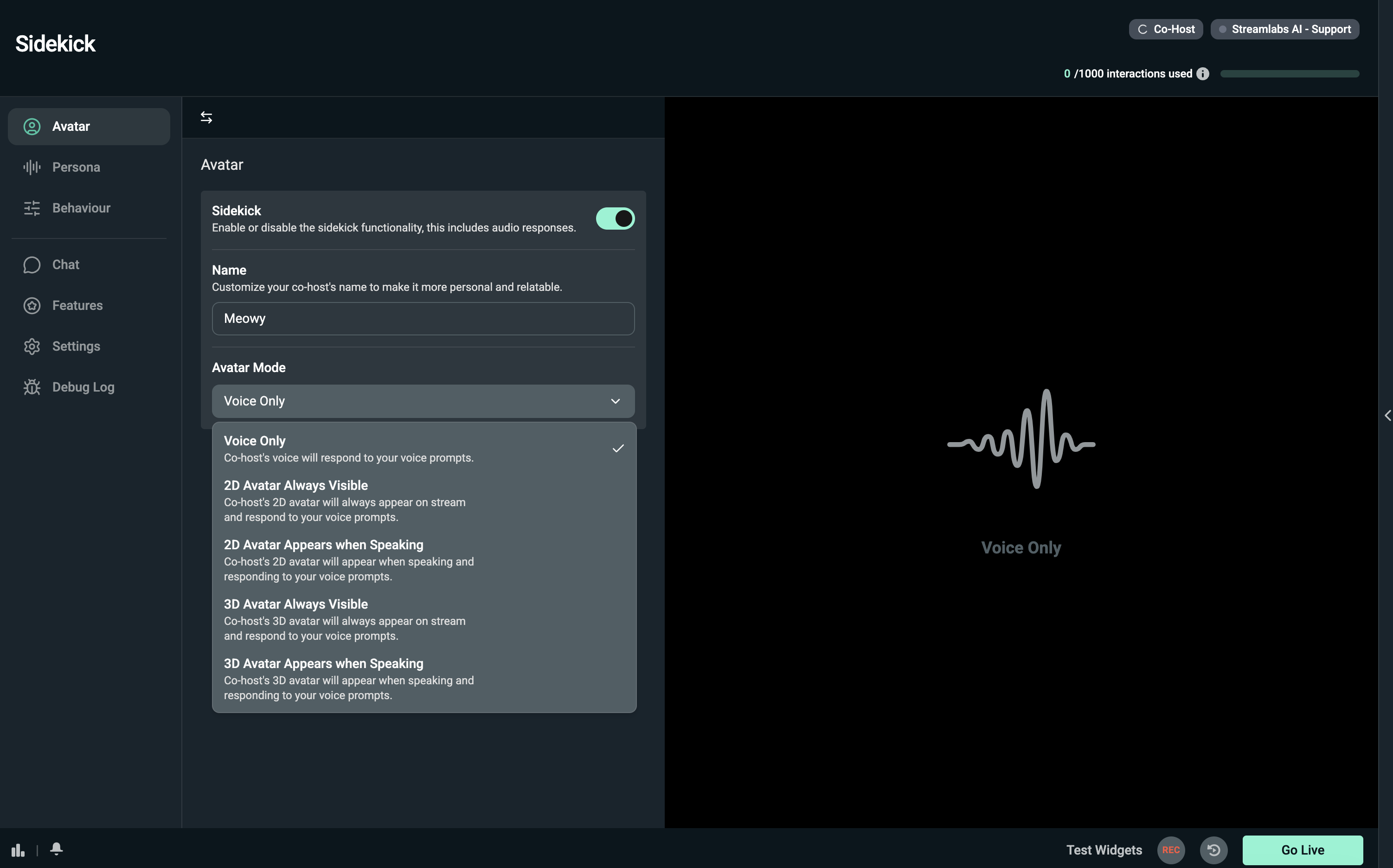
3. Select what 2D agent you would like to use.
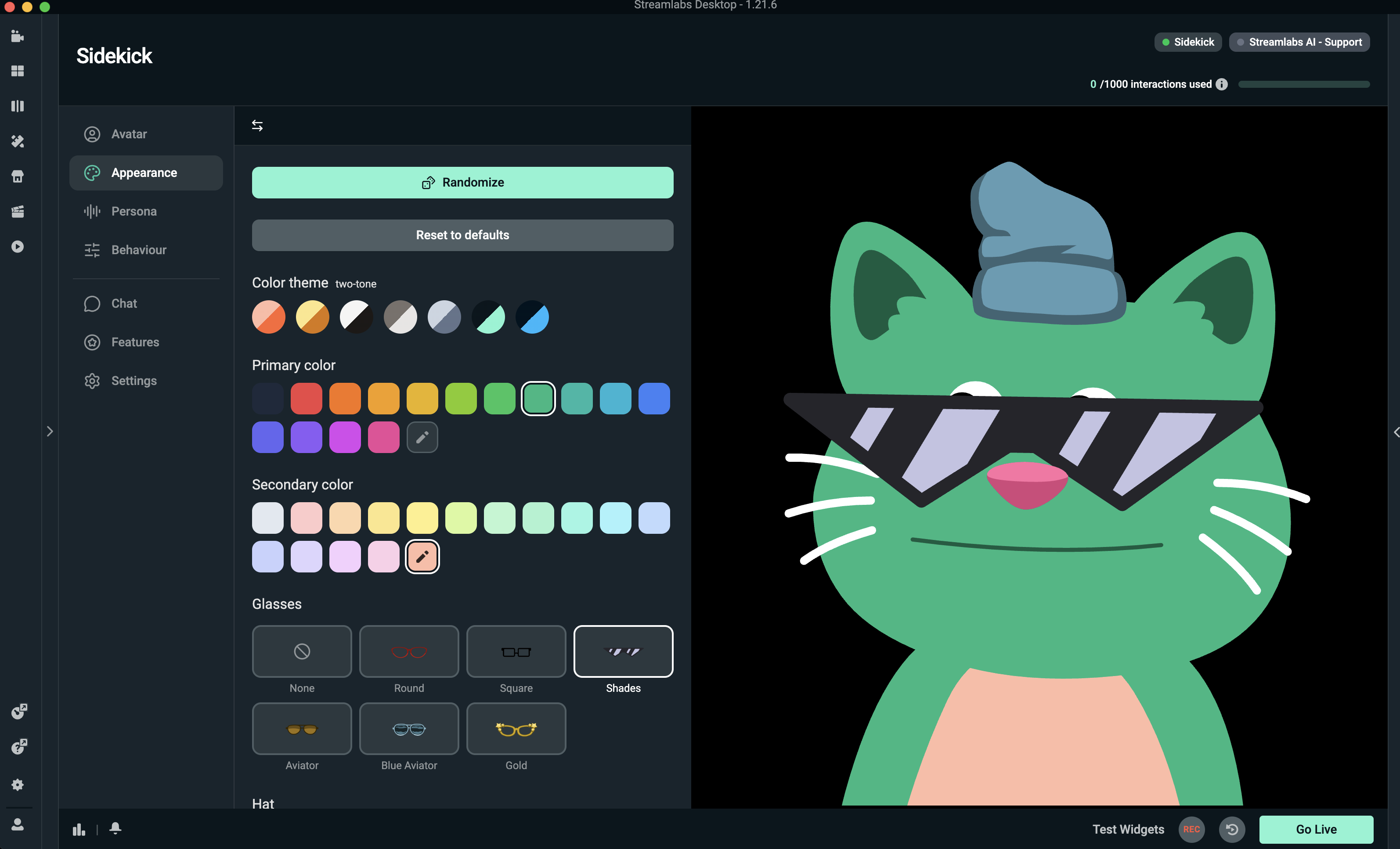
4. Open the Appearance tab to customize your avatar’s look with colors, hats, or glasses.
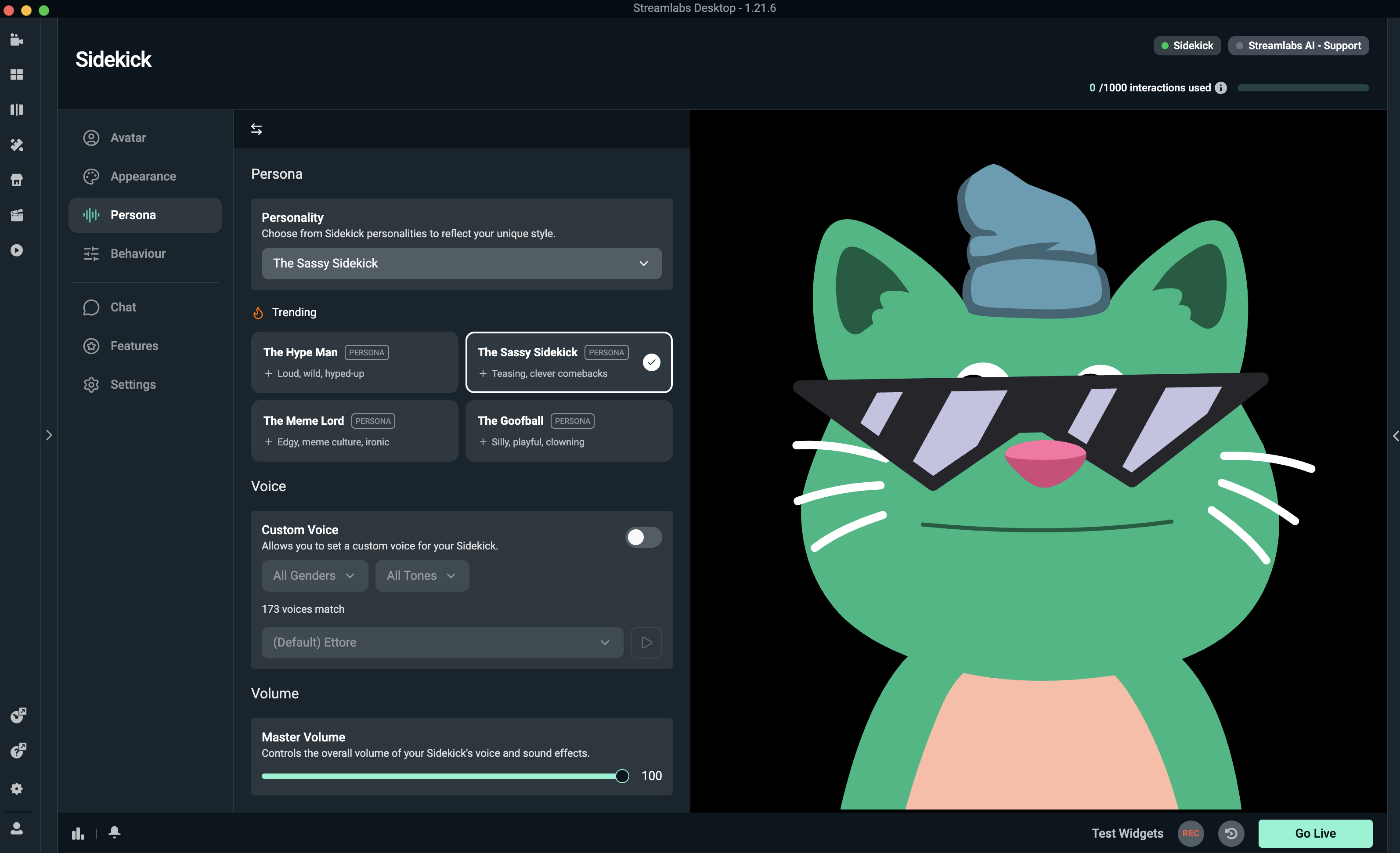
5. Open the Persona tab to choose a name, personality style, voice, and volume level.
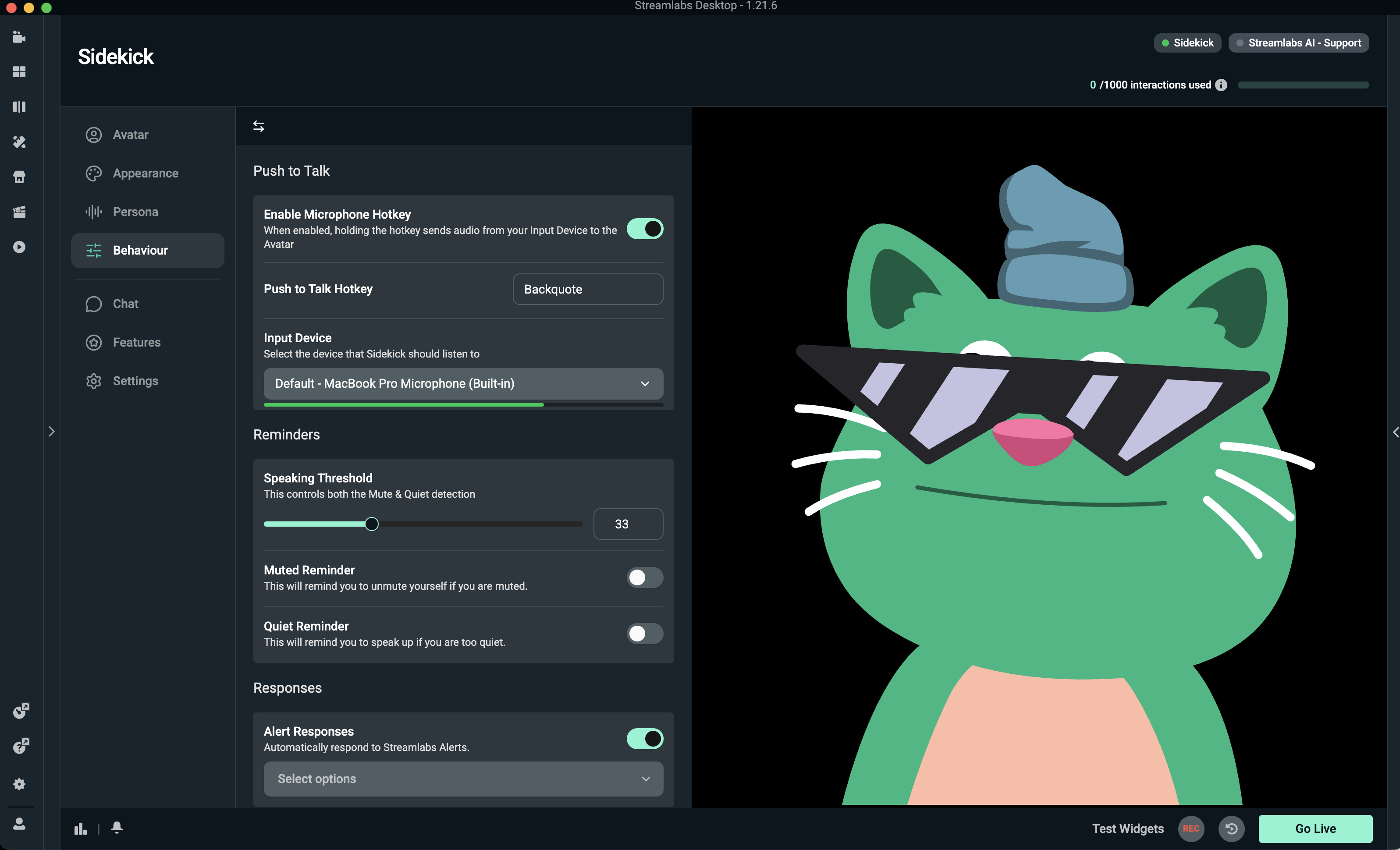
6. Open the Behavior tab to pick hotkey shortcuts, set up mute reminders, and turn on alert responses.
7. In the Avatar tab, click Add Co-host Browser Source so your avatar appears in your stream scenes.
Setup your 3D Avatar
Our 3D Avatars are great for users with elevated CPU capabilities, as well as anyone who wants a more human-like companion for their streams. Double check the system requirements listed above if you want to add a 3D avatar, as they do have higher system requirements than our 2D options, or running the sidekick Voice-Only.
- Open the Avatar tab and make sure the Sidekick switch is turned on.
- Under Avatar Mode, choose 3D Avatar Always Visible, or 3D Avatar Appears When Speaking. You can always change this later.
3. Select what 3D agent you would like to use.
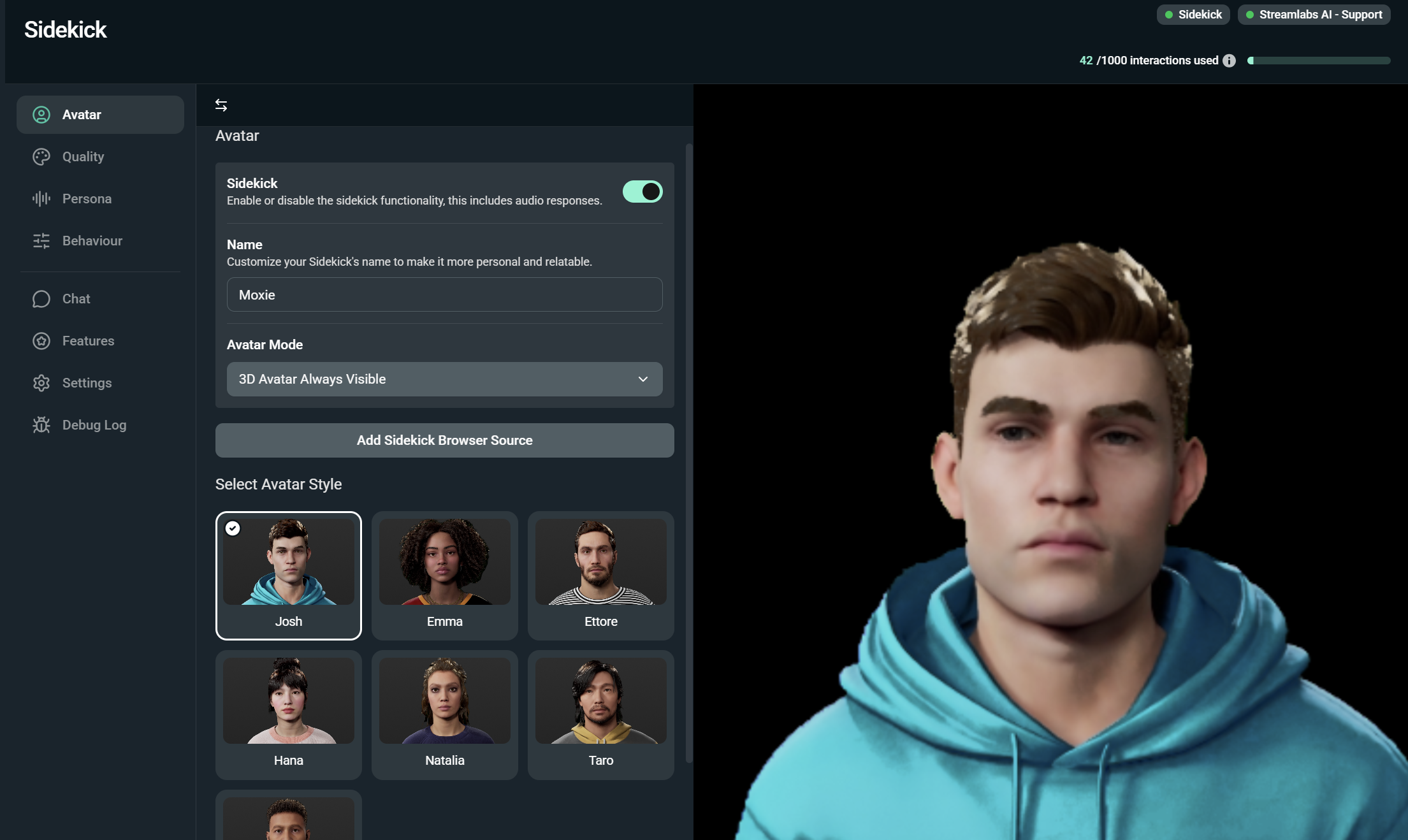
4. Open the Persona tab to choose a name, personality style, voice, and volume level.
.png)
5. Open the Behavior tab to pick hotkey shortcuts, set up mute reminders, and turn on alert responses.
6. In the Avatar tab, click Add Co-host Browser Source so your avatar appears in your stream scenes.
Final Check Before Streaming:
- Confirm you’re using a game that is supported
- Check that your Avatar is in your scene and at the top of our sources panel
- Test your setup by clicking the Test Widgets at the bottom right of the screen
Note: Previewing and testing responses counts toward your interaction limit.
____________________________________________________________________________
Interaction Limits
An interaction happens every time Sidekick speaks or writes a message to you or your viewers. Testing Sidekick's voice before your stream also uses up an interaction.
- What Counts: Any spoken reply, comment, or text message from Sidekick. Testing out voice responses in the app also counts toward your limit.
- What Does Not Count: Background actions like switching scenes, capturing clips, or saving replays do not count as interactions. These actions are free as long as Sidekick does not speak or type a response at the same time.
| Free Plan | Ultra | Ultra+ |
|
100 interactions. This does not reset each month. |
1,000 Interactions per month. Resets at the start of the month. |
5,000 interactions per month. Resets at the start of the month. |
Frequently Asked Questions (FAQ)
What can the Sidekick do?
The sidekick can act as:
- A virtual co-host with an interactive 2D or 3D avatar.
- A producer for automation tasks such as switching scenes and saving replays.
- A tech assistant for real-time troubleshooting.
What games are supported?
The Agent supports multiple games, for a full list see above.
Do I need the 3D avatar?
No, the avatar is optional. You can use the agent strictly for background automation and tech assistance.
Where did automations go? How do I customize them?
Automations now live in Desktop! To learn more about how to set up and run automations, learn more here.
Can AMD GPUs run the Sidekick?
Yes, but animations for on-screen avatars are not supported. Background features and audio mode are unaffected.
Where can I track my usage?
The Sidekick App in Streamlabs Desktop displays your active interaction counter and plan usage details.
Can I use Sidekick if I am on a MacOS operating system?
You can use 2D avatars and voice only mode with MacOS system, but not 3D avatars.