



 Ultra.

While Twitch is an incredible platform that has completely changed the way we view and interact with our favorite creators, there’s always room for improvement. Enter Twitch Extensions aka ways to enhance your time spent on the platform. Not only are there Extensions which help increase community engagement and donations, there are Extensions to improve Twitch’s UI and viewing experience. Check out some of our favorite Extensions and how to use them.
Table of Contents
Best Extensions for Streamers
As a streamer, you’ll want to use every tool at your disposal to help make your experience, and that of your audience, as enjoyable as possible. Fortunately, there are loads of Twitch Extensions which can help encourage your viewers to donate bits and participate in chat, as well as provide useful stats on screen and more. We wrote an article about one of our favorite Extensions, Stream Avatars, which is a super fun tool for community engagement. Here are some of our other favorite tools for streamers.
Streamlabs Extensions
Here at Streamlabs we've developed a handful of Extensions to elevate your stream, from schedule, merch sales, loyalty points, and more!
Streamlabs Overlay Extension
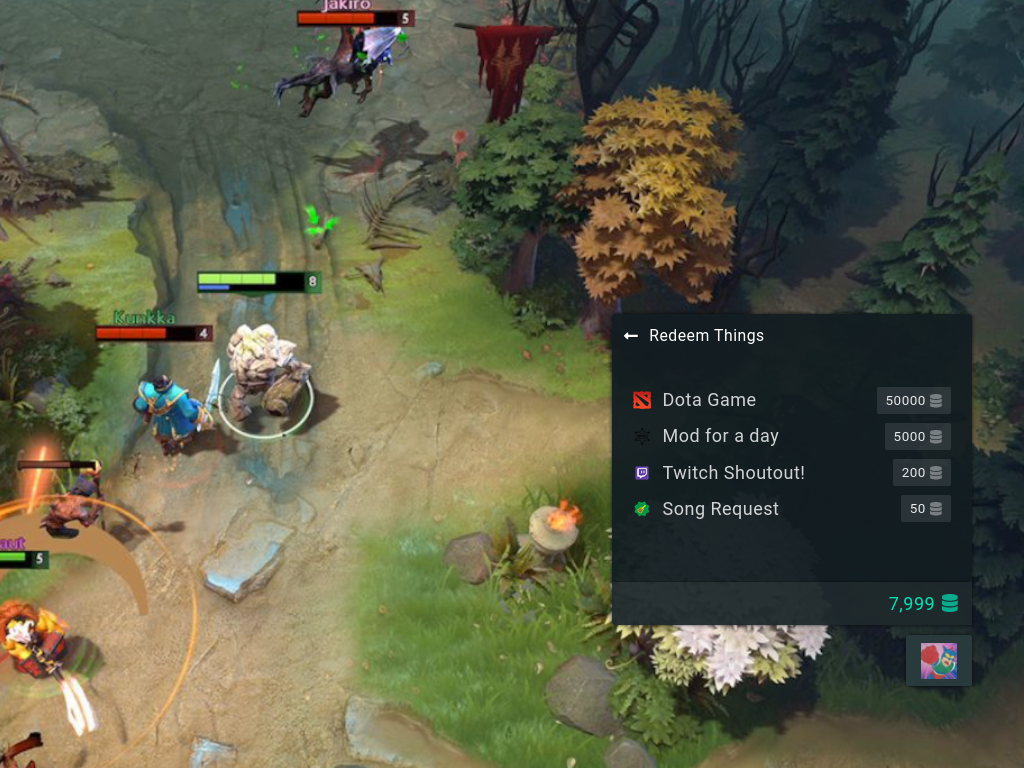
The Streamlabs Extension is an all-in-one overlay Extension that makes it simple and rewarding for your viewers to interact with your stream, encouraging them to stay engaged and come back time and time again. The Extension allows viewers to:
- earn loyalty points by clicking on randomly generated chests (keeping them focused on your stream).
- view and redeem loyalty points.
- request songs.
- vote in polls.
- enter giveaways.
- play mini-games (solo or as a group for even more community-building).
Choose which features you want to include, plus customize the colors, menu, and chest icons to match your brand.
Streamlabs Stream Schedule and Countdown Timer Panel Extension

While Twitch has a schedule section for streamers, it’s a bit clunky and hard to read. With the Streamlabs Schedule Extension, not only can you put a simple, attractive calendar directly on your About page, there’s a countdown timer too! Build anticipation for your next stream by showing viewers exactly how much time is left before you go live.

The Streamlabs Schedule Extension lets you customize the color and time zone and even has a “Steam Break” switch you can toggle on when you need to take some time off from going live. Naturally, we think it’s a pretty great addition to your Twitch channel and hope you’ll give it a try.
Streamlabs Leaderboard Panel Extension
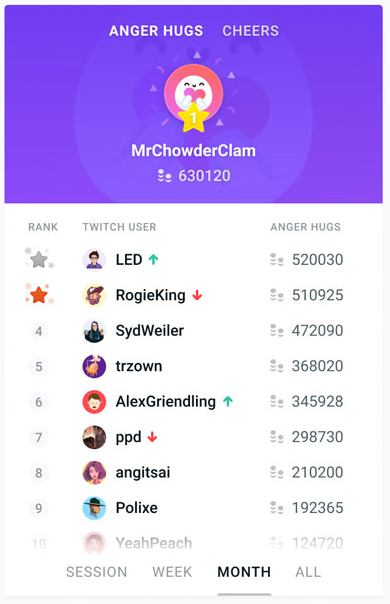
Show thanks for your supporters and encourage a battle for the specially highlighted top spot by displaying your top supporters in your Twitch panels with the Streamlabs Leaderboard Extension. The Extension supports leaderboard views for the following items with the option to enable or disable whichever you prefer.
- Bits
- Loyalty points
- Subs
- Gifts
- Chatters
- Emotes
Customize the panel by choosing colors, fonts, your default tab, default time period (session, week, month, or all-time), and max items displayed.
Streamlabs Merch Store Panel Extension
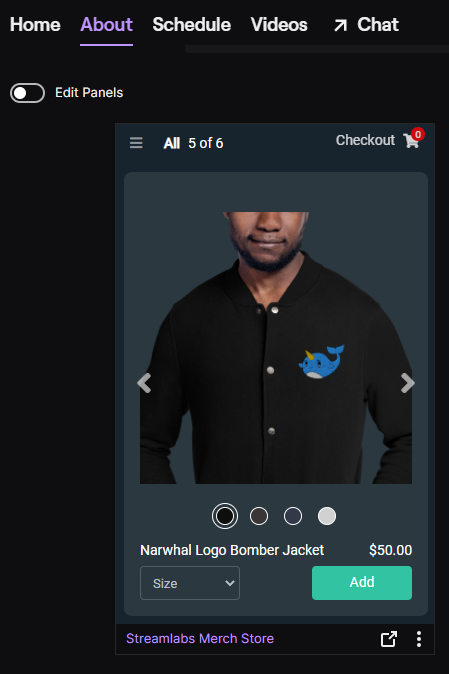
Earn more by selling your merch directly from your Twitch profile with the Streamlabs Merch Store Extension. Simply set up your Streamlabs Merch store, install the Extension, and your merch will be available for purchase directly on your channel!
Crowd Control

Unleash absolute chaos on your streams with Crowd Control. One of the most truly interactive Extensions there is, Crowd Control allows viewers to control aspects of your gameplay by donating bits. Your viewers can make one of your characters wet their pants in the Sims 4, flip your screen upside down in Fall Guys, spawn a dragon in Minecraft, and so much more. With over 90 games supported, you’re sure to find something both you and your audience will enjoy.
Crowd Control works by letting viewers exchange their bits (or channel points, if you choose) for coins. Not only can viewers individually donate to mess with your game, they can pool their resources and donate as a group. One of the best things about Crowd Control is that it has high potential to trigger a hype train. When one viewer starts interfering with your game, other viewers will often rush forward with their bits to join in on the fun. You’ll need to be a Twitch partner or affiliate in order to receive bits, so check out our article on five ways to help you reach the affiliate milestone. The perfect mix of community engagement, camaraderie, and good old fashioned “bully the streamer” spirit, Crowd Control is sure to liven up your next live stream.
Bonus tip: If you prefer to use Crowd Control with Streamlabs tips (we don’t take a cut, so you only have to deal with standard third-party payment processing fees), the Crowd Control app for Streamlabs Desktop is a great way to earn more.
Emotes Showcase

One of the best ways to encourage viewers to subscribe to your channel is by offering them a variety of unique and fun emotes for them to use throughout Twitch. With Emotes Showcase, you can show potential subscribers the different emotes they can receive by subscribing at Tier 1, 2, or 3. If you enable the Emotes Extension, viewers will be able to navigate to the About section on your Twitch profile (displayed just underneath your stream when you’re live) and view all of your emotes, enticing them to subscribe—more motivation to reach the affiliate milestone if you haven’t achieved it already!
If you’re interested in creating your own emotes, check out our article on how to create Twitch emotes to get you started.
Marbles on Stream

Though more of a game than an Extension, Marbles on Stream is free to play (available from Steam) and seamlessly integrates with your Twitch account. Viewers can type “!play” in chat and are assigned a marble which will run through a course. Once the race starts, everyone can sit back, relax, and watch their marbles battle it out for first place. While there’s no actual gameplay involved, Marbles has still managed to roll its way into the hearts of viewers and streamers alike.
A favorite of streamers who host long streams, Marbles is the perfect game for your viewers to play when you need to take a little break (or a catnap if you’re hosting a 24 hour stream). It’s also a great way to warm up at the beginning of a stream or use as a transition when switching between games or activities.
How to Install Twitch Extensions

From your Twitch Creator Dashboard, click on Extensions on the left side of the screen.

Browse through the Extensions until you find what you’re looking for, then click on the Install button.

Select Configure to set up the Extension. Each Extension will have its own unique configuration that you’ll need to do before getting started. If you have any trouble, just visit the Extension’s homepage for help.

Once you have the Extension installed and configured, you’ll need to activate it. Go back to the Extensions page in your Twitch Creator Dashboard and this time click on My Extensions instead of Discovery.
From here, click Activate under the Extension you want to set live. In the dropdown, choose the location you would like the Extension to show up in. Panel Extensions will show up in your Twitch panels on your About page, while component and overlay Extensions will display on top of your stream. Whether an Extension can be displayed as a panel, component, or overlay will vary so you’ll need to double check the tags next to the Extension information. You can only have six Extensions active at one time, one overlay Extension, two component Extensions, and three panel Extensions, so choose your favorites before going live!
Extensions for Viewers
For those who don’t stream, there are several Extensions which help improve Twitch’s user interface. There are also emote Extensions that add more emotes for you to use in the Twitch chat, as well as a ton of other features. The three most popular viewer Extensions are BetterTTV (BTTV), FrankerFaceZ (FFZ) and 7TV.

BetterTTV
While technically a browser extension, BetterTTV (aka Better Twitch TV or BTTV) is one of the most useful extensions you can download. In addition to expanding your emote catalog, it allows you to customize your Twitch page with some very handy features such as:
- Removing chat clutter
- Automatic channel point collection
- Enables the use of FrankerFaceZ emotes
- Show messages that have been deleted by mods
- Sync channel emotes with Discord to make them available to server members
- Allowing you to join chat anonymously without being listed in the viewers list
All of these features and more are available with BetterTTV and you can use them (or not use them) according to your preferences. A simple, straightforward Extension with powerful tools, we recommend adding BetterTTV to your Twitch today.
How to Download and Install BTTV
For Chrome users, navigate to the BTTV page in the Chrome Web Store. Firefox users can head to BetterTTV’s page in the Firefox Add-on Store.
Click on Add extension to authorize.

Upgrade your permissions if BetterTTV requests you to by clicking on Upgrade Permissions, then Allow.


Next, navigate to Twitch’s chat and click on the little gear icon. From there, click on BetterTTV Settings.

Take some time to go through all of BetterTTV’s options and select which ones are the best fit for your viewing preferences. If you end up disliking something, you can easily change it back from the settings menu.

As mentioned above, FrankerFaceZ and 7TV are similar to BetterTTV. Though it’s not necessary to install all of them, you can certainly do so—just make sure you don’t have duplicate settings enabled.
Extensions are a great way for both streamers and viewers alike to have a more enjoyable experience on Twitch. Don’t just take our word for it, there are hundreds of Extensions available for you to browse through and try out for yourself. We hope you’ve enjoyed learning about some of our favorite Extensions on Twitch. Stay safe and happy streaming!