



 Ultra.

TL;DR:
You don't need a camera to captivate your audience while live streaming. With Streamlabs Desktop, you can go live with audio only while still keeping your viewers' attention. Whether you're running a podcast, hosting a live radio show, or streaming original music, Streamlabs overlays and audio controls help you create a branded, visually engaging experience with no face cam required.
Why Stream Audio Only?
Sometimes you just want your voice (or your music) to take center stage. Audio-only streams are great for:
- Podcasters or radio-style hosts who want a live audience.
- Musicians sharing new music or doing live listening sessions.
- Creators who prefer privacy or are streaming from low-light setups.
- Chill, lofi, or streams where visuals aren't the focus.
The obvious answer is to simply turn off your camera-but if you want an audio-only live stream that still keeps people engaged, customizing your stream with Streamlabs Desktop is the way to go. Here's how to do it.
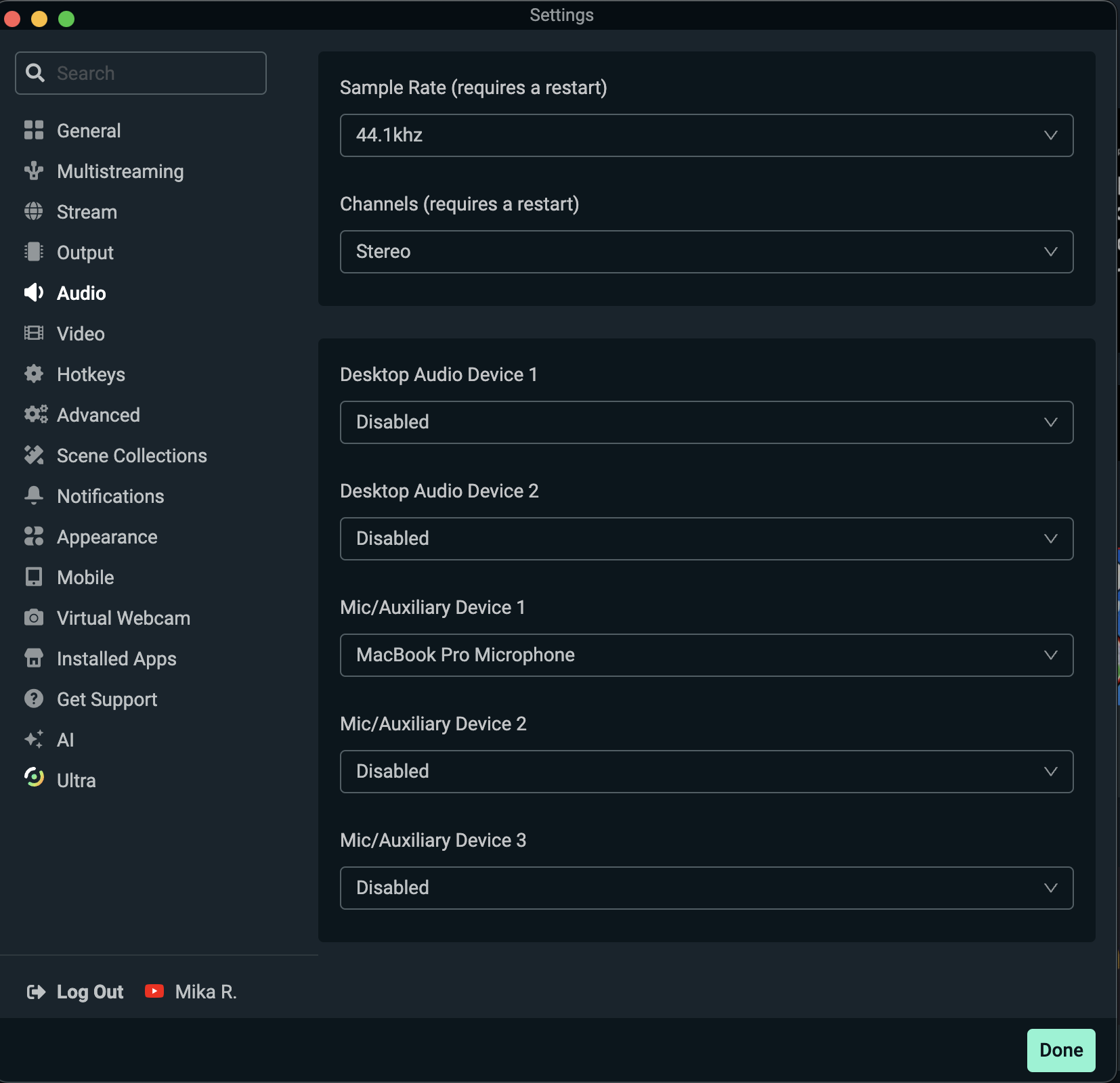
Step 1: First, set up your audio source in Streamlabs Desktop. Make sure your microphone or audio interface is selected as your input device.
You can do this by going to Settings → Audio and checking that your mic is properly configured or straight from the mixer in your editing window (click the Settings cog at the top of the mixer panel to bring up your Advanced Audio Settings).
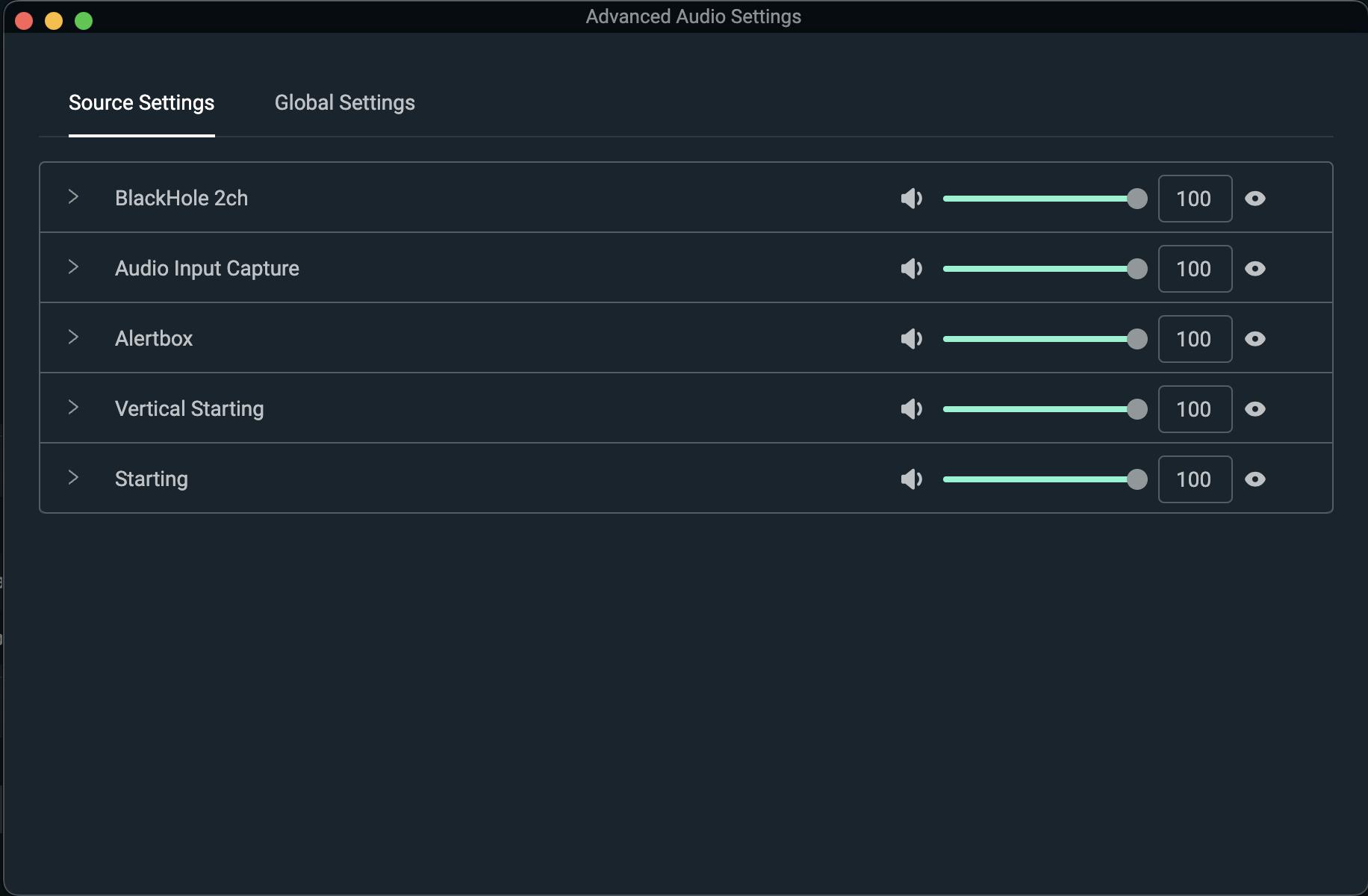
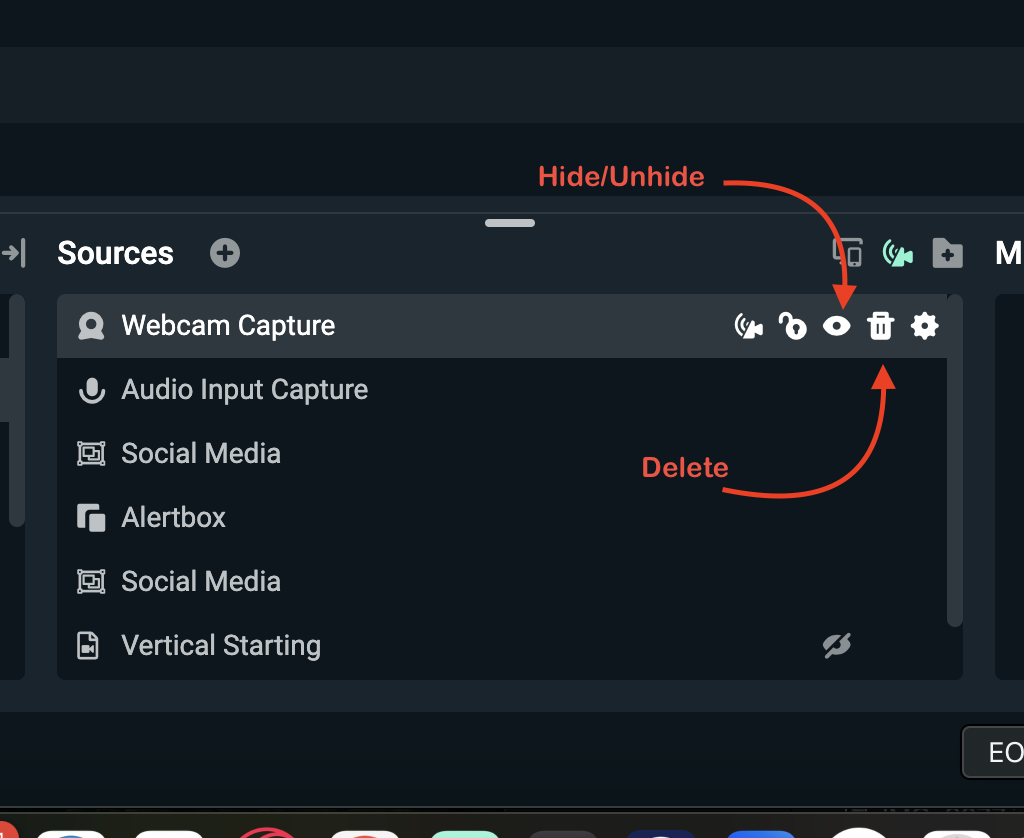
Step 2: Next, simply hide or delete the camera source for your feed to not appear on stream. You'll still be streaming your audio to your platform of choice, but without any live video feed.
Step 3: Add visual interest with an overlay and other elements. Just because you're audio-only doesn't mean your stream has to look plain. Choose or create a layout that fits your vibe like a podcast cover art, waveform animation, or "Now Playing" scene.
Browse the Streamlabs Overlay Library for templates that fit your style-the Just Chatting and Podcast collections are great places to start.
Step 4: Streamlabs Alert Sounds let you add personality and interactivity to your audio-only stream. Customize notification sounds for new followers, donations, subscribers, or tips so listeners can still engage with you in real time.
You can also upload your own clips or choose from a library of free sound effects to fit your show's energy-whether you want a chill chime for new listeners or some commotion for big tips. To learn how to change your Streamlabs Alert Box sounds, check out this guide.
Step 5: Once you've finished customizing your live stream, hit Go Live like normal and select your preferred platform-YouTube, Twitch, Kick, etc. You can also multistream to multiple platforms at once using Streamlabs Ultra, helping your audio-only show reach a wider audience.
Going live doesn't always mean showing your face. With Streamlabs Desktop, you can create a professional, branded audio-only experience that looks as good as it sounds.