


 Ultra.

Want to highlight what's happening in real time-literally? Whether you're teaching, reviewing gameplay, or need a new way to interact with chat, drawing directly on your live stream can make your content more engaging while helping you get a point across.
With the Annotate and Draw! app in Streamlabs Desktop, you can easily sketch, highlight, and annotate on top of your stream without any third-party software or complicated setups. It's a simple browser-based overlay built right into the Streamlabs experience and it even saves your favorite pen settings.
In this guide, we'll walk you through how to use it to draw while live streaming on your PC.
Step 1: First, install the Annotate and Draw! app in Streamlabs Desktop.
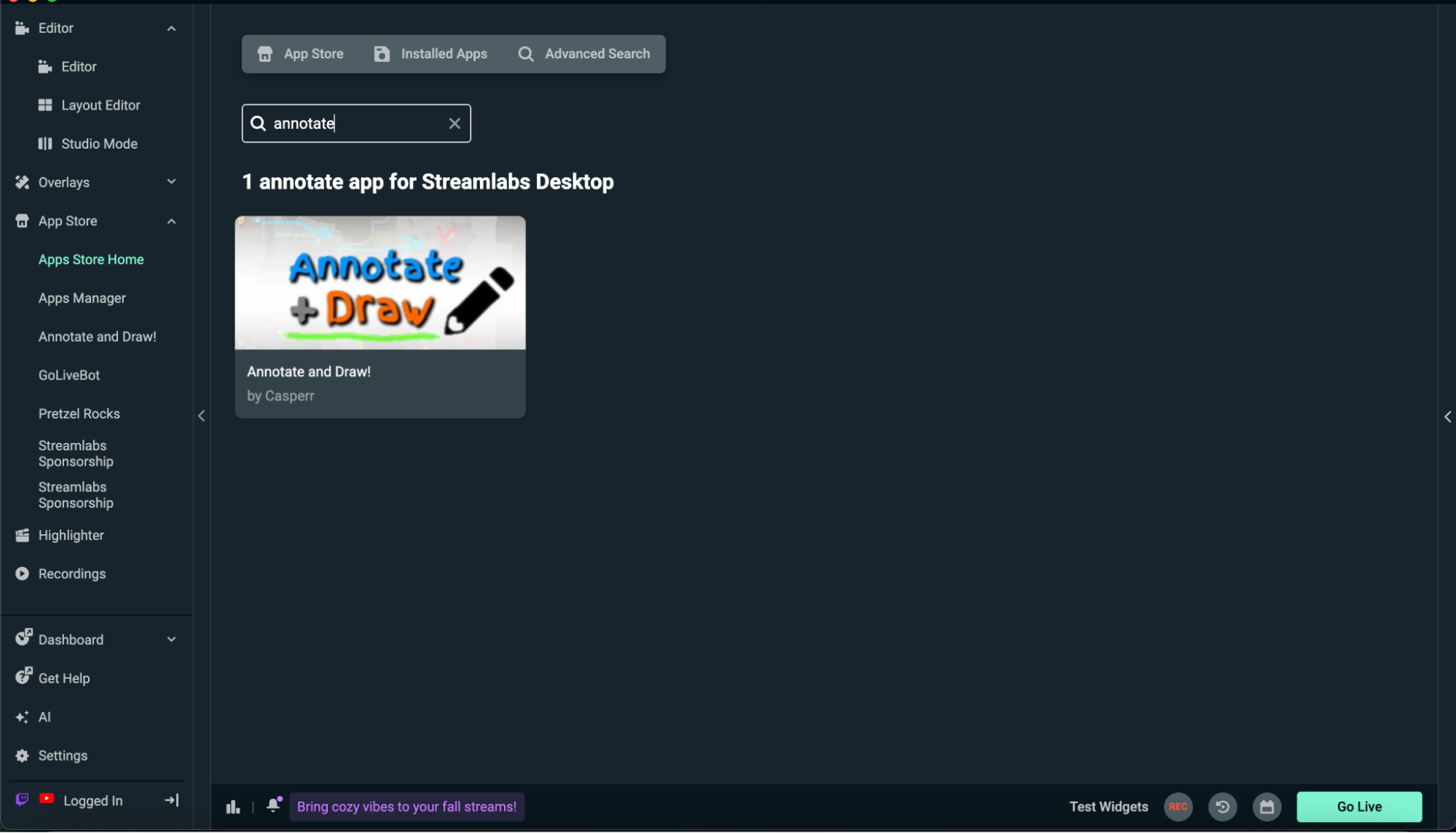
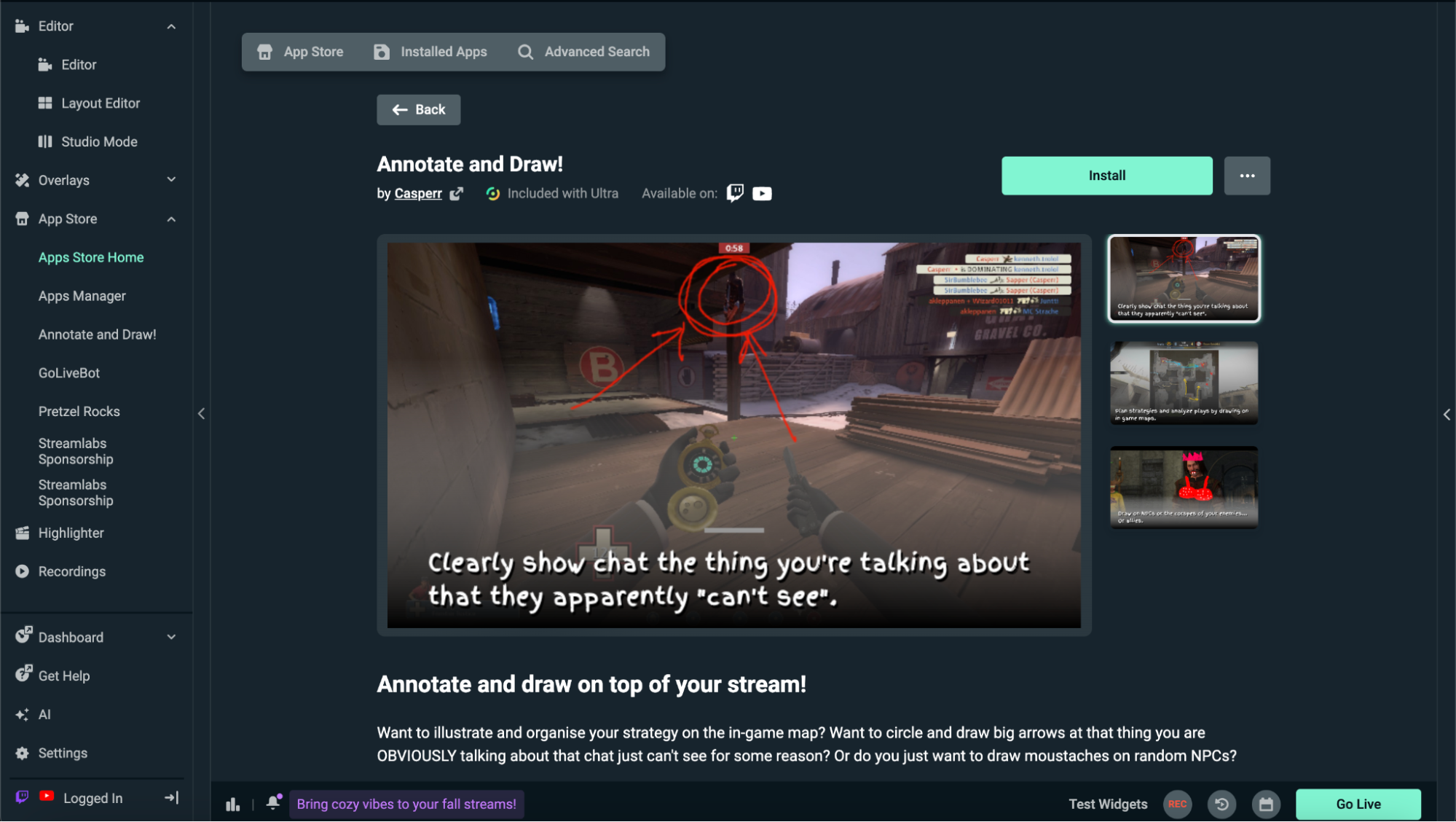
Step 2: Once the app is installed In Streamlabs Desktop, click the "+" (Add Source) button in the Sources panel of your stream editing window.
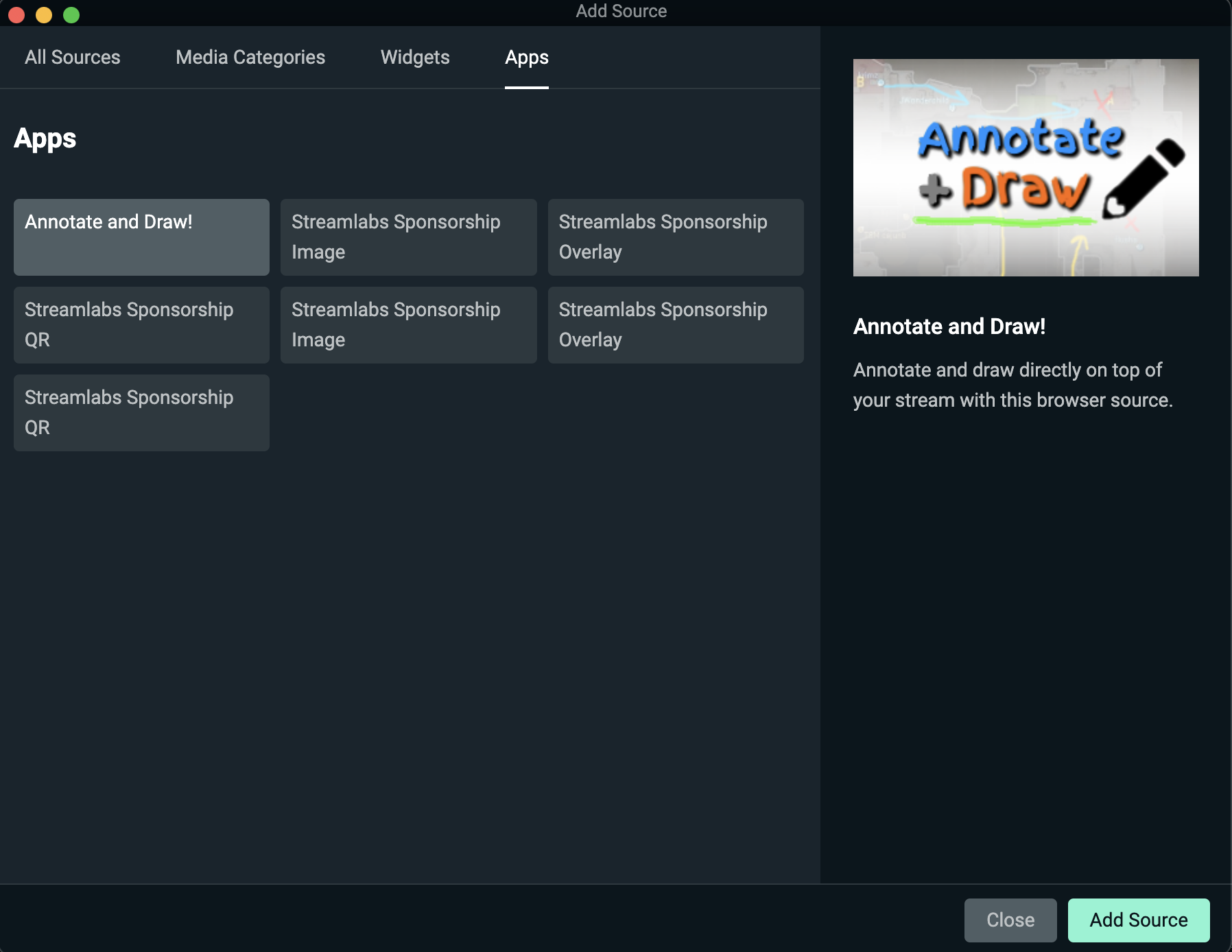
Step 3: Next, go to the Apps tab and select Annotate and Draw!, then Add Source to add it to your current scene.
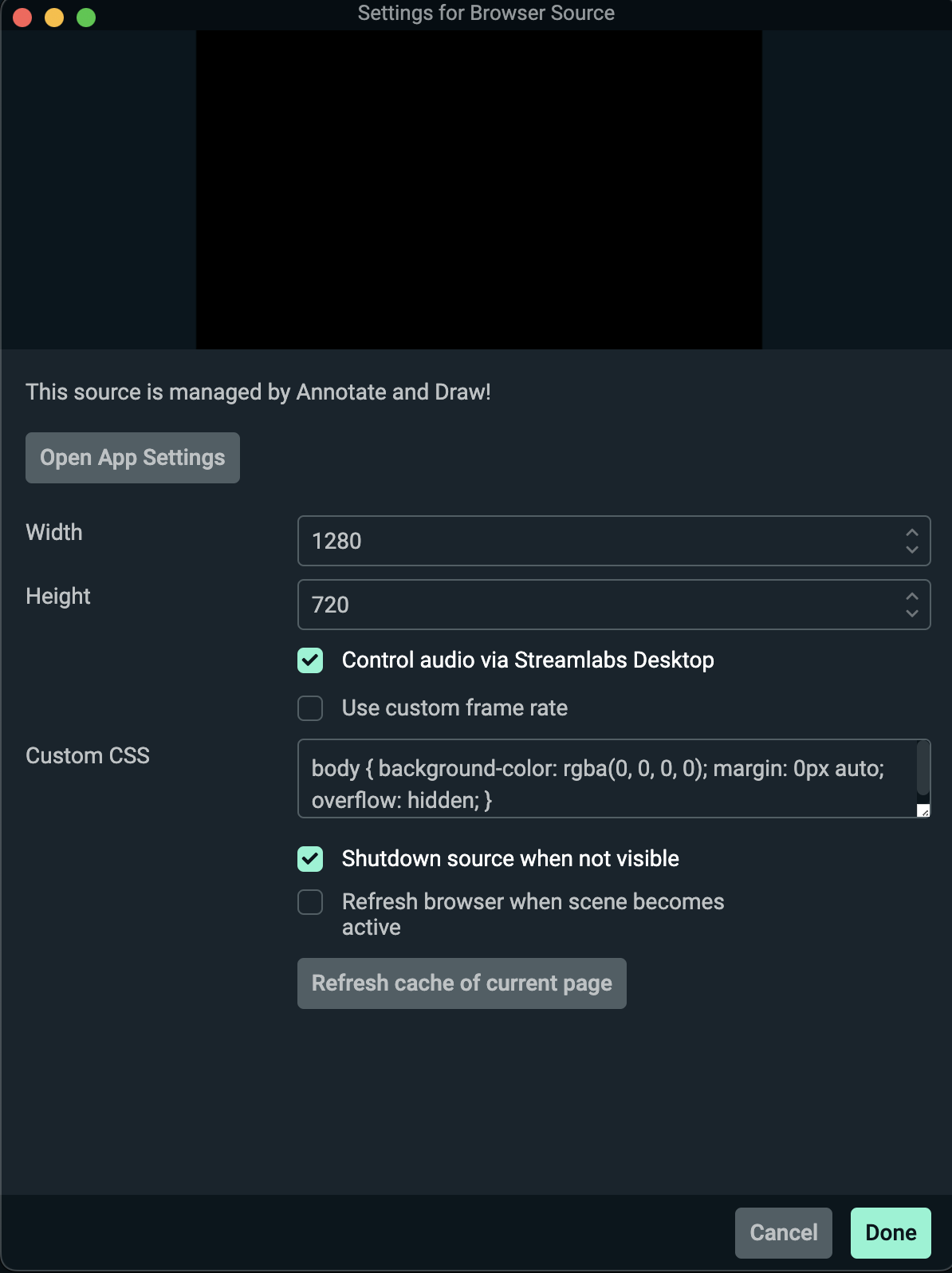
Step 4: Customize settings such as size, audio controls and CSS in the Settings for Browser Source window.
Step 5: Once you've added the Annotate and Draw! source to your scene, make sure it's listed above any sources you want to annotate on in the Sources list. If it's placed below those sources, your annotations won't appear correctly on screen.
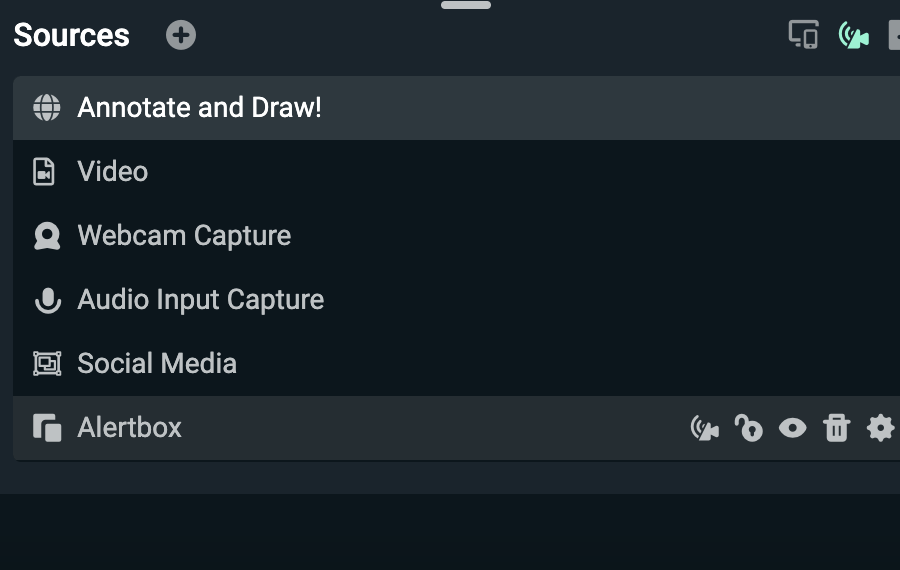
Step 6: To annotate on stream, right-click the Annotate and Draw! source, then select Interact from the menu. A pop-out window titled Interact: Annotate and Draw! will appear. This window is where you'll control your drawing tools and draw directly.
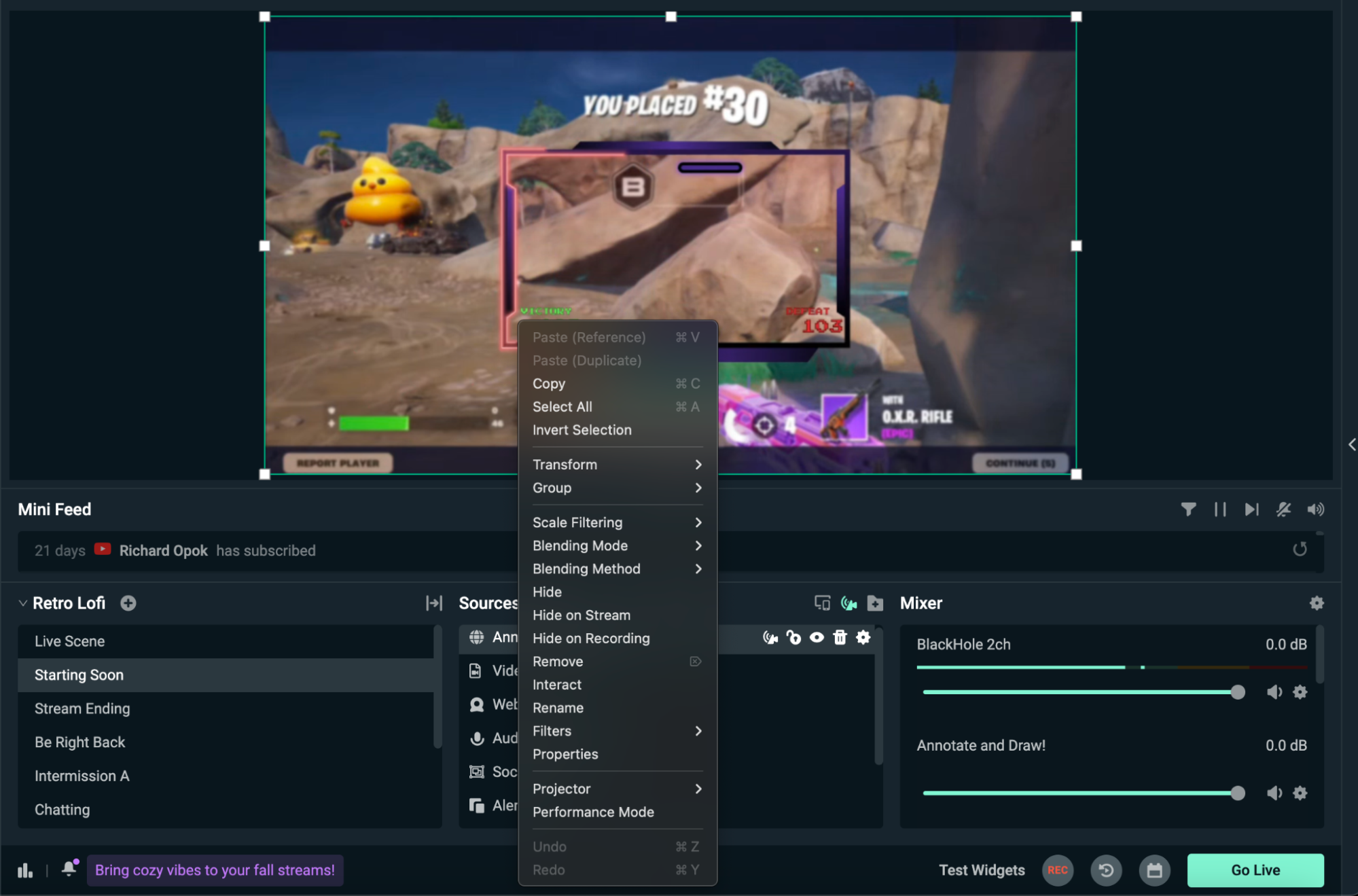
Choose from the different brush options including a highlighter, multiple colors and different brush sizes. Use your mouse or draw directly inside the pop-up window. Your drawings will appear live on stream in real time.
P.S. Drawing is limited to the pop-up window. If you attempt to draw on your actual stream/editing window, you will move your sources around.
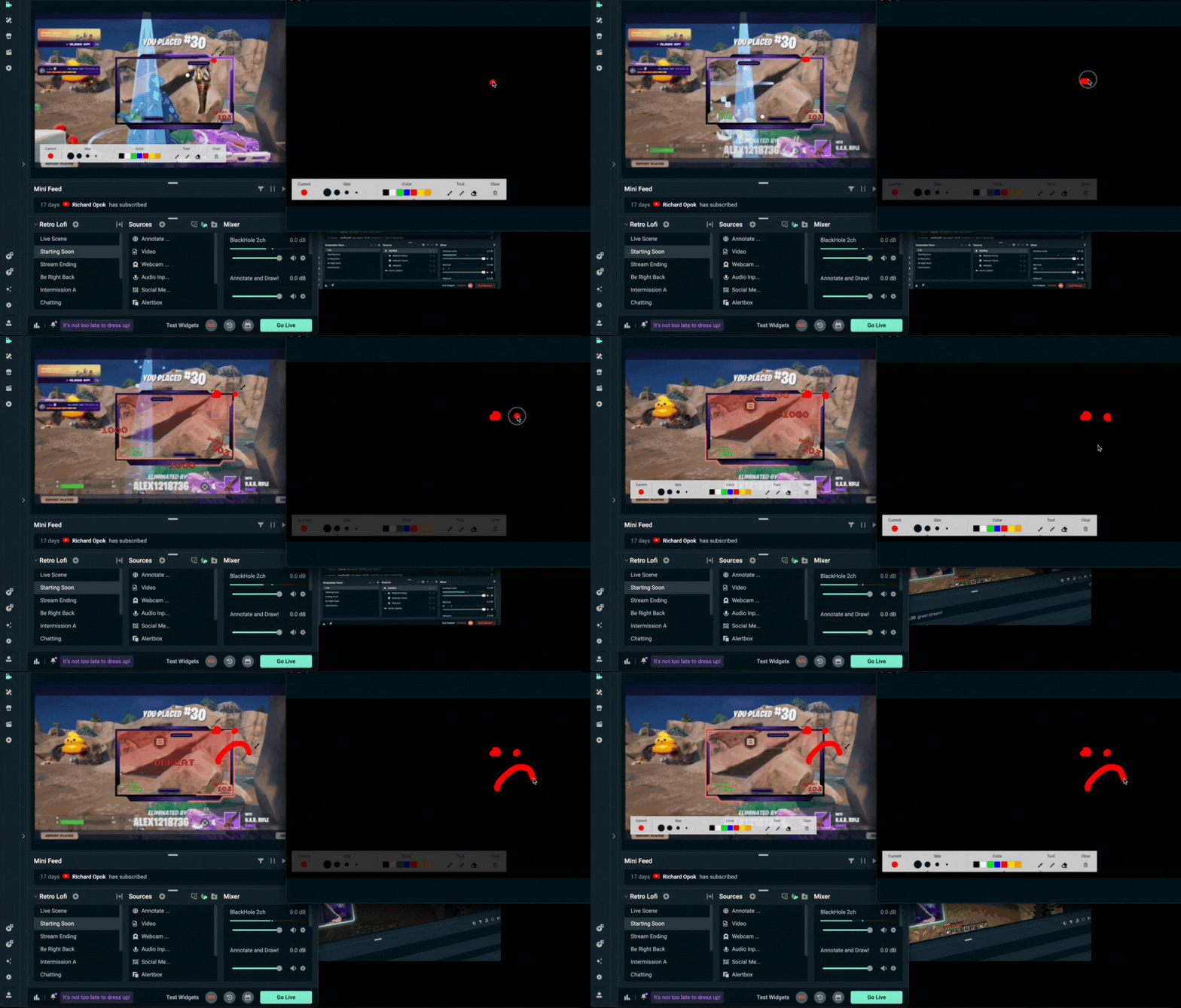
Drawing on stream isn't only useful, it's an easy way to shake things up and do something different on stream. If you plan on using Annotate and Draw! in Streamlabs Desktop, let us know (on X or Instagram) and even share clips from your stream!