



 Ultra.

This guide will help you link your accounts, add your webcam, capture your gameplay, and go live.
- Requirements
- Install & Onboarding
- Connect Your Platforms
- Create Your First Scene
- Add Your Sources
- Set Up Your Audio
- Adjust Stream Settings
- Test and Go Live
Requirements
| Minimum | Recommended | |
|---|---|---|
| Operating System | Windows 11 or macOS 12 | Windows 11 or macOS 13 or higher |
| RAM | 8 GB | 16 GB of RAM or more |
| CPU | - | Intel Core i5 11th or 12th Gen, or AMD Ryzen 5 5600X and higher |
| GPU | Integrated graphics | Nvidia RTX 20 or 30 Series, or AMD RX 5000 or 6000 Series |
| Storage | 10 GB Hard Drive | 512 GB Solid State Drive or larger |
Step 1: Install & Onboarding
When you open the software for the first time, the setup wizard will help you link your channel.
- Download the installer from streamlabs.com. The website will automatically give you the right version for your computer.
- Open the installer to start the setup. The program will automatically add any missing background files (like Windows Redistributables) for you.
- Launch Streamlabs and grant the software permission to use your webcam and microphone if prompted.
- Click Live Streaming and then Continue.
- Logging In:
- We recommend creating a Streamlabs ID if you don’t have one. Click Create a Streamlabs ID to get started with it.
- If you already have an account, or don’t want to create an account, click Login.
- Choose whether to Import Settings from another streaming program or click Start Fresh.
- Select your camera and microphone from the dropdown lists.
- If you’d like an overlay, pick one and click Continue. If not, press Skip.
- Choose either the Streamlabs Free plan or Streamlabs Ultra plan.
Step 2: Connect Your Platforms
If you have multiple accounts that you stream to, you can connect them together. We recommend doing this on Streamlabs.com in your Platform Settings, but you can also do it within Streamlabs Desktop.
- Click Settings ⚙️ in the bottom left.
- Click Stream.
- Click Connect to the right of the platform.
Step 3: Create Your First Scene
Scenes act as folders that hold your different camera angles and graphics. If you selected an overlay earlier, you already have scenes created.
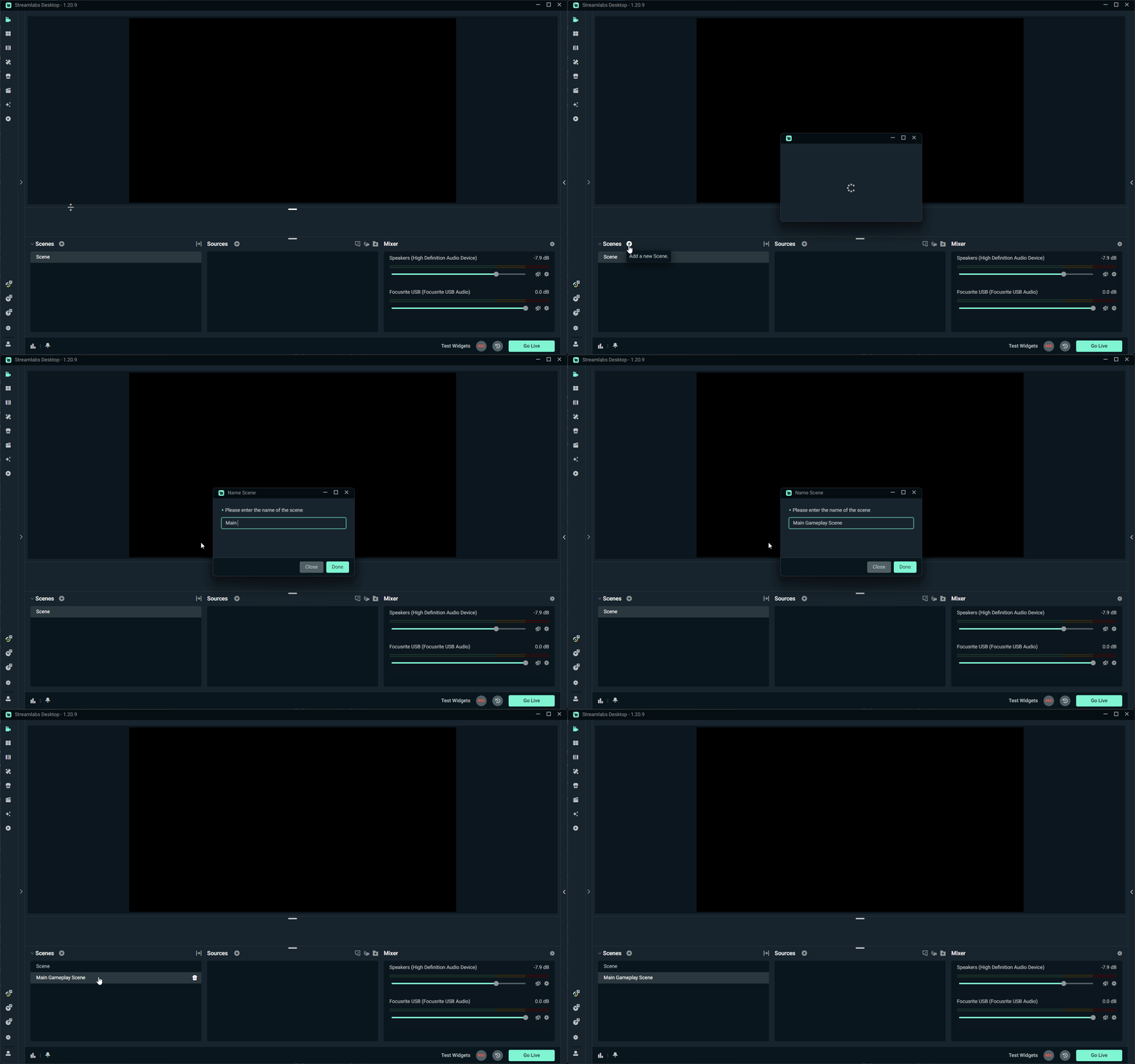
- Look at the Scenes panel in the bottom-left corner.
- Click the plus (+) icon to create a new scene.
- Name your scene something clear, like Main Gameplay Scene.
Step 4: Add Your Sources
Sources and widgets are the building blocks of your stream layout. They are the actual items, including both visual and audio elements, that your viewers can see and hear inside a scene.
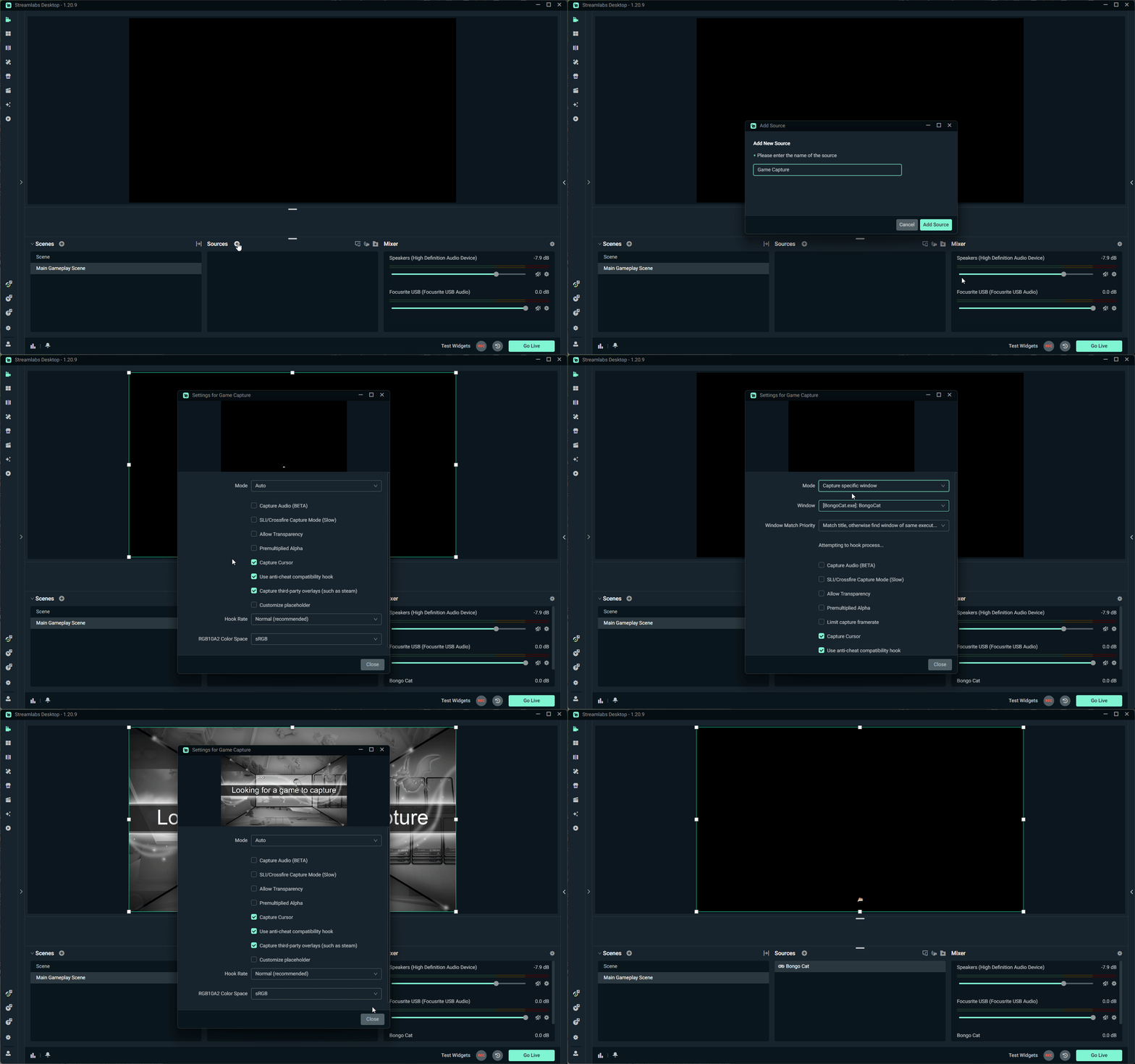
- Select your new scene, then move to the Sources panel next to it.
- Click the plus (+) icon to add a new source.
- Choose what you want to add:
- Gameplay: Select Game Capture or Screen Capture, click Add Source, and select the game you want to display.
- Webcam: Click the plus icon again, select Video Capture Device, click Add Source, and choose your webcam from the device dropdown list.
- Widgets: Select an interactive tool like the Alert Box or Chat Box, click Add Source, and place it on your screen so your viewers can interact with your stream.
Step 5: Set Up Your Audio
Before adding video, make sure your viewers can hear you clearly.
- Look at the Audio Mixer panel on the right side of your screen.
- Click the gear icon in the mixer to open your audio settings.
- Find Mic/Auxiliary Device and select your main microphone from the dropdown list.
- Set up your Desktop Audio device depending on your computer system:
- Windows Users: Select the Desktop Audio source in your Mixer dropdown list and match it with your default Audio Device in Windows Sound Settings.
- MacOS Users: To capture desktop audio, you need audio routing software to add that as a Mic/Aux source. Check out our guide here on how to use BlackHole, a free audio routing software.
Step 6: Adjust Stream Settings
There is not a one-size-fits-all when it comes to the best Stream settings. Here we're going to go over the major places to check and adjust to your needs.
| What to Adjust | Where to Find it | What It Does |
|---|---|---|
| Base Resolution | Settings > Video | Sets your canvas size. Match this to your computer monitor resolution. |
| Output Resolution | Settings > Video | Sets the video size your viewers see. Keep this equal to or smaller than your Base Resolution. |
| FPS | Settings > Video | Controls video smoothness. Use 30 FPS for slow card games and 60 FPS for fast action games. |
| Video Bitrate | Settings > Output | Sets how much data you upload. Higher resolutions and FPS require more bitrate. Check out our upload speed guide here. |
| Encoder | Settings > Output | Chooses whether your graphics card or processor builds your stream video. |
Step 7: Test and Go Live
- Run a pre-stream check:
- Test your Alerts/Widgets to make sure they’re working.
- Look at the main preview window to check your camera placement.
- Make sure your audio bars bounce when you speak or play sound on your computer.
- Click the green Go Live button in the bottom right corner.
- Choose your platforms (one platform per video layout orientation is included in the free version).
- Edit your stream title, description, and category game info.
- Hit Confirm and Go Live.
More Information
Check out these deeper guides for specific Streamlabs Desktop features:
- Dual Output Streaming: Learn how to stream to horizontal platforms and vertical platforms at the exact same time with Dual Output.
- Stream Shift: Move between your devices seamlessly without ending your stream.
- Split Audio: Learn a variety of different ways, such as using Application Audio natively in Streamlabs Desktop, Logitech's MIXLINE, or Voicemeeter Banana.
- Twitch VOD Track: Learn how to separate your audio tracks so copyrighted music does not get saved to your Twitch clips.
- Microphone Quality: Want to sound like a professional? Check out our guide on improving your microphone audio quality.
Need Help?
Our team is happy to help at https://streamlabs.com/support.