


 Ultra.

Change is never easy, especially when your current stream setup helps you stay in flow and focus on creating. If you’ve spent time building your overlays, chatbot, loyalty tools, or tip page settings in StreamElements, moving to a new tool doesn’t have to mean starting from scratch.
You can bring key parts of your StreamElements setup into Streamlabs using our importer. You’ll have your stream set up in just a few steps. Then keep building with free tools like alerts, tipping, Cloudbot, overlays, and more.
Jump Ahead
- What You Can Import from StreamElements to Streamlabs
- How to Find Your StreamElements JWT Token
- How to Import StreamElements Items into Streamlabs
- Free Streamlabs Tools to Get Started With
What You Can Import from StreamElements to Streamlabs
The StreamElements importer lets you select eligible items from your StreamElements account and import them into Streamlabs.
Here’s a quick breakdown of what those items may include.
Tip Page Settings: Import settings connected to your StreamElements tip page, such as currency, preset amounts, profanity filters, and other related details.
Chatbot/Cloudbot Settings: Bring over chatbot settings such as commands, timers, loyalty, and banned words so you can continue managing chat engagement through Streamlabs Cloudbot.
Loyalty Settings and Points: Import loyalty details such as your currency name, earn rate, intervals, event bonuses, block list, and viewer point balances.
Overlays: Import supported overlays and their respective widget settings such as those for alert boxes, chat boxes, donation goals from StreamElements. Elements will be turned into ready-to-use scene collections that automatically appear in Streamlabs Desktop.
Before You Start
Before importing your StreamElements setup into Streamlabs, make sure you have:
- Access to your StreamElements account
- Access to your Streamlabs account
- Your StreamElements JWT Token
How to Find Your StreamElements JWT Token
Your JWT Token is required to connect your StreamElements account and import eligible data into Streamlabs.
Note: If you have multiple channels connected to your StreamElements account, they will each have their own JWT token.
To find your token:
Step 1: Go to your StreamElements Channels page.
Step 2: Find the JWT Token section.
Step 3: Click the copy icon to copy your JWT Token.
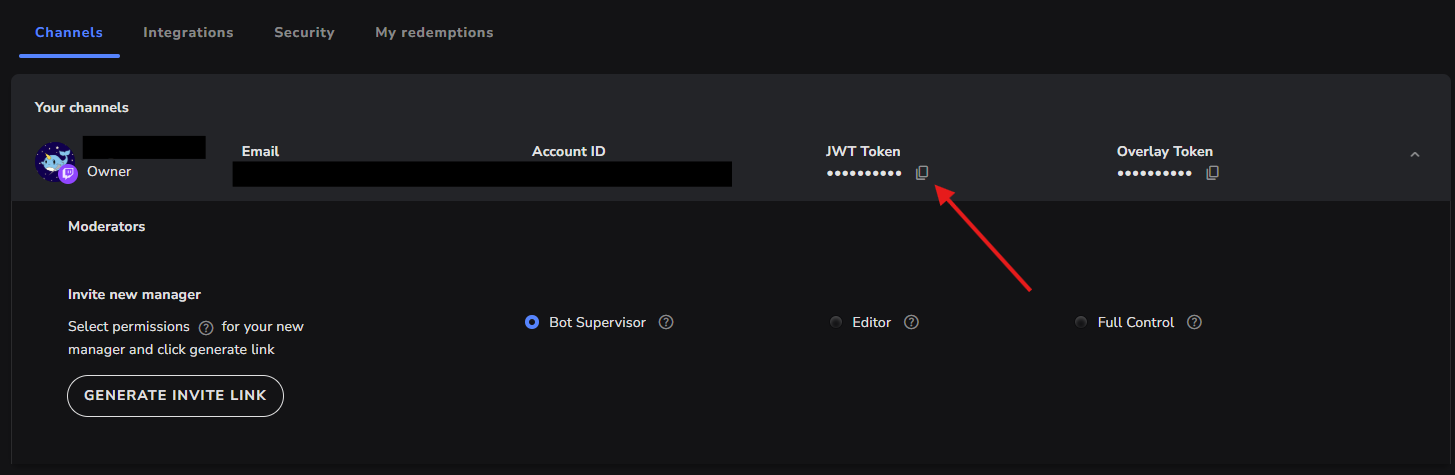
Step 4: Next, you'll return to Streamlabs and paste the token into the importer. Keep reading for a detailed breakdown.
Step 5: After you finish importing your first platform, repeat the process for any additional connected platforms. To do this:
- Click your profile icon in the top right.
- Select the next desired platform. You'll be redireced to your dashboard.
- From there, reopen your Channels page and copy the new JWT.
- Paste the JWT token into the importer.
Note: Keep your JWT Token private and only paste it where necessary.
How to Import StreamElements Items into Streamlabs
Once you have your JWT Token, you can start the import process from your Streamlabs Dashboard.
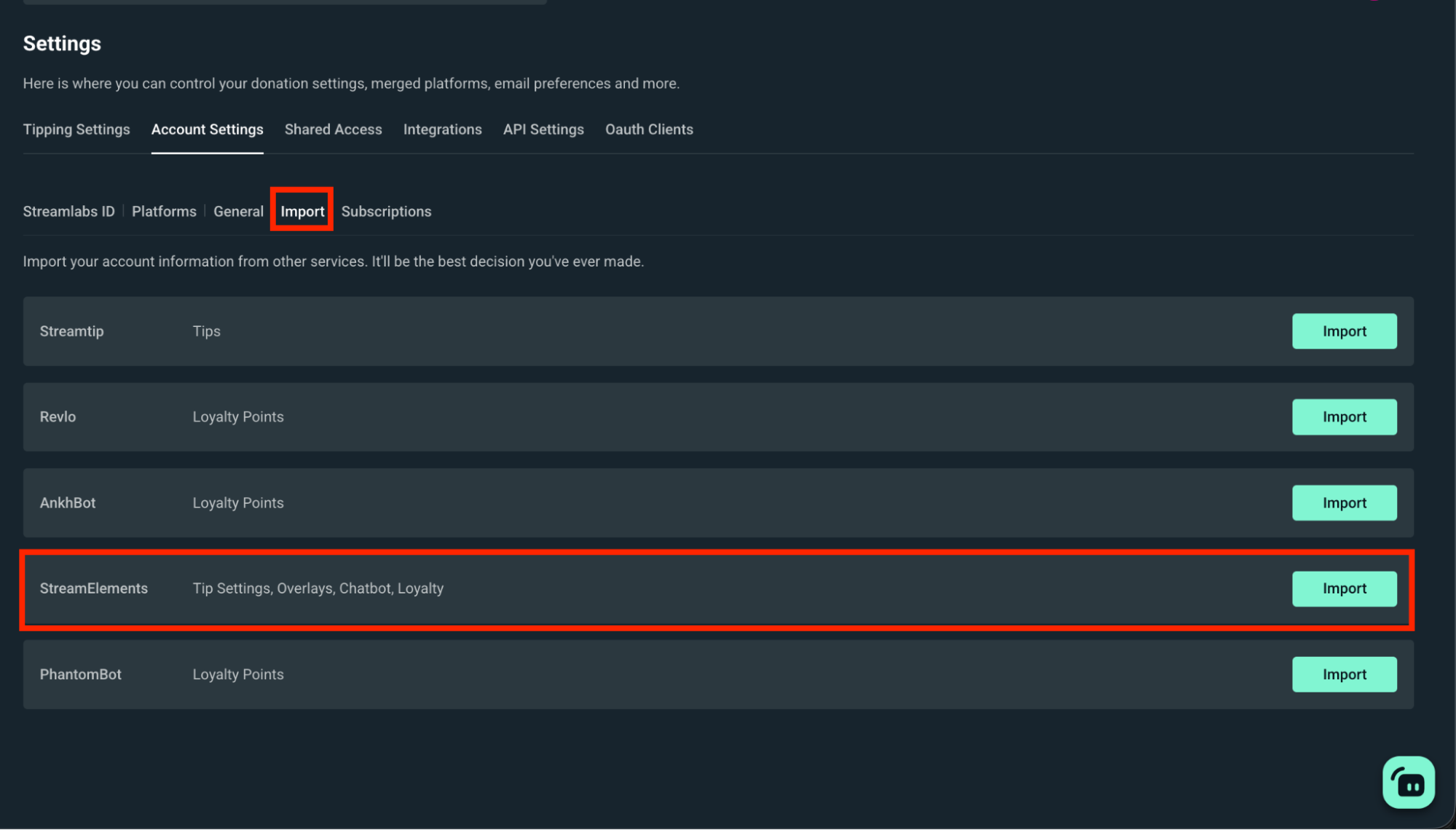
Step 1: Log into your Streamlabs Account Settings.
Step 2: Click Import (in the second top navigation menu) then click Import next to StreamElements.
Step 3: Paste your StreamElements JWT Token in the required field and press Verify & Continue.
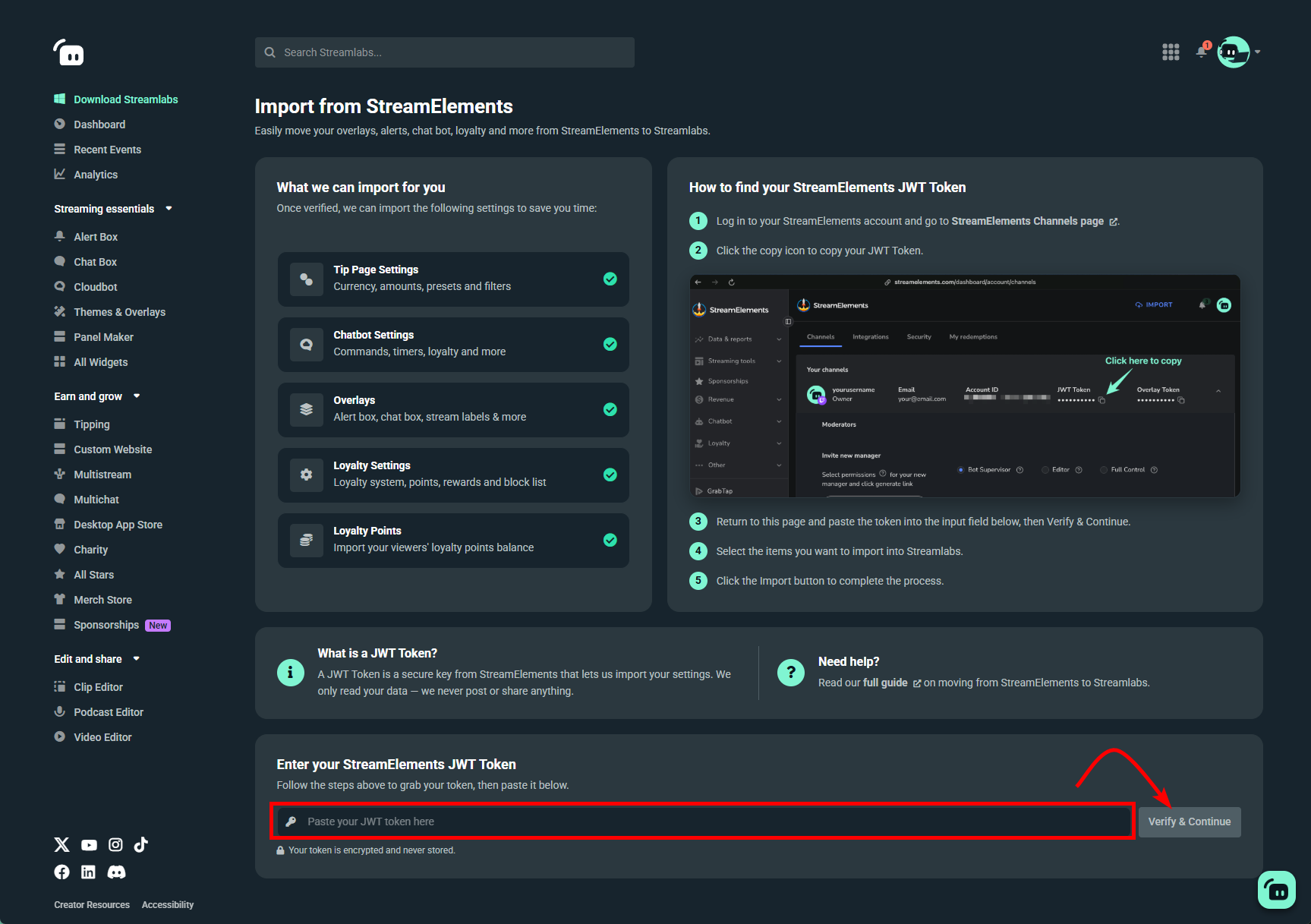
Step 4: Allow Streamlabs to fetch your available StreamElements data, including channel info, tip page settings, overlays, chatbot settings, loyalty settings, and loyalty points.
Step 5: Select the items you want to import into Streamlabs.
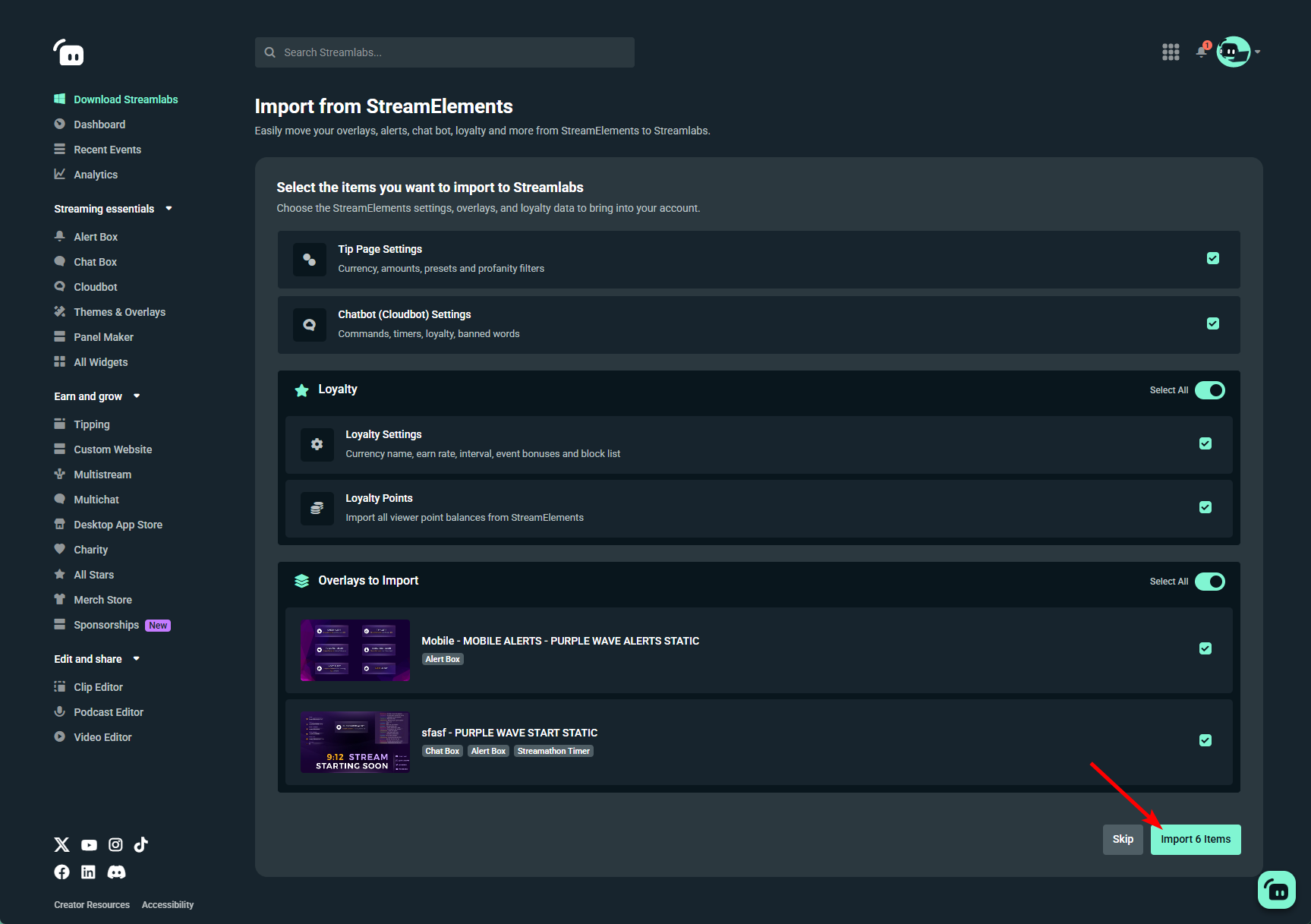
Step 6: Click the Import button to complete the process.
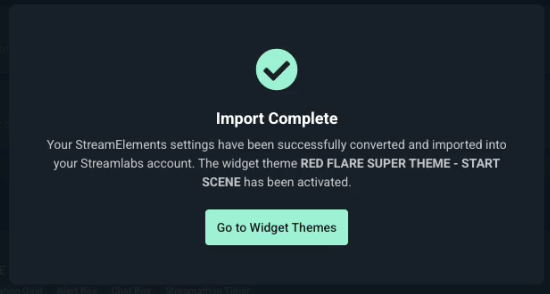
Step 7: Review your imported items in Streamlabs Dashboard and Desktop and make any adjustments before your next stream.
Note: The import process may take several minutes to complete.
Free Streamlabs Tools to Get Started With
After importing your StreamElements setup, you can continue building your stream with free Streamlabs tools designed to help you engage viewers, customize your broadcast, and manage key parts of your live stream.
Tipping: Set up a Streamlabs tip page so viewers can support your content directly.
Game Pulse: Add customizable sound effects and graphics that are triggered by your gaming.
Cloudbot: Use commands, timers, moderation tools, loyalty features, and viewer engagement tools.
Event List: Track recent stream activity like follows, subscriptions, tips, and other viewer actions.
Alert Box: Add on-screen alerts for new followers, subscribers, tips, raids, and more.
Chat Box: Display your live chat on stream with customizable styling.
Overlays and Themes: Browse free overlays and widget themes to refresh or rebuild your stream look.
Moving your stream setup does not have to mean rebuilding everything from scratch.
Log into your Streamlabs Dashboard to import your StreamElements setup, review your tools, and get ready for your next stream.
If you have any questions or comments, please let us know by contacting us or joining our Discord server.
