


 Ultra.

Want to gamify support on your live stream? The Stream Boss widget turns follows, tips, bits, and subscriptions into a competitive battle. Viewers can damage the current boss through their support and claim the throne, adding a fun, interactive twist to monetization.
This widget encourages repeat engagement by giving your audience a visible, real-time impact on stream—making every contribution feel meaningful.
In this blog, we’ll walk you through customizing Stream Boss and adding it to Streamlabs Desktop, OBS Studio, or another live streaming software.
Jump Ahead:
- How to Customize Streamlabs Stream Boss
- How to Add Stream Boss in Streamlabs Desktop
- How to Add Stream Boss in OBS Studio/XSplit/Other Streaming Software
How to Customize Streamlabs Stream Boss Widget

Step 1: Log into your Streamlabs.com Dashboard, select All Widgets from the left navigation bar, then find and select Stream Boss.
Step 2: At the top of the page, you’ll see available widget themes. Here you can select a theme to quickly change the overall look and feel of your Stream Boss before diving into detailed settings.
Note: To preview your boss, click Launch next to the widget URL to open Stream Boss in a new tab. After you change any settings and hit Save, you can preview the changes here.
Step 3: Under the Manage Battle tab, customize the Stream Boss health settings. Start by selecting the boss’s starting health and battle mode:
- Fixed — The boss spawns with the same amount of health every time.
- Incremental — The boss gains additional health after each defeat (you set the amount).
- Overkill — Excess damage on the killing blow is multiplied and becomes the boss’s new health.
Step 4: Head to the Settings tab to customize how different interactions affect the Stream Boss’s health, such as follows, bits, subscriptions, and tips.
Step 5: Continue customizing how the Stream Boss appears on your stream by adjusting options like the kill animation, fade time, font, background color, and health bar colors. When you’re finished, click Save Settings.
Pro Tip: If you’re a smaller streamer, consider setting the fade time to zero so the Stream Boss health bar always remains visible on stream. You may also want to lower the starting health (for example, 2,000) to encourage more frequent boss changes.
Step 6: Return to the Manage Battle tab and click Save Stream Boss Health to activate the widget.
How to Add Stream Boss in Streamlabs Desktop
Step 1: Open Streamlabs Desktop and navigate to the Sources panel.
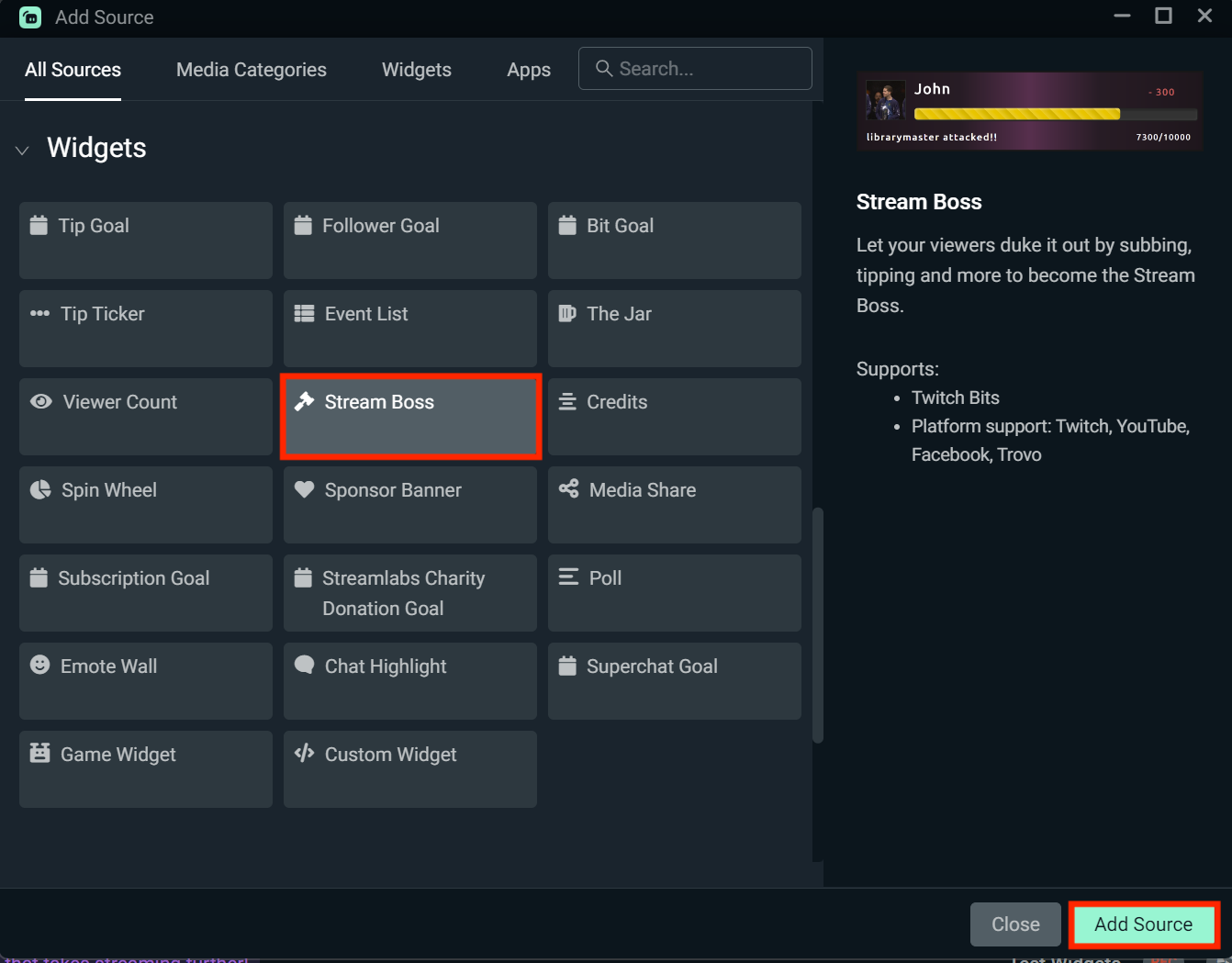
Step 2: Click the + icon, then select Widgets > Stream Boss, and click Add Source.
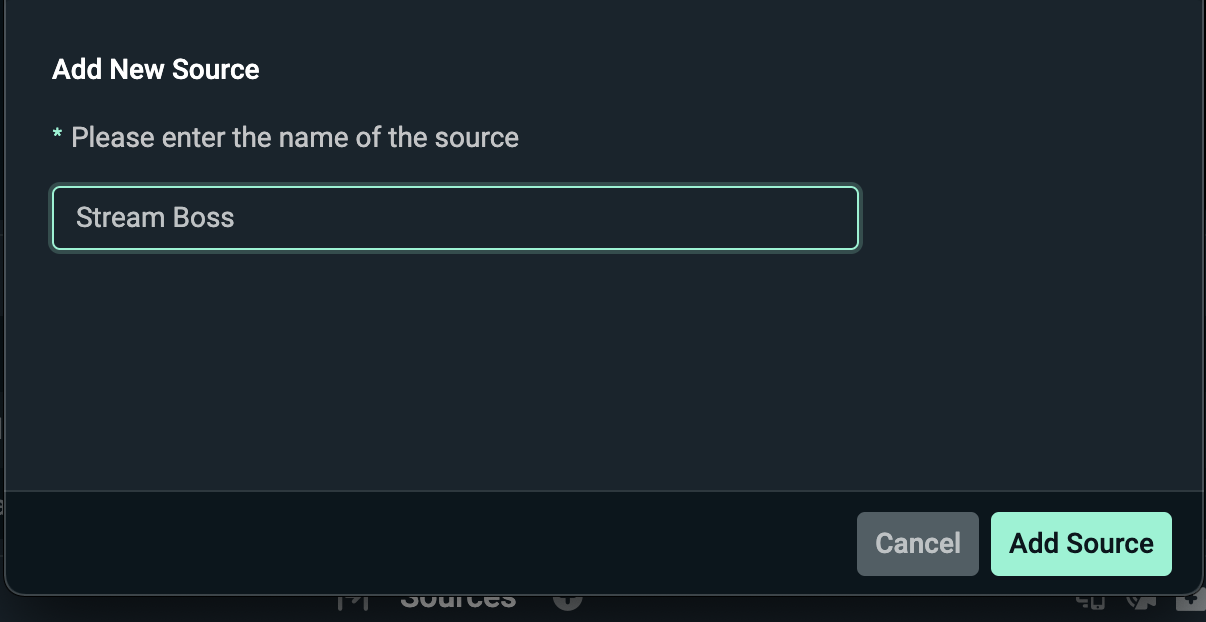
Step 3: Name your widget, then use the available tabs to customize your Stream Boss directly in Streamlabs Desktop:
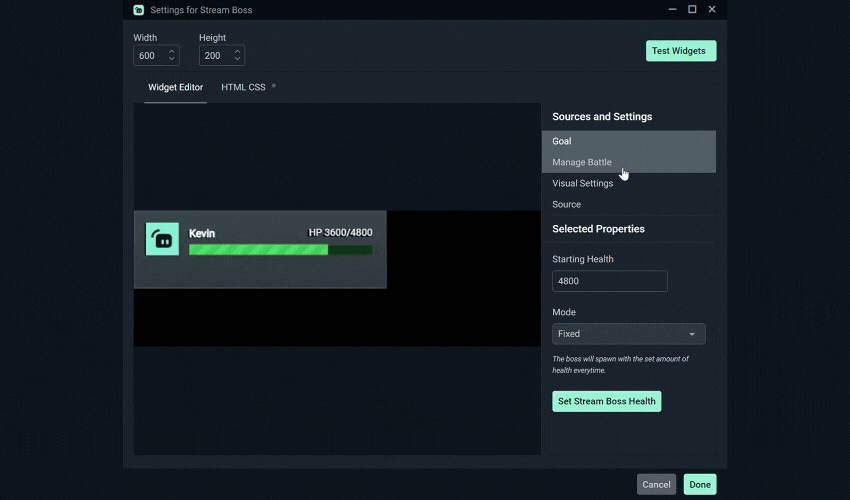
- Goal—Set the starting health and battle mode.
- Manage Battle—Control how interactions like tips and bits affect the boss’s health.
- Visual Settings—Customize animations, fonts, and background colors.
- Sources—Adjust advanced options such as audio controls and custom CSS.
Step 4: When you’re done customizing, click Done. You can then drag and resize the widget on your canvas to fit your layout.
How to Add Stream Boss in OBS Studio/XSplit/Other Streaming Software
Step 1: Head back to your Stream Boss settings on Streamlabs.com and copy the Widget URL.

Step 2: In OBS Studio, XSplit, or another streaming software, add a new Browser Source.
Step 3: Paste the Widget URL into the browser source field and adjust the width and height as needed.
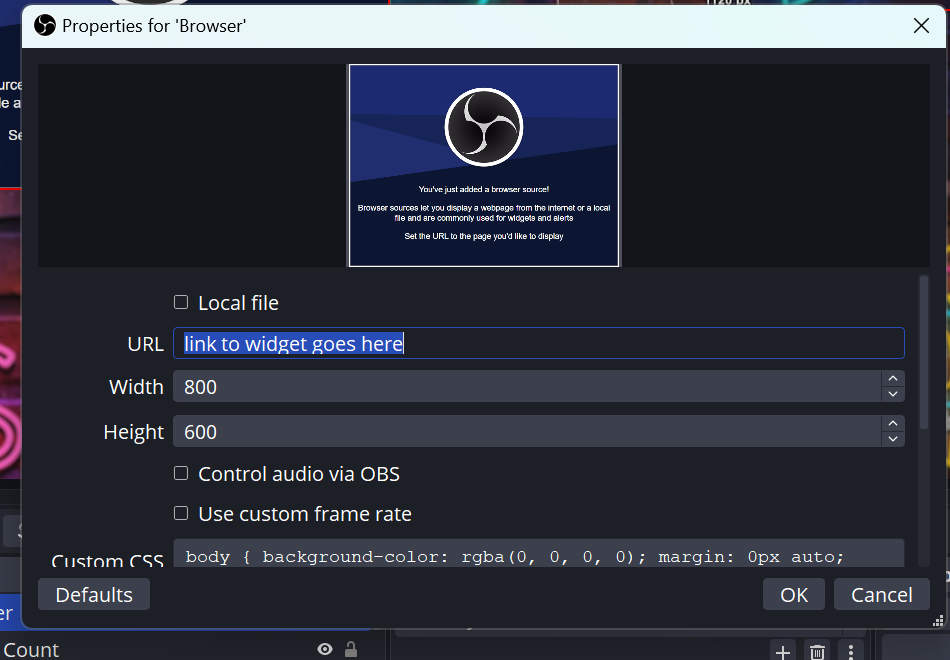
Step 4: Click OK to add the Stream Boss widget to your scene.
The Stream Boss widget is a fun, interactive way to encourage support while keeping viewers engaged. Add it to your stream to turn every tip, bit, and subscription into a moment your audience can rally around.
If you have any questions or comments, please let us know by contacting us or joining our Discord server.
