



 Ultra.

Note: Streamlabs Highlighter is now Replay! We updated the name and improved how you capture and edit gameplay. Replay now has auto record and a host of other features to make it even more effortless for capturing and sharing your favorite gaming moments. With auto-recording features and easy editing controls, you can turn a gaming session into shareable clips in minutes.
Jump Ahead
Quick Setup Guide
Step 1: Download and install Replay. Open the installer and then launch the app. Accept the Terms of Service and Privacy Policy and click Get Started.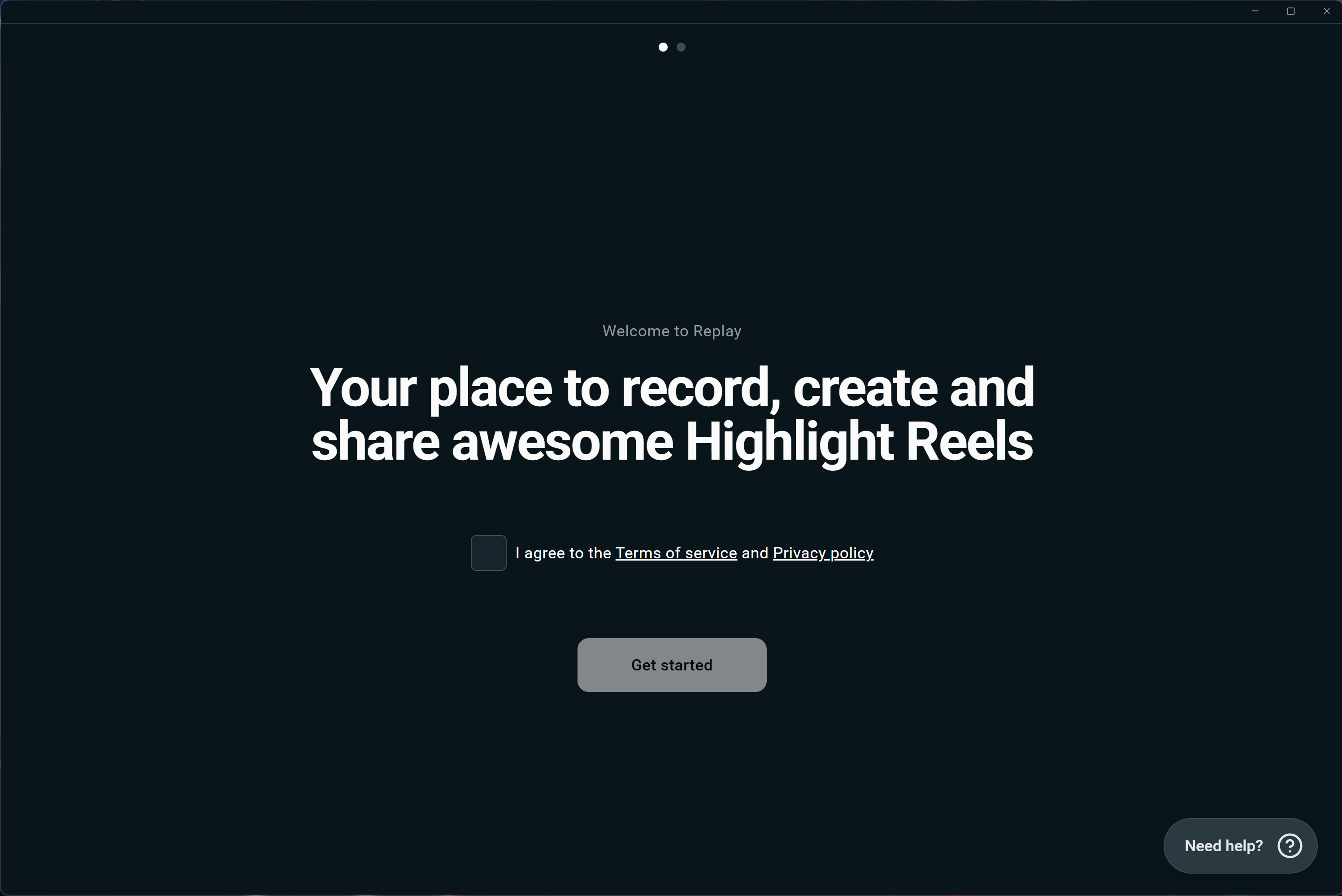
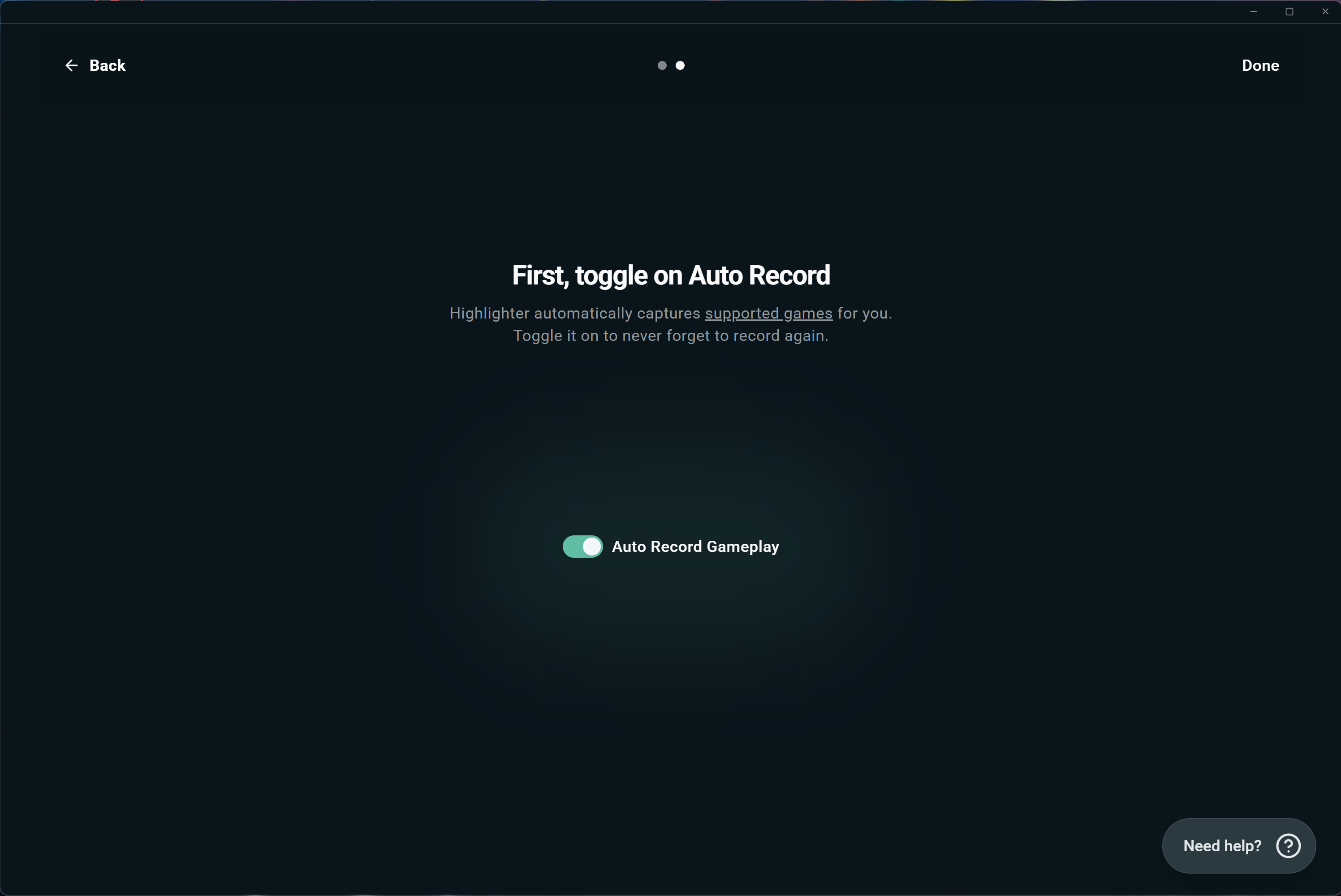
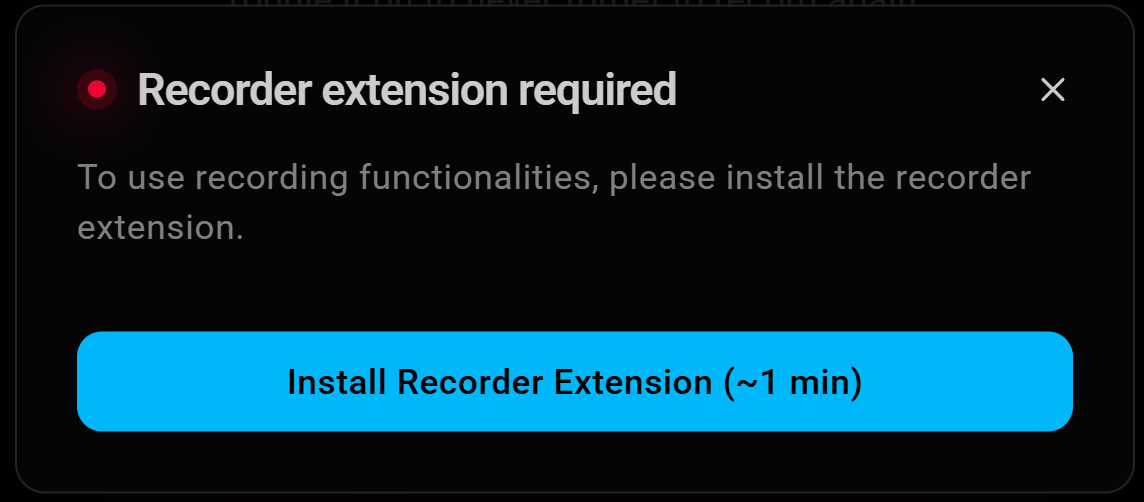
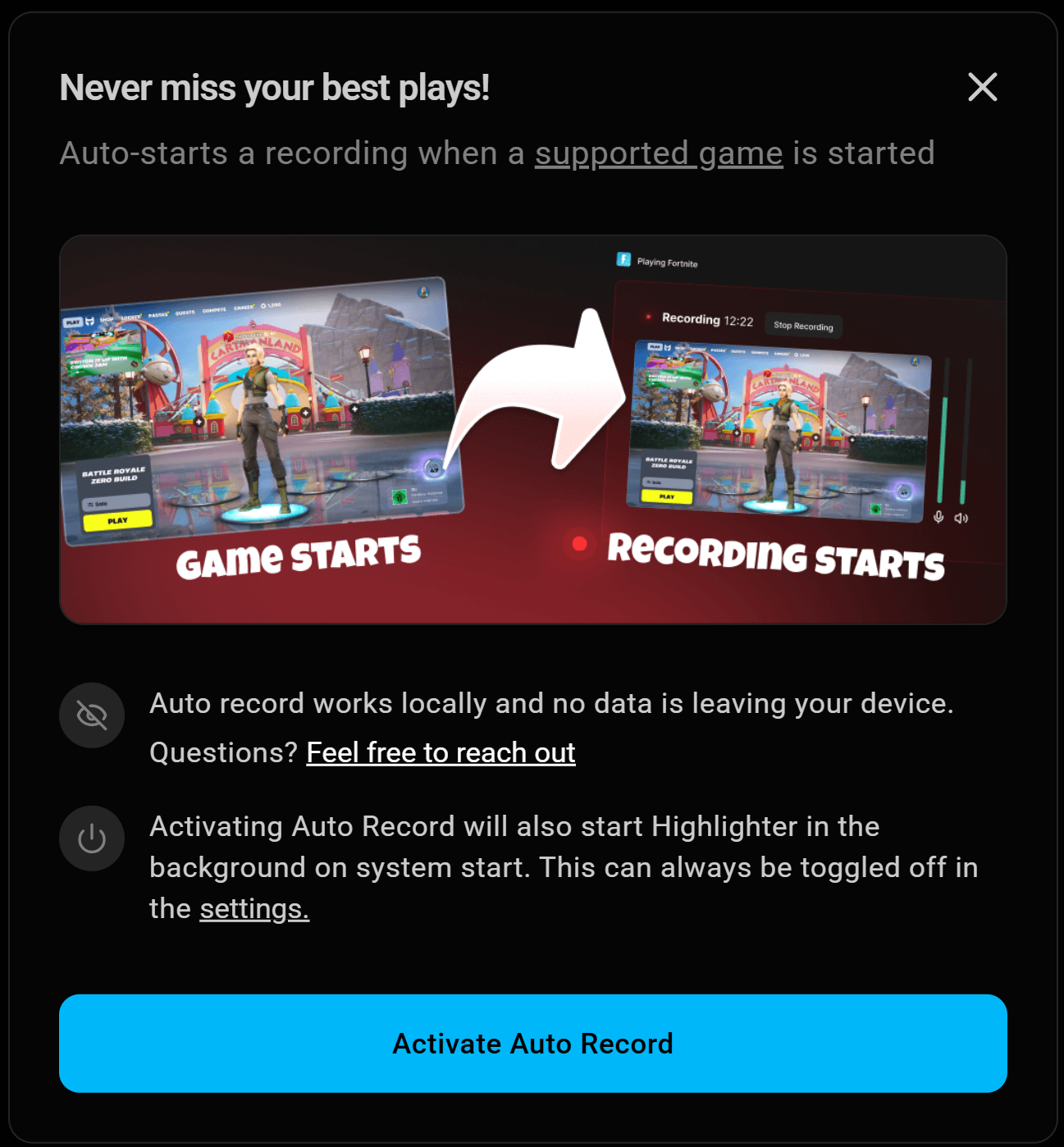
Step 2: Enable Auto Record by toggling it on. This allows for automatic capture of games that you start as long as they are supported by the app. If this is your first time using Replay, you will be prompted to add the Recorder Extension, which allows Replay to record your gameplay. Click Install, then on the next popup screen click Activate Auto Record.
Step 3: Now you have choices.
- Start playing a supported game and Replay will automatically record the session for you,
- Import existing clips you already have, or
- Record to start recording specific windows, audio and video.
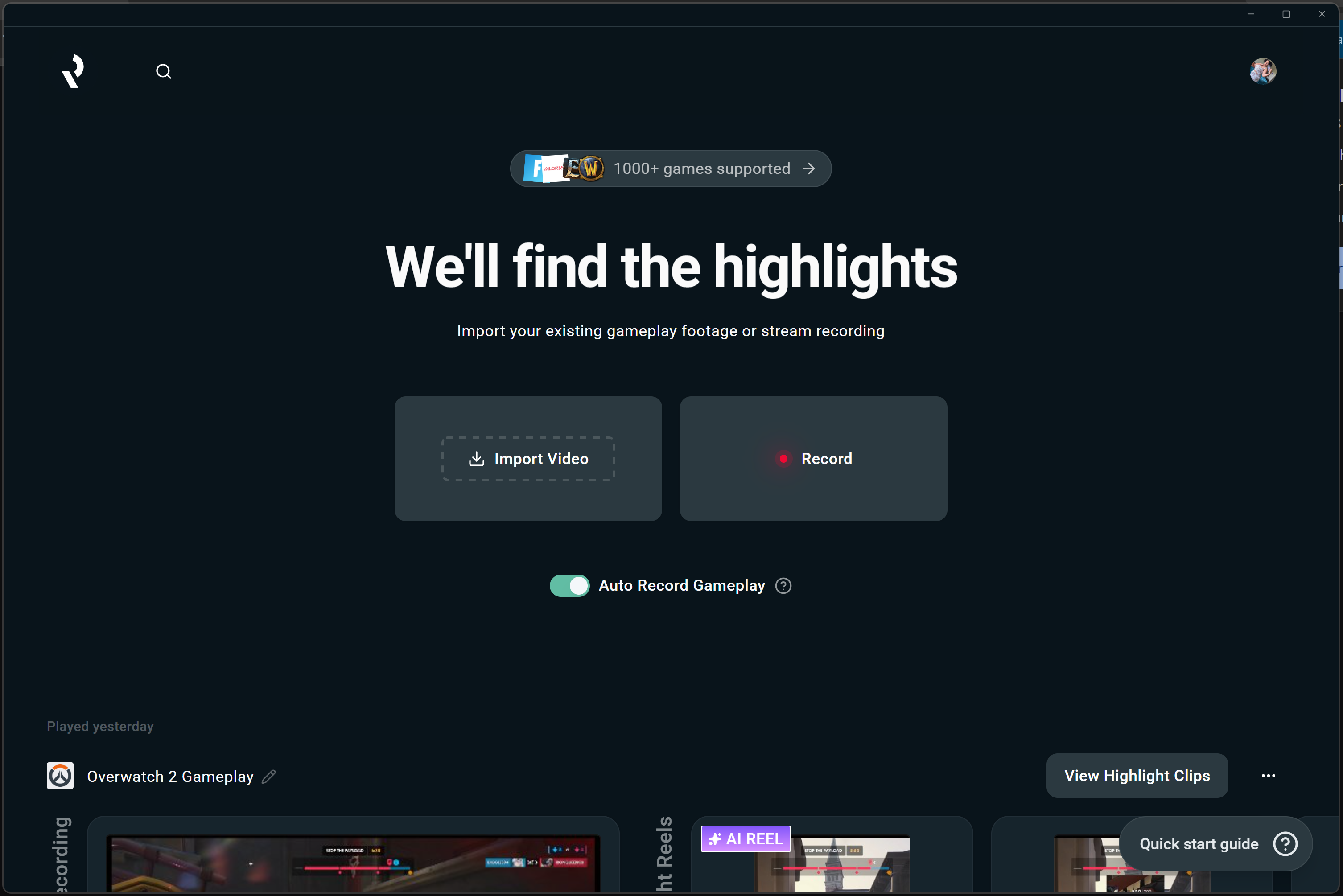
If you scroll down, you'll see your existing clips, sorted by game.
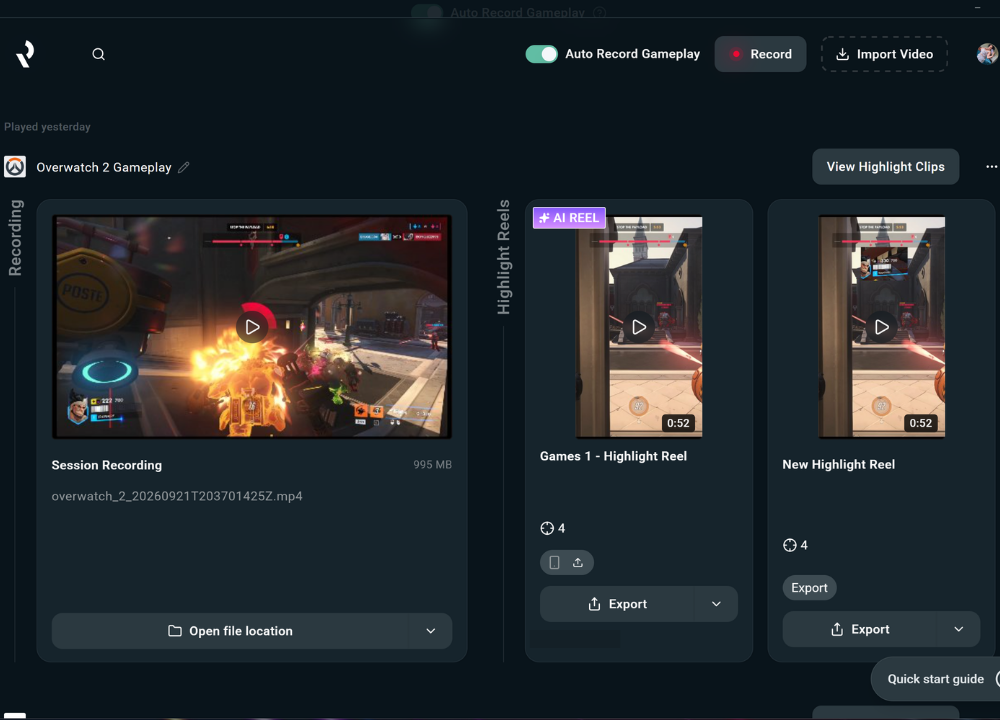
Importing clips: If you import clips, you'll see a popup where you can drop your clip, name them, choose what game events you want to pull highlights for, and choose whether or not you want general stream highlights to be pulled. If you toggle on Stream Highlights, it will pull any funny reactions or exciting moments that aren't necessarily gameplay-related.
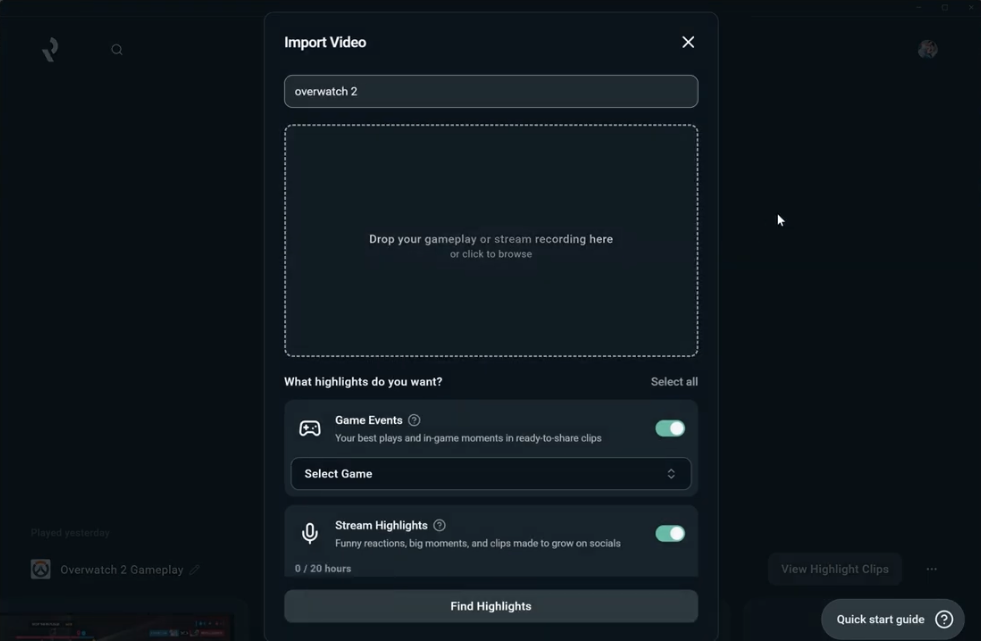
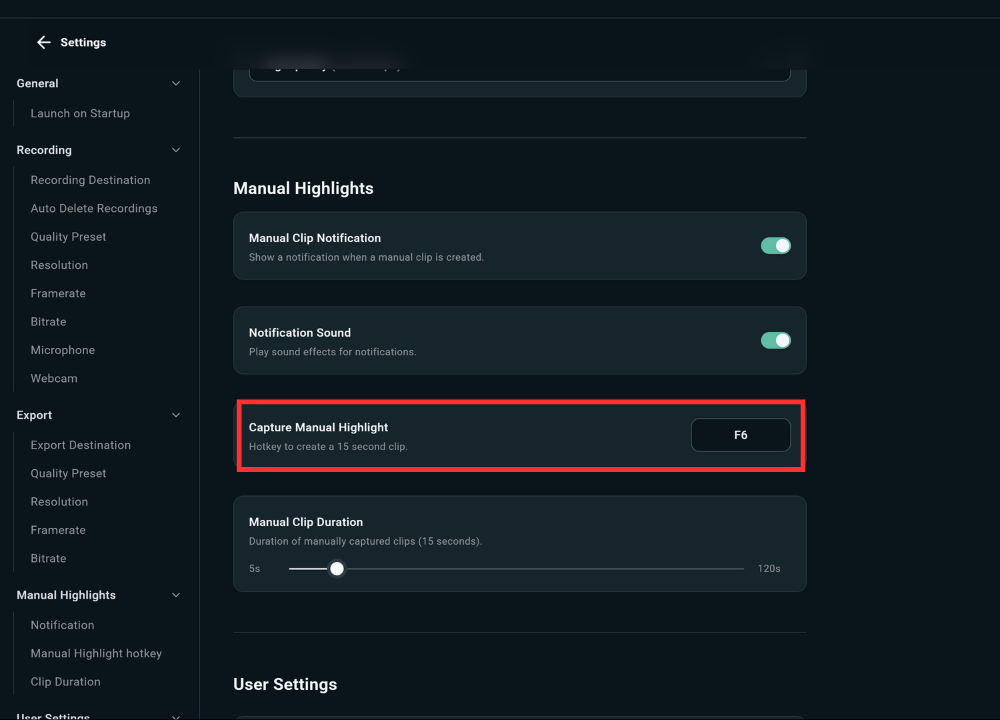
Recording: Once you click Record, you'll see a small recording window with a preview of what it will look like, as well as a running counter. Below the preview window, you'll see your hotkey for starting a manual 15 second clip, and if you want to change that hotkey you can click the Customize Hotkey button to the right.
It will open up your Settings, where you can change your hotkey.
Editing
Step 4: Once you're done importing, recording, or gaming, head back into Replay and you'll see your latest clips, sorted by game. Click into one of them to begin editing.
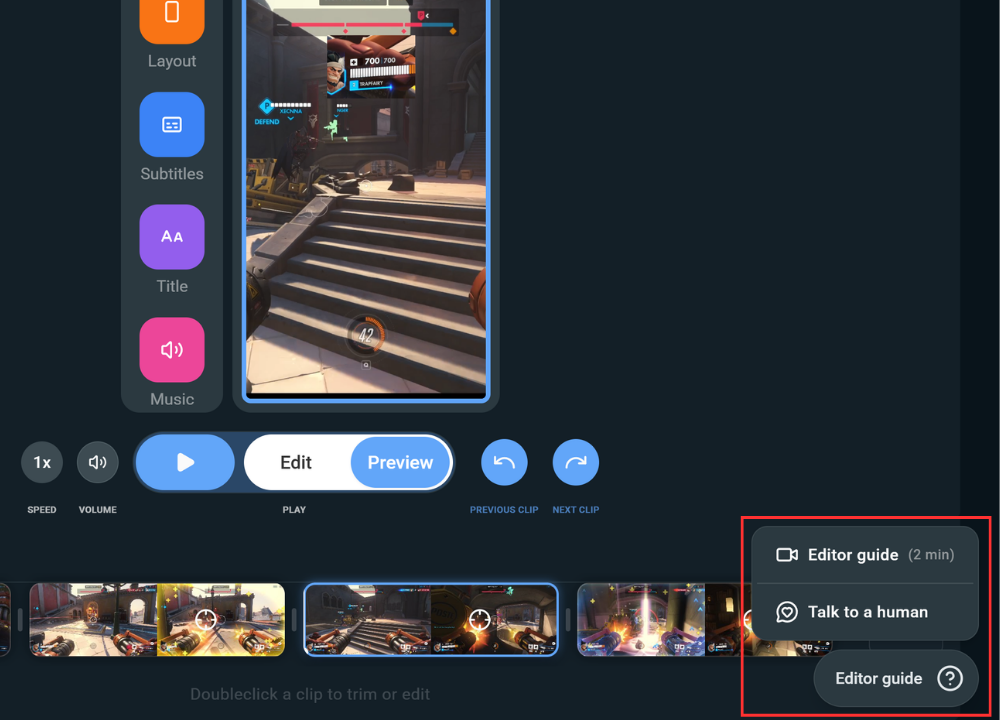
In the edit window you'll be able to trim, rearrange, add subtitles, change the layout, add music and more.
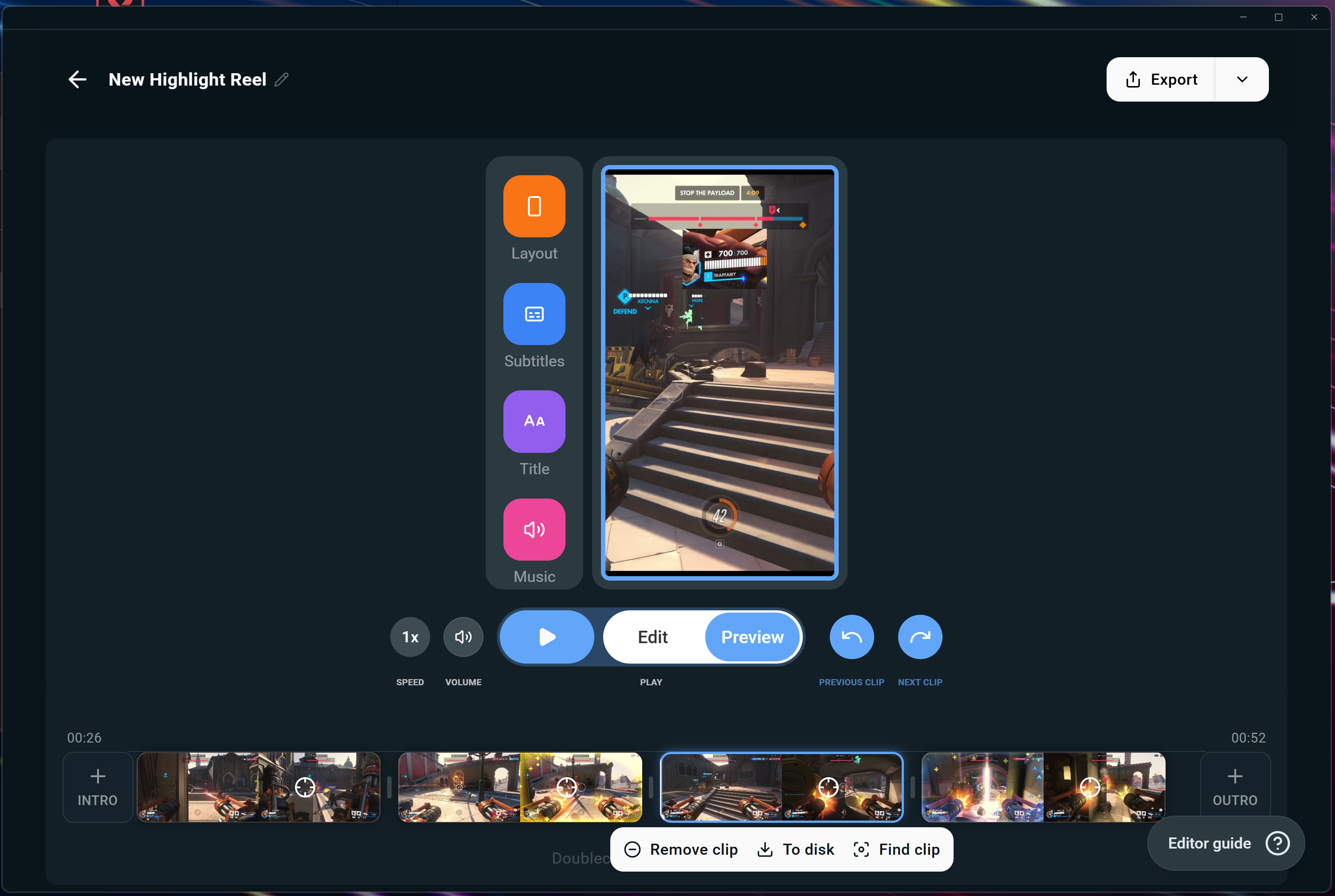
You'll also be able to see your gameplay events at-a-glance in your reels. They'll be marked by icons that you can hover over to see where you got wins, eliminations, kill streaks, etc.
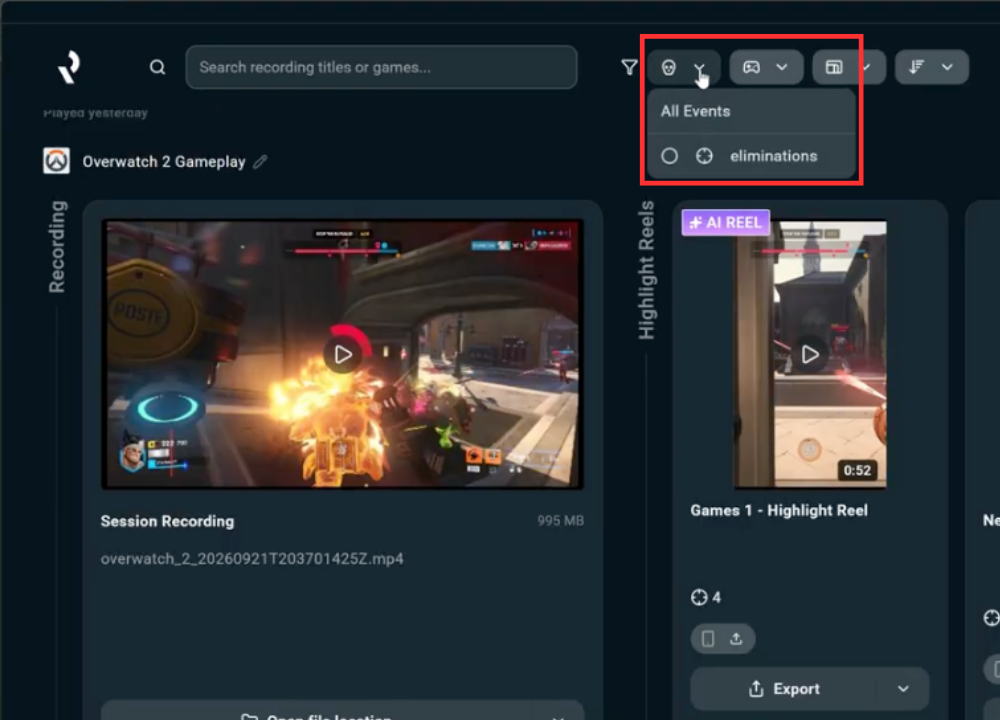
Once you have a few clips, you can search in Replay using the top search bar and find all of the clips with a particular gameplay action (eliminations, kills, wins, etc.) that you want to pull into a highlight reel.
Step 5: Export your favorite highlight reel to the destination of your choice. You can export to your computer, YouTube, Discord or even via phone.
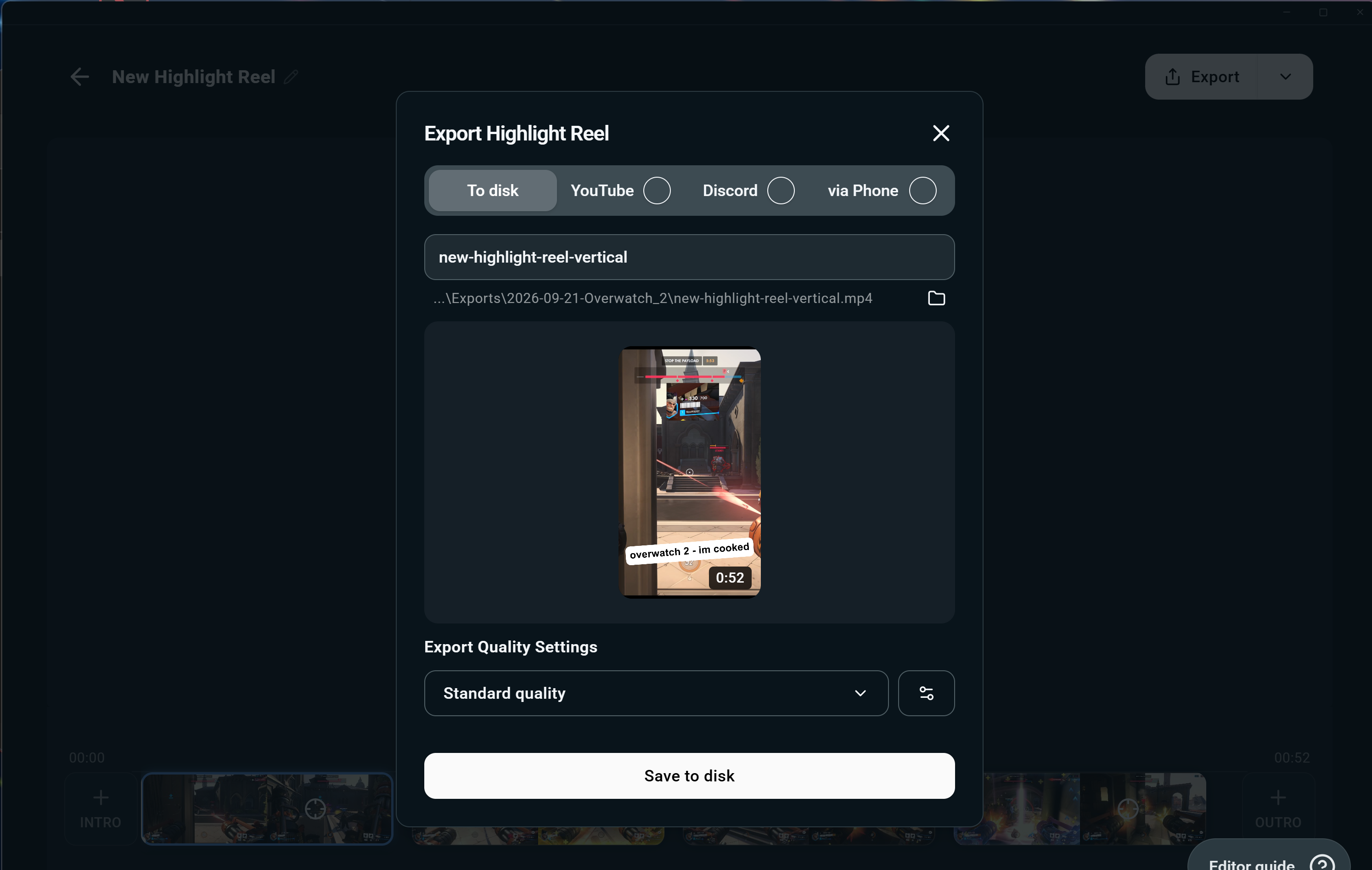
You can choose your export quality settings here as well.
FAQs
Is Replay free?
Yes!
Can I use a Mac or PC to run Replay?
Right now Replay is only supported on Windows operating systems.
What games are supported?
Our current full list of supported games is:
- 7 Days to Die
- Apex Legends
- ARC Raiders
- Arena Breakout: Infinite
- Battlefield 6
- Bloodborne
- Call of Duty: Black Ops 6
- Call of Duty: Black Ops 7
- Call of Duty: Modern Warfare 4
- Call of Duty: Warzone
- Counter-Strike 2
- Dark Souls Remastered
- Dark Souls 2
- Dark Souls 3
- DayZ
- Dead by Daylight
- Deadlock
- Delta Force
- Dota 2
- EA Sports FC 26
- Elden Ring
- Enshrouded
- Escape From Tarkov
- F1® 25
- Fortnite
- Forza Horizon 6
- Halo Infinite
- Helldivers 2
- Heroes of the Storm
- Hunt: Showdown 1896
- League of Legends
- Left 4 Dead 2
- Madden NFL 27
- Marathon
- Marvel Rivals
- Minecraft
- Mortal Shell 2
- NBA 2K26 + 2K27
- Overwatch 2
- Palworld
- Path of Exile 2
- PUBG: BATTLEGROUNDS
- Rocket League
- Rust
- Sekiro: Shadows Die Twice
- Teamfight Tactics
- Tom Clancy's Rainbow Six Siege X
- Valheim
- Valorant
- War Thunder
- Wardogs
- World of Warcraft: Solo Shuffle
We're always working to add more titles!
Where can I get help?
You can get help 2 different ways:
- By clicking the Quick start guide or Editing guide in the lower right hand corner of the app, where you'll find a tutorial video and a button to "Talk to a human" if you'd like
- By contacting our customer support team
By repurposing your gaming and streaming highlights, you can grow your audience more quickly and keep them engaged between streams. We can't wait to see what you create with Replay!