


 Ultra.

Last year, Patreon officially launched its own native live streaming feature, giving creators a new way to connect directly with their community without relying on third-party streaming platforms like YouTube, TikTok or Twitch. Starting today, creators can now stream to Patreon using Streamlabs Desktop and Streamlabs Plugin for OBS, which gives you features to customize your viewers live streaming experience with Dual Output, Patreon-curated overlays, and all of the ease of use you love about streaming from Desktop or our Plugin for OBS.
In this guide, we'll walk you through how to use Streamlabs Desktop or Streamlabs Plugin for OBS to live stream directly to Patreon using the new native integration.
What You Need:
- A Patreon creator account with paid membership tiers
- Streamlabs Desktop or Streamlabs Plugin for OBS installed
- A stable internet connection
- A webcam and microphone (built-in or external)
- Any overlays you want to use for stream
Jump Ahead:
- Connect Your Patreon Account in Streamlabs Dashboard
- Desktop Setup
- Plugin for OBS Setup
- Unlink Your Account
Connect Your Patreon Account in Streamlabs Dashboard
There are multiple ways you can connect your Patreon account in Streamlabs. We’ll start by telling you how to connect via Dashboard, which will allow you to easily go-live from both Streamlabs Plugin for OBS and Desktop after setup.
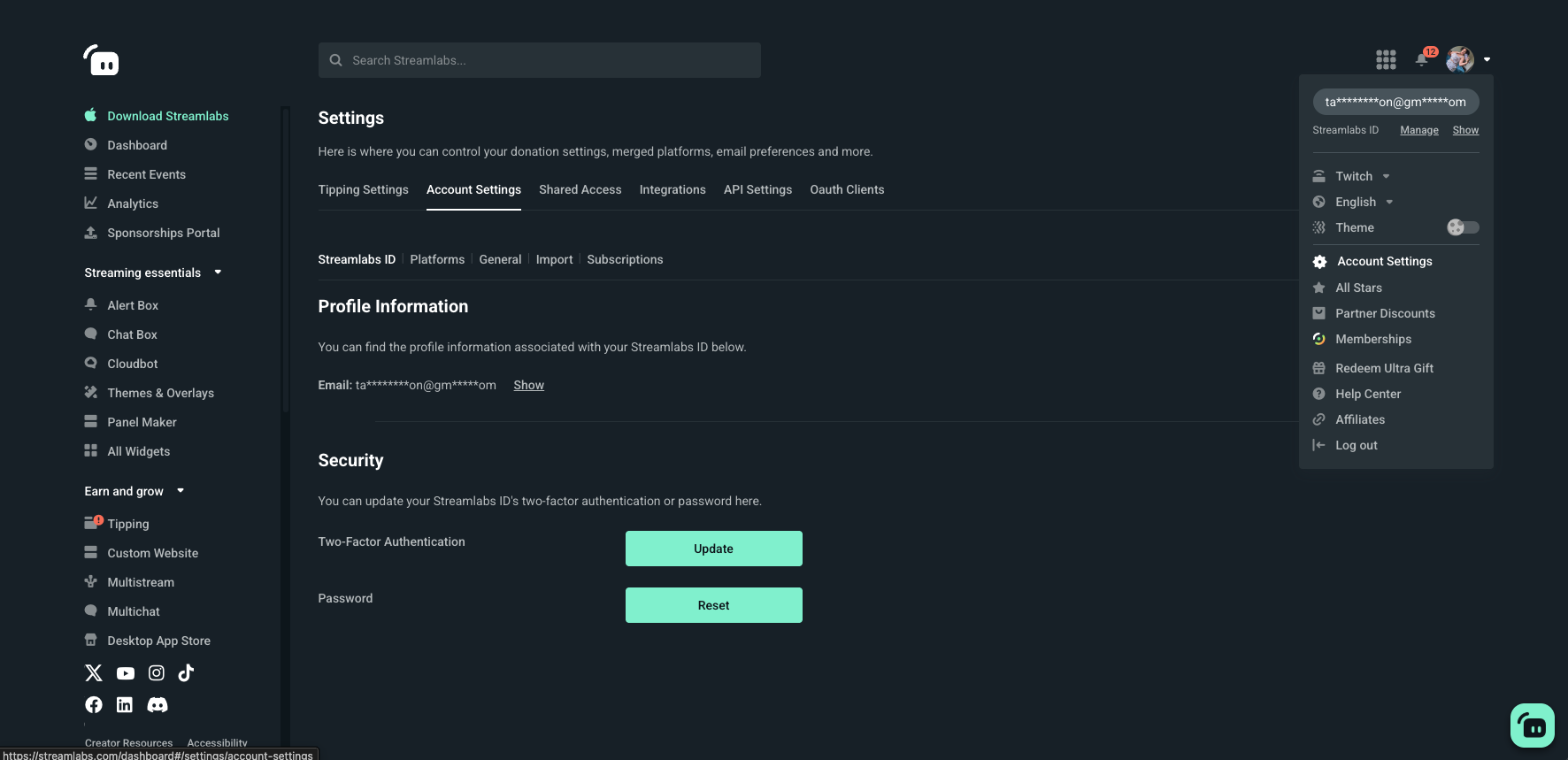
Step 1: Login to your account and head to your Streamlabs Dashboard. Click your profile image in the top right corner and head to Account Settings.
Step 2: Go to the Platforms tab, where you will see all of your connected Platforms, as well as additional Platforms you are able to connect to your account. Scroll until you see Patreon.
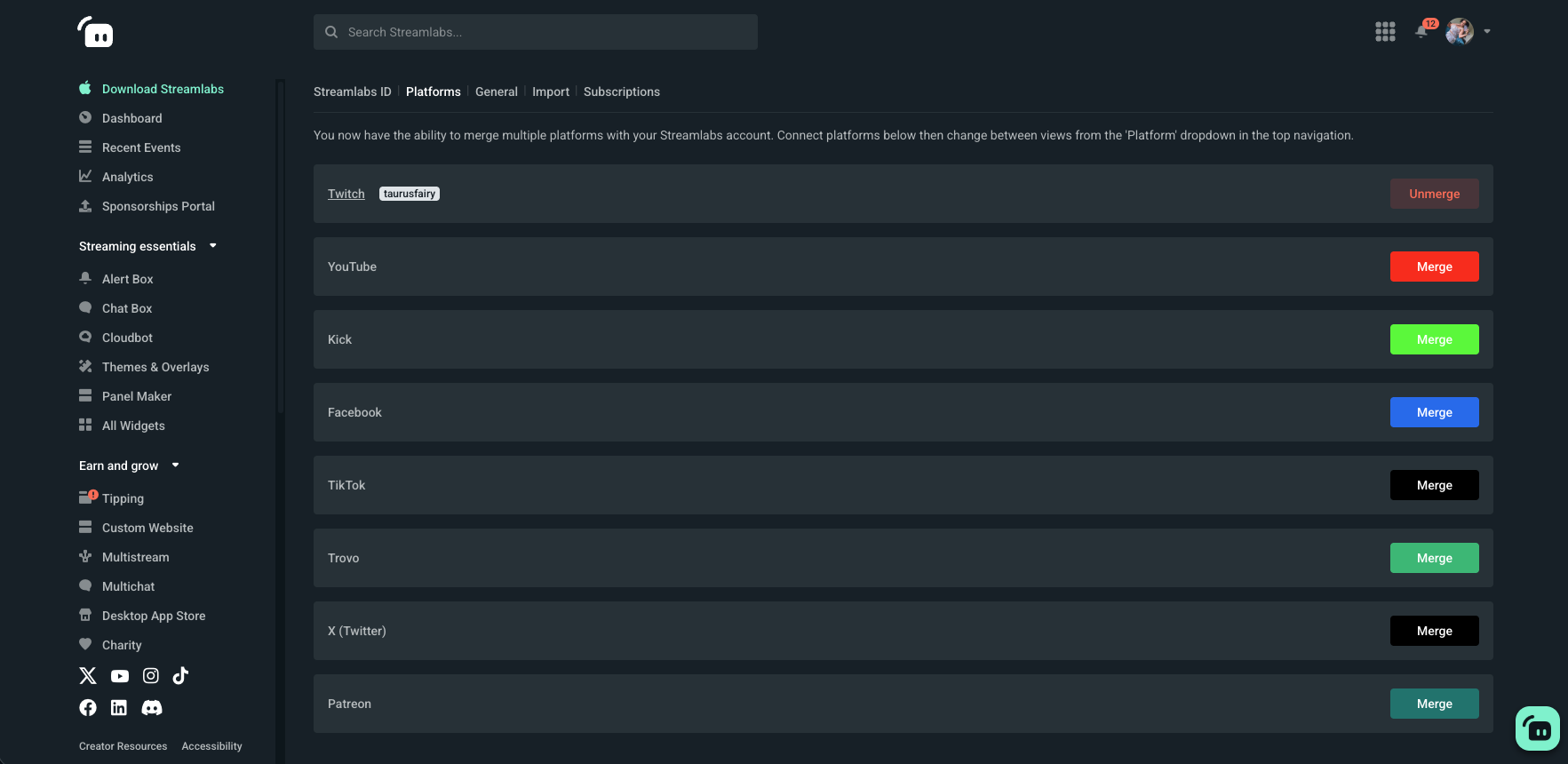

Step 3: Click Merge next to Patreon. You’ll be redirected to authorize your Patreon account, and then once you click Accept, you’ll see it appear in your platforms now as linked.
Now, when you head into either Desktop or Plugin for OBS, your Patreon account should appear as a destination that you can toggle on.
Connect Your Patreon Account in Streamlabs Desktop
Step 1: Open Streamlabs Desktop and go to Stream Settings in the bottom left navigation bar.
Step 2: Scroll until you see Patreon as a listed destination. Click Connect and you’ll be redirected to authorize your Patreon account.
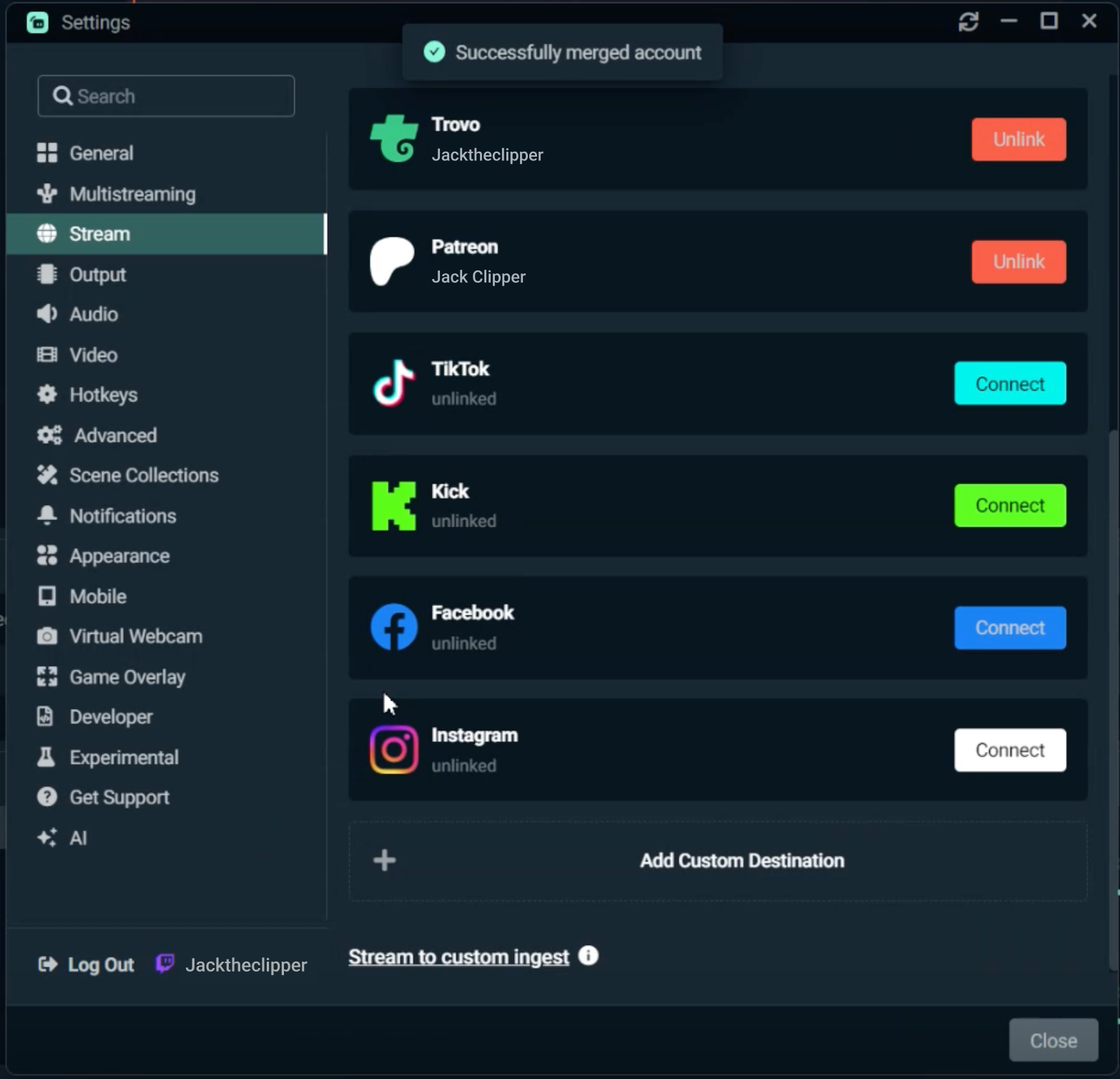
Click Allow and you’ll be redirected back into Desktop, where you will see a small notification confirming you’ve successfully merged your account, and you’ll see your Patreon account listed as one of your streaming destinations.
Go-Live to Patreon from Streamlabs Desktop
Once you’ve connected your account, you can go-live to Patreon directly from Streamlabs Desktop.
Step 1: Hit Go-Live. You will see Patreon as one of your connected destinations. Make sure you toggle it on.
a
Step 2: Input your title, description, and choose which Audience you’d like to have access to your stream. You can choose any tier and combination of audiences you would like. Review all of your stream information once more, then click Confirm & Go-Live.
You can also bring your stream to life with these Patreon-curated overlays that will enhance your stream and bring your brand to life.
Step 3: Double-check that your Patreon stream event is active and visible to your audience.
Step 4: End your stream and post the replay. Once your stream is finished, you can choose to publish a replay for your audience who may have missed it live. Replays will stay on your Patreon page based on your settings, giving your supporters another way to stay connected.
Multistream to Patreon from Desktop
You can multistream to Patreon plus any additional platform of your choice as long as you are subscribed to Streamlabs Ultra. Setup is easy and takes just a couple steps:
Step 1: After setting up your stream to your liking, click Go Live and you will see a list of your connected destinations. Toggle on Patreon and any additional platforms you’d like to multistream to.
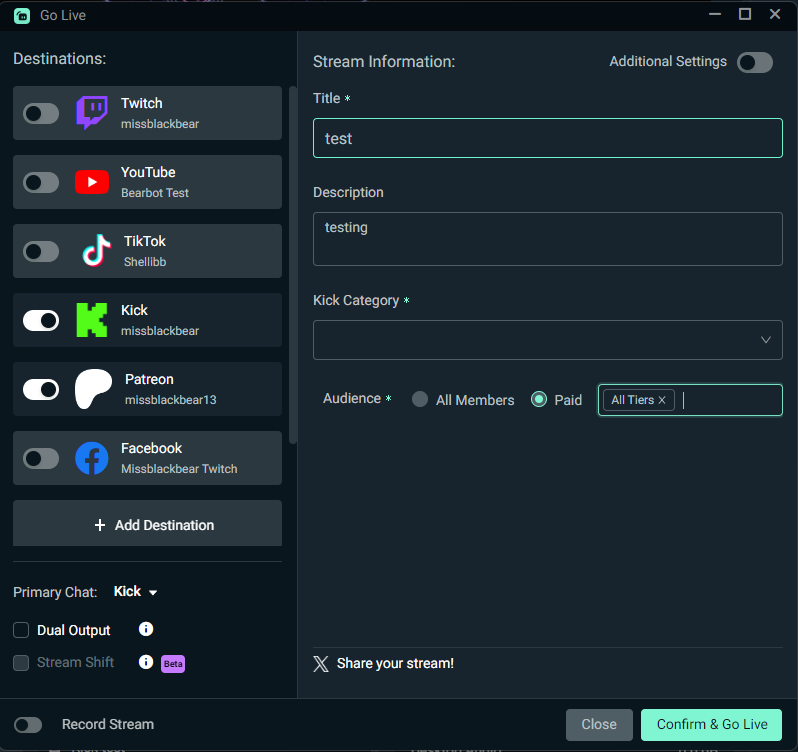
Step 2: Fill out your title and description for the stream. Depending on which platforms you choose, you may have to choose your streaming category as well. Make sure to scroll down to choose your audience for your Patreon stream. You can choose "All Members" to stream to everyone (including free if enabled), or select paid and choose any combination of paid tiers from the dropdown.
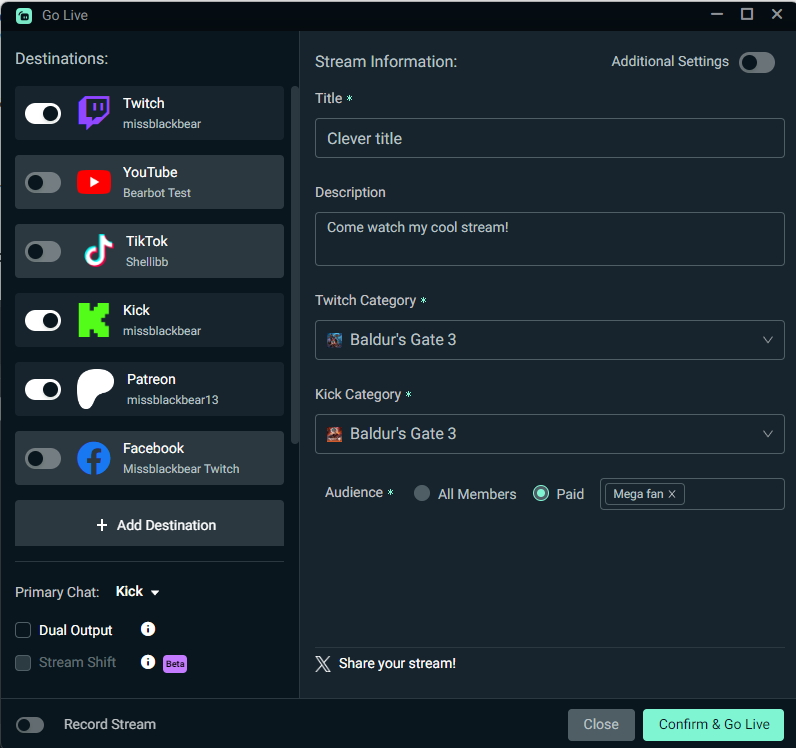
Step 3: Don’t forget to choose which primary chat you’d like to see by choosing the platform in the bottom left of the Go Live window. Patreon chat is not currently supported within Desktop, so make sure to choose another platform you are multistreaming to in order to see your chat populate.
For more information about Streamlabs Multistream, check out our ultimate guide to multistreaming here.
Step 4: Confirm all of your stream info is correct, and click Confirm & Go Live!
Enable Dual Output
You can enable Dual Output to stream in both horizontal and vertical orientations while multistreaming to Patreon.
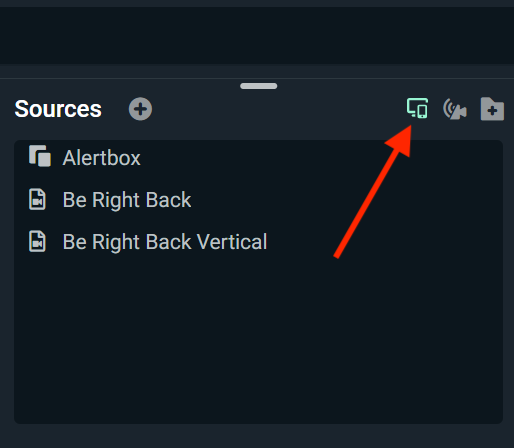
Step 1: Toggle on the Dual Output button located in the top of the Sources panel in your Streamlabs Desktop Editor, or within the Go Live window. From there, you’ll be able to optimize both your horizontal and vertical stream layouts.
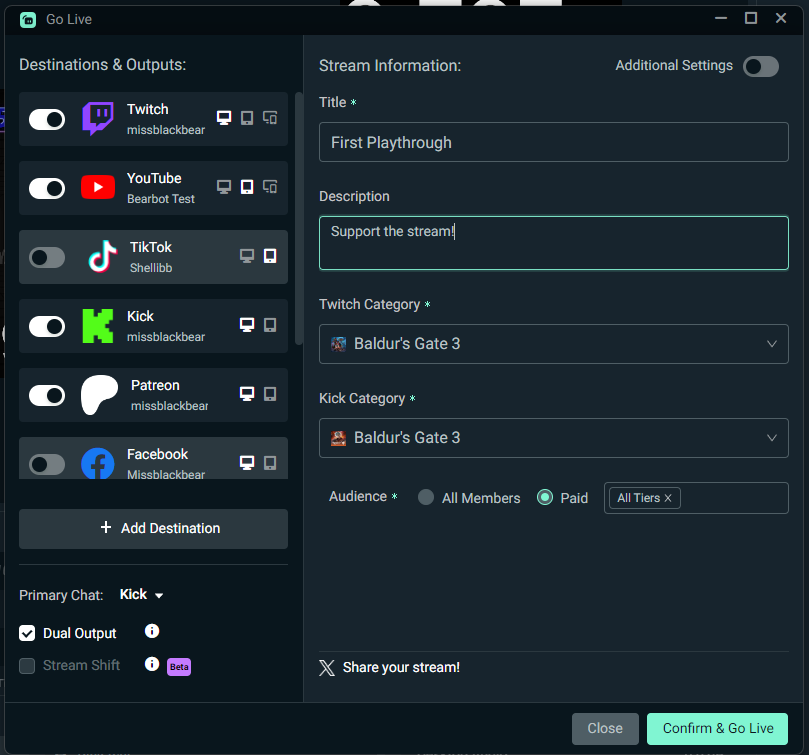
Step 2: When you hit Go Live, you’ll see horizontal and vertical icons next to each of your connected platforms, and you can choose which layout you’d like to send to each platform. Click either horizontal or vertical view for each platform you are streaming to, input your title, description, choose your Patreon audience, and then click Confirm & Go Live.
Connect Your Patreon Account from Streamlabs Plugin for OBS
You can connect your account via your Streamlabs Dashboard, and your Patreon account will be accessible within the Streamlabs Plugin for OBS. You can find those instructions above.
You can also connect via the Go Live window in Plugin.
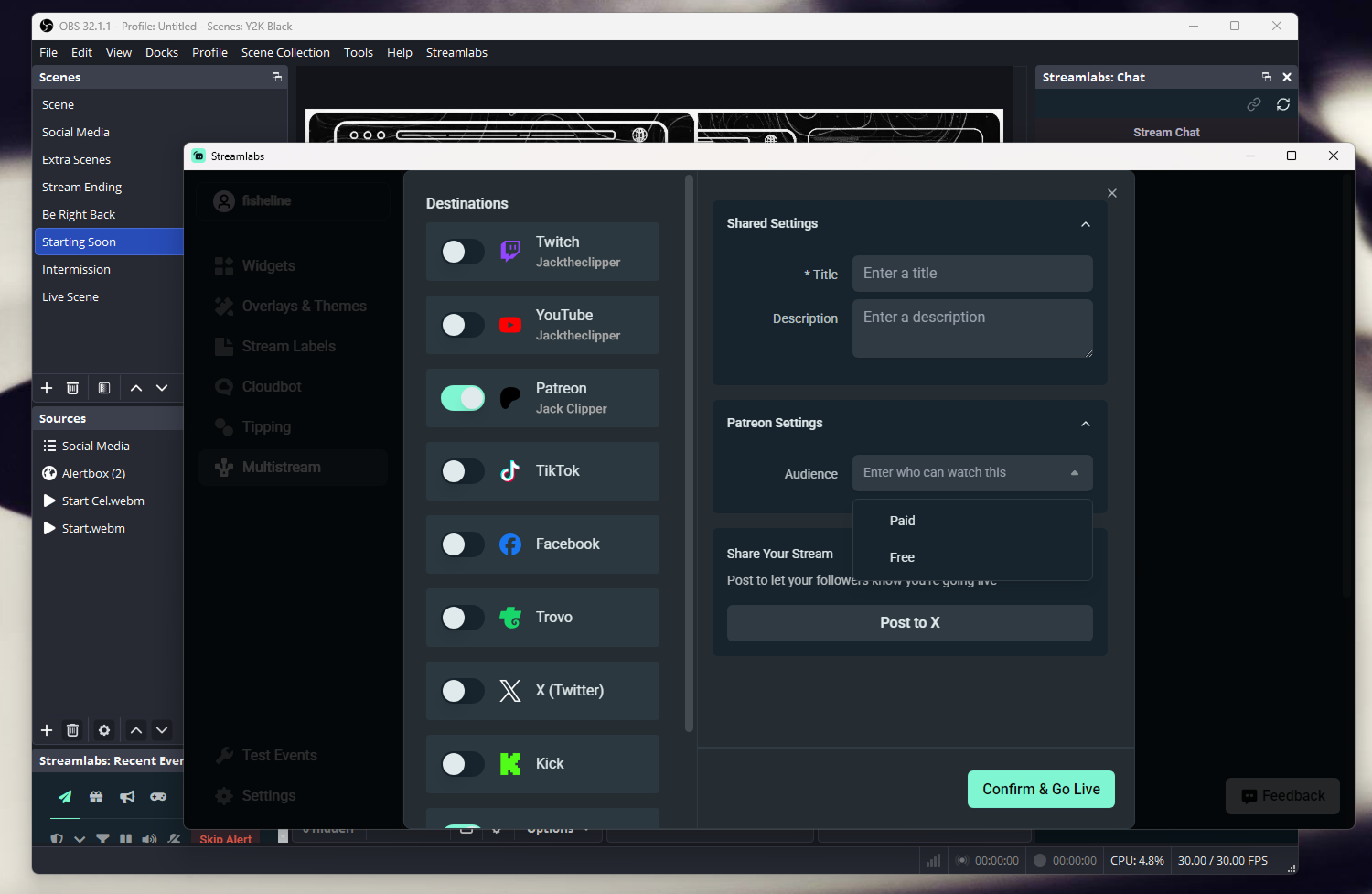
Step 1: Setup your stream and then click the Start Streaming button within your OBS editor. The plugin window will popup and from there you can see your list of destinations. Toggle on Patreon and you’ll be redirected to authorize your account.
Step 2: After you authorize, head back into the Go Live window, set your title, description, and audience and click Confirm & Go Live to start streaming!
Multistream to Patreon from Streamlabs Plugin for OBS
Connect via multistream
Step 1: Go into your Multistream Settings in the left navigation bar. You’ll see your list of connected platforms. Toggle on Patreon as a destination, along with your other preferred platforms.
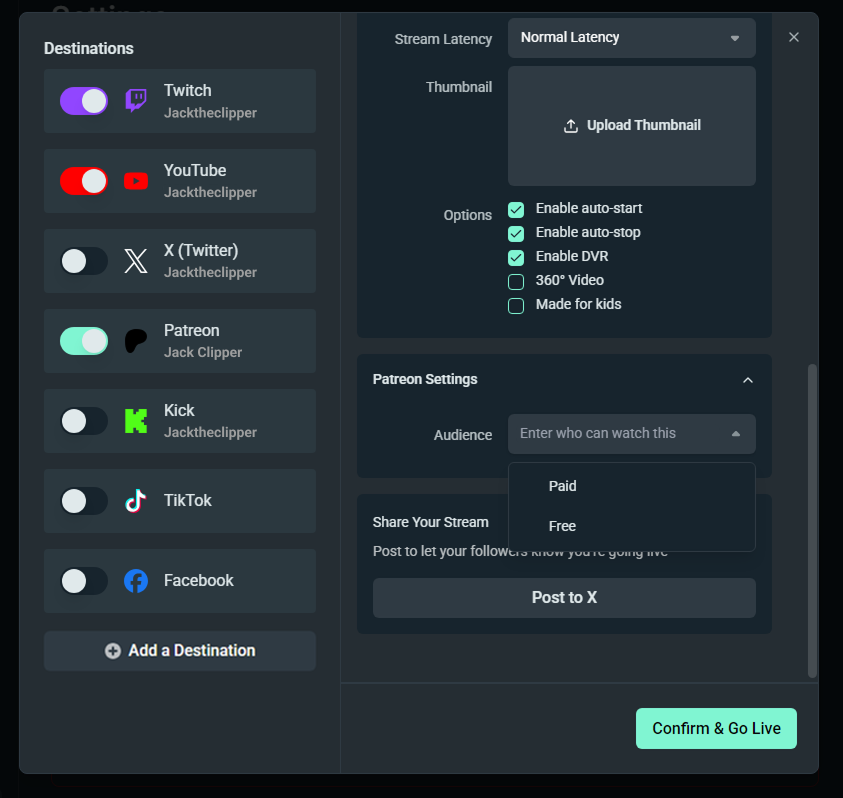
Step 2: Enter your title, description and choose your audience. After you confirm all of your streaming info, click Confirm & Go Live to start your stream!
Unlink Your Patreon Account
You can unlink your account in two ways. Either through the dashboard or directly within Streamlabs Desktop.
Through Dashboard
Step 1: Navigate back into your Account Settings in Dashboard. Go to the Platforms tab, and you will see your Patreon account linked. Simply click Unmerge.
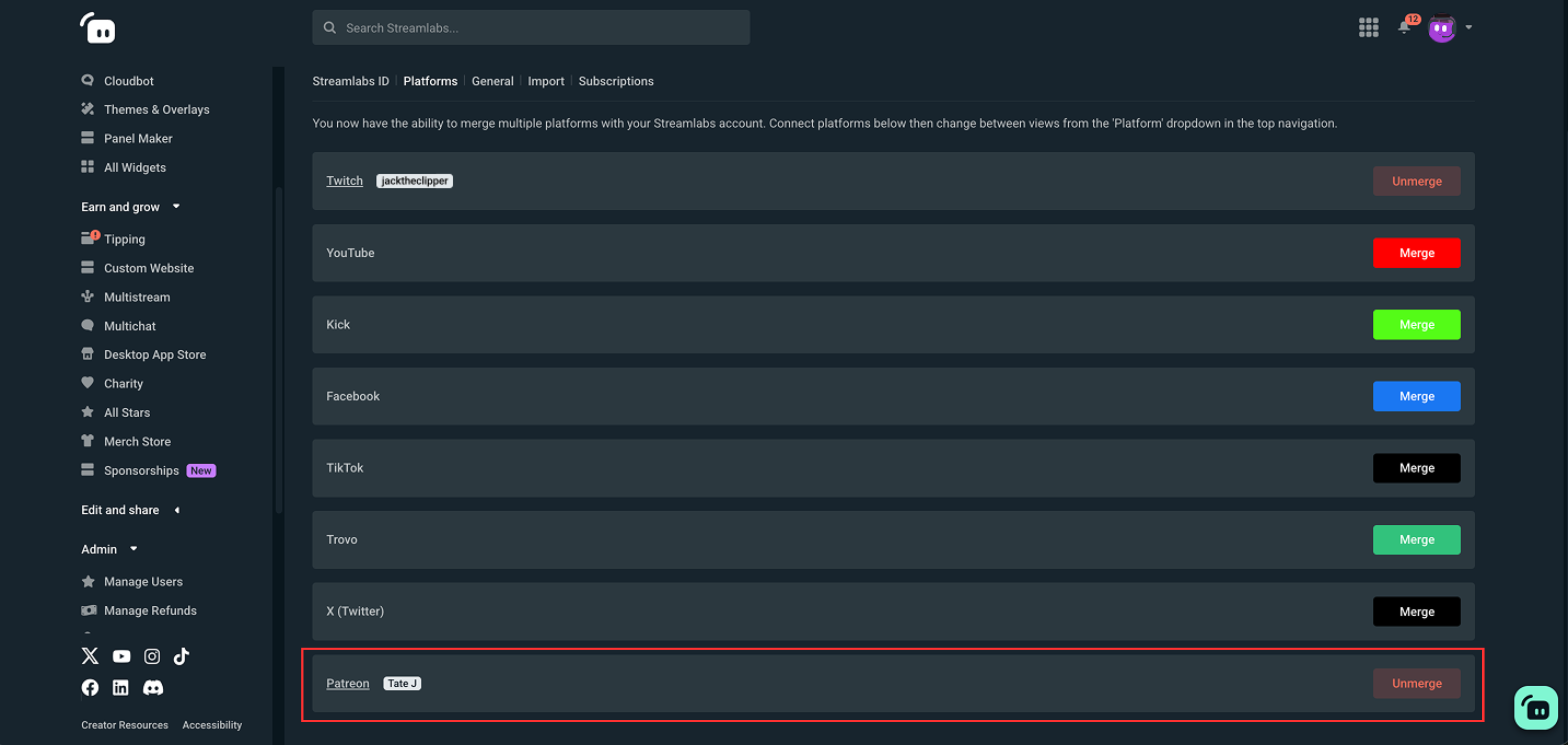
When you unmerge the platform from Dashboard, your account will be unlinked in Streamlabs Desktop and Plugin for OBS as well.
Patreon is a powerful platform that strengthens your connection to your audience directly, giving you more opportunities to strengthen your community, monetize your passion, and expand your reach. We’re excited to see all of the magic you create by using Streamlabs Desktop or the Plugin for OBS to stream to Patreon!