


 Ultra subscription.]

The Account Settings section in your Streamlabs Dashboard serves as your central hub for managing most things related to your Streamlabs account. Here, you can update personal information, enable security features, and link or merge platforms to create a seamless streaming experience.
Jump Ahead:
Streamlabs ID

In the Streamlabs ID tab, you’ll find your profile information and options to update your password. For added protection, it’s recommended to enable Two-Factor Authentication (2FA) to safeguard your account from unauthorized access.
How to Update Your Streamlabs ID Email Address
- Visit https://id.stream labs.com/security/email and log in to your existing account using your Streamlabs ID and password.
.png)
.png)
- Input the new email address you want to use as your Streamlabs ID.
.png)
- Verify the change using the code sent to your new email address.
.png)
How to Reset your Streamlabs ID Password
If you’ve forgotten your Streamlabs ID password or need to update it for security reasons, you can reset it in a few steps.
Before you begin
Make sure you have access to the email address associated with your Streamlabs ID. If you usually sign in using a third-party account like Twitch, YouTube, or Facebook, you don't have a separate Streamlabs ID password. In that case, you must reset your password through that specific platform’s settings.
To Reset Your Password
- Go to the Streamlabs sign-in page.
- On the sign-in screen, select Forgot Passwor
- Enter the email address associated with your Streamlabs ID, and then select Request Reset Email.
- Check your email inbox for a message from Streamlabs. If you don’t see the message within a few minutes, check your junk or spam folder.
- On the next page, do the following:
- Enter in the 6-8 digit code from the email sent from Streamlabs
- Enter your 2FA code (if applicable)
- Create a new password
Note: For a strong password, use at least eight characters and a combination of uppercase letters, lowercase letters, numbers, and symbols. - Select Change Password.
You can now sign in to your Streamlabs account using your new credentials.
Troubleshooting
- You didn't receive the email: Ensure you entered the email address correctly. If you still don't receive the email, add streamlabs.com to your safe senders list and try again.
- You signed in with a social account: If you created your account using Twitch or Google, you won't receive a password reset email from Streamlabs. You must follow the password recovery process for that specific service.
Keep Your Account Secure
After you reset your password, we recommend enabling two-factor authentication (2FA) in your Account Settings. This adds an extra layer of security by requiring a code from your mobile device when you sign in.
If you have any questions, don’t hesitate to reach out to our support team.
How to Set Up and Manage Two-factor Authentication (2FA) for Streamlabs ID
Two-factor authentication (2FA) provides an additional layer of security for your Streamlabs ID. When 2FA is enabled, you must provide a second form of verification—typically a code generated by an authenticator app—before you can sign in to your account.
IMPORTANT: For security reasons, Streamlabs cannot restore access to accounts with 2FA enabled if you lose your authentication credentials or access to your recovery methods.
Find Your 2FA Code
Streamlabs ID uses time-based one-time password (TOTP) verification.
- Authenticator apps: 2FA codes are generated via mobile apps such as Google Authenticator, Microsoft Authenticator, or Authy.
- Method: Streamlabs does not send authentication codes via text message (SMS) or email.
- Backup codes: If you lose access to your mobile device, you can use the backup codes generated during the initial setup. These are typically provided as a text file for you to download and save.
Set Up Two-factor Authentication
To enable 2FA on your account:
- Sign in to your Streamlabs Dashboard.
- Go to Settings > Account Settings.
- Select Streamlabs ID Settings.
- Locate Two-Factor Authentication and select Update.
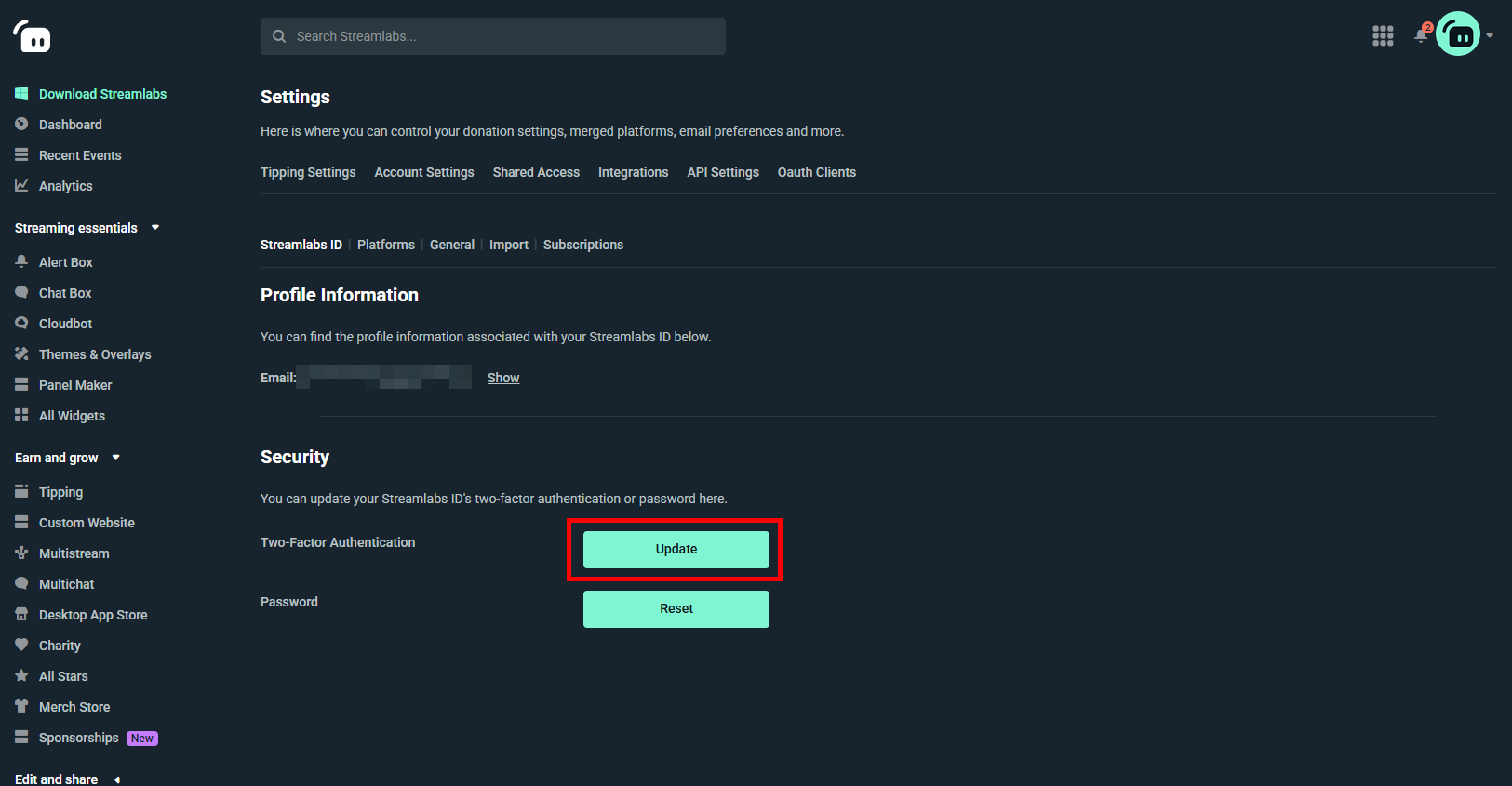
- Use your authenticator app to scan the QR code displayed on the screen.
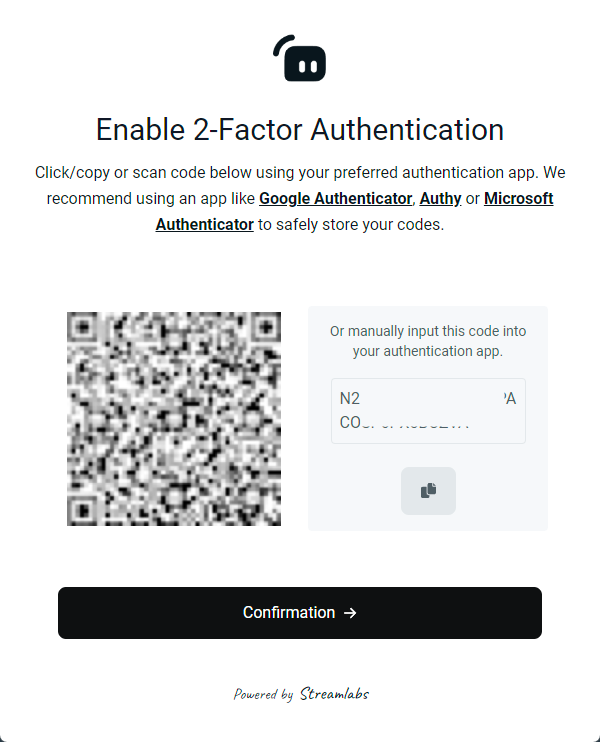
- Enter the verification code from your app to confirm the setup.
- Download your backup recovery codes. These codes are only provided once during this process. Store them in a secure, accessible location.
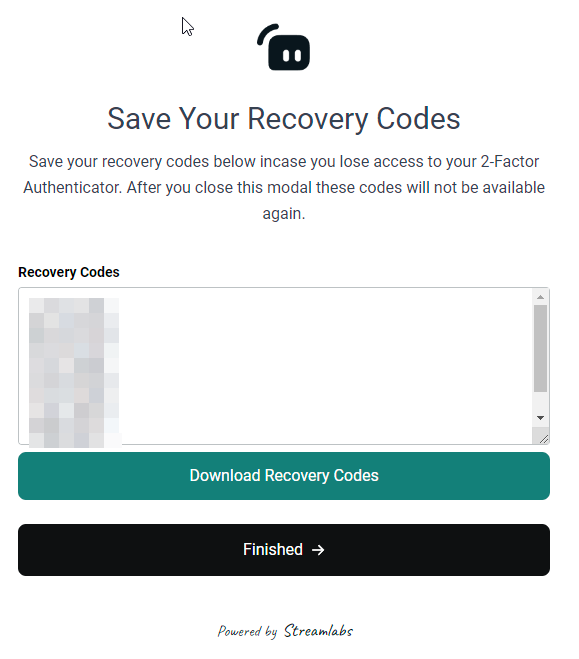
Reset or remove two-factor authentication
If you have access to your account but need to change your 2FA device, or if you are using backup codes to regain access, follow these steps to reset the service:
- Go to the Streamlabs ID Settings page.
- Next to Two-Factor Authentication, select Update.
- When prompted, enter your current 2FA code or one of your 8-digit backup recovery codes.
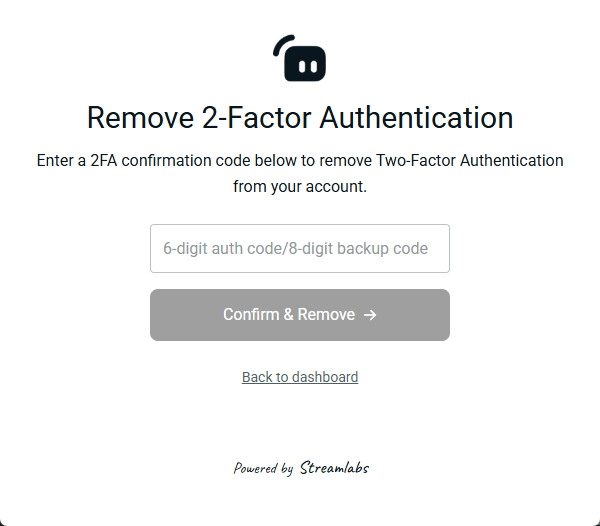
- After 2FA is removed, the page will refresh. Select Update or Add Two-Factor Authentication to begin the setup process again.
- Scan the new QR code with your authenticator app (such as Authy or Google Authenticator).
- Enter the new code from your app to verify the configuration.
- Save your new backup recovery codes. You cannot retrieve these codes later without resetting 2FA again.
Troubleshooting
- Lost authenticator access: If you cannot access your mobile authenticator app, locate the text file containing your backup codes on your computer or mobile device. Enter one of these 8-digit codes in the 2FA field to sign in.
- Alternative sign-in methods: If you do not have your 2FA codes, you may still be able to sign in to your account through a connected platform, such as Twitch, YouTube, or Facebook, provided those accounts were previously linked to your Streamlabs ID.
- Missing backup codes: If you lose both your mobile device and your backup codes, you will be permanently locked out of the account. Streamlabs support agents cannot bypass 2FA requirements to grant access.
Platforms

One of the most powerful features of Streamlabs is the ability to link and merge accounts across multiple platforms like Twitch, YouTube, and Facebook. By navigating to the Platforms tab, you can connect your streaming accounts and designate one as your primary account. This primary account will serve as the default for tipping URL settings, widgets, and other configurations.
Merging accounts also combines data and tools across platforms, enabling you to use a single widget URL, tip page URL, and view recent events in one place. If you ever need to adjust your setup, the option to unmerge, unlink, or reconfigure accounts is always available.
General

Your Streamlabs Dashboard also provides options to customize your general preferences under the General tab. Here, you can manage email notifications, choose your default homepage view (i.e., Dashboard or Recent Events), log out of other devices, or request account deletion if necessary.
Import

The Import tab offers a convenient way to bring in your account information from other services. Whether it’s tips from Streamtip or loyalty points from services like Revlo, AnkhBot, or StreamElements, you can integrate these into your Streamlabs account with just a few clicks.
Whether you’re merging accounts for multistreaming, importing settings, or adjusting preferences, Streamlabs makes it easy to stay organized. If you have any questions about managing your account, don’t hesitate to reach out to our support team.
