


 Ultra subscription.]

Streamlabs is excited to announce the beta release of Replay, our AI game highlighter, a game-changing feature designed to simplify the process of clipping, editing, and sharing your most exciting gaming moments.
In this guide, we’ll walk you through everything you need to know about Replay and how to use it to level up your content.
Jump Ahead:
- What Is Replay?
- Key Features of Replay
- How to Use Replay
- Tips for Making the Most of Replay
- What’s Next
What is Replay?
Replay is an AI game highlighter that identifies key gameplay moments and automatically compiles them into a highlight reel. Whether you’re creating content for YouTube, TikTok, or another platform, Replay ensures your best moments are captured and readily available for you to share with your audience no matter where they are.
Key features of the AI Game Highlighter:
Replay currently supports over 50+ games. You can find the full list here. We are constantly updating the game library and will be adding new games soon—stay tuned!
- Automatic highlight creation from live streams or gaming sessions.
- All the clips will capture your kills, death events and victories.
- Auto record so you never miss a minute of the action
- Tools to trim and add music, subtitles, intros, and outros.
- Editing and export options for horizontal or vertical formats.
- Direct uploads to YouTube, Discord and your phone (with more platforms coming soon).
- Ability to import and edit past streams and gaming clips.
How to Use Replay
You can use Replay even if you aren't streaming to capture your gaming highlights, log your progress, and share with friends. Follow these steps to unlock the power of Replay:
Step 1: Download the Replay app to your computer. Open the installer and follow the prompts to complete the installation.
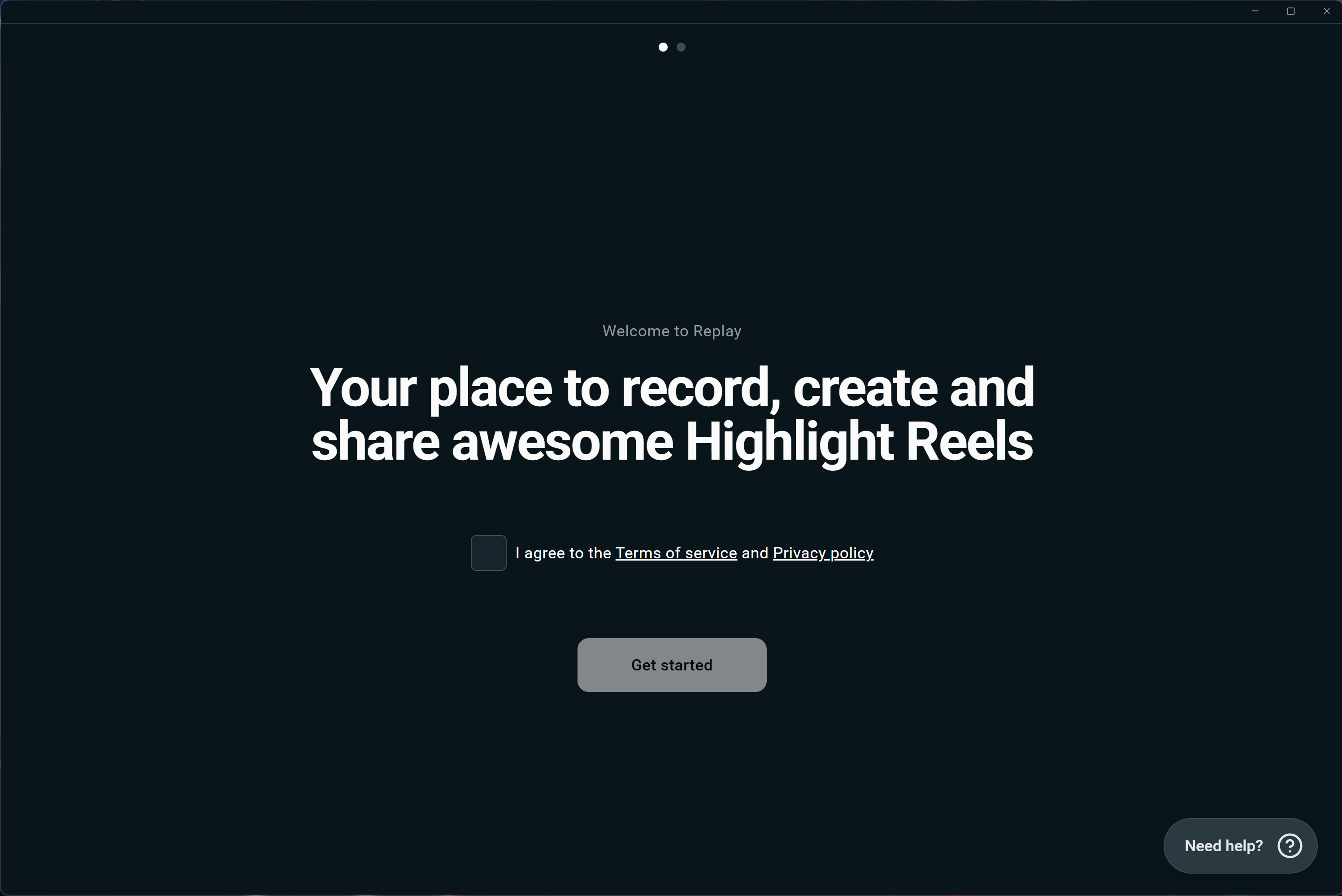
Step 2: Open Replay. Agree to the Terms of Service and Privacy Policy, and then click Get Started.
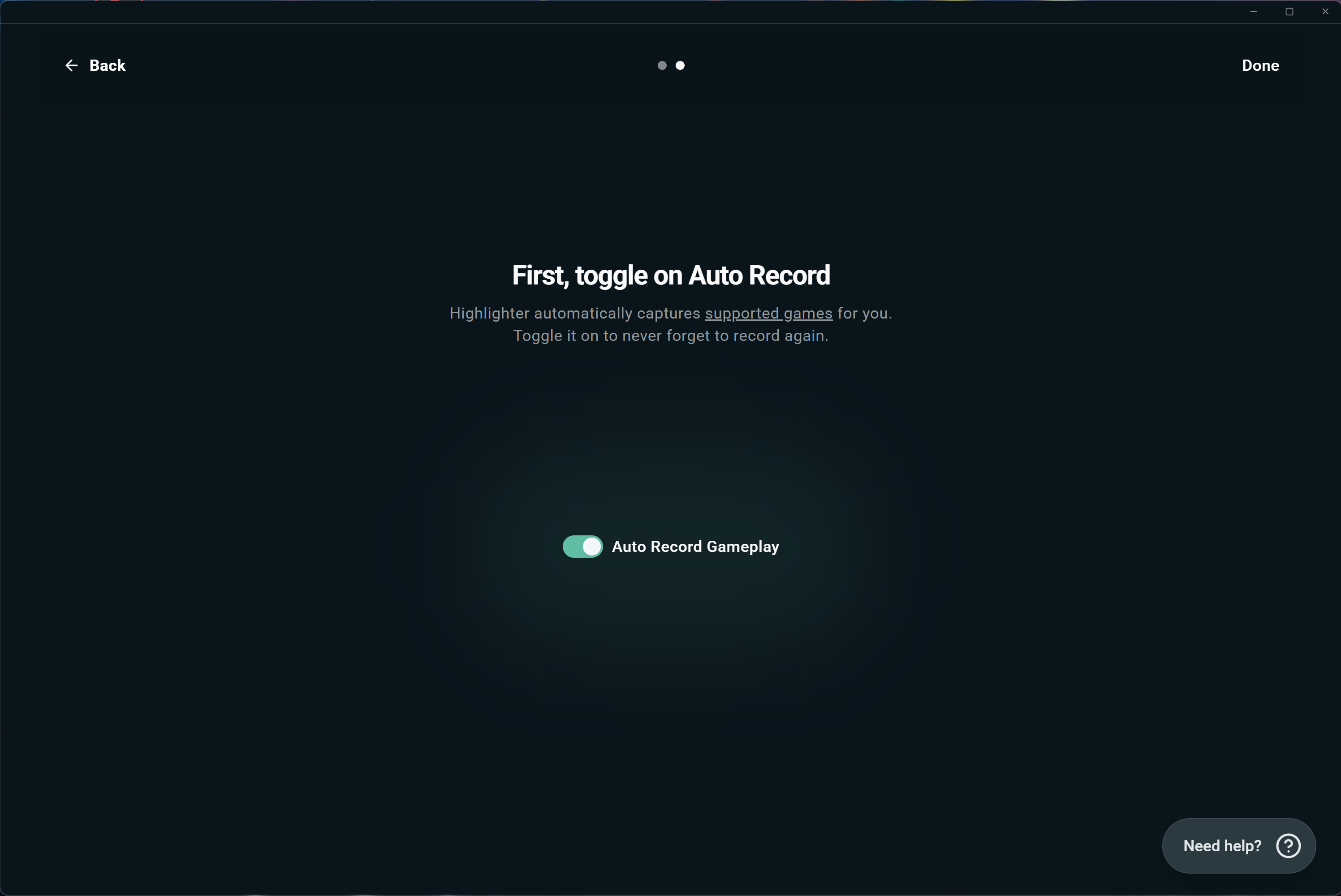
 Step 3: You'll be asked to turn on Auto Record. This lets Replay capture gameplay automatically whenever you launch a supported game. If this is your first time in the app, you'll be prompted to install the Recorder Extension so Replay is able to record your screen. Click Install. Then click Activate Auto Record on the popup to finish setup.
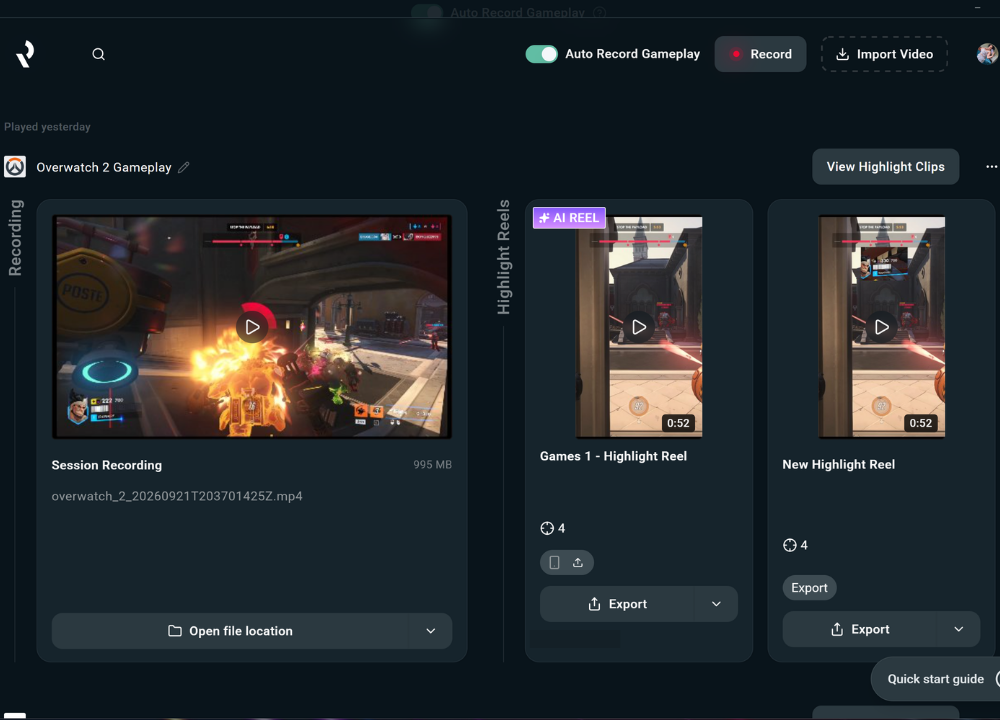
Step 4: Launch your game and play! Replay will record in the background and log your gameplay highlights to compile them all into a reel afterwards.
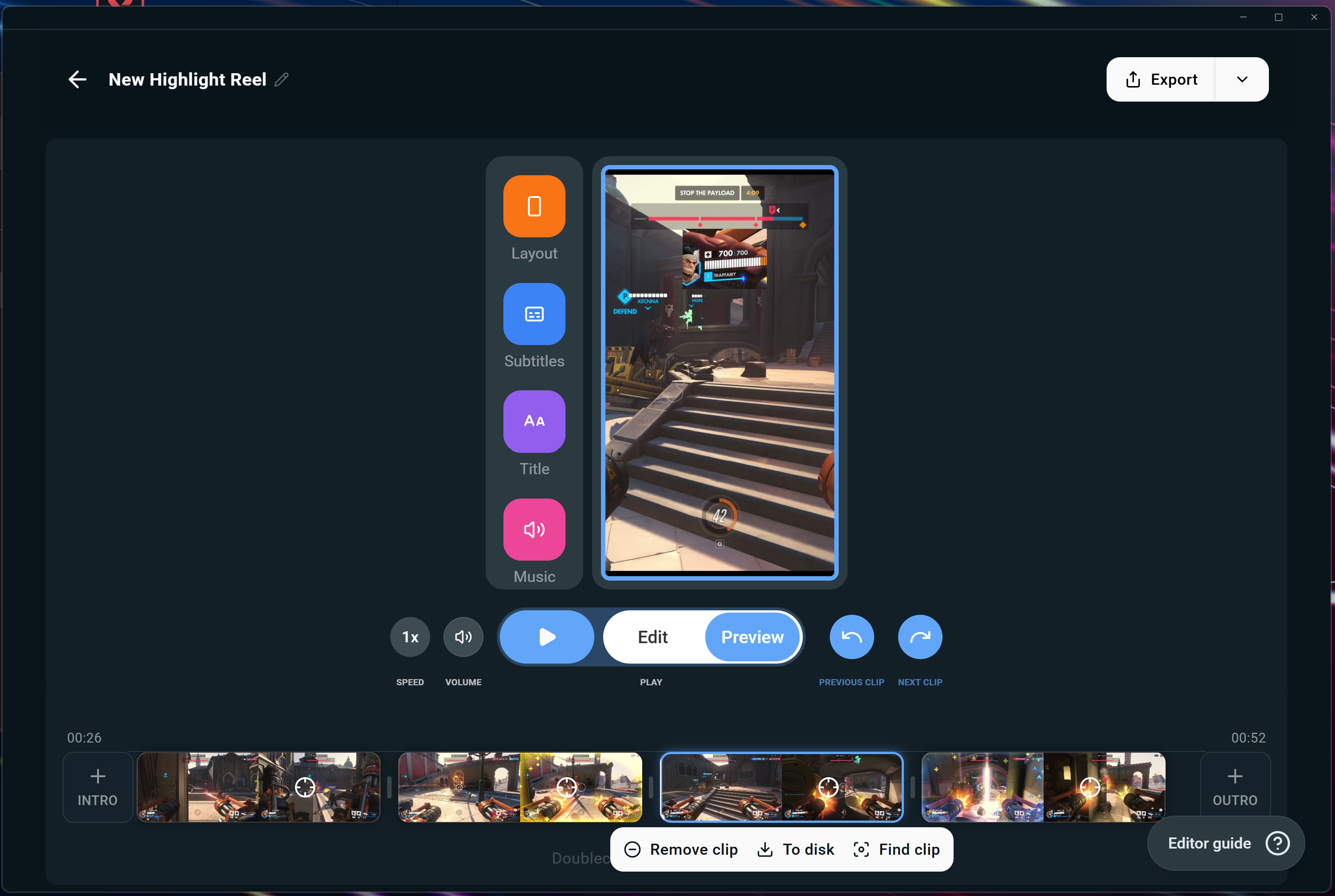
Step 5: Head back into Replay after your gaming session to view your clips. Here you'll be able to trim, edit, compile, and rearrange all of the clips from your gaming session into a final video.
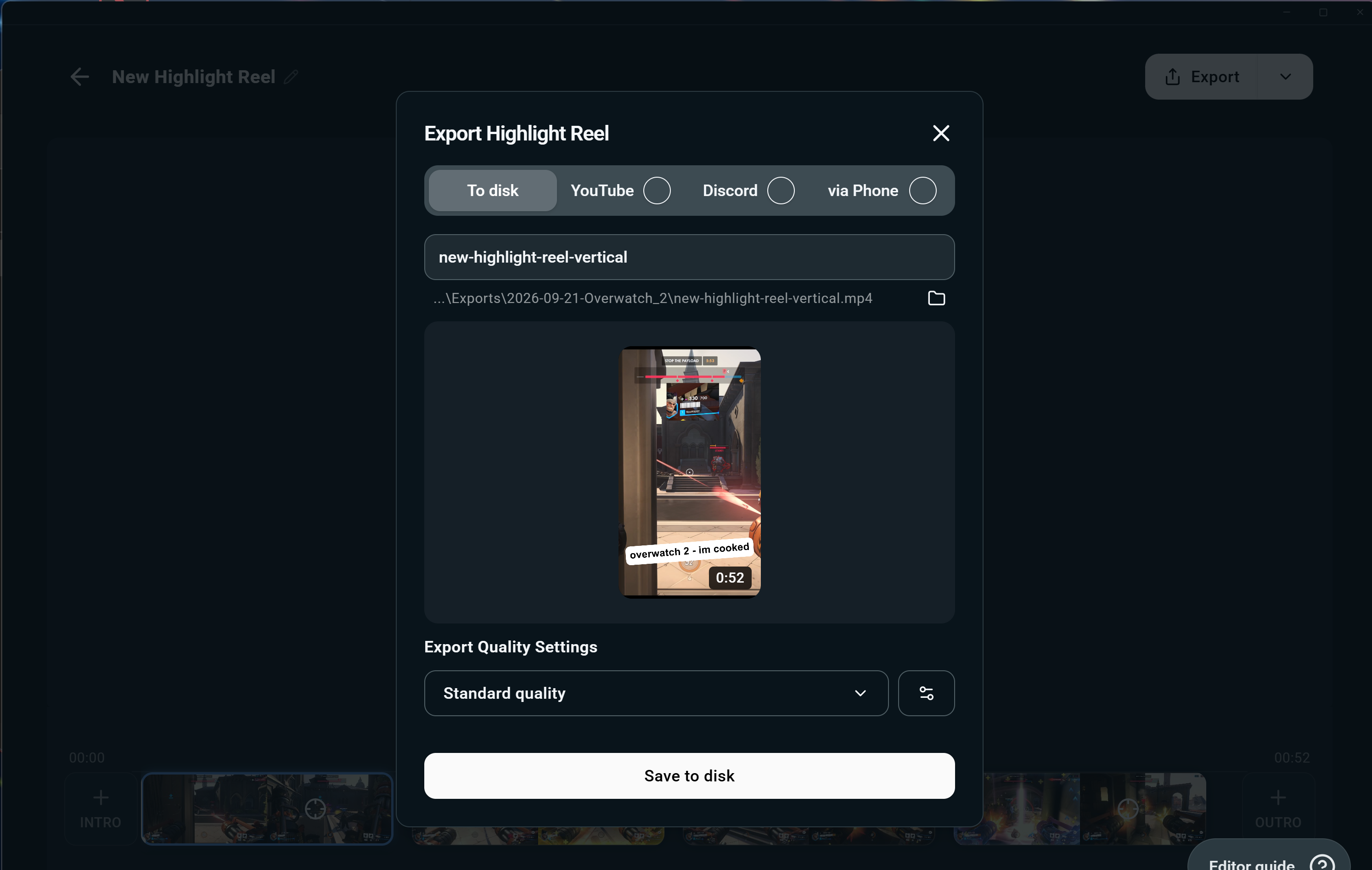
Step 6: Once you've added your title, tweaked the layout, and added music, you can click the Export button in the top right corner and then choose your export quality settings.
Tips for Making the Most of Replay
Replay is truly what you make it. Below are some helpful tips for getting the most out of this feature.
- Stream Regularly: The more gameplay you share, the more highlight material you’ll have to share, potentially growing your audience.
- Customize Your Edits: Don’t skip on editing! Add your unique touch with subtitles, intros, and music to make your reels stand out.
- Experiment with Formats: Export vertical videos for TikTok or horizontal for YouTube to reach a wider audience.
What’s Next for Replay?
Streamlabs is committed to expanding the capabilities of Replay. With support for additional games and platform integrations (like TikTok) on the horizon, this is just the beginning.
Start creating highlight reels with Replay today.